Note: BTSync has been renamed to Resilio Sync. The app still works the same way. For peer-to-peer file sync, also consider SyncThing as a free, open-source alternative.
Btsync is one of those applications that can help you create your own environment of a file-sharing system. Your seedbox is a remote server and your mobile phone and desktop or tablet are remote devices.
If you want to transfer a single file, then the norm is to establish an FTP connection, find the file your want to transfer, and download it to your device, manually. With Btsync, your headache of transfer is eliminated by using synchronization of folders.
All you have to do is set up a folder and Btsync will synchronize all the files in that folder to all your device for you.
Let move to actually learning how to set up Btsync.
Steps to Configure Btsync/Resilio App with a Seedbox
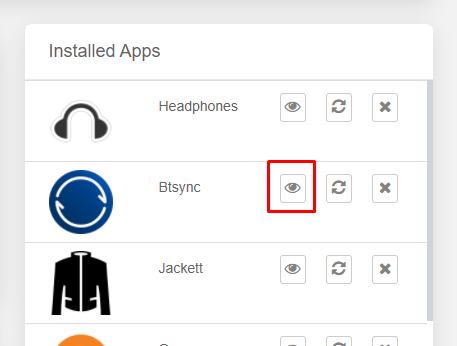
Step 1: Open your Evoseedbox Dashboard and find btsync application and click on install.
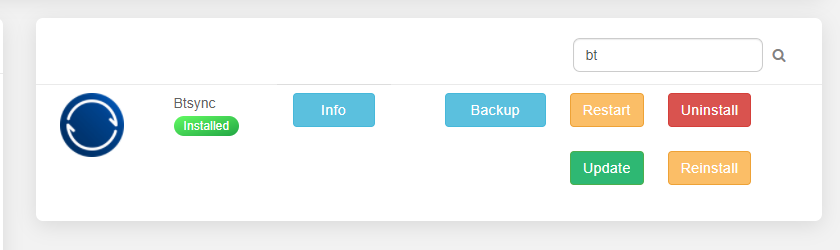
Step 2: While the app installs, click on the info button to download Resilio on your device. You will be redirected to the Resilio website.

Step 3: Click the button on the top right corner.

Step 4: Download the Resilio application on your device.
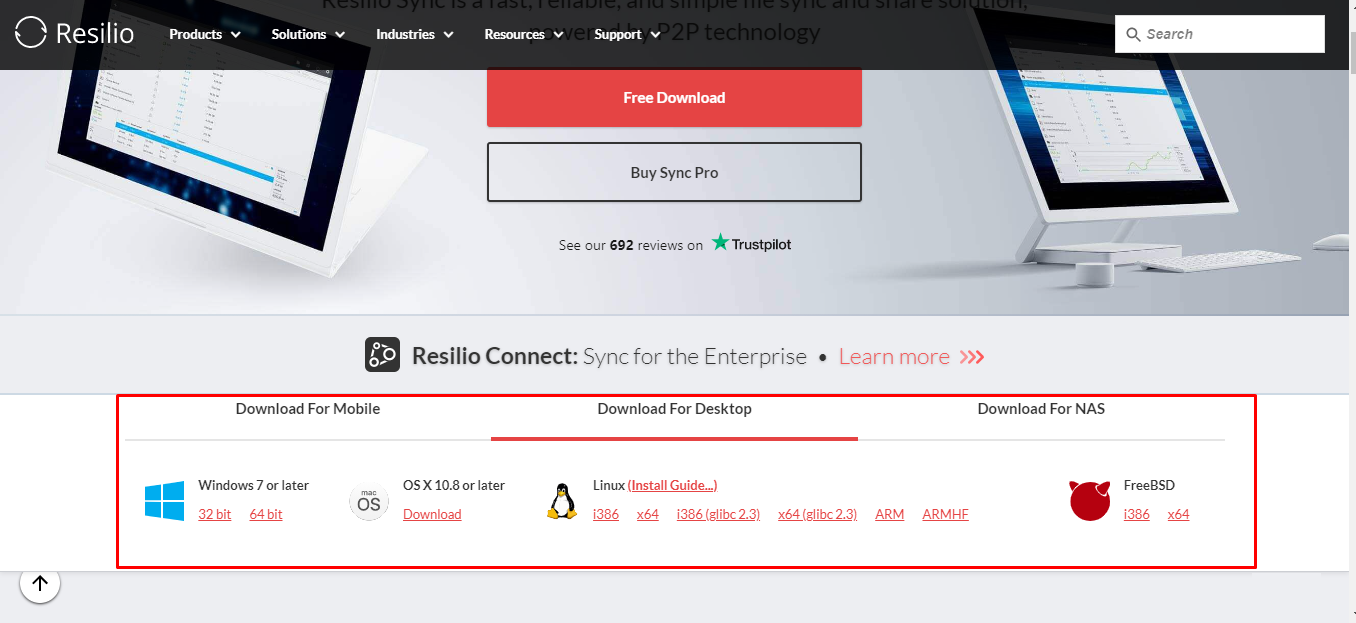
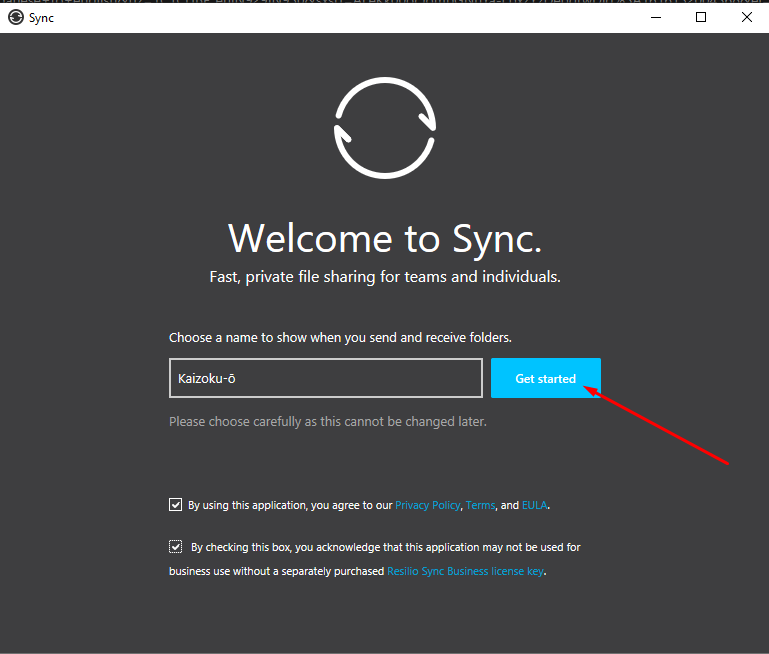
Step 5: Install the app and start the configuration.
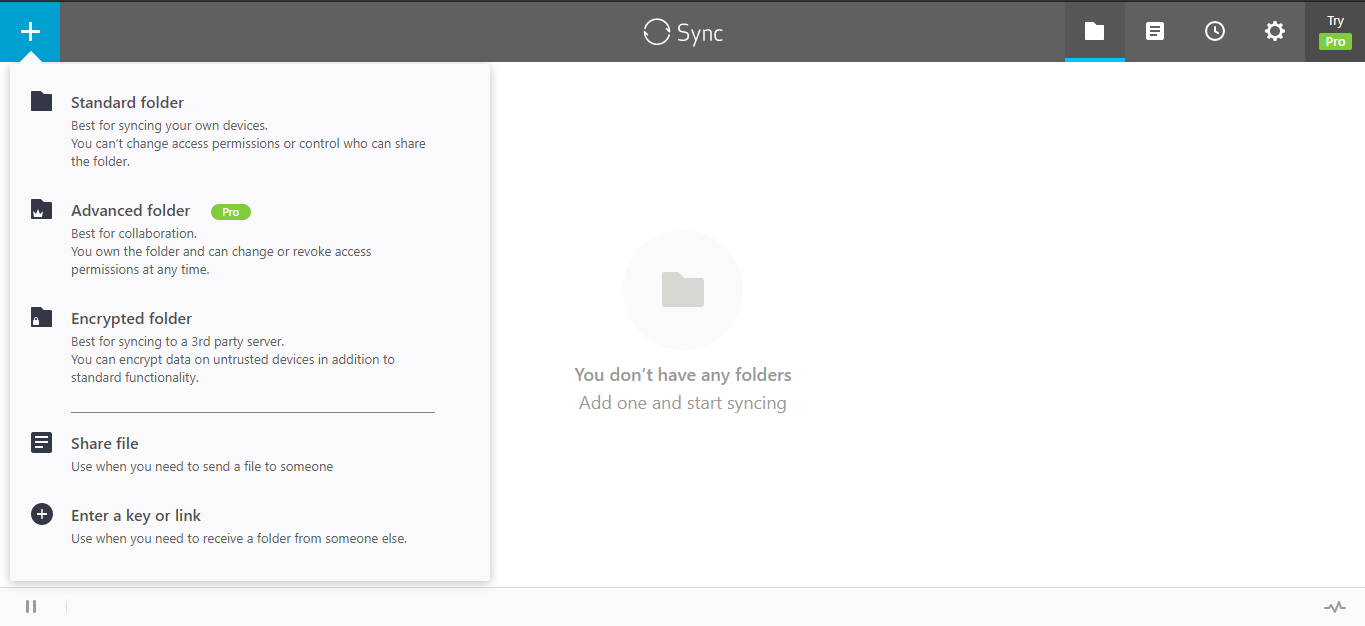
Step 6: Click on the “+” sign to find the functionalities.
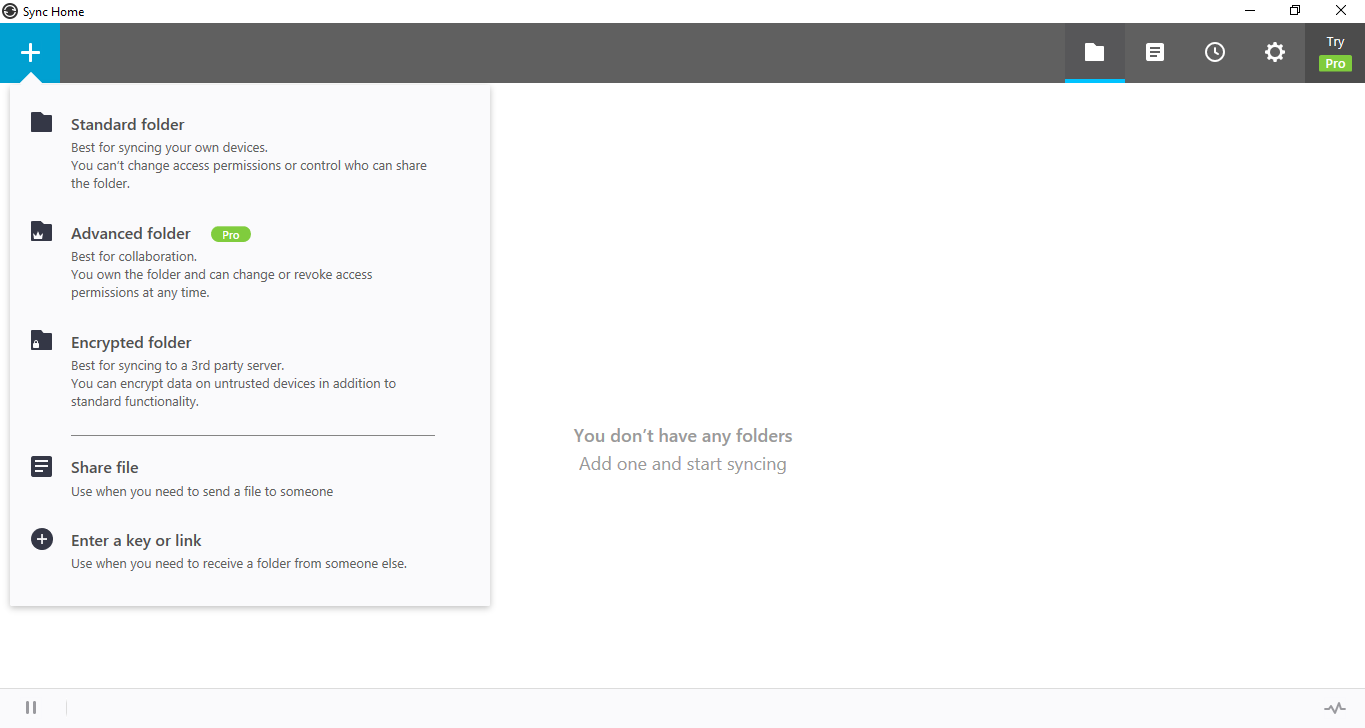
How to transfer files from seedbox to remote device using Btsync.
Step 1: Open the Btsync app on your seedbox.
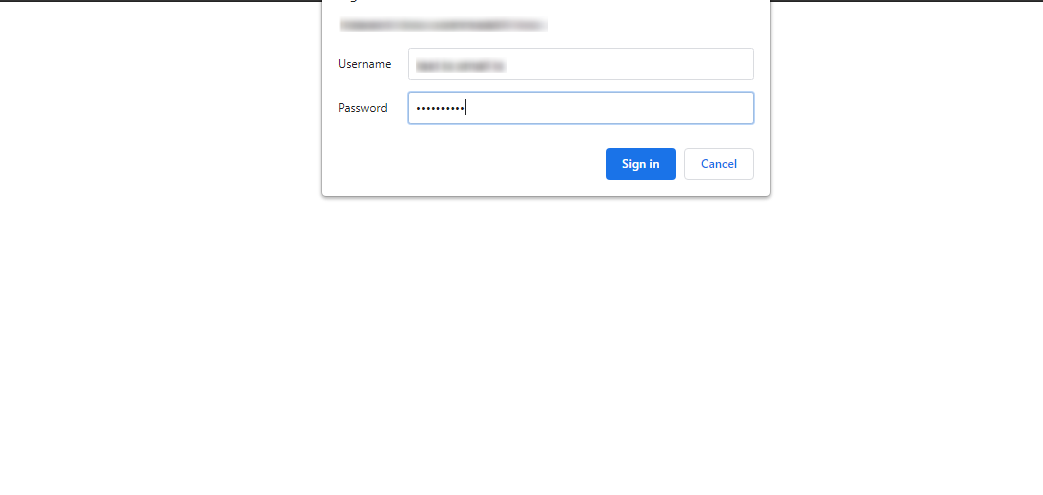
Step 2: Put in the FTP credentials from your Evoseedbox Client Area.
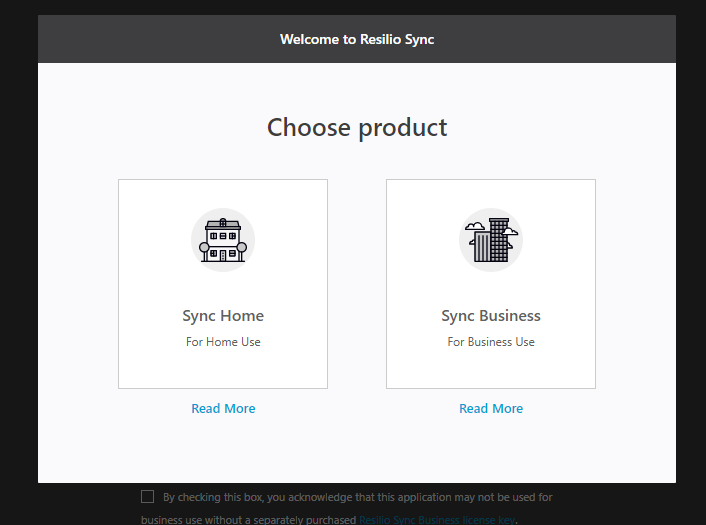
Step 3: Select the product.
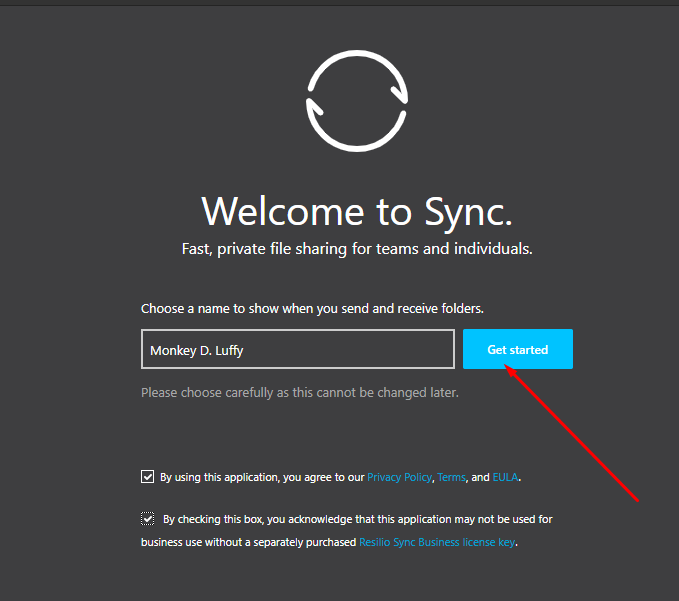
Step 4: Setup the profile from your seedbox.
Step 5: Click on the plus sign and select any type of file transfer.
(For this tutorial, we will go with Share File)
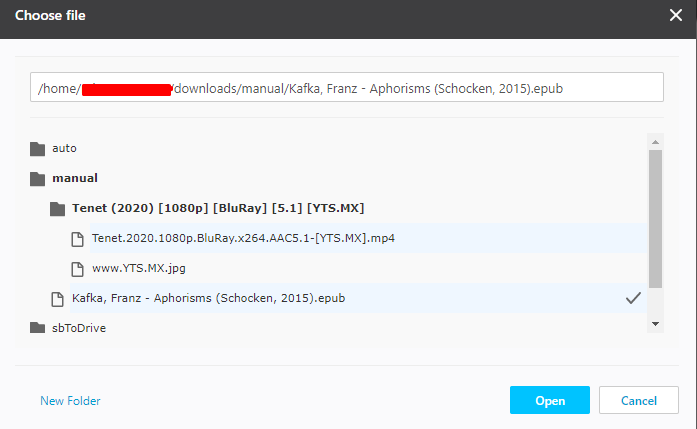
Step 6: Select the file from your seedbox.
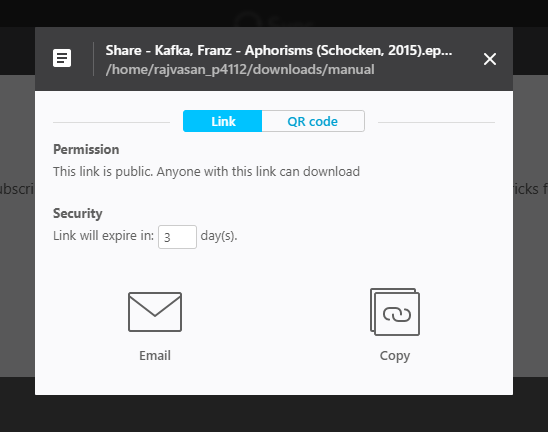
Step 7: Select the medium using which you want to share the file.
You can use a QR code to directly get it on your device. Or you can email the link or copy and send the link to the person. If you want to transfer a file from your seedbox to your device then copy the link.
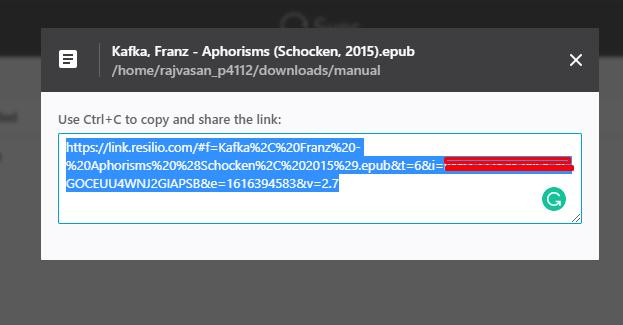
Step 8: Copy the link and open Resilio on your device.
Step 9: Click the “+” button and select the “Enter a key or link” option.
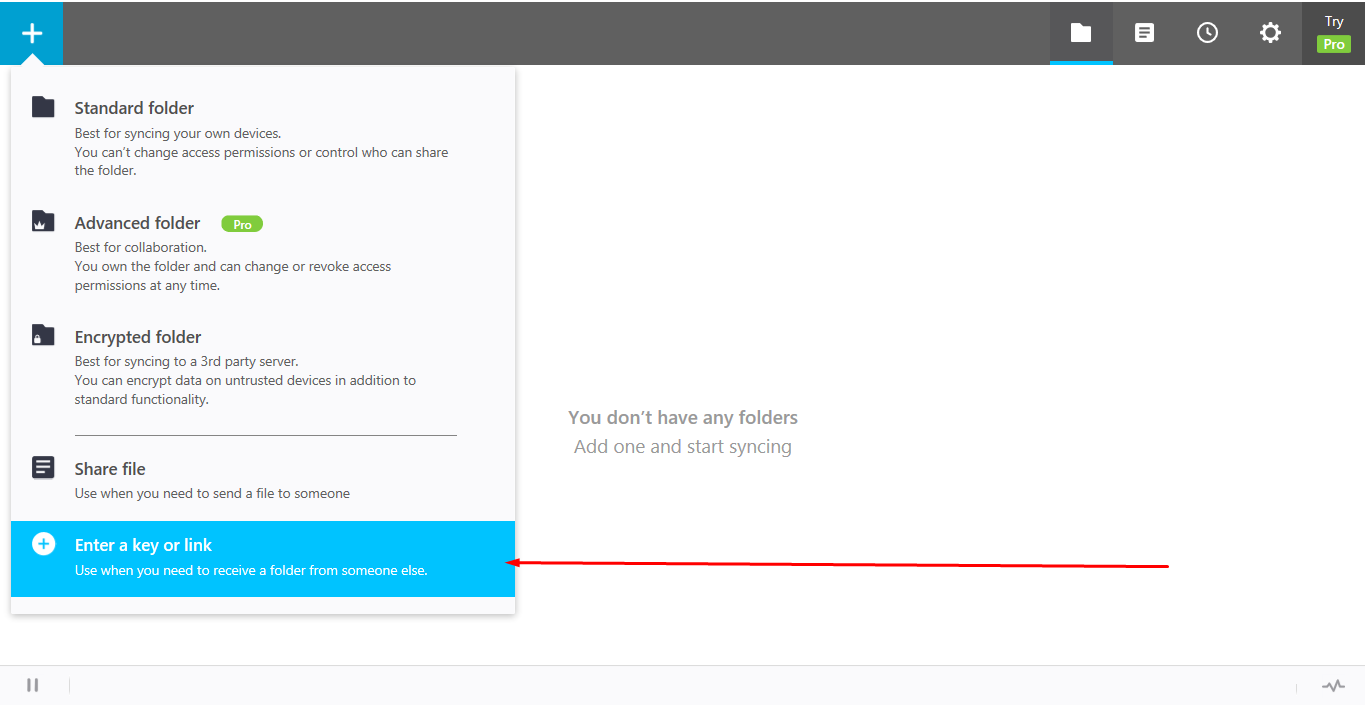
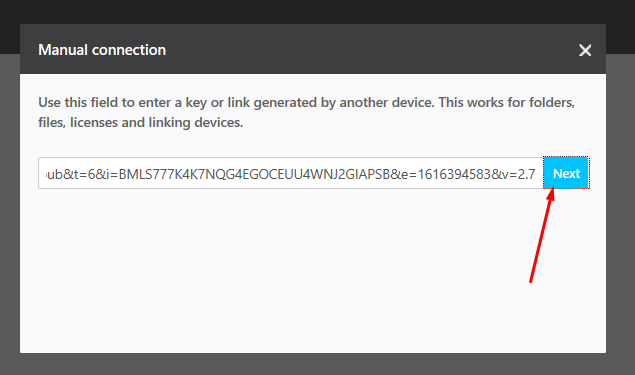
Step 10: Paste the copied link and click on next.
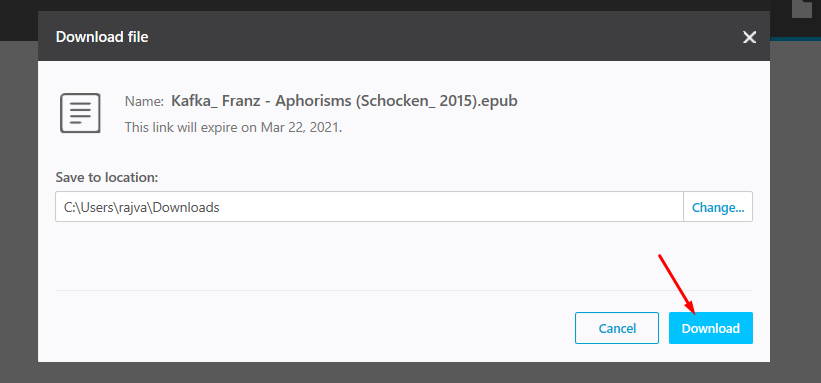
Step 11: Select the folder to which you want to download your file and click on the download button.
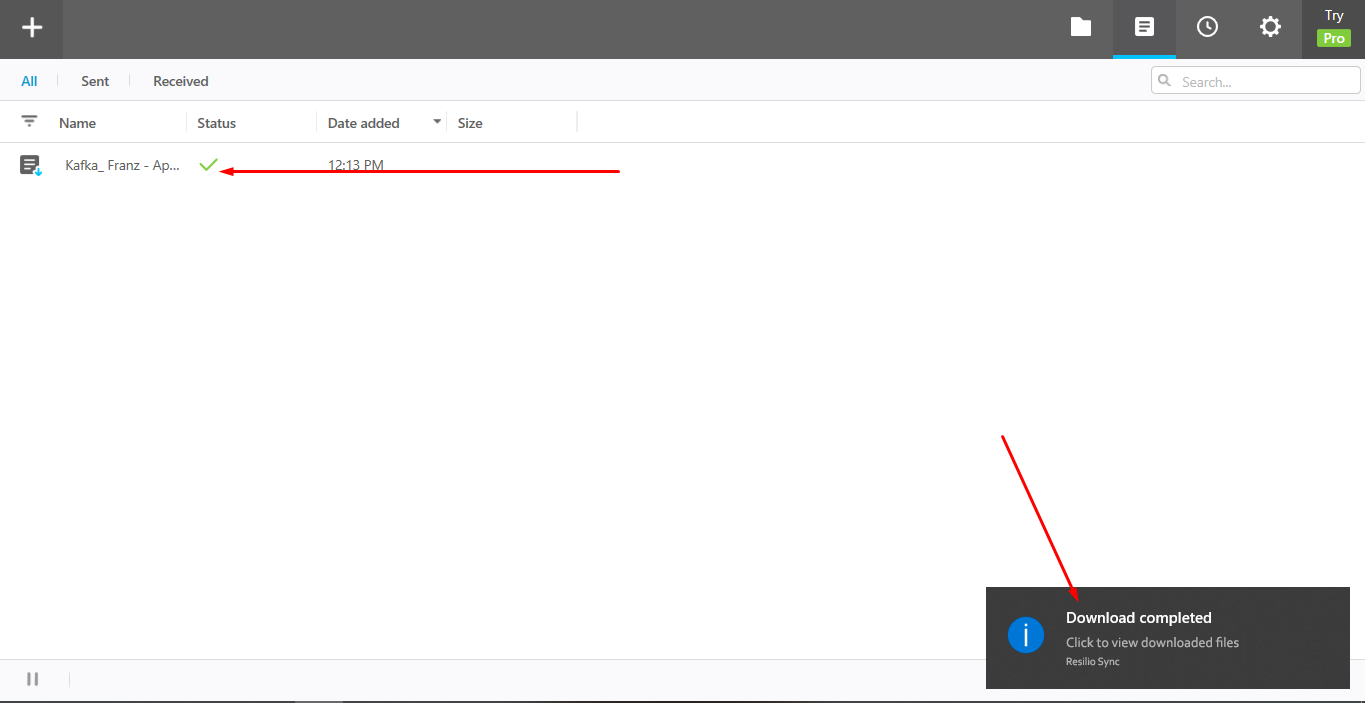
Step 12: Your file is successfully transferred from your seedbox to your device.
Using this method you can share files from your device to your seedbox as well and also you can transfer files to your peers using Btsync.


