Evoseedbox Evoseedbox Evoseedbox Evoseedbox
  • English
    • Nederlands (Dutch)
    • Français (French)
    • Deutsch (German)
    • 日本語 (Japanese)
    • 한국어 (Korean)
    • Português (Portuguese (Portugal))
    • Español (Spanish)
    • العربية (Arabic)
    • Русский (Russian)
    • Türkçe (Turkish)
  • Home
  • Wiki
  • Forum
  • Pricing
Client Area

Getting Started

12
  • Basics of Getting Started
  • Login Details
  • FTP Credentials
  • Choosing a Seedbox Plan
  • How to Use Your Seedbox Dashboard
  • How to Reset Your Seedbox
  • How to Restart Your Seedbox
  • Unavailable Applications in Seedbox
  • Getting Started with One-Click Installs
  • How to Update an App
  • What Is a Seedbox? Complete Beginner’s Guide
  • Understanding Seedbox Architecture

ruTorrent

18
  • ruTorrent – Getting Started
  • How to Log into ruTorrent
  • Adding a Torrent to Your Seedbox
  • Fix Torrent with a Red Cross Error
  • Guide to Increase Download and Upload Queues in ruTorrent
  • Restarting ruTorrent on Seedbox
  • How to Change Your ruTorrent Client Password
  • How to Create Torrents Using ruTorrent
  • Extracting an Archive with ruTorrent
  • Creating an Archive with ruTorrent
  • Using Watch Folder for Large Torrents
  • Setting Up Irssi with ruTorrent
  • Chrome Remote Torrent Adder
  • Firefox Torrent Control Remote Torrent Adder
  • MediaStream Plugin User Guide
  • AutoTools: Auto-Move Completed rTorrent Downloads
  • Torrent Seeding Rules and Upload Limits Explained
  • Common ruTorrent Errors and How to Fix Them

File Management

17
  • How to Transfer Data from a Previous Provider to Your Seedbox via FTP
  • How to Get Faster FTP Downloads
  • How to Get Maximum Transfer Speed Using FTP in FileZilla
  • Why Do I Have Slow FTP Download Speeds?
  • Sync Files Between Your Seedbox and PC
  • How to Access Your Seedbox Files Using HTTP Access
  • How to Transfer Files from Your Seedbox to Google Drive
  • Rclone Google Drive Setup
  • Duplicati Backup Setup
  • FileBot – Renaming Files
  • SCP File Transfer Guide: Copy Files To and From Your Seedbox
  • Rclone Browser: Visual File Management for Cloud Sync
  • Create Additional FTP Users on Your Seedbox
  • Mount Your Seedbox via SSHFS and WebDAV
  • Filegator: Web File Manager for Your Seedbox
  • SFTP Setup Guide: Secure File Transfer for Your Seedbox
  • How to Use BTSync with Your Seedbox

Streaming

20
  • How to Use Secure Server Connections in Plex
  • How to Add Libraries in Plex and Synchronize Your Streaming Content
  • Synclounge Setup Guide
  • Tautulli Setup Guide
  • How to Stream Videos from Seedbox on VLC
  • How to Use Emby with Your EvoSeedbox
  • How to Use Peerflix with Your EvoSeedbox
  • How to Stream from Seedbox with Kodi (Complete Setup Guide)
  • Improving Plex Server Performance on Your Seedbox
  • 4K Plex Streaming Guide for Seedbox Users
  • Automatic Plex Collections: Organize Your Library in 6 Steps
  • Plex Library Permissions and User Management on Seedbox
  • HandBrake Guide: Video Encoding on Your Seedbox
  • Understanding Video Codecs: H.264 vs H.265 for Seedbox Users
  • Create a Self-Hosted Streaming Service on Your Seedbox
  • Naming Your Plex Media Server Correctly
  • Audiobookshelf: Self-Hosted Audiobook Server on Your Seedbox
  • Navidrome: Self-Hosted Music Streaming on Your Seedbox
  • How to Connect Jellyfin with Your Seedbox
  • Setting Up Plex on Your Seedbox

Automation

18
  • How to Use Lidarr with Your EvoSeedbox
  • What is Medusa and How to Use It with Your Seedbox
  • Ombi Setup Guide
  • Requestrr Part 1 – Setting Up the Discord Bot
  • Getting Started with Overseerr on Your Seedbox
  • Bazarr Setup Guide: Automatic Subtitles for Your Seedbox
  • Readarr Setup Guide: Automate Ebook Downloads on Your Seedbox
  • Remote Path Mapping Explained: Fix Sonarr and Radarr Import Errors
  • Sonarr and Radarr Quality Settings Guide (Including 4K)
  • Quick Setup: Complete *arr Stack (Sonarr + Radarr + Prowlarr + Deluge)
  • Connect Home Sonarr/Radarr to Your Remote Seedbox
  • Prowlarr Setup: Unified Indexer Manager for Your Seedbox
  • Autobrr Setup: Automated Torrent Grabbing for Your Seedbox
  • Jellyseerr Setup: Media Requests for Jellyfin on Your Seedbox
  • How to Use Radarr with Your Seedbox
  • Setting Up Sonarr on Your Seedbox
  • How to Use Jackett with Your Seedbox
  • How to Use CouchPotato with Your Seedbox

Apps & Tools

24
  • Beginner’s Guide to Nextcloud
  • Calibre Setup Guide
  • How to Set Up ZNC
  • Electorrent Setup Guide
  • What is JDownloader and How to Use It
  • What is Pyload and How to Use It
  • Mattermost Guide
  • Setting Up TeamSpeak
  • NZB360 Android App Setup
  • Installing and Setting Up Clarkson
  • Evobot User Guide
  • The Definitive Guide to Deluge on Your Seedbox (2026)
  • Seedbox Remote Desktop: X2Go and noMachine Setup Guide
  • Docker for Beginners: A Seedbox User’s Guide
  • NZBGet Setup Guide: Usenet Downloads on Your Seedbox
  • SyncThing Setup: Peer-to-Peer File Sync for Your Seedbox
  • Portainer Setup: Manage Docker Containers on Your Seedbox
  • SABnzbd Setup Guide: Usenet Downloads on Your Seedbox
  • Homarr: Dashboard for All Your Seedbox Apps
  • Calibre-Web: Access Your Ebook Library from Anywhere
  • Docker App Management: How Your Seedbox Apps Work
  • Deemix Setup Guide
  • OwnCloud Setup Guide
  • How to Use Subsonic with Your EvoSeedbox

Networking & VPN

13
  • OpenVPN Connect Setup
  • Reroute Your Seedbox
  • OpenSSH Tutorial
  • WireGuard VPN Setup: Complete Guide for Every Platform
  • Linux Basics for Seedbox Users: Essential Commands
  • SSH Key Authentication: Passwordless Login to Your Seedbox
  • Nano Text Editor Guide for Seedbox Users
  • SSL Certificate Setup for Seedbox Web Services
  • Seedbox Speed Test: Monitor Your Performance with LibreSpeed
  • Understanding and Managing Your Seedbox Bandwidth
  • Split Tunneling with WireGuard on Android
  • Authelia: How Authentication Works on Your Seedbox
  • WireGuard VPN Setup: Connect Securely to Your EvoSeedbox

Troubleshooting

4
  • Why You Are Not Able to Access Your Seedbox
  • 5 Quick Troubleshooting Tips for Your Seedbox
  • Understanding Disk Usage and Quotas on Your Seedbox
  • Why Is My Seedbox Slow?

Account & Billing

1
  • How to Terminate My Service
View Categories
  • Home
  • Docs
  • File Management
  • Why Do I Have Slow FTP Download Speeds?

Why Do I Have Slow FTP Download Speeds?

6 min read

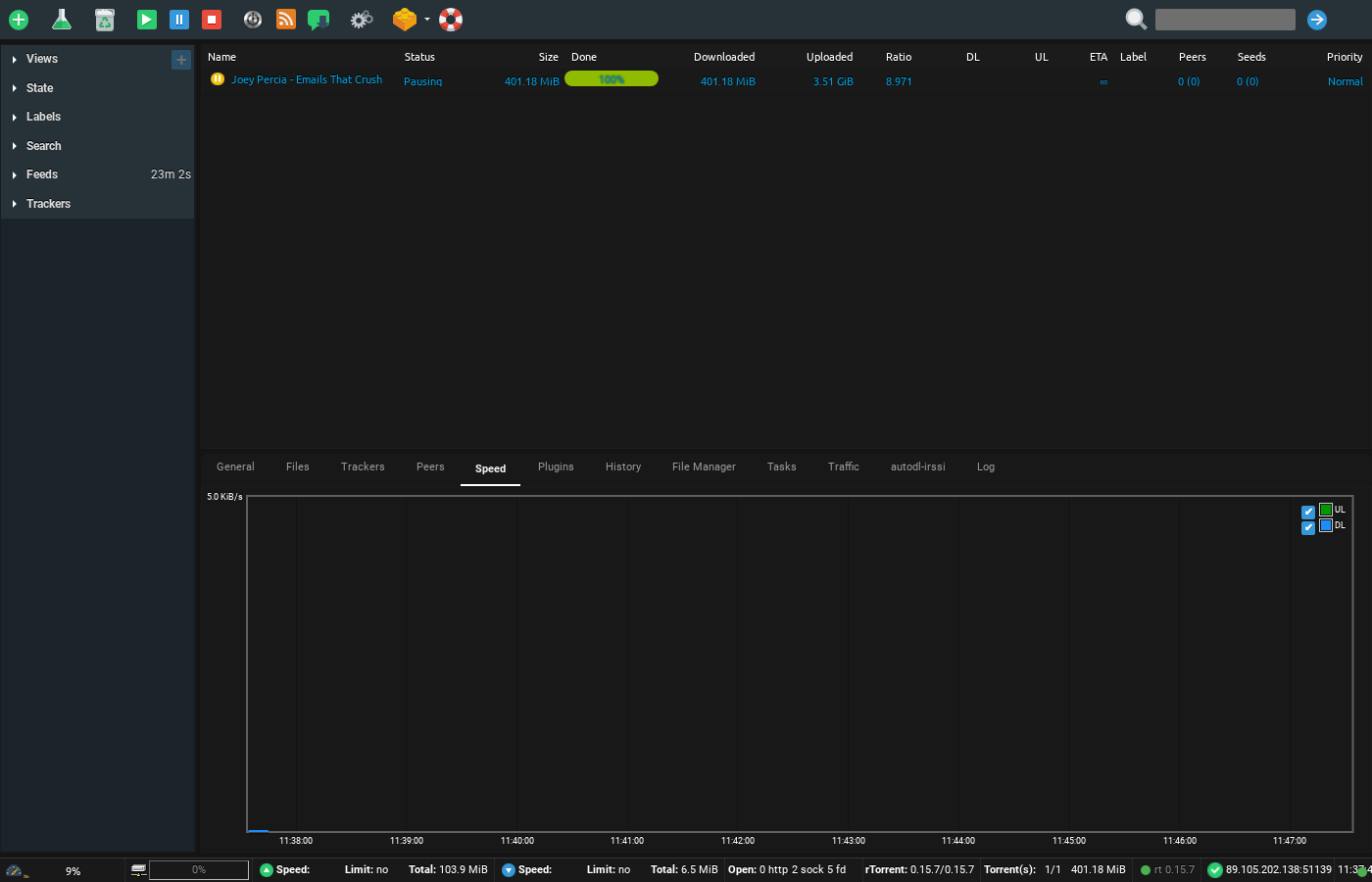
Screenshot of ruTorrent Speed tab showing download and upload speed graph over time
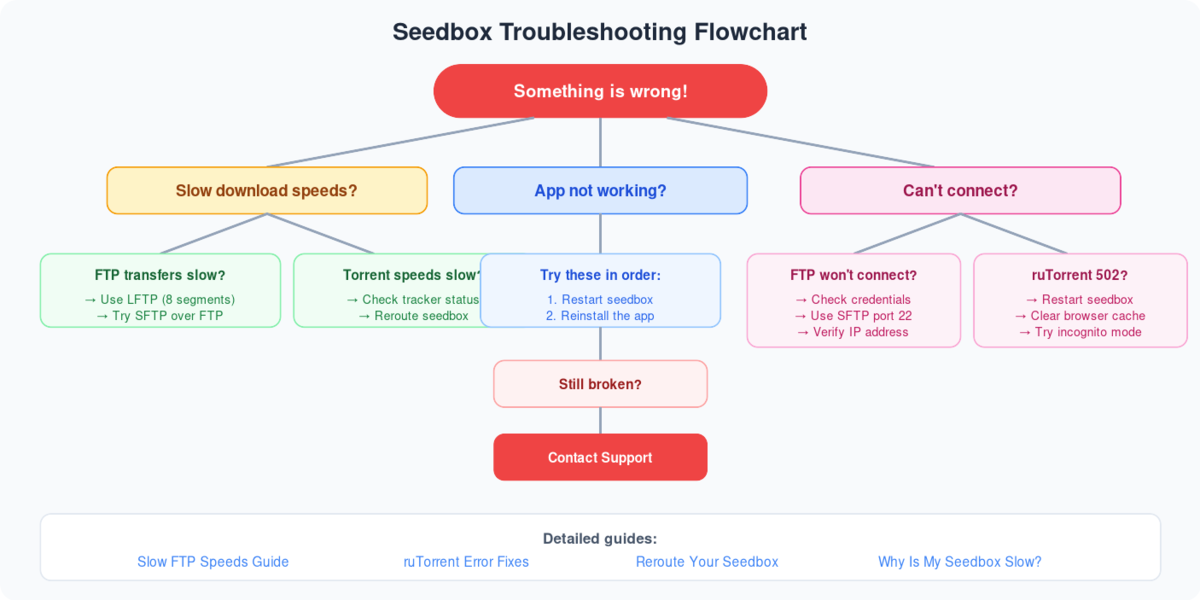
Troubleshooting flowchart for seedbox issues: slow speeds, app errors, and connection problems with step-by-step solutions

FTP is one of the most common methods used for transferring files from a remote server to your computer. FTP transfer can have an ideal experience if FTP speeds are maximized but that is not always the case.In this guide, we will provide all the information needed so that you can troubleshoot your problems and find optimal solutions, and use most of your resources for better speed performance.

Table of Contents:

  1. Possible speed limitations:
    1. FTP speeds metrics
    2. Network Bandwidth limitations
    3. Network hardware limitations
    4. Testing FTP speeds
  2. FTP working mechanism and protocols:
    1. How FTP works?
    2. Alternative to FTP protocol
  3. Configuring your FTP client for maximum speed 
    1. Concurrent Downloads
    2. Segmented Downloads
    3. Other settings which can improve FTP speeds
  4. Troubleshooting slow FTP speed
    1. Verifying network
    2. Using wired connection vs Wireless network
    3. Checking your Firewall
  1. Possible Speed limitationsYour network bandwidth is the most important factor which determines your FTP speed. Knowing your network bandwidth would enable you to understand the network resources available at your end.
    • FTP Speeds metrics:Your ISP may have provided your bandwidth in terms of MB/s or Mib/s which have different meanings. So let’s first get our speeds metrics understanding right. We will use 1 Mbps (Megabits per second) as the base unit.
  • One Mbps = 1000 Kbps (Kilobits per second). 
  • 1 Mbps = 125 KB/s (Kilobytes per second).
  • One Mbps = 976.5 KiB/s (Kibibites per second). 
  • 1 Mbps = 122.07 KiB / s (Kibibytes per second). 
  • One Mbps = 0.953674 Mib/s (Mebibites per second).
  • 1 Mbps = 0.125 MB/s (Megabytes per second).
    • Network bandwidth Limitations:
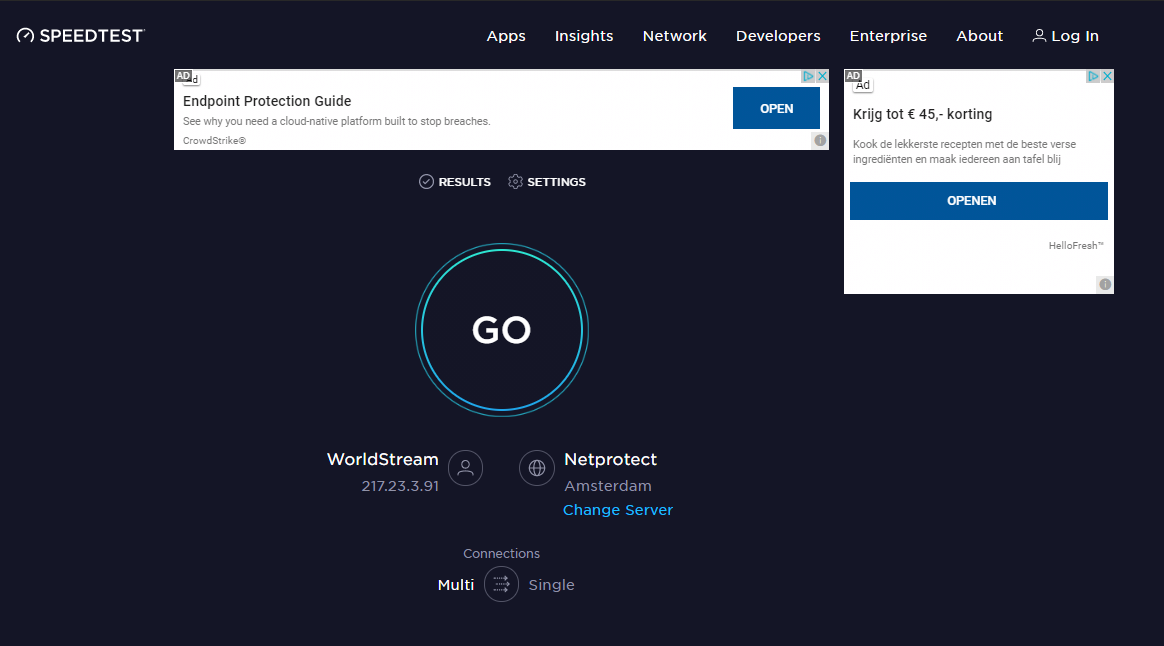
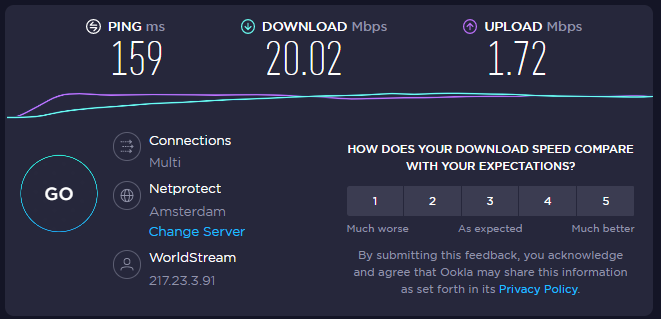
      Most ISPs advertise their Internet download speeds in Mbps. While it is technically correct, it confuses many consumers, because their testing tools display other metrics. Some ISPs also advertise only their asymmetrical speeds. They show how incredible their download speeds are but don’t mention the upload speeds, which sometimes are 3x slower. To know your real bandwidth, measure it using online testing tools. You can use tools like ookla speed test which provides you all the details from your upload speed to download speed and also the correct speed metric used for measuring your speed.
Why I Have Slow Ftp Download Speeds

Why I Have Slow Ftp Download Speeds

    • Network Hardware Limitations:
      Your Local machine’s limitations – A computer with low CPU and ram memory can result in slower FTP speeds but a high-end computer with average network bandwidth also doesn’t give encouraging speeds.
      Wi-Fi connections are slower due to packet loss and delay. Wi-Fi protocols like 802.11n support high-speed bandwidth up to 300 Mbps but they are not ideal choice for constant uploading and downloading.
    • Testing your FTP download speeds:
      You can test your FTP download speeds using popular free-to-use tools like Tele2Speedtest. This service allows you to test both the upload and download speed through your FTP client without providing a username and password.


Why I Have Slow Ftp Download Speeds

Why I Have Slow Ftp Download Speeds

Why I Have Slow Ftp Download Speeds

Why I Have Slow Ftp Download Speeds

  1. FTP working mechanism and protocols:
    1. How FTP works?FTP works as a basic server/client protocol. In simple words, a network connection enables you to send and receive files with each other. It uses the TCP/IP protocol model for communication and for file transfer. It uses port number 21 for creating connections but the downside of FTP is that it doesn’t provide encryption.The FTP Client provides: 
  • Seedbox Login credentials.
  • FTP commands. 
  • browse directory

The FTP Server provides

  • Authentication.
  • Directory display
  • Port assignment.

Let’s understand the functionality of FTP keeping seedbox in mind:

  1. Your seedbox provides credentials and IP or hostname to access your seedbox (FTP server) remotely from your computer (FTP client)
  2. You log in remotely into your seedbox from your computer.
  3. From your seedbox you can download files as the FTP server in your seedbox provides authentication and assign port numbers (21,22).
  4.  You can now use your FTP client as an interface to connect to your FTP server as it takes login credentials, sends FTP commands, and browses through the file directory.
  1. Alternatives to FTP:Apart from FTP, there are many other protocols and applications which provide much better security and file transfer speeds compared to FTP. A protocol like SFTP(SSH File Transfer Protocol) works through SSH and provides much better security over FTP. HTTP and HTTPS provide much faster speeds along with good security features which makes it a good alternative to FTP as a whole.
  2. FTP vs SFTPThe main difference between the two protocols (FTPS and SFTP) is their way of functioning. There is a performance overhead on FTPS since it needs multiple ports. For every new transfer file is requested, FTPS requires a new port for the data channel. The upside of this is that the control and data channels run asynchronously in two different connections; this exclusive data channel makes transfers much faster. While the  SFTP needs one port number for all communication to the data channels, making it much easier to secure and with less performance overhead. But having the same channel for control and data can turn out to be a bit slower.
  3. Configuring your FTP client for maximum speed
    1. Concurrent Downloads:The concurrent download is a technical concept where it gives the ability to download multiple files simultaneously at the same time using FTP. FTP applications that support this feature create multiple connections to the server for downloading. It is very beneficial when someone is trying to download a folder of files. Let’s assume that  there is a session bandwidth limitation then creating multiple connections will eventually exceed the provided per session speed which will result in an overall improvement in download speed.Free to use FTP clients which provide concurrent downloads are – FileZilla
    2. Segmented Downloads:A fragmented download is actually a file transfer concept where a large file at the sender end is broken into fragments or pieces and these pieces are sent to the receiver through multiple FTP connections and at the receiver’s end these pieces are recombined to produce the original file.In this FTP transfer technique fragments of a single file are downloaded simultaneously through multiple FTP connections and after downloading these fragments these are recombined to create the original file.Free to use FTP apps that provide this capability are: BitKinex, CuteFTP Pro, Progressive Downloader (MAC)
    3. Other settings which can improve FTP speedsFTP Speed limits: Please make sure that your FTP client does not have any download/upload speed limits. FTP active and passive mode: If your FTP is hosted with NAT( proxy or VPN), the FTP Passive mode should be configured. The passive mode seems to be slower than active.
  4. Let’s verify the network Loss of packets within the network can also contribute to slower FTP  speeds.
  5. Ping the local gateway

Related Speed Guides #

  • Get Faster FTP Downloads
  • Maximize FileZilla Speed
  • Reroute for Better Speeds
  • Why Is My Seedbox Slow?
Updated on March 15, 2026

What are your Feelings

  • Happy
  • Normal
  • Sad

Share This Article :

  • Facebook
  • X
  • LinkedIn
  • Pinterest
How to Get Maximum Transfer Speed Using FTP in FileZillaSync Files Between Your Seedbox and PC
Table of Contents
  • Related Speed Guides

We create amazing Seedboxes
for everyone to use 😊

Important Links

Scholarship for CS

Refund Policy

Privacy Policy

Terms of service

Cookie Policy

Acceptable Use Policy

Get in Touch

Contact Us

[email protected]

© 2025 Evoseedbox | All rights reserved. By Evo Created with ❤️

  • Nederlands (Dutch)
  • English
  • Français (French)
  • Deutsch (German)
  • 日本語 (Japanese)
  • 한국어 (Korean)
  • Português (Portuguese (Portugal))
  • Español (Spanish)
  • العربية (Arabic)
  • Русский (Russian)
  • Türkçe (Turkish)
Evoseedbox
  • English
    • Nederlands (Dutch)
    • Français (French)
    • Deutsch (German)
    • 日本語 (Japanese)
    • 한국어 (Korean)
    • Português (Portuguese (Portugal))
    • Español (Spanish)
    • العربية (Arabic)
    • Русский (Russian)
    • Türkçe (Turkish)
  • Home
  • Wiki
  • Forum
  • Pricing
Client Area

