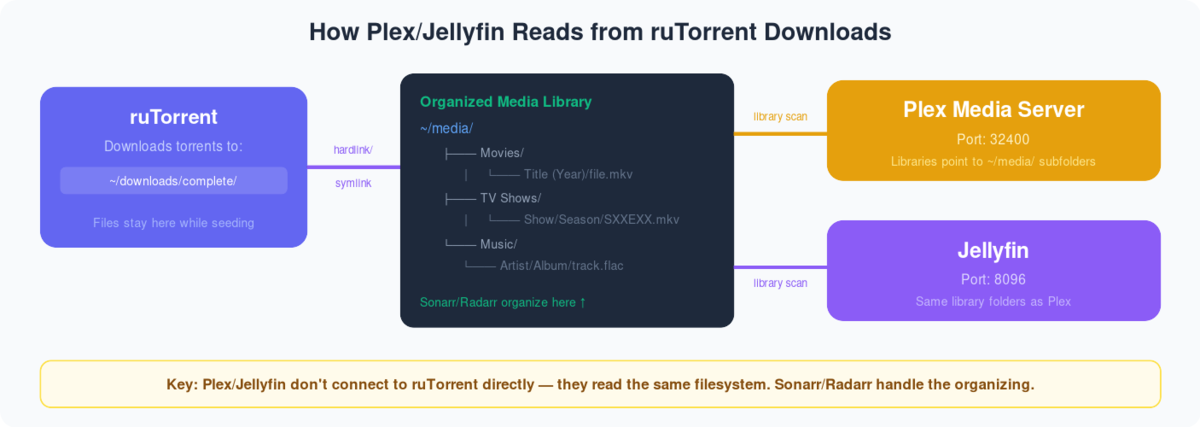
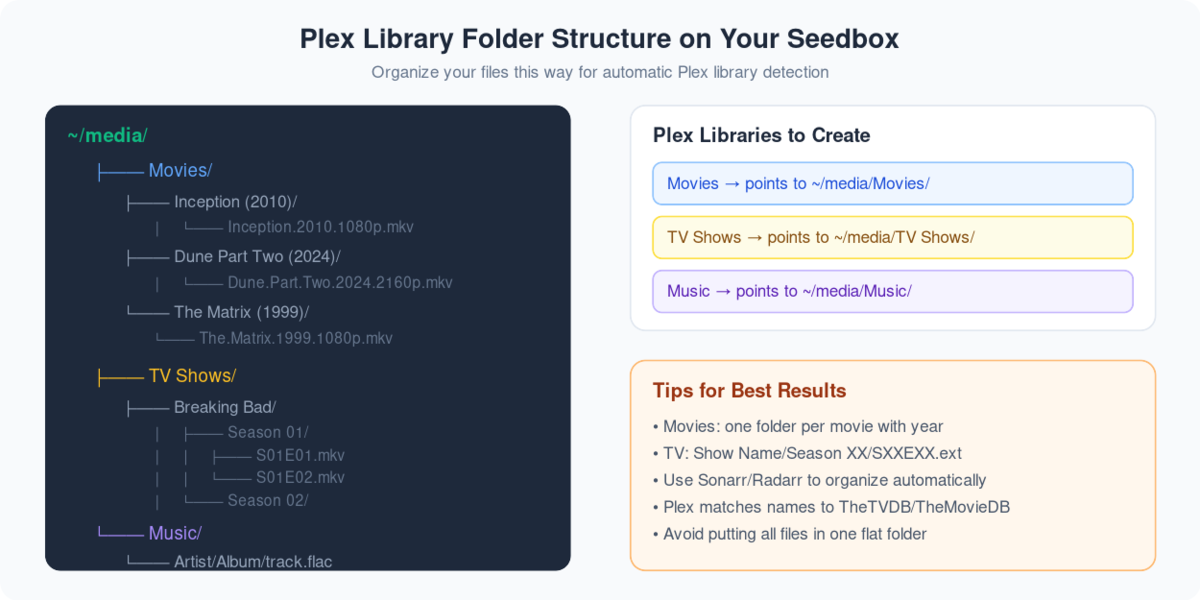
Through this guide, you’ll be able to add libraries in plex and synchronize your streaming content after downloading through rutorrent on your seedbox. First of all, we need to understand what are plex libraries, they are merely representations of media types that you keep in the form of streaming content on your seedbox. It helps you to divide your content into groups so that you can filter and navigate the content in an easier manner.So, let’s look in to the steps you need to follow:
- Log in it your Plex Account.
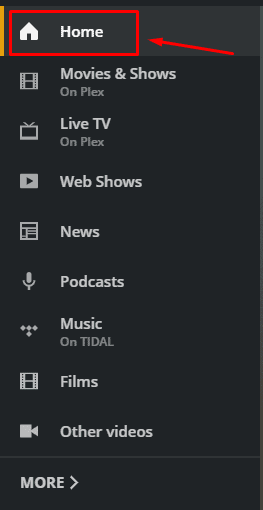
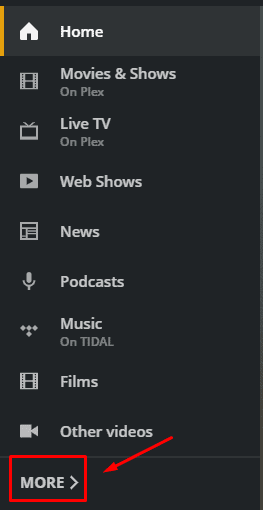
- Go to the ‘Home’ section and on the left side of the screen and click on more options at the bottom of the palette.
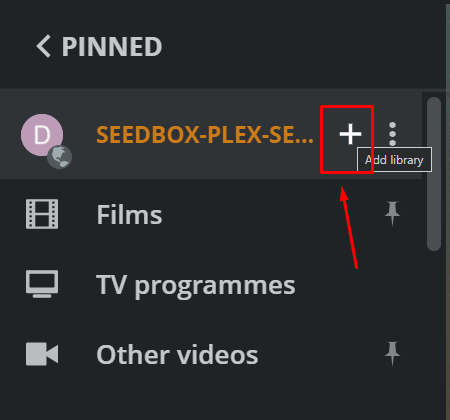
3. You will see the seedbox plex server, you might have a different name of the server. Click on ‘+’ button to add a new library.
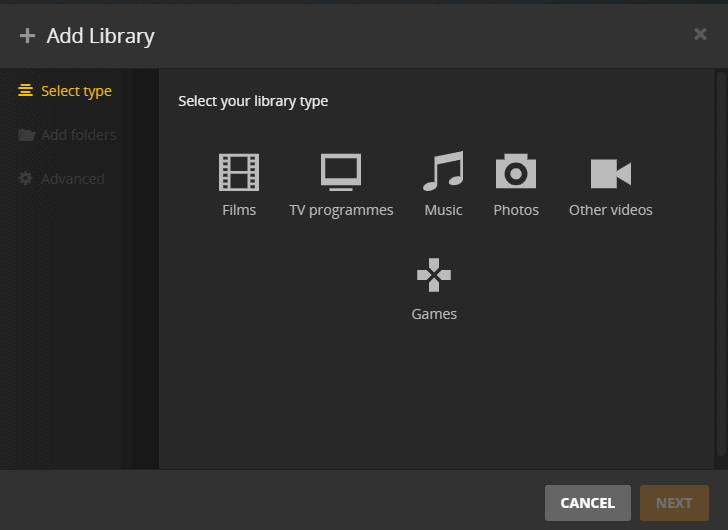
4. You will be asked to select the library type. Select the appropriate library based on the type of streaming content you want to add and give the appropriate name and select the library language.
5. Click next to select the desired folder where you have downloaded the content.
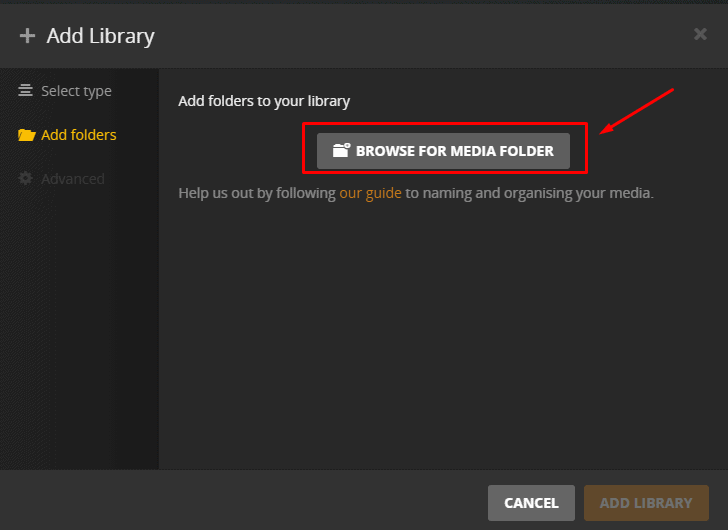
6. Browse the folder and then click on ‘add’.Then click on ‘ADD LIBRARY’ to complete the process.
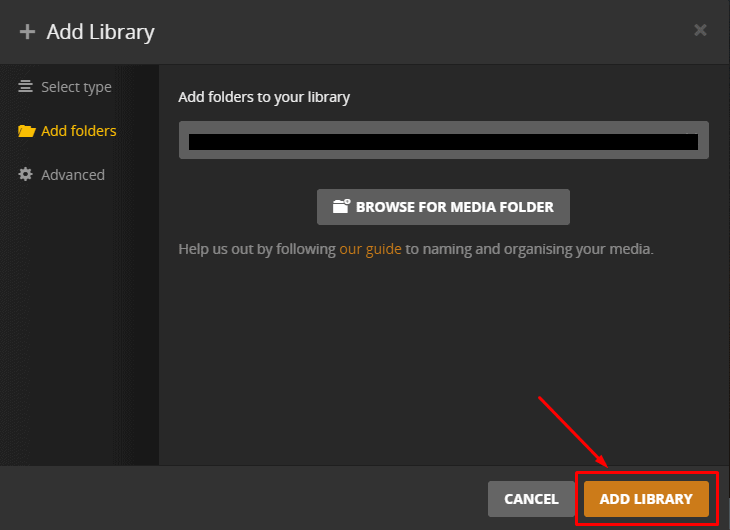
7. It might take some time to add the library and it will start synchronizing. When this process is complete you’ll be able to see the files in the new library.
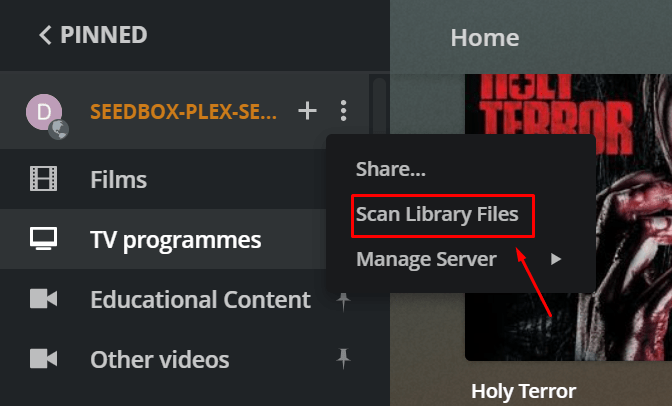
8. For later file additions in the library, synchronization is not done automatically but you can do it manually by click on the ‘Scan library files’ option in the plex server drop-down menu as shown below.