Wireguard tunnel on Specific Browser and Applications
On this page ▾
A regular VPN is a blunt instrument. Flip it on and every packet your PC sends gets wrapped, encrypted, and routed through a distant server. That is great for the browser tab you actually care about and terrible for the video call, the game, and the 4 GB Steam update all fighting for the same tunnel. Split tunneling fixes this: you pick exactly which apps ride the WireGuard tunnel while everything else keeps using your normal, full-speed connection. On Windows, the cleanest way to do it is a free, open-source tool called TunnlTo, pointed at a WireGuard peer config from your EvoSeedbox plan. This guide walks through the whole thing.
What split tunneling actually does
A normal VPN forces all traffic through one encrypted checkpoint before it can leave your PC — safer, but everything waits in the same line. Split tunneling adds a second lane: chosen apps take the encrypted route, everything else takes the open road.
Concretely, if you tell TunnlTo to tunnel only chrome and utorrent, those two processes appear to come from your EvoSeedbox server’s IP and are fully encrypted. Meanwhile your game client, streaming apps, and Windows Update connect exactly as before — no latency penalty, no bandwidth cap, no VPN in the path at all.
Every EvoSeedbox plan can act as a personal WireGuard endpoint, so the “VPN server” here is just your own seedbox. No third-party VPN subscription, no shared exit node crowded with strangers. If you have not set WireGuard up yet, start with the WireGuard setup wiki and come back here for the Windows split-tunnel part.
Why you would want this
- Reach a geo- or ISP-blocked tracker in Kodi. Route only Kodi (or your torrent client) through the tunnel so it exits from your seedbox, while your streaming apps and downloads stay on your fast local line.
- Torrent on the VPN, game off it. Keep your torrent client permanently on the encrypted tunnel for privacy, but leave your game client on the raw connection so your ping never suffers from the extra hop.
- Per-app zero-trust access. Expose a private service to one specific app on your machine, tunneled to your seedbox, without putting the rest of the system on that network. Windows Update, backups, and telemetry stay off the tunnel entirely.
Step 1 — Install WireGuard and download a peer config
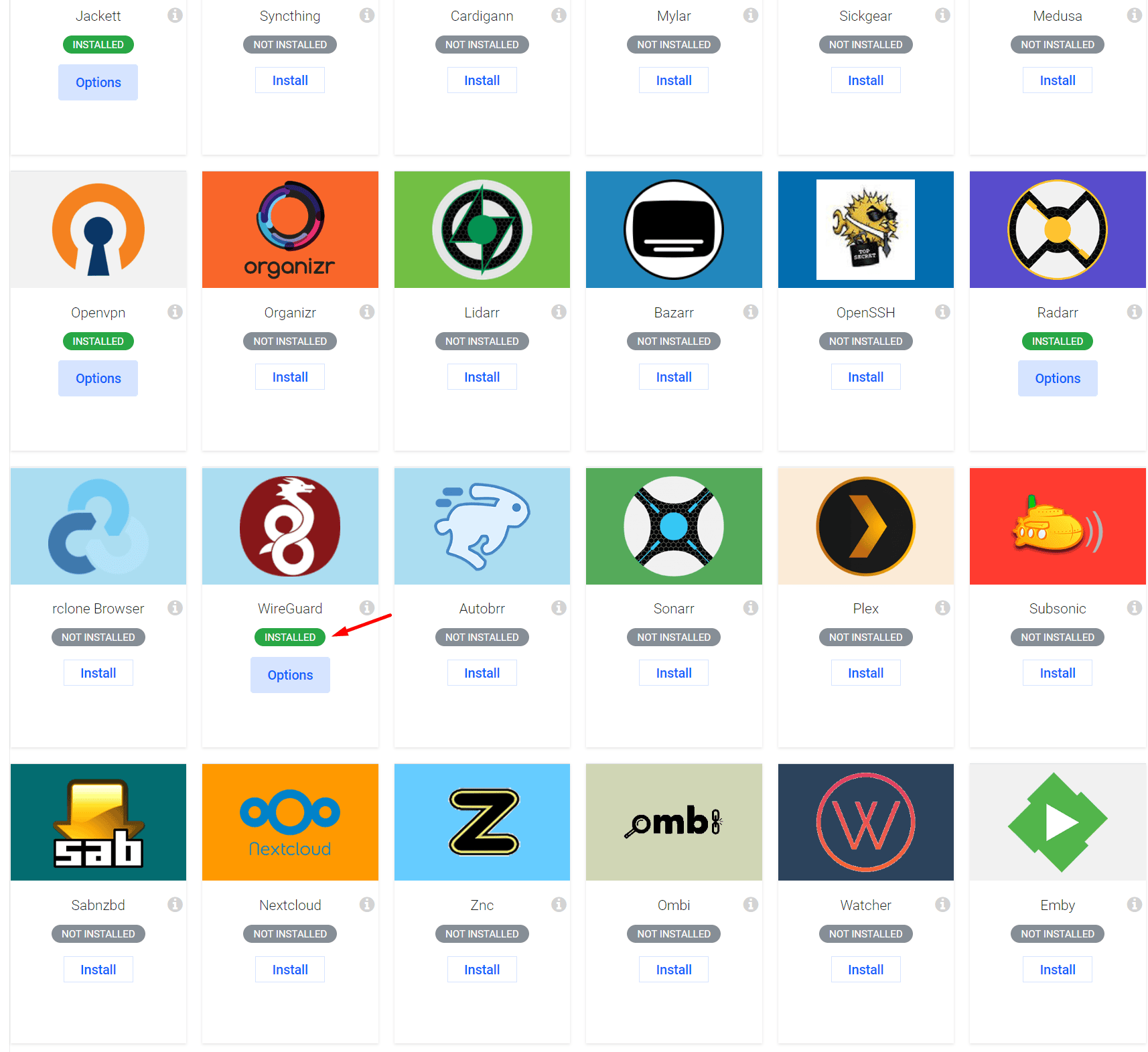
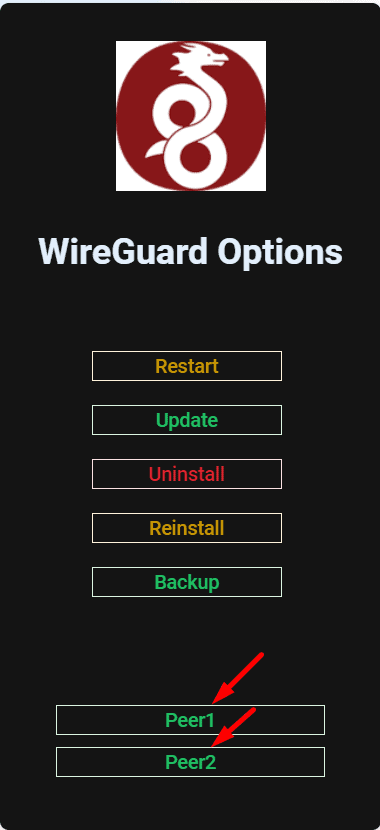
Log in to the EvoSeedbox client area and open your seedbox’s app installer. Install the WireGuard app, then open it. Inside, you can download a peer configuration — typically named peer1.conf or peer2.conf — delivered as a small zip file. Each peer file is one device slot, so use peer1.conf for this PC and keep the others for your phone or laptop.
Download the zip, then extract the .conf file to somewhere permanent — for example C:WireGuardpeer1.conf. Do not leave it in your Downloads folder; TunnlTo reads this file, and if you clear Downloads later the tunnel breaks. The file contains your private key and the server endpoint, so treat it like a password and do not share it.
Step 2 — Install TunnlTo
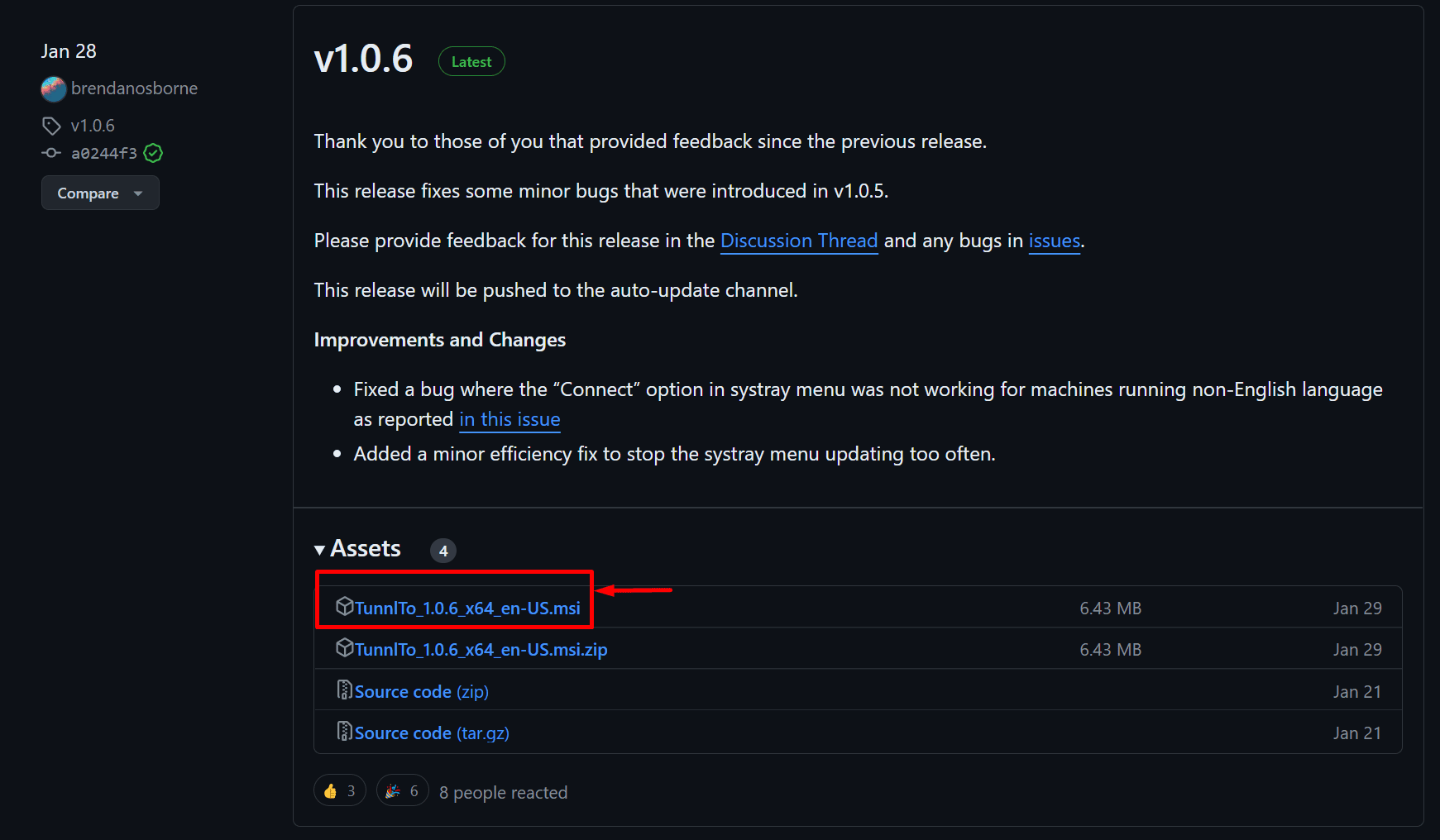
TunnlTo is a free, open-source Windows application built specifically for per-app WireGuard split tunneling. Grab the latest build from its GitHub releases page at github.com/TunnlTo/desktop-app. Download the installer from the newest release, run it, and accept the defaults — there is nothing to configure during installation.
A quick honesty note: TunnlTo is Windows-only. If you are on macOS, Linux, or a router, use the all-platforms WireGuard guide instead. On Android, the official WireGuard app has split tunneling built in — see the Android split tunneling guide. This tutorial covers Windows specifically.
Step 3 — Import your peer config
Open TunnlTo and click Create Tunnel, then choose Import. Browse to the peer1.conf file you extracted in Step 1 and select it. TunnlTo reads the WireGuard config directly, so there is no key to copy or paste by hand.
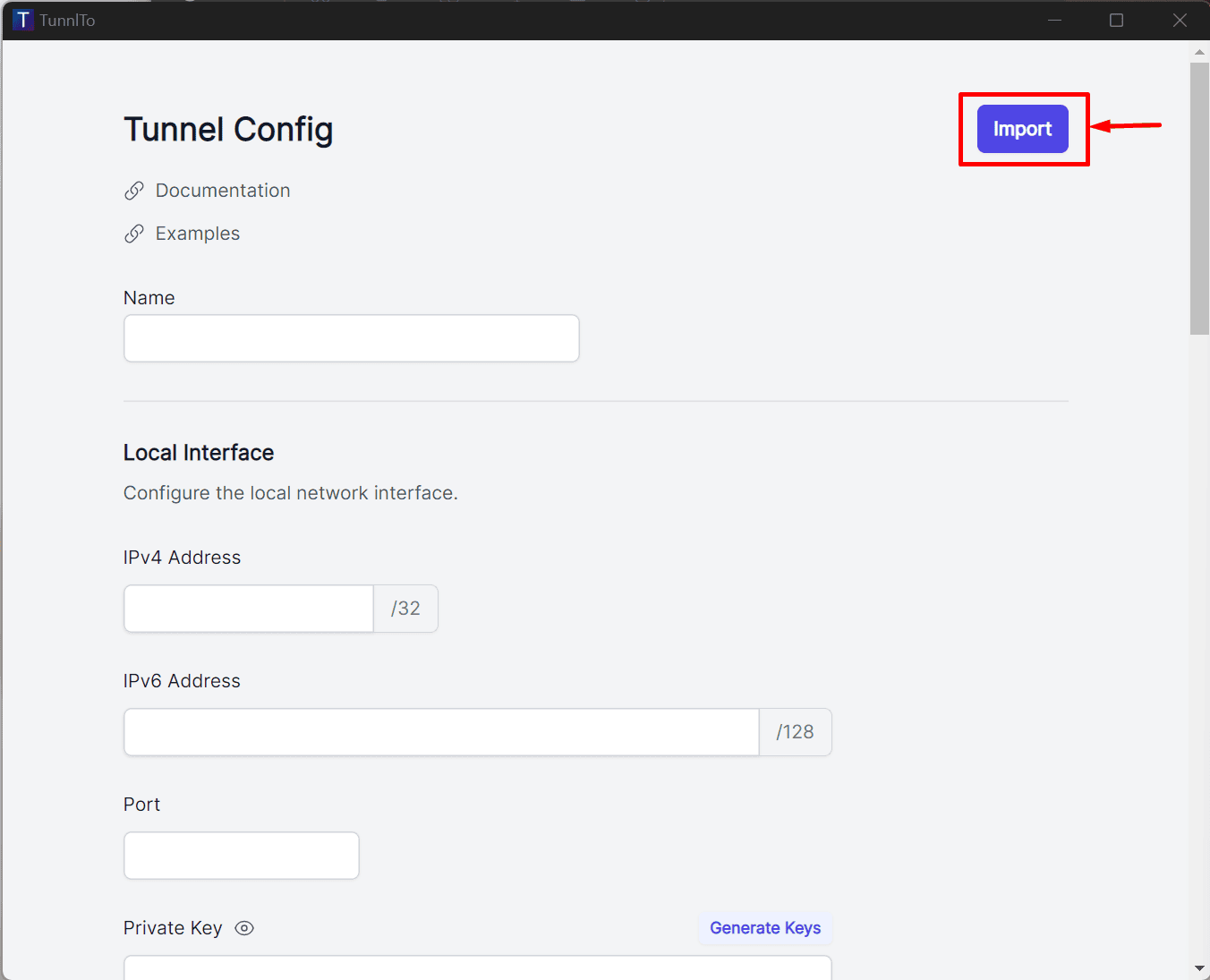
The import auto-fills the tunnel’s core fields — private key, public key, endpoint, and allowed IPs — straight from the file. You should not need to touch any of them. If a field looks blank, re-import; a partial paste is the most common cause of a tunnel that connects but carries no traffic.
Step 4 — Choose which apps to tunnel
Scroll down to the Rules section. This is where split tunneling actually happens. In the Allow field, list the executables you want routed through WireGuard, separated by commas — no .exe extension needed. For a browser plus a torrent client, you would enter:
chrome,utorrent
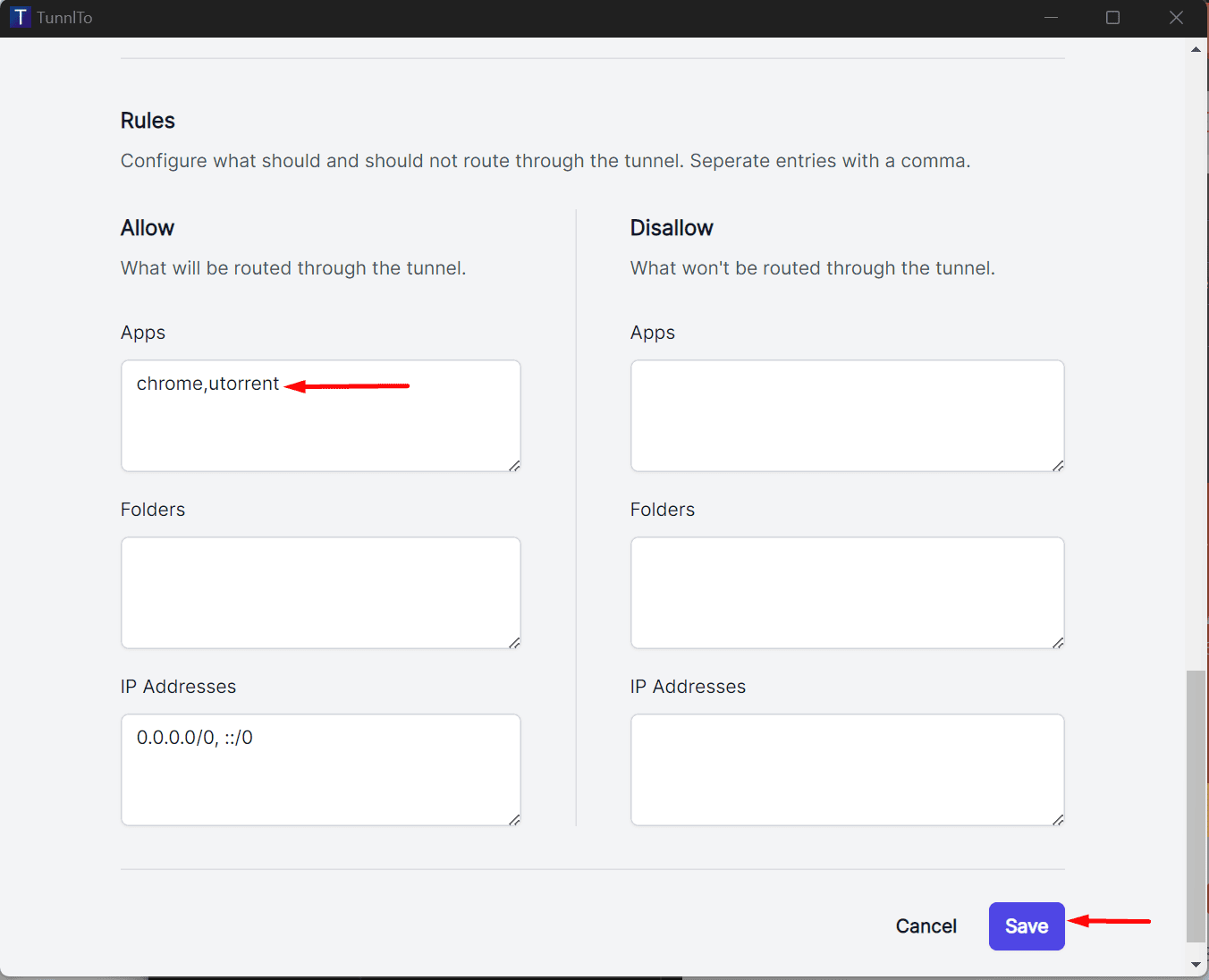
Only the processes you name here go through the tunnel; everything you leave out uses your normal connection. Add as many as you like — chrome,qbittorrent,kodi, for instance. Match the executable name, not the friendly app name (qBittorrent’s process is qbittorrent, uTorrent’s is utorrent). When the list looks right, click Save.
Step 5 — Enable the tunnel
Hit Enable on the tunnel. TunnlTo brings the WireGuard connection up, and from that moment only your listed apps route through your EvoSeedbox server. Everything else keeps flowing over your ordinary link at full speed.
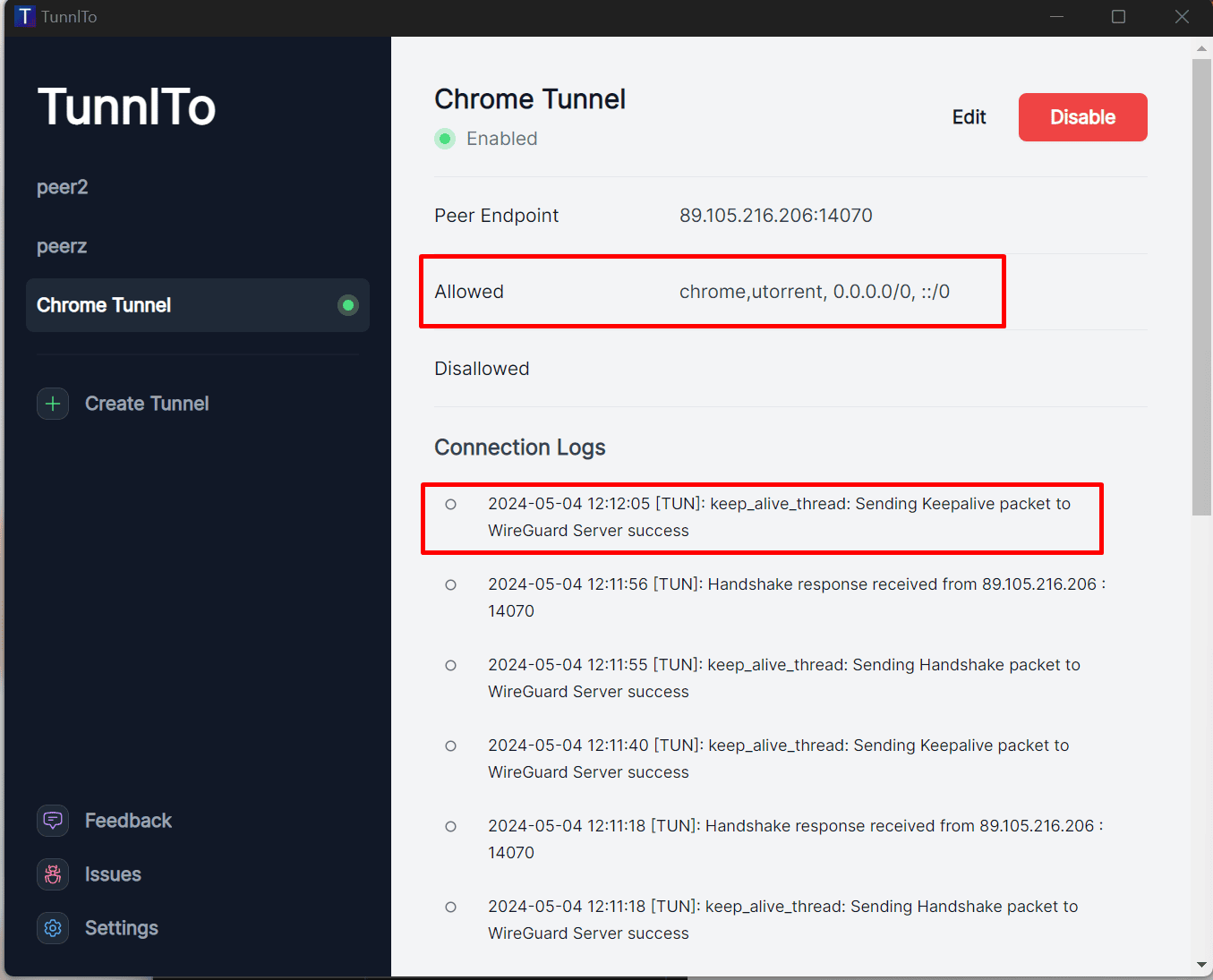
To verify, open one of your tunneled apps and check its public IP — it should match your seedbox’s IP. Open a non-tunneled app or a plain browser without a rule and it should still show your real ISP address. That split is the whole point.
Frequently Asked Questions
Do I need a separate VPN subscription for this?
No. Your EvoSeedbox plan already includes one-click WireGuard, so your seedbox is the VPN endpoint. You are tunneling to a server you already pay for, not renting a second service. Plans start at $5/month — see the pricing page.
Does split tunneling slow down my whole PC like a normal VPN?
That is exactly what it avoids. Only the apps you list in the Allow field go through WireGuard. Every other program — games, updates, streaming — uses your untouched local connection, so there is no VPN overhead on anything you did not opt in.
Can I use this on Mac, Linux, or my phone?
TunnlTo itself is Windows-only. For macOS, Linux, or routers, follow the all-platforms WireGuard guide. On Android, the official WireGuard app has split tunneling built in — the Android split tunneling guide covers it.
How many devices can I connect at once?
Each peer config is one device slot. Use peer1.conf on this PC, peer2.conf on a laptop, and so on. Download a separate peer file from the WireGuard app for each device rather than reusing one config in two places, which causes the connection to flap.
The tunnel connects but my app has no internet — what went wrong?
Two usual culprits: the executable name in the Allow field does not match the real process (check Task Manager for the exact name), or the imported config is missing a field from a partial import. Re-check the Rules list, re-import peer1.conf, and Save again. The WireGuard setup wiki covers config basics if the peer file itself looks off.
Is my traffic actually encrypted, or just rerouted?
It is fully encrypted. WireGuard uses modern public-key cryptography end to end, so the traffic from your tunneled apps is both encrypted and routed out through your seedbox’s IP. Apps you leave off the list are neither encrypted by the tunnel nor rerouted — they behave exactly as before.
Split tunneling gives you the privacy of a VPN on the apps that need it without taxing everything else. Set it up once, and your browser and torrent client ride an encrypted tunnel to your own server while your games and downloads stay fast. If you do not have a seedbox yet, every EvoSeedbox plan includes one-click WireGuard from $5/month — grab a plan and turn it into your personal split-tunnel VPN endpoint today.
Head of Operations Evoseedbox

Tim Michels writes and maintains the EvoSeedbox wiki and blog — setup guides and automation tutorials for Plex, the *arr stack, Usenet, and more, backed by hands-on experience running the EvoSeedbox fleet.
