Setting Up Your Audiobookshelf on Seedbox: An Audible Alternative
On this page ▾
If you have spent years buying audiobooks from Audible, you have probably noticed a catch: you do not really own them, and the moment you stop paying you lose your streaming access. Audiobookshelf fixes that. It is a free, open-source audiobook and podcast server that streams your entire library to your phone or browser, on demand, exactly like Audible does — except the files are yours and there is no subscription. Run it on a seedbox and it stays online 24/7, so your library is always a tap away without leaving a computer running at home.
This guide walks through the full setup on an EvoSeedbox Audiobookshelf plan: one-click install, creating your account, wiring up a folder for your audiobooks, and getting your first titles to show up. It takes about ten minutes, and most of that is waiting for a download.
Why run Audiobookshelf on a seedbox?
- You own the library. Your audiobooks are real files sitting in your account, not licenses that can be revoked.
- It streams like Audible. Progress syncs across devices, playback speed and sleep timers work, and chapters/cover art are handled automatically.
- No subscription, no per-book fees. Audiobookshelf is free software. You pay for the seedbox, nothing else.
- It is always on. A seedbox is a server that never sleeps, so the same download box that grabs your torrents also serves them back to you as a polished library.
- Real mobile apps exist. There are official Audiobookshelf apps for Android and iOS that connect straight to your server — more on that below.
Step 1 — Install Audiobookshelf from the client area
Audiobookshelf is a one-click app on EvoSeedbox, so there is nothing to compile or configure at the command line. Log in to your client area, open the app installer, find Audiobookshelf in the list, and click install. The platform provisions a dedicated instance for your account and gives you a URL to reach it.
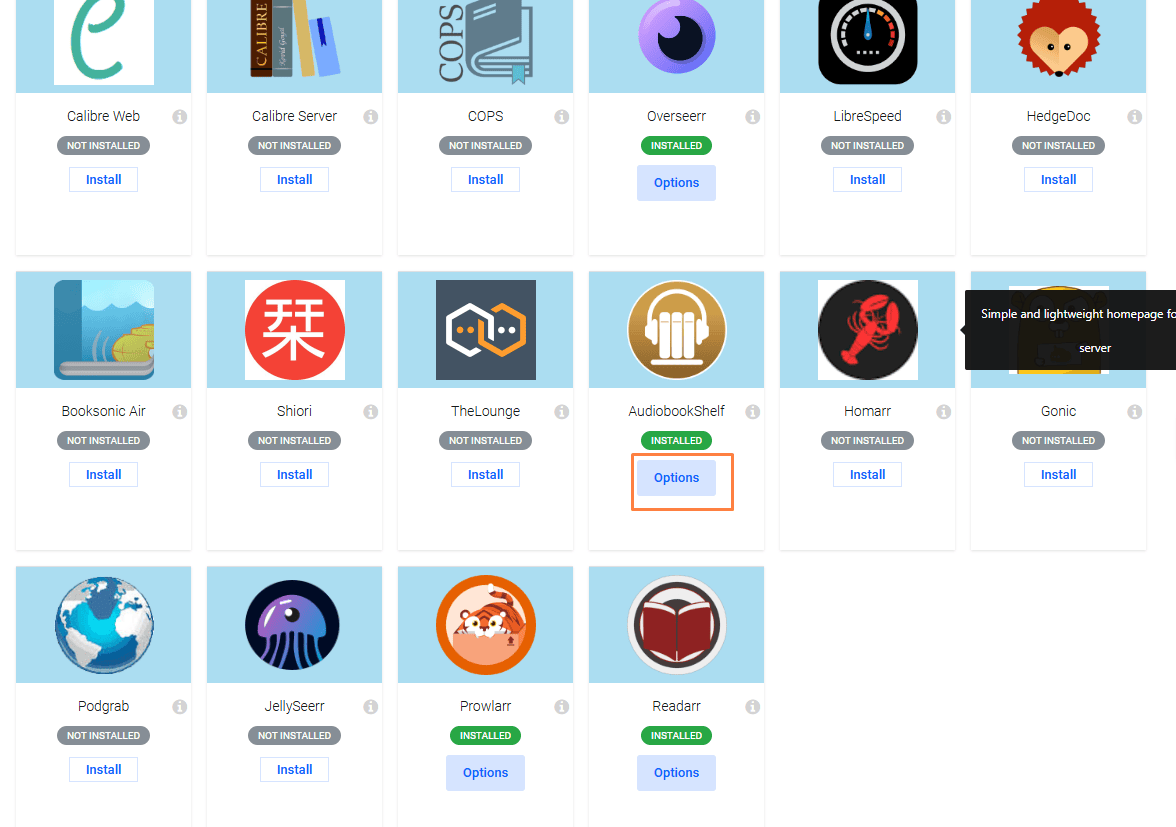
Give it a minute to spin up. Once the app shows as running, open its URL in a new browser tab. If you do not see Audiobookshelf in the installer, check that your plan includes it on the apps page or the pricing page.
Step 2 — Create your admin account
The first time you open Audiobookshelf, it asks you to create the root (admin) account. This is your account, not something we set for you, so pick a strong password. There is no email verification and nothing leaves your server — it is entirely self-hosted.
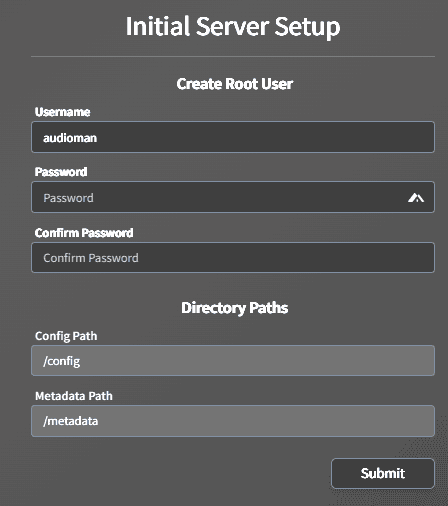
Once you submit, you are logged straight into an empty dashboard. It looks bare right now because Audiobookshelf does not know where your audiobooks live yet. The next few steps fix that.
Step 3 — Create an “Audiobooks” folder in the file manager
Before you add a library, you want a dedicated folder to keep audiobooks in. This keeps them separate from movies, TV, and everything else in your /downloads directory, so Audiobookshelf only scans the right files.
Open ruTorrent, launch the built-in file manager, and browse to your /downloads folder. Create a new folder called Audiobooks (the exact name matters less than being consistent — just remember it).
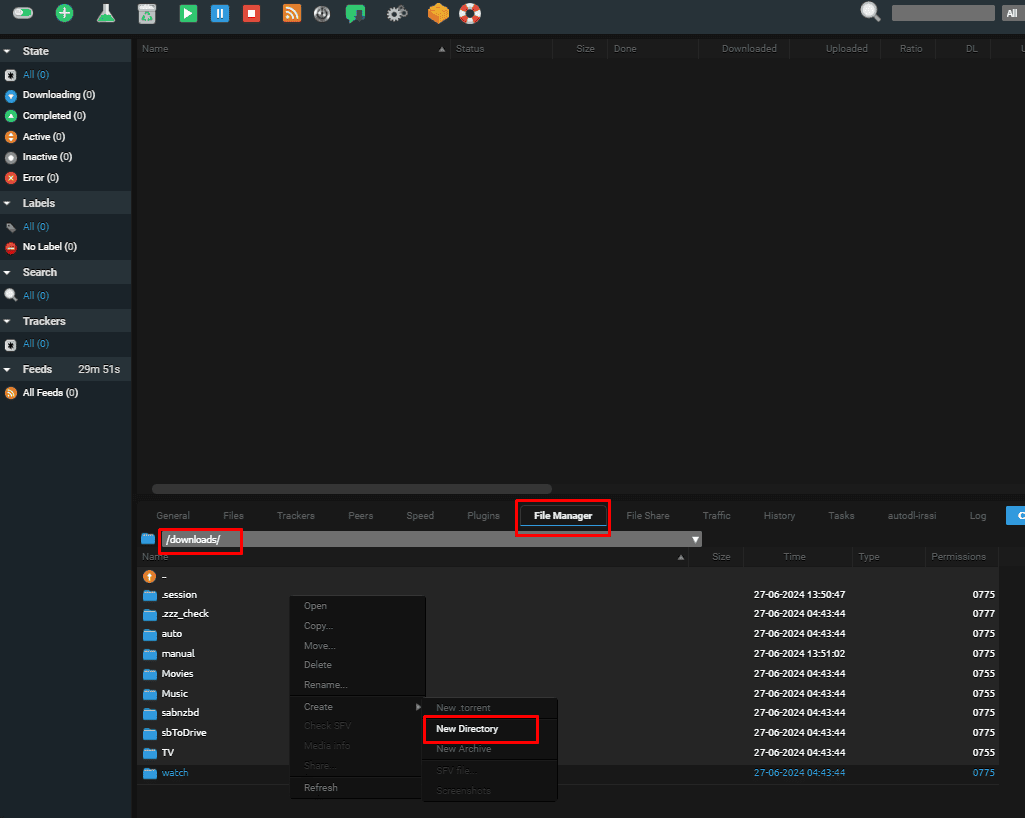
That is the folder Audiobookshelf will watch. Everything you drop in here becomes part of your library.
Step 4 — Download audiobooks into that folder
Now grab an audiobook. When you add a torrent in ruTorrent, tell it to save into your new folder instead of the default location: right-click the torrent (or use the add-torrent dialog), choose Save to, and pick Audiobooks.
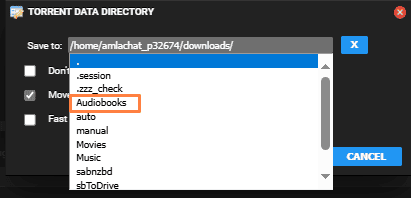
For the cleanest results, one audiobook per subfolder works best — for example Audiobooks/Project Hail Mary/ containing the MP3 or M4B files. Audiobookshelf reads folder names and embedded metadata to build the title, author, and cover, so tidy folders mean tidy library entries. Let the download finish before you scan.
Step 5 — Add a library in Audiobookshelf
Back in Audiobookshelf, go to the library setup and click Add a library. Give it a name (e.g. “My Audiobooks”), leave the media type as Books, then click Browse for folder to point it at your files.
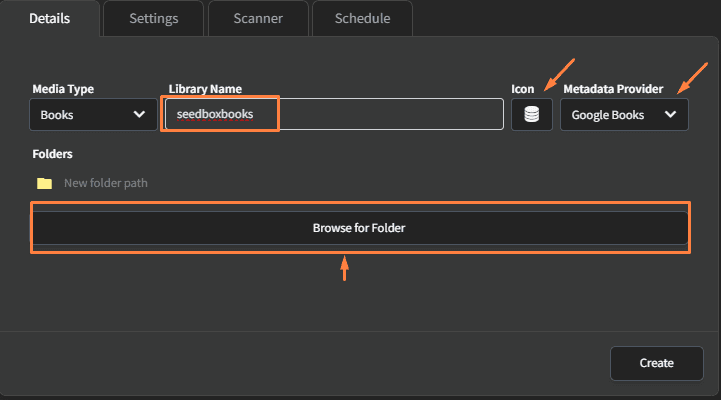
In the folder browser, navigate down the path to the folder you created: home → your username → downloads → Audiobooks. This is the same folder you made in the file manager in step 3, just viewed from the server’s side.
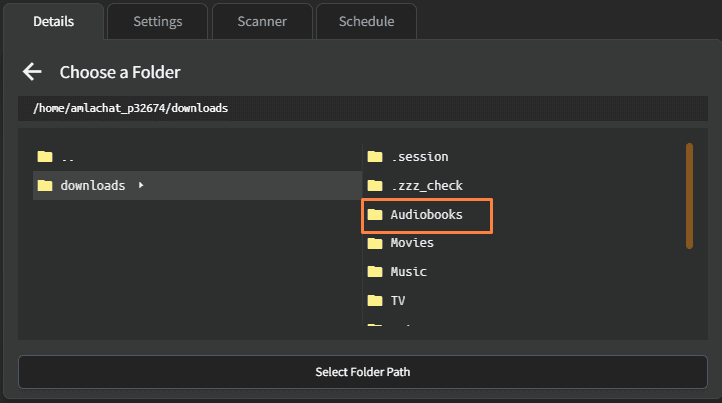
Select that folder and save the library. Audiobookshelf now knows exactly where to look.
Step 6 — Scan and enjoy your library
After you save, Audiobookshelf scans the folder and imports whatever it finds. Within a few seconds your downloaded titles appear as proper library items with covers, authors, and chapter lists.
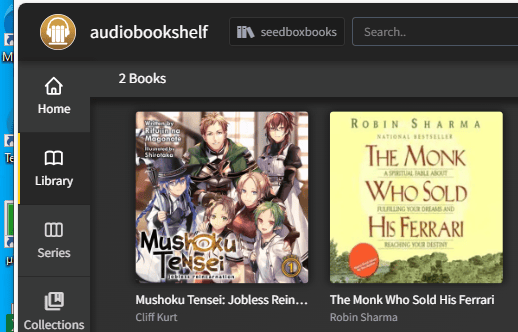
Click any book to start streaming. Playback speed, bookmarks, a sleep timer, and progress sync are all there. Every new audiobook you download into the Audiobooks folder gets picked up on the next scan, and you can trigger a manual rescan any time from the library settings.
Step 7 — Upload audiobooks you already own
Not everything comes from a torrent. If you have a collection of audiobooks already — ripped from CDs, purchased DRM-free, or moved over from another device — you can add them directly. Open the ruTorrent file manager, browse into your Audiobooks folder, and upload the files (again, one book per subfolder is ideal). Run a library scan afterward and they will appear alongside everything else.
Get the mobile app
Streaming in a browser is fine, but the real payoff is on your phone. Audiobookshelf has official companion apps for Android and iOS. Install the app, enter your Audiobookshelf server URL and your login, and your whole library is available for streaming or offline download — this is the part that genuinely replaces the Audible app. Because your seedbox is always online, you can start a book on your commute and pick it up on your laptop at home with progress already synced.
Ebooks too? Add Calibre-Web
Audiobookshelf is built for audio. If you also want to read ebooks in the browser or send them to an e-reader, pair it with Calibre-Web, another one-click app that turns your seedbox into an ebook library. Between the two, your whole reading and listening collection lives on one always-on server.
Frequently Asked Questions
Is Audiobookshelf free?
Yes. Audiobookshelf is free, open-source software with no license fees and no per-book charges. The only thing you pay for is the seedbox that hosts it — see the pricing page for plans, which start at $5/month.
Can I really use it like Audible?
For the listening experience, yes. You get streaming on demand, variable playback speed, chapters, cover art, a sleep timer, bookmarks, and cross-device progress sync through the official mobile apps. The difference is that the audiobooks are your own files rather than rented licenses, and there is no monthly credit or subscription.
What audio formats does it support?
Audiobookshelf handles common audiobook formats including MP3, M4A, and M4B, along with a range of others. For the best-looking library, keep one audiobook per subfolder inside your Audiobooks folder so the scanner can match titles, authors, and cover art cleanly.
My new audiobook is not showing up. What do I check?
First, make sure the download finished and the files actually landed inside the /downloads/Audiobooks folder you linked (a common cause is a torrent that saved to the default location instead — re-check the “Save to” setting). Then open the library in Audiobookshelf and trigger a rescan. New files only appear after a scan.
Can I upload my own audiobooks instead of downloading them?
Absolutely. Use the ruTorrent file manager to upload your own audio files straight into the Audiobooks folder, put each book in its own subfolder, and run a library scan. Uploaded books behave exactly like downloaded ones.
Where can I find more detailed setup help?
Our step-by-step Audiobookshelf setup wiki guide covers the same process in more depth, including troubleshooting tips and library configuration options.
That is the whole setup: install, create your account, point a folder, and stream. You end up with an Audible-style listening experience that you fully own, running on a server that never sleeps — plus the option to add ebooks with Calibre-Web. Ready to build your own audiobook library? Get started with an Audiobookshelf seedbox or compare plans on our pricing page.
Head of Operations Evoseedbox

Tim Michels writes and maintains the EvoSeedbox wiki and blog — setup guides and automation tutorials for Plex, the *arr stack, Usenet, and more, backed by hands-on experience running the EvoSeedbox fleet.
