Evoseedbox Evoseedbox Evoseedbox Evoseedbox
  • Português
    • Nederlands (Holandês)
    • English (Inglês)
    • Français (Francês)
    • Deutsch (Alemão)
    • 日本語 (Japonês)
    • 한국어 (Coreano)
    • Español (Espanhol)
    • العربية (Árabe)
    • Русский (Russo)
    • Türkçe (Turco)
  • Evoseedbox Home
  • Wiki
  • Forum
  • Pricing
Client Area
View Categories
  • Home
  • Docs
  • Como Transfer Files de sua Seedbox to Google Drive

Como Transfer Files de sua Seedbox to Google Drive

1 min read

There are multiple ways to transfer your data from sua seedbox. Você pode use an FTP conectarion to download files para o seu device or use the btsync app.

One of the most convenient ways is using the Evoseedbox Google Drive Integration. A few steps and all your chosen files are transferred automatically.

In this article, I will teach you how to transfer files from sua seedbox para o seu Google Drive.


Steps to upload files from seedbox to Google Drive
#

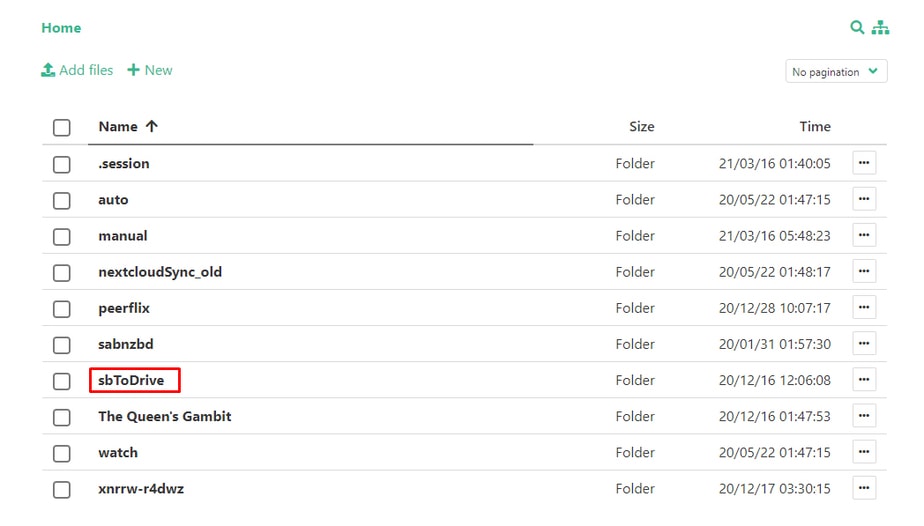
Passo 1: Selecione all the files that your quer transfer and move/copy them para o “sbToDrive” folder. #

(Você pode use Filegator for this)

How To Transfer Files From Sua Seedbox To Your Google Drive

Passo 2: Clique em the Google Drive botão no seu área do cliente. #
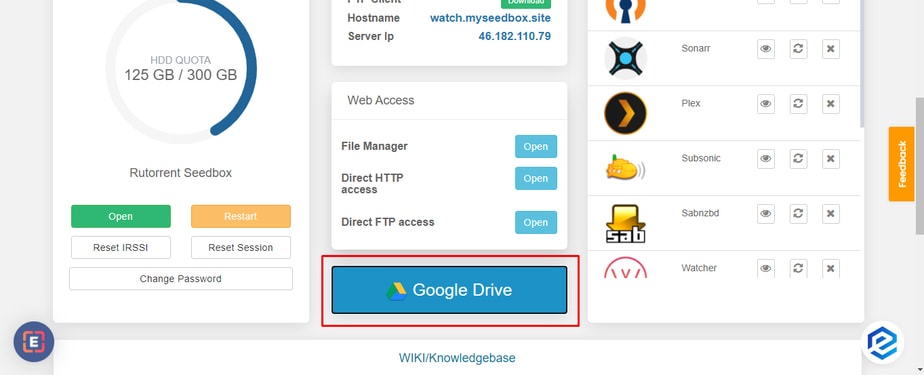
How To Transfer Files From Sua Seedbox To Your Google Drive

Passo 3: Click the link provided in the pop-up #
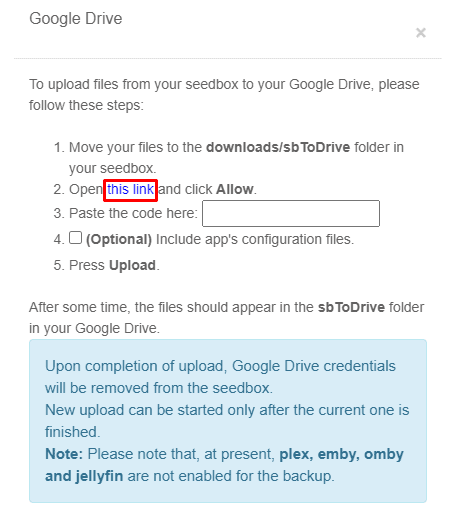
How To Transfer Files From Sua Seedbox To Your Google Drive

Step 4: Selecione the Google Account you quer use the drive of and click the allow botão. #
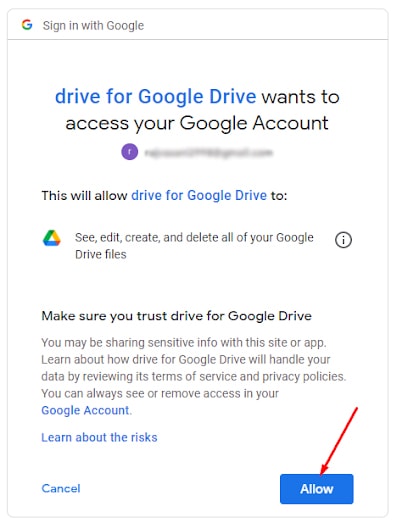
How To Transfer Files From Sua Seedbox To Your Google Drive

Step 5: A code will appear, copy the code and paste the code in the pop-up. #
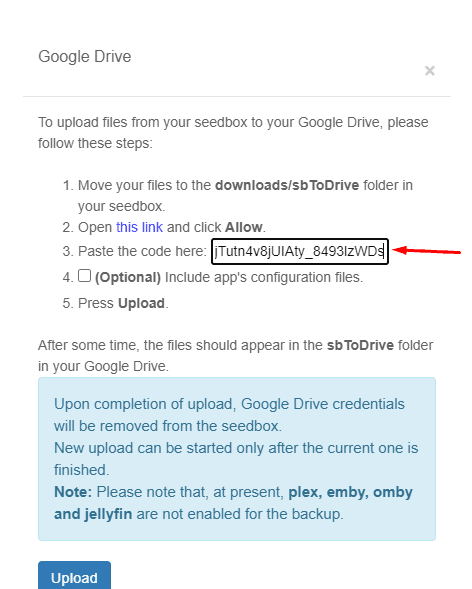
How To Transfer Files From Sua Seedbox To Your Google Drive

Step 6: Você pode create a back-up for your app’s configuration, but isto é an optional step. #
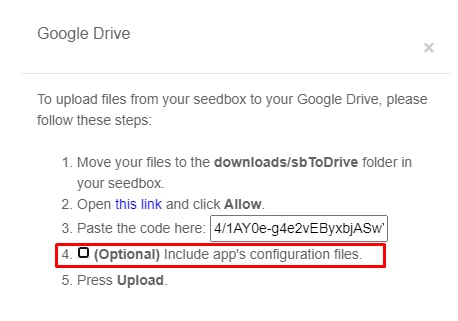
How To Transfer Files From Sua Seedbox To Your Google Drive

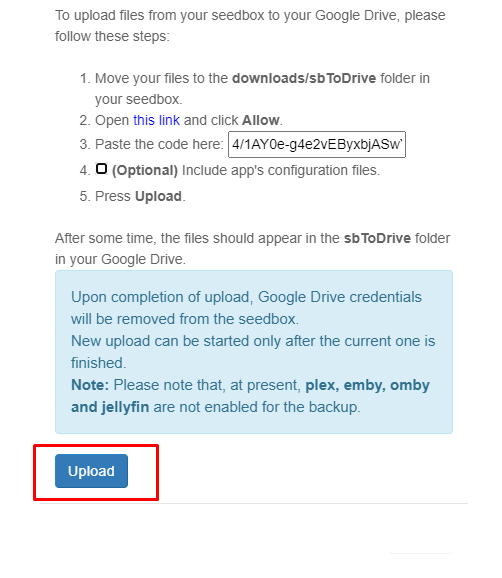
Step 7: Clique em upload, Your files will start transferring and você vai see the sbToDrive folder no seu Google drive. #

How To Transfer Files From Sua Seedbox To Your Google Drive

That’s it, in some time, head-on para o seu google drive to view all the files from sua seedbox in the sbToDrive folder.

Updated on 16 de Março, 2026

What are your Feelings

  • Happy
  • Normal
  • Sad

Share This Article :

  • Facebook
  • X
  • LinkedIn
  • Pinterest
Table of Contents
  • Steps to upload files from seedbox to Google Drive
  • Passo 1: Selecione all the files that your quer transfer and move/copy them para o “sbToDrive” folder.
  • Passo 2: Clique em the Google Drive botão no seu área do cliente.
  • Passo 3: Click the link provided in the pop-up
  • Step 4: Selecione the Google Account you quer use the drive of and click the allow botão.
  • Step 5: A code will appear, copy the code and paste the code in the pop-up.
  • Step 6: Você pode create a back-up for your app’s configuration, but isto é an optional step.
  • Step 7: Clique em upload, Your files will start transferring and você vai see the sbToDrive folder no seu Google drive.
We create amazing Seedboxes
for everyone to use 😊

Important Links

Scholarship for CS

Refund Policy

Privacy Policy

Terms of service

Cookie Policy

Acceptable Use Policy

Get in Touch

Contact Us

[email protected]

© 2025 Evoseedbox | All rights reserved. By Evo Created with ❤️

  • Nederlands (Holandês)
  • English (Inglês)
  • Français (Francês)
  • Deutsch (Alemão)
  • 日本語 (Japonês)
  • 한국어 (Coreano)
  • Português
  • Español (Espanhol)
  • العربية (Árabe)
  • Русский (Russo)
  • Türkçe (Turco)
Evoseedbox
  • Português
    • Nederlands (Holandês)
    • English (Inglês)
    • Français (Francês)
    • Deutsch (Alemão)
    • 日本語 (Japonês)
    • 한국어 (Coreano)
    • Español (Espanhol)
    • العربية (Árabe)
    • Русский (Russo)
    • Türkçe (Turco)
  • Evoseedbox Home
  • Wiki
  • Forum
  • Pricing
Client Area