Hoe Transfer Files van uw Seedbox to Google Drive
On this page ▾
There are multiple ways to transfer your data from uw seedbox. U kunt use an FTP connection to download files naar uw device or use the btsync app.
One of the most convenient ways is using the Evoseedbox Google Drive Integration. A few steps and all your chosen files are transferred automatically.
In this article, I will teach you how to transfer files from uw seedbox naar uw Google Drive.
Steps to upload files from seedbox to Google Drive
Stap 1: Selecteereer all the files that your want to transfer and move/copy them to the “sbToDrive” folder.
(U kunt use Filegator for this)
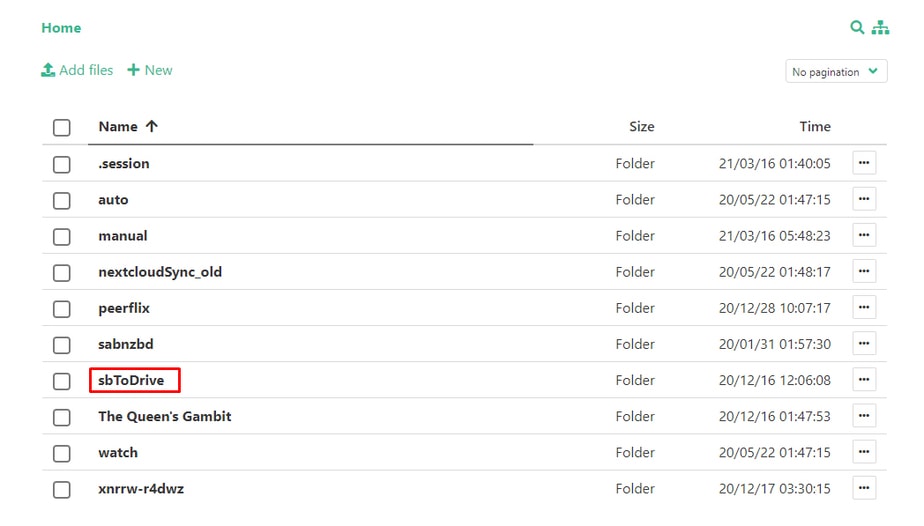
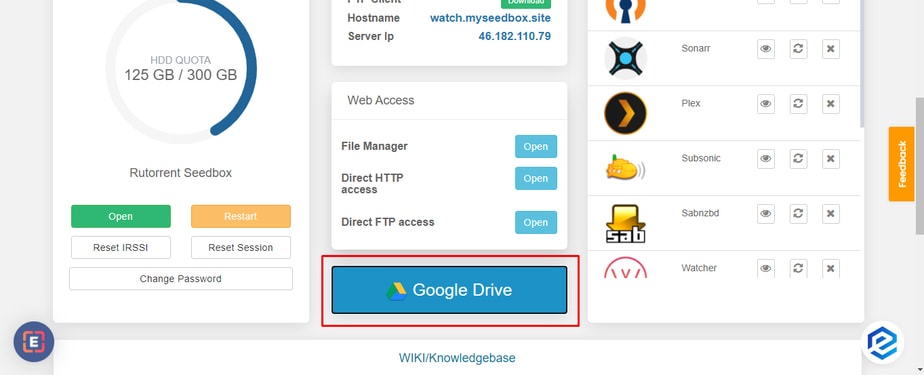
Stap 2: Klik op the Google Drive knop in uw klantengebied.
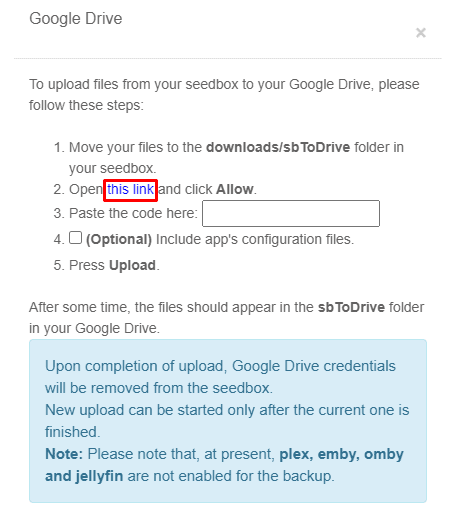
Stap 3: Click the link provided in the pop-up
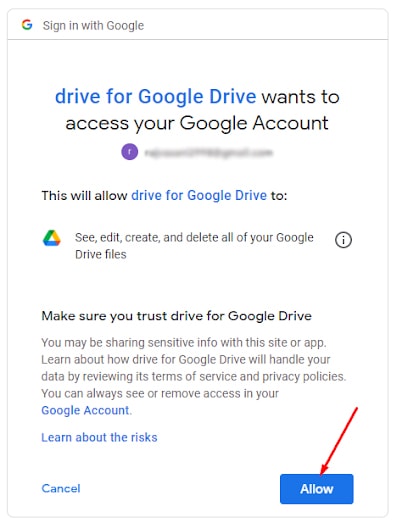
Step 4: Selecteereer the Google Account you want to use the drive of and click the allow knop.
Step 5: A code will appear, copy the code and paste the code in the pop-up.
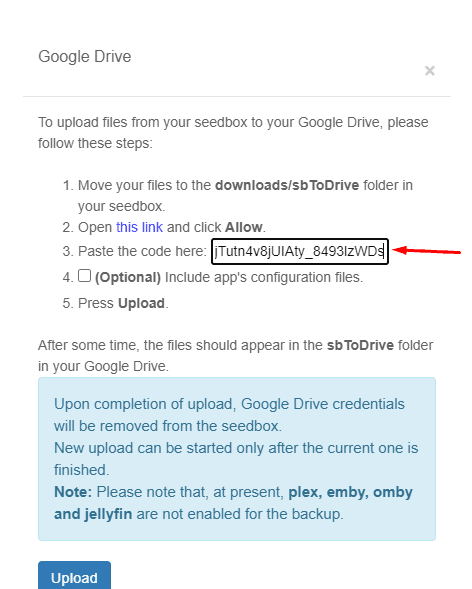
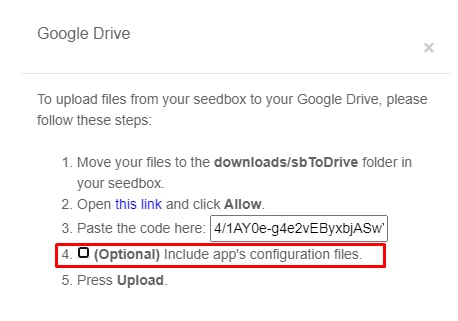
Step 6: U kunt create a back-up for your app’s configuration, but dit is an optional step.
Step 7: Klik op upload, Your files will start transferring and u zult see the sbToDrive folder in uw Google drive.
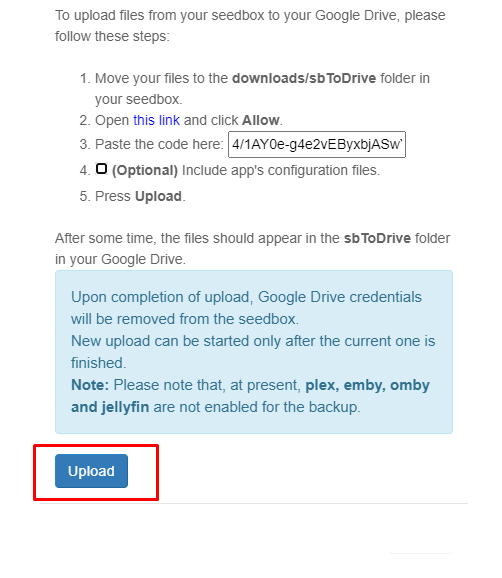
That’s it, in some time, head-on naar uw google drive to view all the files from uw seedbox in the sbToDrive folder.
Put this into practice
EvoSeedbox ships with one-click app installs and up to 10 Gbps per box.


