방법: Transfer Files 에서 Seedbox to Google Drive
On this page ▾
There are multiple ways to transfer your data from 당신의 Seedbox. You can use an FTP connection to download files 당신의 device or use the btsync app.
One of the most convenient ways is using the Evoseedbox Google Drive Integration. A few steps and all your chosen files are transferred automatically.
In this article, I will teach you how to transfer files from 당신의 Seedbox 당신의 Google Drive.
Steps to upload files from seedbox to Google Drive
단계 1: 선택 all the files that your want to transfer and move/copy them to the “sbToDrive” folder.
(You can use Filegator for this)
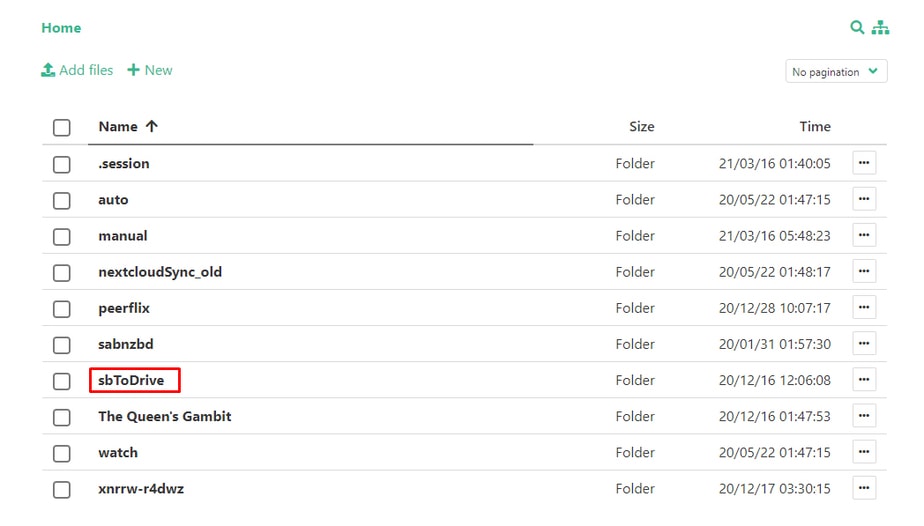
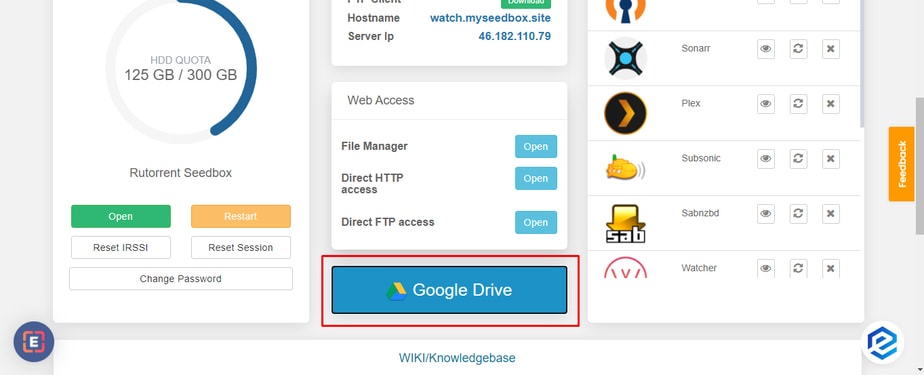
단계 2: 클릭하세요: the Google Drive 버튼 당신의 클라이언트 영역.
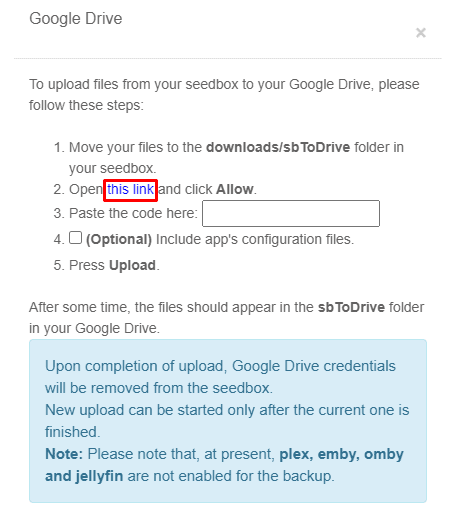
단계 3: Click the link provided in the pop-up
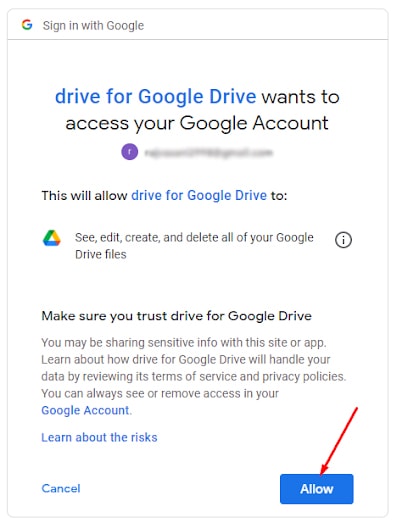
Step 4: 선택 the Google Account you want to use the drive of and click the allow 버튼.
Step 5: A code will appear, copy the code and paste the code in the pop-up.
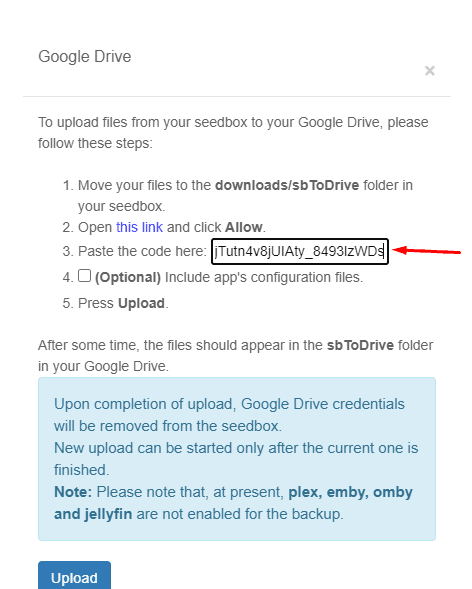
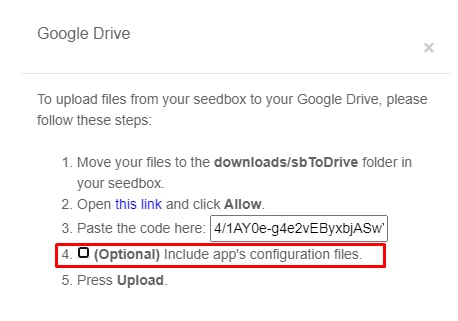
Step 6: You can create a back-up for your app’s configuration, but 이것은 an optional step.
Step 7: 클릭하세요: upload, Your files will start transferring and 보게 될 것입니다 see the sbToDrive folder 당신의 Google drive.
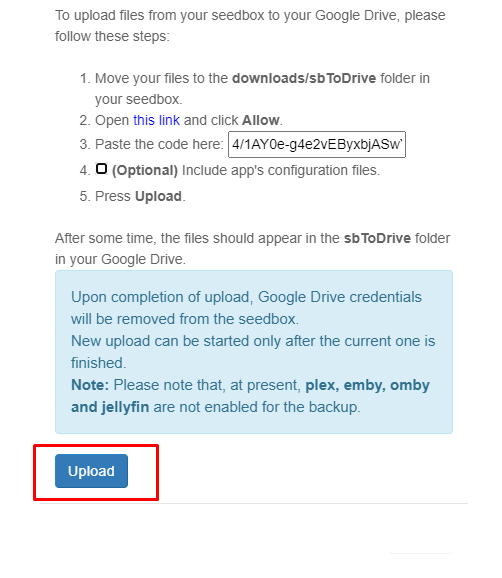
That’s it, in some time, head-on 당신의 google drive to view all the files from 당신의 Seedbox in the sbToDrive folder.
Put this into practice
EvoSeedbox ships with one-click app installs and up to 10 Gbps per box.


