There are multiple ways to transfer your data from sua seedbox. Você pode use an FTP conectarion to download files para o seu device or use the btsync app.
One of the most convenient ways is using the Evoseedbox Google Drive Integration. A few steps and all your chosen files are transferred automatically.
In this article, I will teach you how to transfer files from sua seedbox para o seu Google Drive.
Steps to upload files from seedbox to Google Drive #
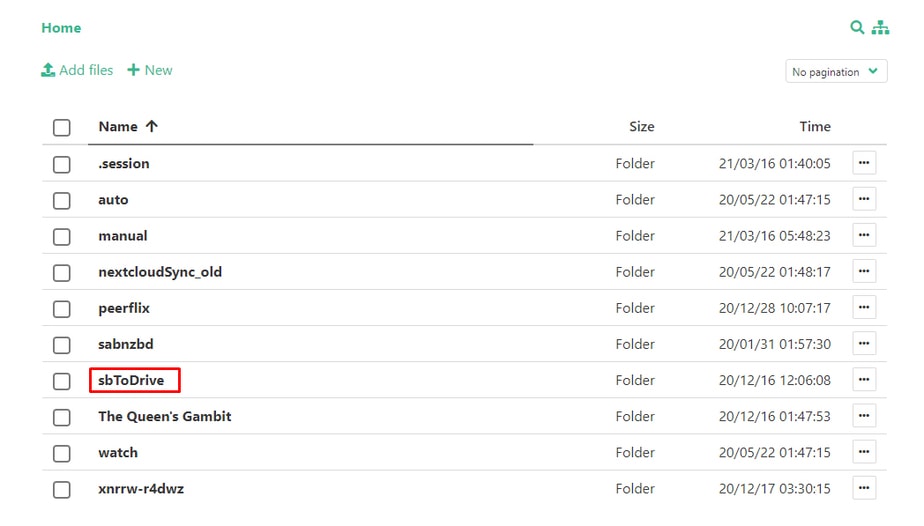
Passo 1: Selecione all the files that your quer transfer and move/copy them para o “sbToDrive” folder. #
(Você pode use Filegator for this)
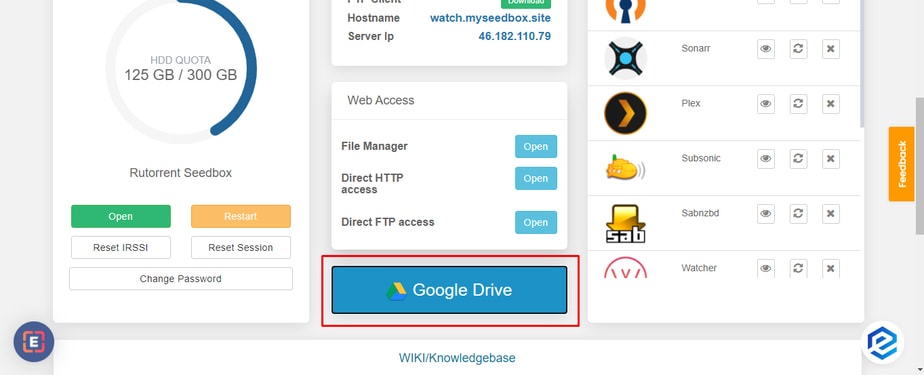
Passo 2: Clique em the Google Drive botão no seu área do cliente. #
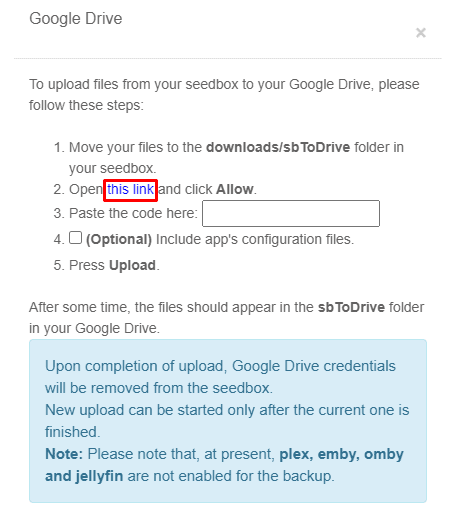
Passo 3: Click the link provided in the pop-up #
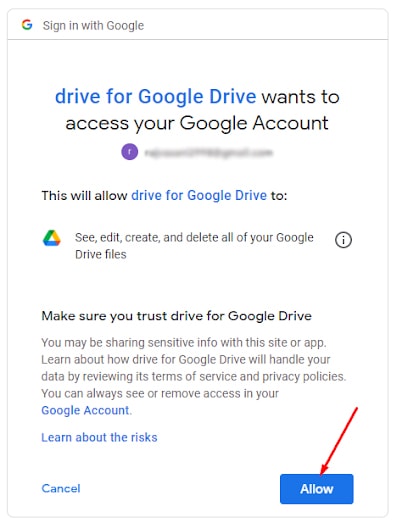
Step 4: Selecione the Google Account you quer use the drive of and click the allow botão. #
Step 5: A code will appear, copy the code and paste the code in the pop-up. #
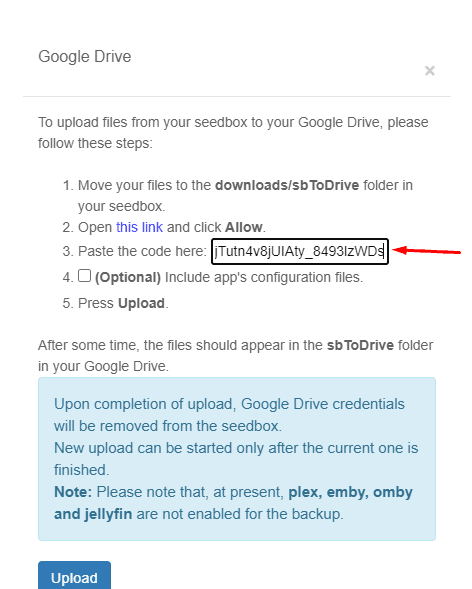
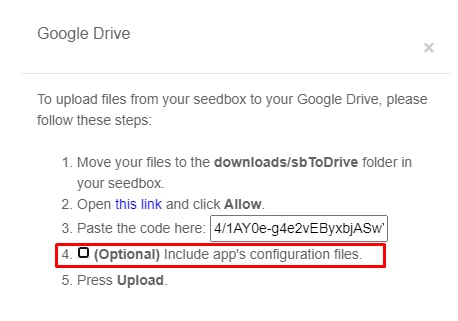
Step 6: Você pode create a back-up for your app’s configuration, but isto é an optional step. #
Step 7: Clique em upload, Your files will start transferring and você vai see the sbToDrive folder no seu Google drive. #
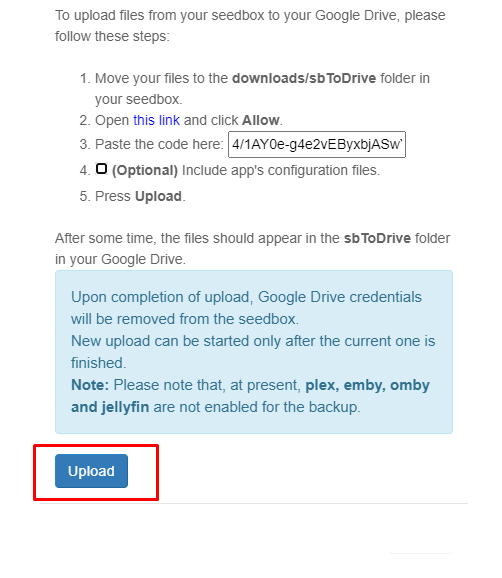
That’s it, in some time, head-on para o seu google drive to view all the files from sua seedbox in the sbToDrive folder.


