Evoseedbox Evoseedbox Evoseedbox Evoseedbox
  • Français
    • Nederlands (Néerlandais)
    • English (Anglais)
    • Deutsch (Allemand)
    • 日本語 (Japonais)
    • 한국어 (Coréen)
    • Português (Portugais – du Portugal)
    • Español (Espagnol)
    • العربية (Arabe)
    • Русский (Russe)
    • Türkçe (Turc)
  • Accueil Evoseedbox
  • Wiki
  • Forum
  • Pricing
Client Area
View Categories
  • Home
  • Docs
  • Comment Transfer Files depuis votre Seedbox to Google Drive

Comment Transfer Files depuis votre Seedbox to Google Drive

1 min read

There are multiple ways to transfer your data from votre seedbox. Vous pouvez use an FTP connection to download files to your device or use the btsync app.

One of the most convenient ways is using the Evoseedbox Google Drive Integration. A few steps and all your chosen files are transferred automatically.

Dans cet article, I will teach you how to transfer files from votre seedbox to your Google Drive.


Steps to upload files from seedbox to Google Drive
#

Étape 1: Sélectionnez all the files that your want to transfer and move/copy them to the “sbToDrive” folder. #

(Vous pouvez use Filegator for this)
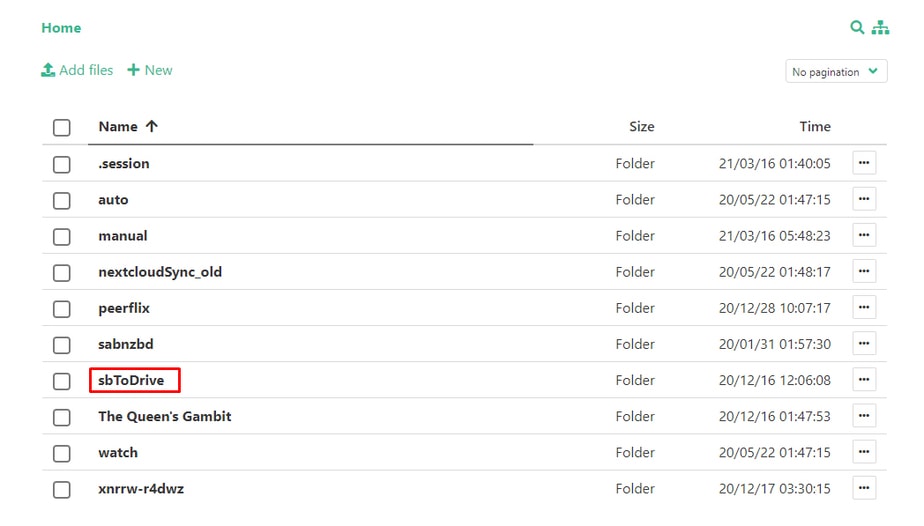
Comment Transfer Files From Votre Seedbox To Your Google Drive

Étape 2: Cliquez sur the Google Drive button in your espace client. #
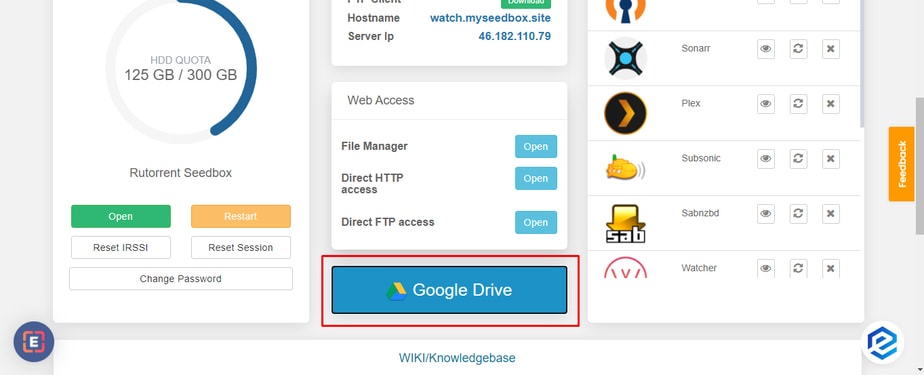
Comment Transfer Files From Votre Seedbox To Your Google Drive

Étape 3: Click the link provided in the pop-up #
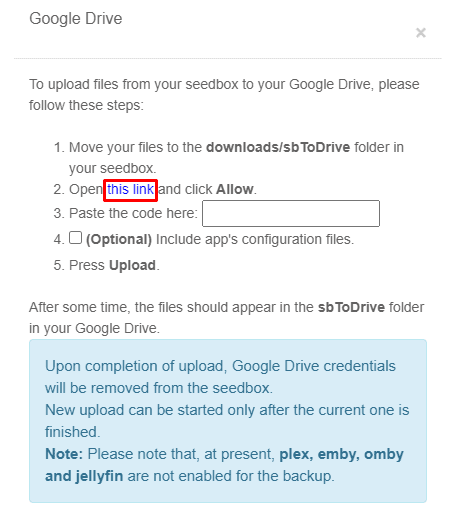
Comment Transfer Files From Votre Seedbox To Your Google Drive

Étape 4: Sélectionnez the Google Account you want to use the drive of and click the allow button. #
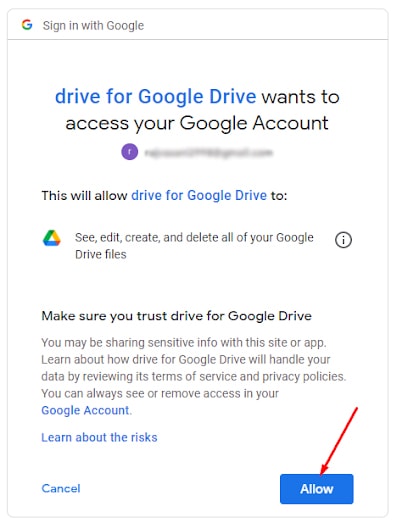
Comment Transfer Files From Votre Seedbox To Your Google Drive

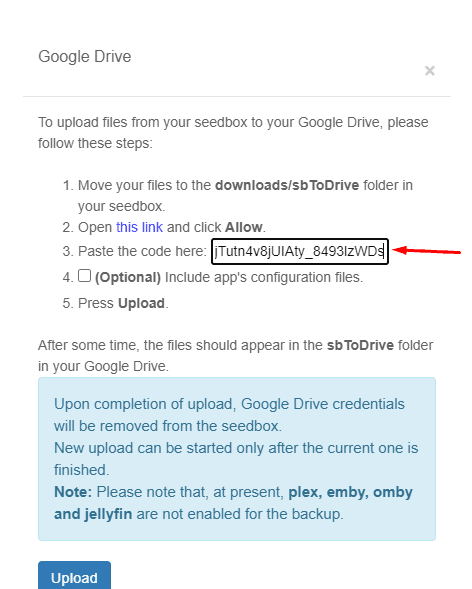
Étape 5: A code will appear, copy the code and paste the code in the pop-up. #
Comment Transfer Files From Votre Seedbox To Your Google Drive

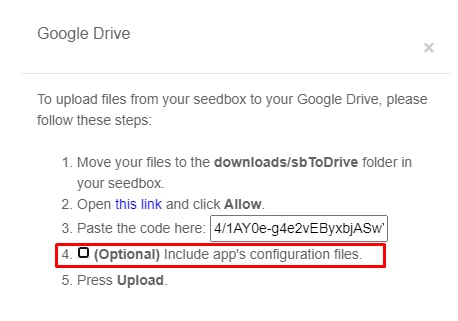
Step 6: Vous pouvez create a back-up for your app’s configuration, but this is an optional step. #
Comment Transfer Files From Votre Seedbox To Your Google Drive

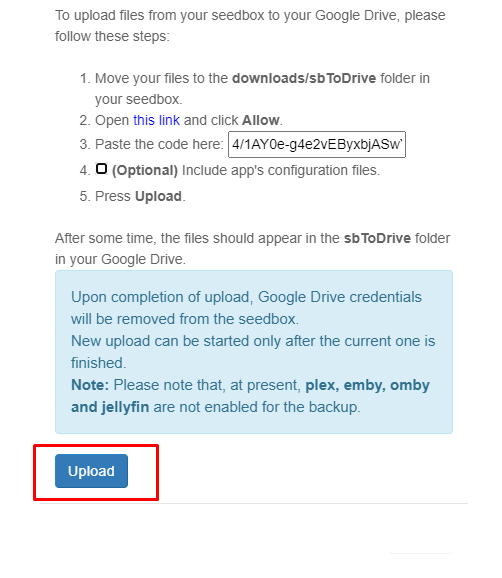
Step 7: Cliquez sur upload, Your files will start transferring and vous verrez the sbToDrive folder in your Google drive. #
Comment Transfer Files From Votre Seedbox To Your Google Drive

That’s it, in some time, head-on to your google drive to view all the files from votre seedbox in the sbToDrive folder.

Updated on 16 mars 2026

What are your Feelings

  • Happy
  • Normal
  • Sad

Share This Article :

  • Facebook
  • X
  • LinkedIn
  • Pinterest
Table of Contents
  • Steps to upload files from seedbox to Google Drive
  • Étape 1: Sélectionnez all the files that your want to transfer and move/copy them to the “sbToDrive” folder.
  • Étape 2: Cliquez sur the Google Drive button in your espace client.
  • Étape 3: Click the link provided in the pop-up
  • Étape 4: Sélectionnez the Google Account you want to use the drive of and click the allow button.
  • Étape 5: A code will appear, copy the code and paste the code in the pop-up.
  • Step 6: Vous pouvez create a back-up for your app’s configuration, but this is an optional step.
  • Step 7: Cliquez sur upload, Your files will start transferring and vous verrez the sbToDrive folder in your Google drive.

We create amazing Seedboxes
for everyone to use 😊

Important Links

Scholarship for CS

Refund Policy

Privacy Policy

Terms of service

Cookie Policy

Acceptable Use Policy

Get in Touch

Contact Us

[email protected]

© 2025 Evoseedbox | All rights reserved. By Evo Created with ❤️

  • Nederlands (Néerlandais)
  • English (Anglais)
  • Français
  • Deutsch (Allemand)
  • 日本語 (Japonais)
  • 한국어 (Coréen)
  • Português (Portugais - du Portugal)
  • Español (Espagnol)
  • العربية (Arabe)
  • Русский (Russe)
  • Türkçe (Turc)
Evoseedbox
  • Français
    • Nederlands (Néerlandais)
    • English (Anglais)
    • Deutsch (Allemand)
    • 日本語 (Japonais)
    • 한국어 (Coréen)
    • Português (Portugais – du Portugal)
    • Español (Espagnol)
    • العربية (Arabe)
    • Русский (Russe)
    • Türkçe (Turc)
  • Accueil Evoseedbox
  • Wiki
  • Forum
  • Pricing
Client Area