Evoseedbox Evoseedbox Evoseedbox Evoseedbox
  • Français
    • Nederlands (Néerlandais)
    • English (Anglais)
    • Deutsch (Allemand)
    • 日本語 (Japonais)
    • 한국어 (Coréen)
    • Português (Portugais – du Portugal)
    • Español (Espagnol)
    • العربية (Arabe)
    • Русский (Russe)
    • Türkçe (Turc)
  • Accueil Evoseedbox
  • Wiki
  • Forum
  • Pricing
Client Area
View Categories
  • Home
  • Docs
  • Adding a Torrent to votre Seedbox

Adding a Torrent to votre Seedbox

1 min read

Vous pouvez add torrent to la seedbox with the below methods

Step1: Drag and drop torrent tracker file in rutorrent
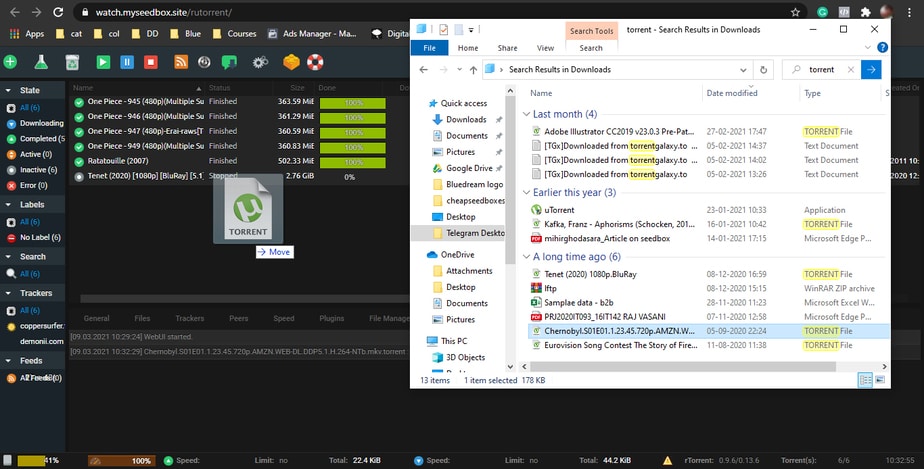
Adding Torrent To Seedbox

Step2: Add torrent to rutorrent manually
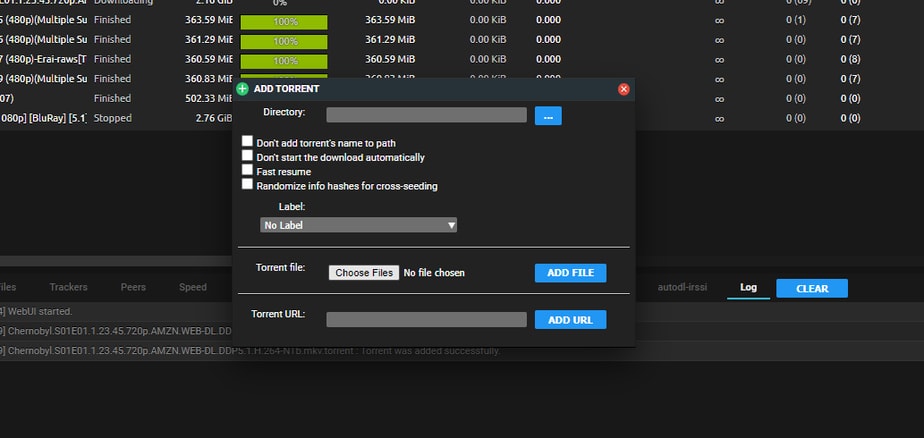
Adding Torrent To Seedbox

Adding Torrent To Seedbox

Step3: Add torrent to electorrent manually
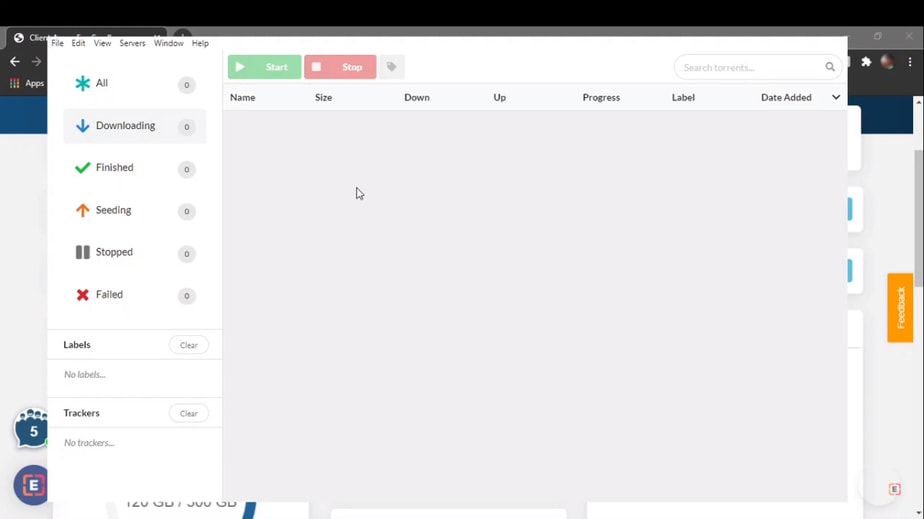
Adding Torrent To Seedbox

Three Ways to Add Torrents #

Your Evoseedbox supports multiple methods for adding torrents to votre seedbox. Choisissez the method that fits your workflow best.

Method 1: Drag and Drop #

The fastest method. Simply drag a .torrent file from your computer and drop it directly into the ruTorrent web interface. The torrent starts downloading immediately.

Method 2: Add Torrent Dialog #

  1. Click the Add Torrent button in the ruTorrent toolbar (or press the + icon)
  2. Click « Choisissez File » to browse for a .torrent file, or paste a magnet link in the URL field
  3. Optionally set a download directory and label
  4. Click OK to start downloading

Method 3: Magnet Links #

Copier a magnet link from any torrent site. In ruTorrent, click Add Torrent, paste the magnet link in the URL field, and click OK. No .torrent file needed.

Method 4: Watch Folder #

Charger .torrent files to votre seedbox’s watch folder via FTP. ruTorrent automatically detects and starts downloading them. Useful for batch-adding torrents. See Watch Folder Guide.

Method 5: Remote Add via Browser Extension #

Installer the Chrome Remote Torrent Adder or Firefox Torrent Control extension to add torrents directly from any website with one click.

Conseils #

  • Set a default label in ruTorrent settings to automatically organize new torrents
  • Use RSS feeds in ruTorrent to automatically download new releases from your favorite trackers
  • For large .torrent files (>2 MB), use the watch folder method instead of drag-and-drop
Updated on 16 mars 2026

What are your Feelings

  • Happy
  • Normal
  • Sad

Share This Article :

  • Facebook
  • X
  • LinkedIn
  • Pinterest
Table of Contents
  • Three Ways to Add Torrents
    • Method 1: Drag and Drop
    • Method 2: Add Torrent Dialog
    • Method 3: Magnet Links
    • Method 4: Watch Folder
    • Method 5: Remote Add via Browser Extension
  • Conseils

We create amazing Seedboxes
for everyone to use 😊

Important Links

Scholarship for CS

Refund Policy

Privacy Policy

Terms of service

Cookie Policy

Acceptable Use Policy

Get in Touch

Contact Us

[email protected]

© 2025 Evoseedbox | All rights reserved. By Evo Created with ❤️

  • Nederlands (Néerlandais)
  • English (Anglais)
  • Français
  • Deutsch (Allemand)
  • 日本語 (Japonais)
  • 한국어 (Coréen)
  • Português (Portugais - du Portugal)
  • Español (Espagnol)
  • العربية (Arabe)
  • Русский (Russe)
  • Türkçe (Turc)
Evoseedbox
  • Français
    • Nederlands (Néerlandais)
    • English (Anglais)
    • Deutsch (Allemand)
    • 日本語 (Japonais)
    • 한국어 (Coréen)
    • Português (Portugais – du Portugal)
    • Español (Espagnol)
    • العربية (Arabe)
    • Русский (Russe)
    • Türkçe (Turc)
  • Accueil Evoseedbox
  • Wiki
  • Forum
  • Pricing
Client Area