There are multiple ways to transfer your data from الـ Seedbox الخاص بك. يمكنك use an FTP connection to download files إلى device or use the btsync app.
One of the most convenient ways is using the Evoseedbox Google Drive Integration. A few steps and all your chosen files are transferred automatically.
In this article, I will teach you how to transfer files from الـ Seedbox الخاص بك إلى Google Drive.
Steps to upload files from seedbox to Google Drive #
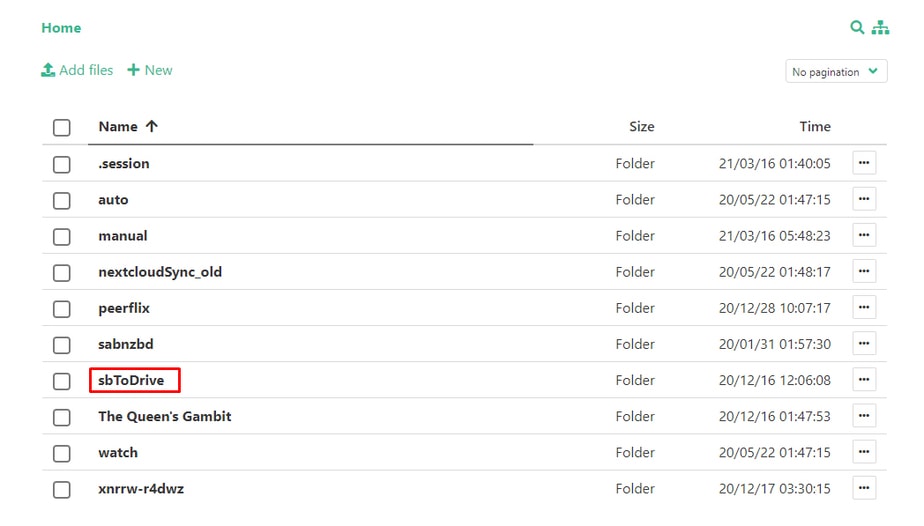
الخطوة 1: اختر all the files that your want to transfer and move/copy them to the “sbToDrive” folder. #
(يمكنك use Filegator for this)
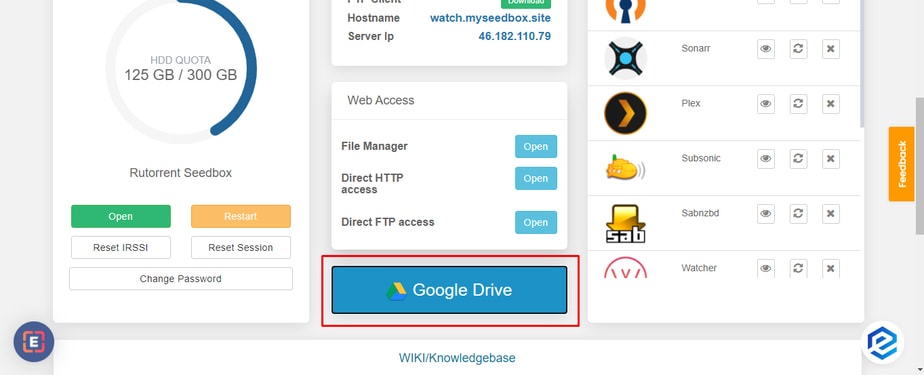
الخطوة 2: انقر على the Google Drive زر في منطقة العميل. #
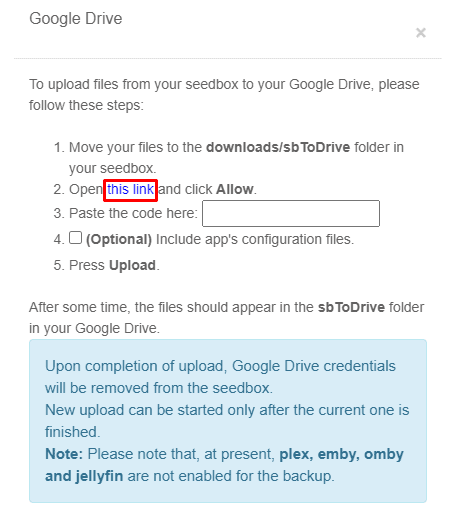
الخطوة 3: Click the link provided in the pop-up #
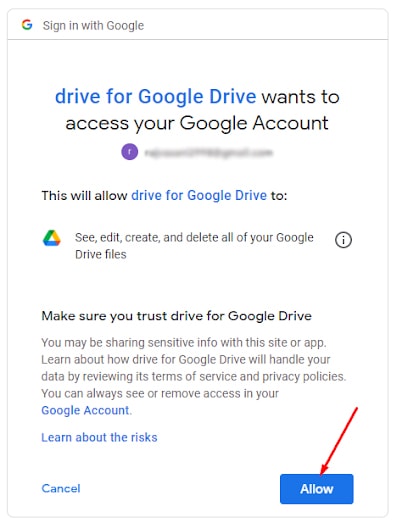
Step 4: اختر the Google Account you want to use the drive of and click the allow زر. #
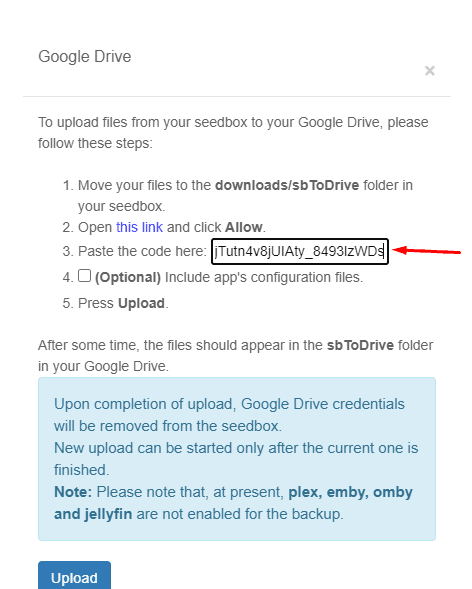
Step 5: A code will appear, copy the code and paste the code in the pop-up. #
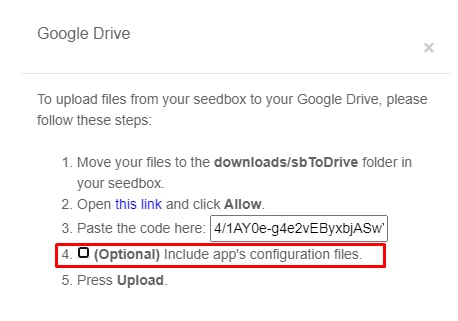
Step 6: يمكنك create a back-up for your app’s configuration, but هذا هو an optional step. #
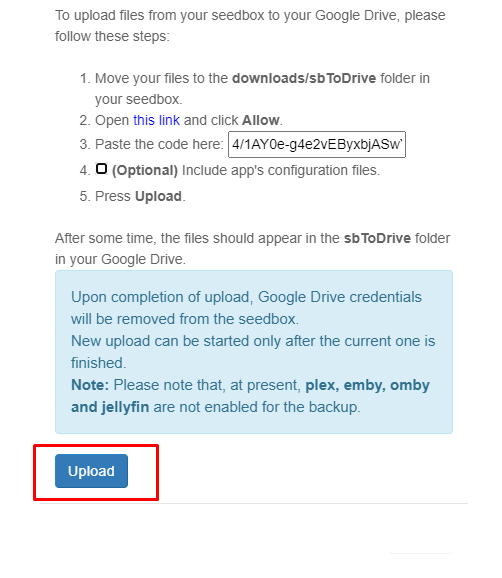
Step 7: انقر على upload, Your files will start transferring and ستظهر لك see the sbToDrive folder في Google drive. #
That’s it, in some time, head-on إلى google drive to view all the files from الـ Seedbox الخاص بك in the sbToDrive folder.


