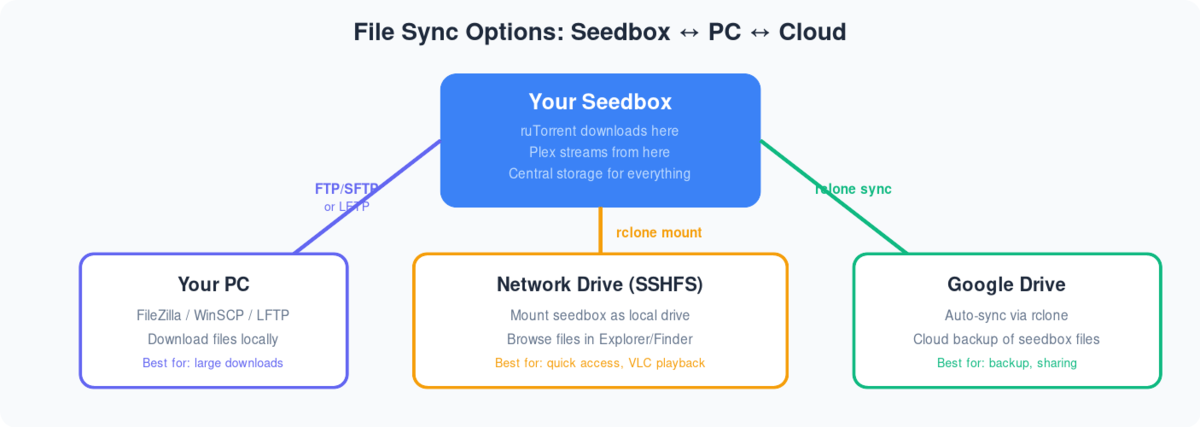
Following are the step-by-step instructions to setup rclonebrowser:
- Установить rclonebrowser с вашего clientarea dashboard
- Visit the rclonebrowser’s URL and login
- The initial window would have three tabs
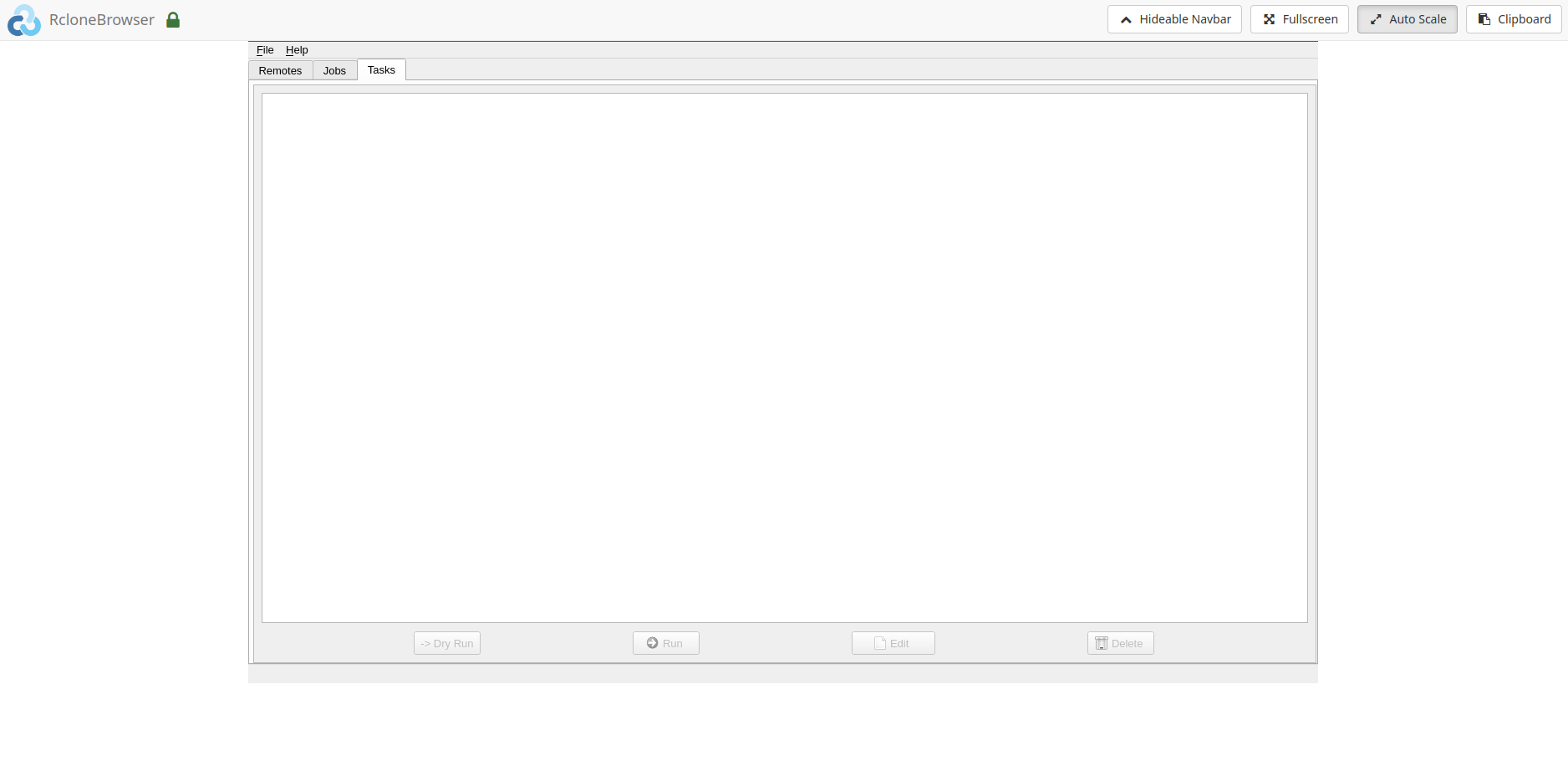
4. Перейдите к the remotes tab and click on config
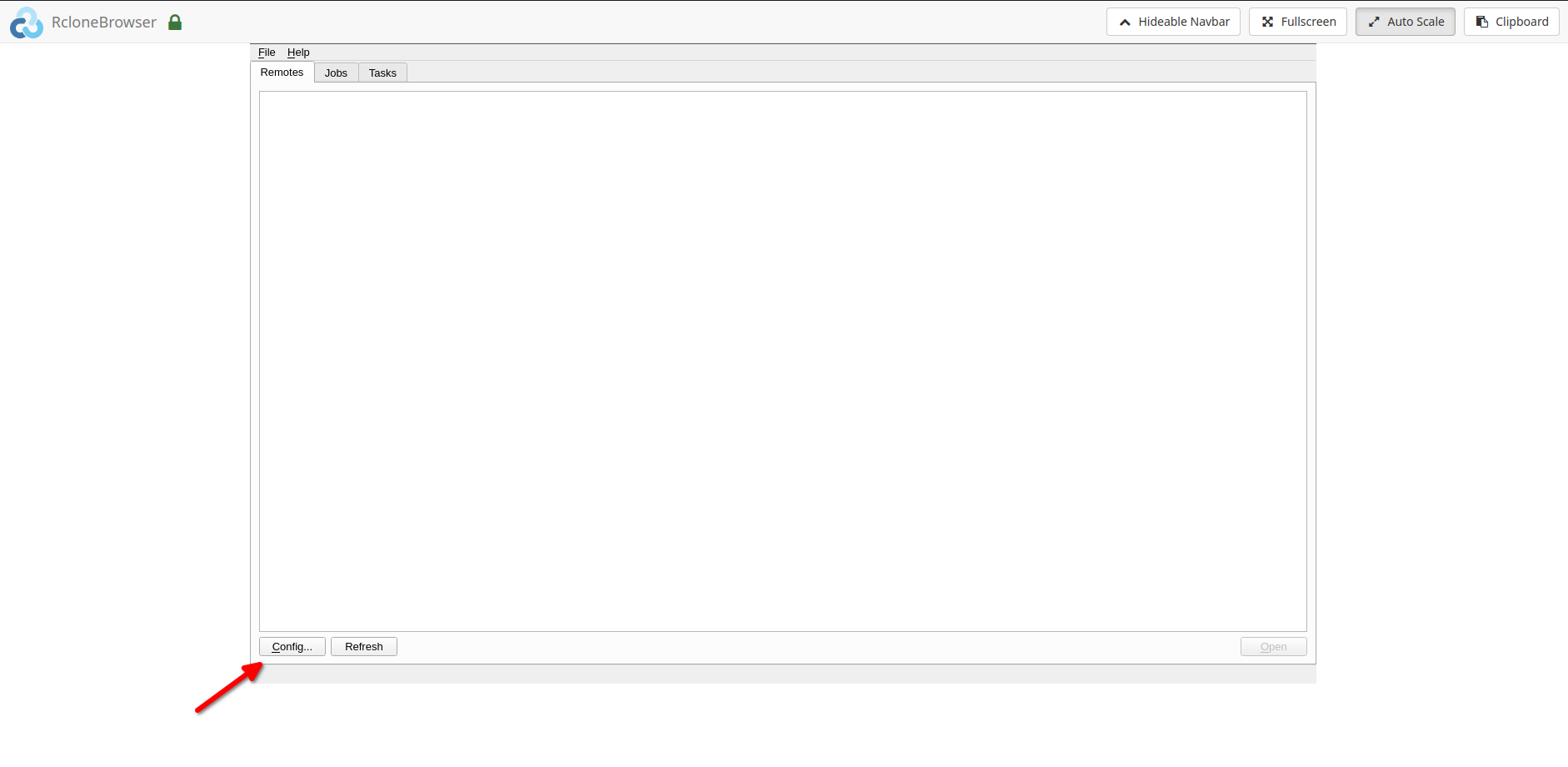
5. Follow the onscreen instructions to complete the further steps
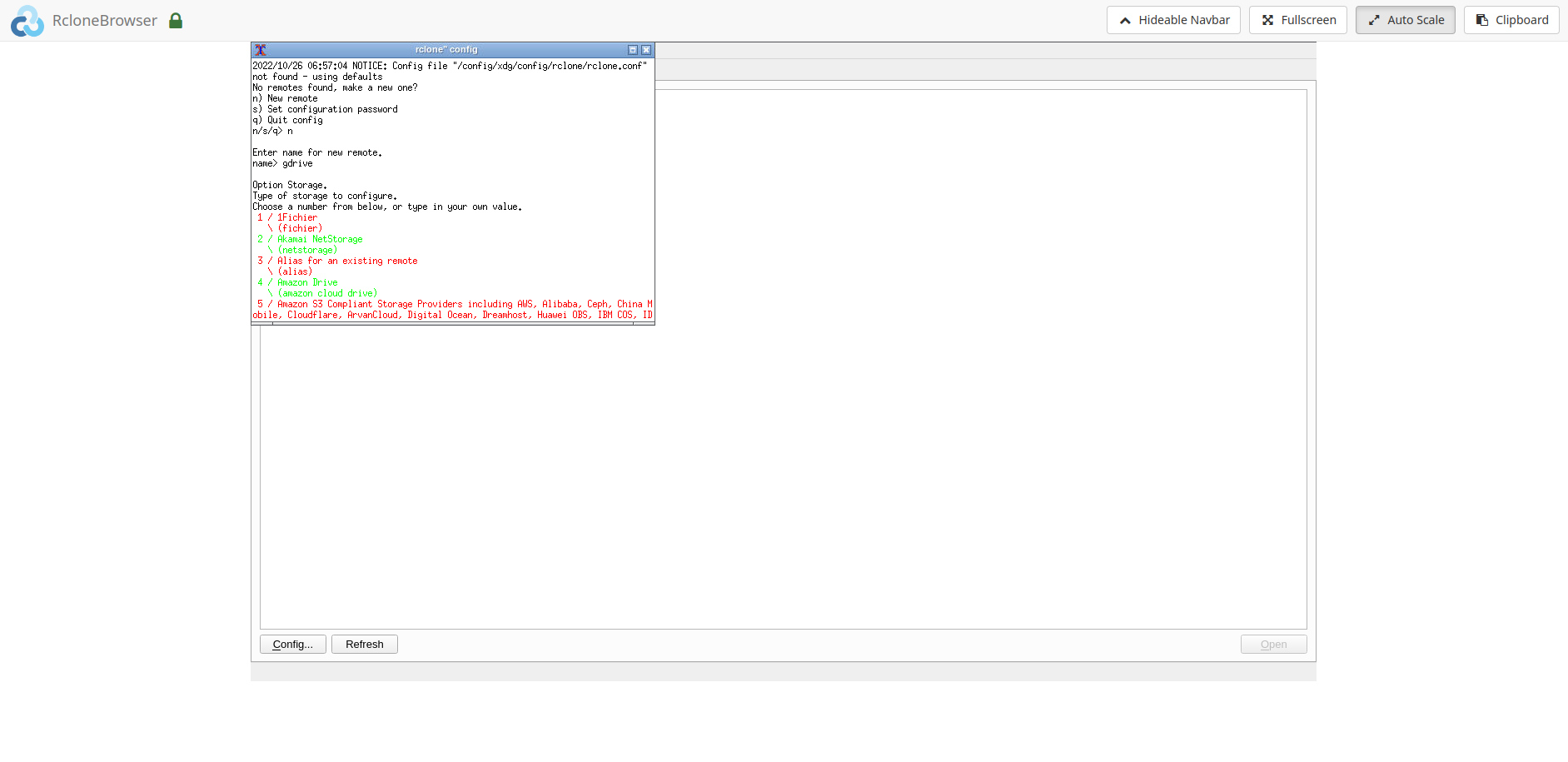
6. The final steps would require the followings:
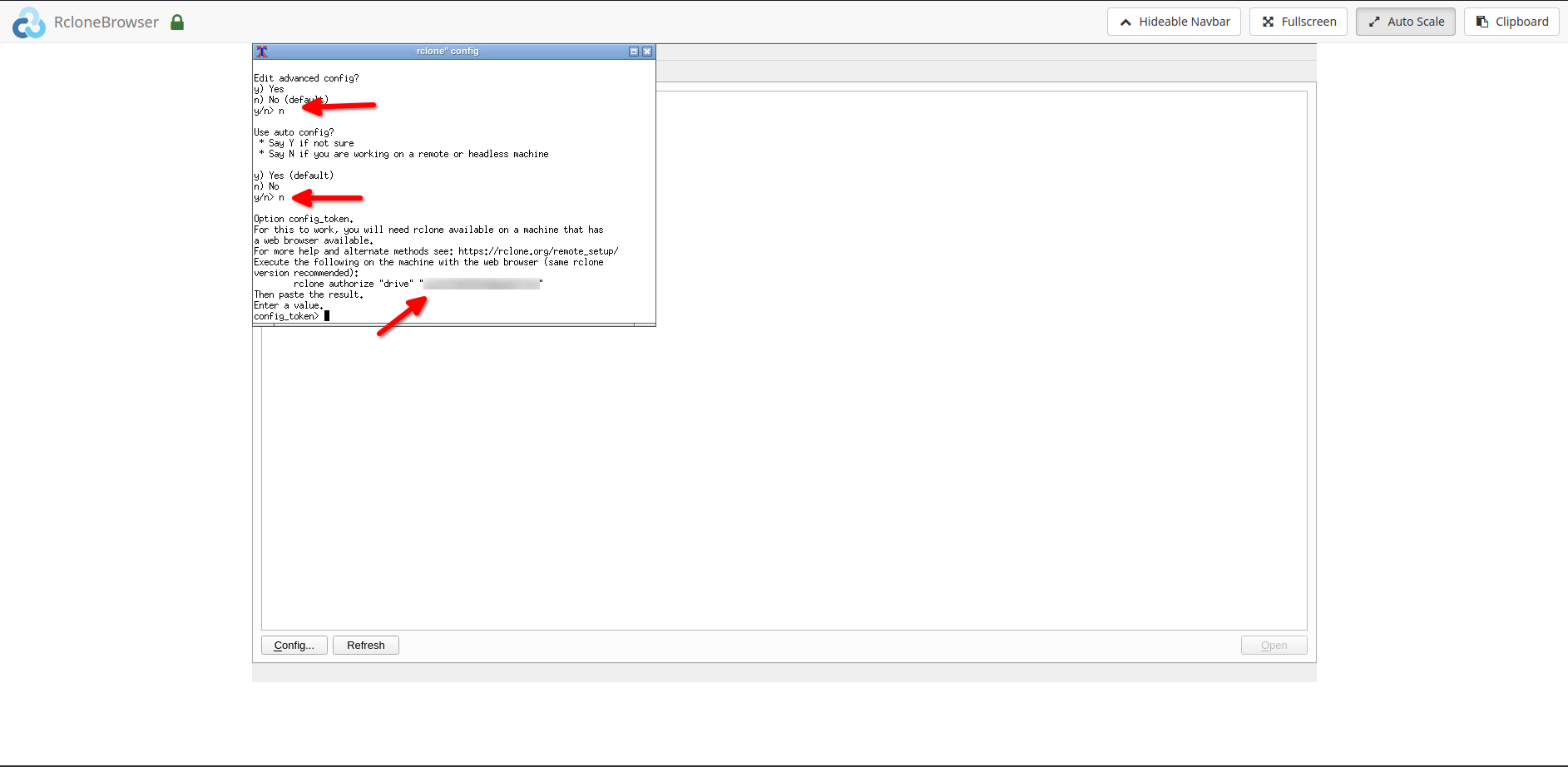
6.1. Please enter ‘n’ when asked for ‘auto config’
6.2. After the above step, please do the followings:
6.2.1. Установить rclone на вашем local system.
6.2.2. Copy the rclone command i.e. ‘rclone authorize drive ’
6.2.3. Run the above command на вашем local system, you would be directed в вашем browser to give rclone permission to access your drive.6.2.4. Copy the ‘config token’ с вашего command window and paste it into rclonebrowser.
Примечание: For copying and pasting please use the ‘clipboard’ option in the rclonebrowser.
- After completing the above step successfully, вы можете now access your remote. To access your remote, click on the open кнопка by selecting the remote in the rclonebrowser.
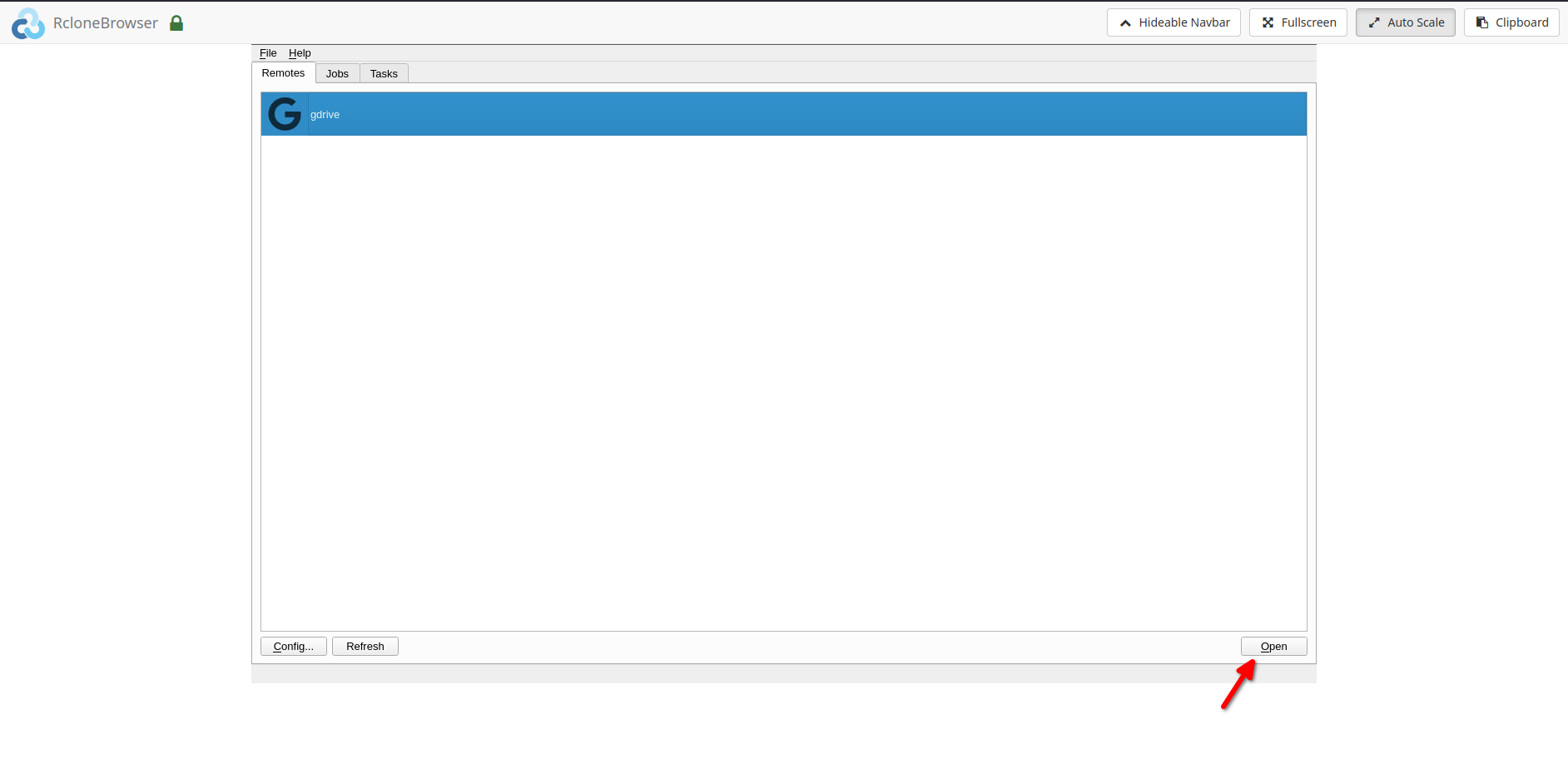
- Your remote would open in a new tab.
Mount option and data sharing:
- Вы можете mount your remote under the directory ‘/media’ in rclonebrowser.
- The same can be accessed under the ‘/home//rclone’ directory on вашим seedbox.
- Вы можете также access вашим seedbox ‘downloads’ directory in rclonebrowser under the ‘/home//downloads’ directory. Please note that это read-only. Writes can be done from вашим seedbox if needed.


