В этом руководстве, I will explain you basics of using Rutorrent.
Topics covered will be:
1. What is rutorrent?
2. Как load up the rutorrent interface in evoseedbox?
3. Adding torrents to rutorrent
4. Removing torrents in rutorrent
I have been using seedboxes for past 10 years, I have personally tried various different programs and come to the conclusion that rutorrent is one of the most user-friendly application as a front end to seedboxes. Keep in mind this document will be constantly updated based on user inputs queries and doubts the idea is to make your experience smooth and make your learning curve as small as possible
So let us begin :
1. What is rutorrent?
Rutorrent is a front end or a веб-интерфейс for a torrent program called rtorrent that runs in Linux.
So you might be thinking why do you need a separate interface for rtorrent?
rtorrent is an extremely resource efficient program so it runs in the terminal interface

not bad eh.. but it's not the most user-friendly interface for most users and remote access makes it furthermore challenging for regular users who are not very familiar with such interfaces
So fast forward years and Novik comes into the picture .. umm you might be thinking who is Novik? well he is the guy who built rutorrent
Here is his Git repo for rutorrent: https://github.com/Novik/ruTorrent
So what rutorrent does is creates a веб-интерфейс for rtorrent. It collects data from rtorrent and puts it на вашем web browser along with the option to communicate with your rtorrent which is running mostly on Linux server in much more user-friendly manner.
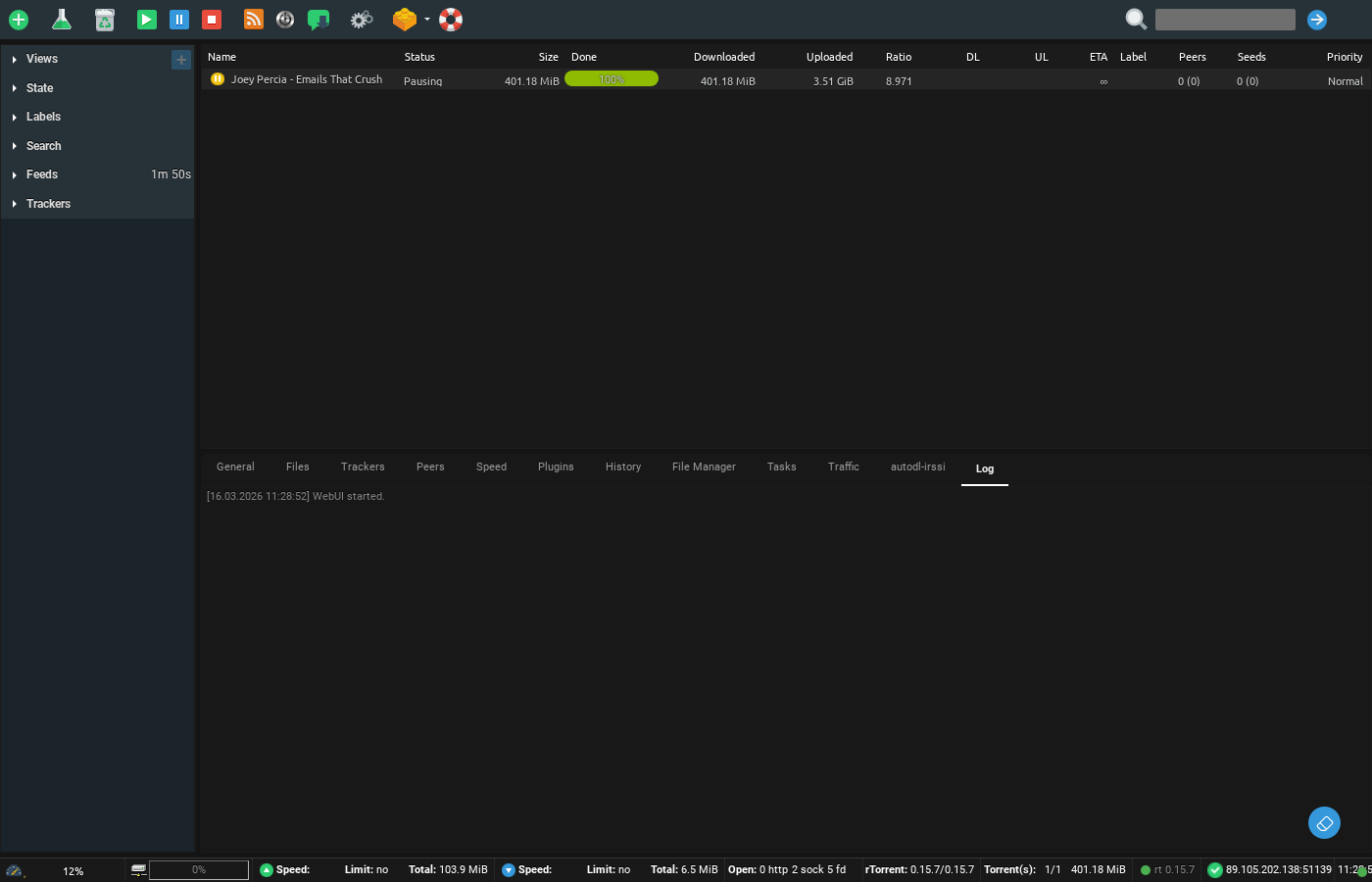
Your rutorrent looks примерно так :

Если вы have used programs like utorrent , azureus (Vuze ) etc the interface would look quite similar to you the only difference is that it runs с вашего web browser.
For most, of you guys, I think this much is enough if you хотите read more есть tons of more info online Если вы want me to add some more clarity to this feel free to drop in a line or two
So let's get back to business and let me explain to you how вы можете easily access a rutorrent account with us,
Шаг 2: Как load up the rutorrent interface in evoseedbox?
Once you have signed up for a seedbox account (In case you have not please do that at https://evoseedbox.com )
Check your email ( Это very critical
you найдёте a link на ваш личный кабинет.
Once you are в вашем личный кабинет он будет look примерно так :
Did you хотите seed the пароль, didn't you?
(sorry for popping your eyes with white личный кабинет)
So as вы можете see I have highlighted the rutorrent area and есть a green кнопка below it called open, just click on it and yay!! вы будете have your rutorrent interface open.
You thought it would be hard
well we have already preнастроитьd the setup for you so you don't нужно do much.
Now you must be thinking well it did not ask for my user id or пароль for opening up rutorrent.
The thing is в вашем личный кабинет the имя пользователя is and пароль is already preнастроитьd in the open кнопка which saves you the hassle of putting the имя пользователя and пароль every time.
Now that you have your rutorrent open let's move to step 3
3. Adding torrents to rutorrent.
В этом руководстве, we are going to only consider the methods within the torrents interface. There are more продвинутый methods like remotely adding torrents из browser, Android device, apps but we won't be covering it in this guide to keep is простой and once you understand the basic ways of adding the torrents its
Method 1.
Drag and drop, yes its that easy drag and drop your tracker file to rutorrent and boom он будет start loading в вашем rutorrent interface
Method 2
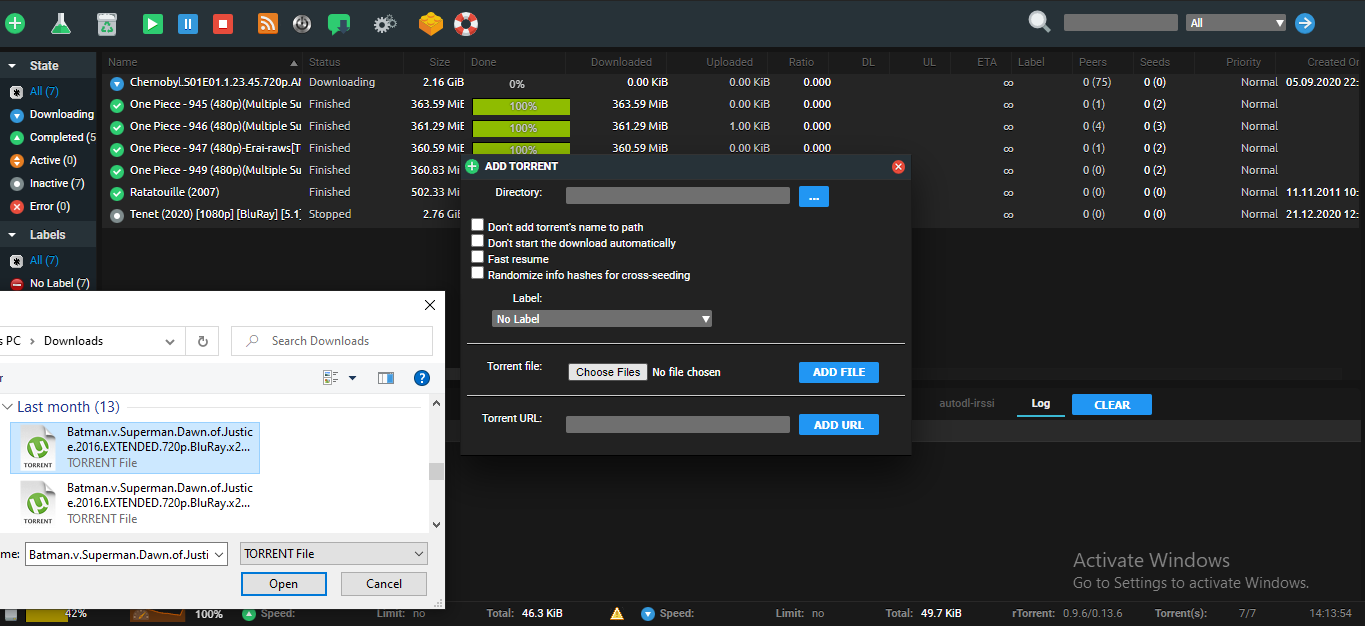
Using add кнопка in torrent on the top right corner вы можете see a + sign if you open it up it gives you an option to browse to the folder where you have downloaded your tracker file from a torrent website, select the torrent/torrents(at a time вы можете do 20 tracker files) and then click add file and он будет start downlaoding в вашем rutorrent веб-интерфейс.
Method 3.
It is similar to the previous method but in this case instead of downloading the tracker file с вашего torrent website you copy the link с вашего tracker website and put it the Torrent URL field and press add.
Please note that in some public trackers which are behind cache proxies etc this method might not work, one solution could be to convert the magnet links to tracker files from websites like http://magnet2torrent.me/
These are the most basic methods of adding a torrent to rutorrent other methods of adding torrents with rutorrent will be covered in a different tutorial.
Now that вы будете start to add torrents вы будете soon realise that you might be reaching the full HDD capacity of вашим seedbox ( Вы можете always upgrade) but don’t fret вы можете always remove torrents make some space by removing torrents.
Which brings us to our next topic
4. Removing torrents in rutorrent
there are primarily 2 ways to remove torrents from rutorrent. The first method would remove just the tracker file in case you are done seeding a particular torrent or you don’t want a certain torrent to be anymore listed в вашем rutorrent interface.
Please note that in this method the data of the torrent still remains os you нужно either delete it using the файловый менеджер in rutorrent
Method 2. Removing and delete data method.
This method applies ot torrents which you don't want anymore на вашем system
Он будет not only remove the tracker file but make space for you to download more torrents in case your HDD is getting full. The process of doing это similar you нужно щёлкните правой кнопкой мыши на the torrent you хотите get rid of and select remove and delete data.
Well, that is the basics you нужно learn в вашем journey to becoming a rutorrent ninja. May the force of seedbox be with you shinobi.
PS: In case the second method does not work (data is not getting removed) : you need ot restart rtorrent . restarting rtorrent is covered in this tutorial section.


