Como Get Maximum Transfer Speed Usando FTP in FileZilla
On this page ▾
By following this guide você será able to get maximum velocidade de downloads as well as you’ll be able to use concurrent downloads which will make downloading multiple files a lot quicker and efficient.
Filezilla recently has earned a lot of popularity in the FTP client applications thanks to its easy-to-use UI and interactive dashboard which shows both your local machine’s as well as sua seedbox’s file structure.
Like any other application, we quer utilize most of o aplicativo’s potential especially download and upload speeds. In File Zilla você pode use certain techniques and changes in settings to improve velocidade de downloads.
Let’s see by an example how to set up these settings both for faster velocidade de downloads and concurrent downloads.
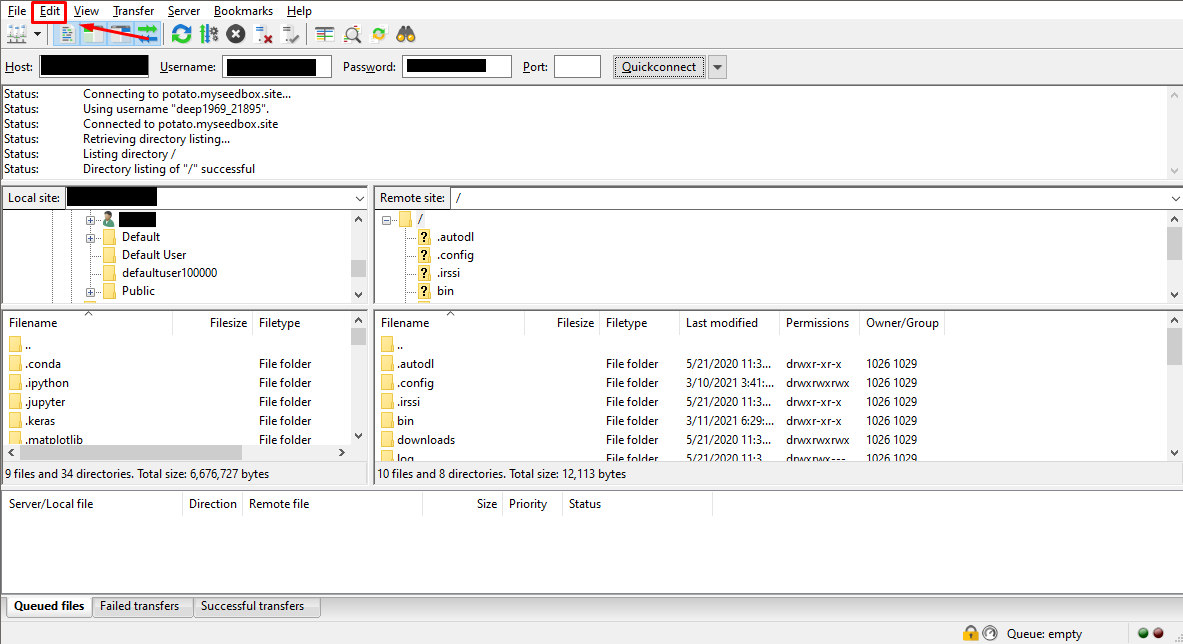
Abrir Filezilla and open the edit tab in the top-left corner.
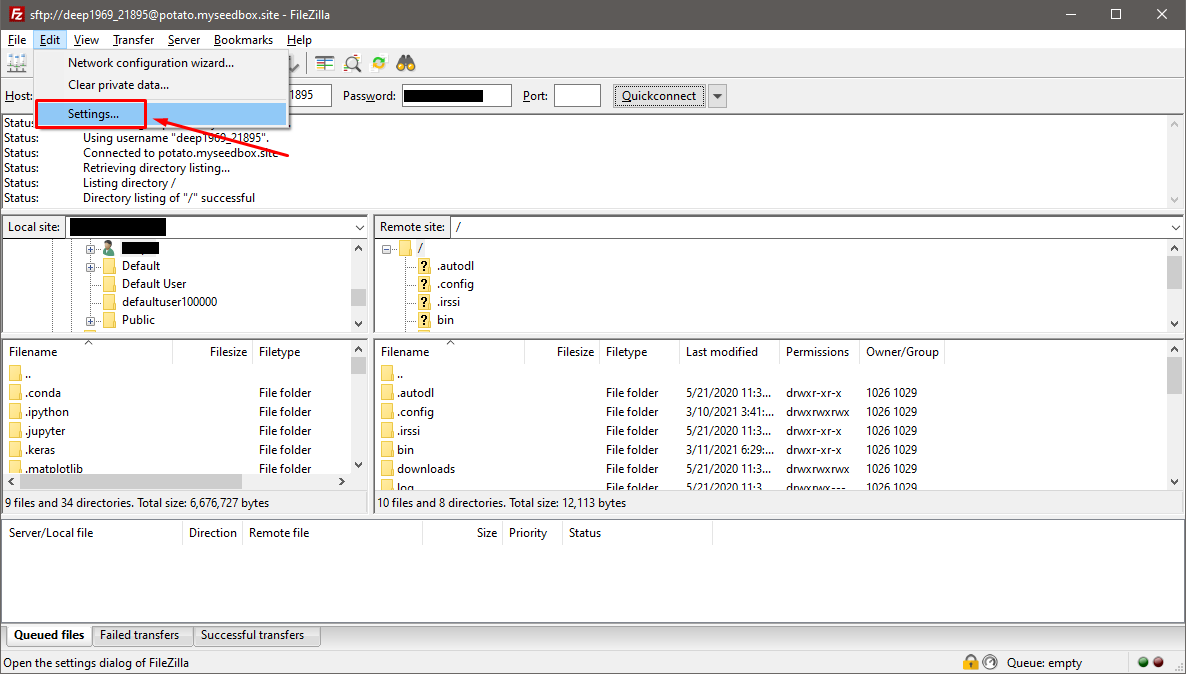
Clique em ‘settings’ in the edit drop-down menu
Clique em the ‘Transfers’ tab on the left side.
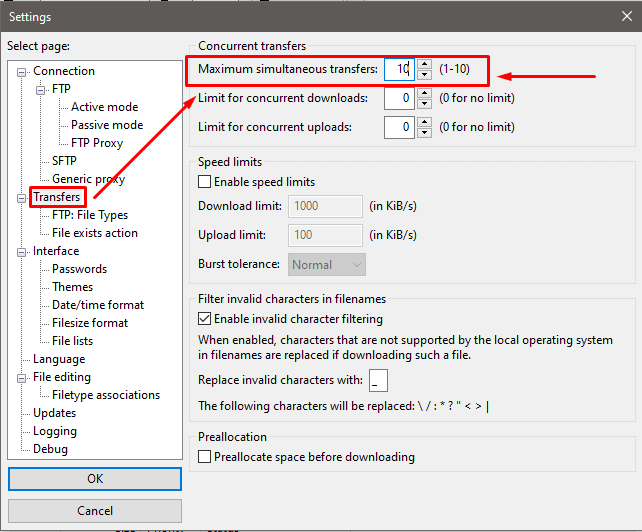
In the ‘Transfers’, the first option você vai see is the ‘Maximum simultaneous transfers ‘ with its default value is 2 which can go up to a maximum of 10 concurrent downloads at once. Você pode modify these settings to adjust your concurrent downloads.
Use these settings and you’ll see 10 files being in queue for download at once.
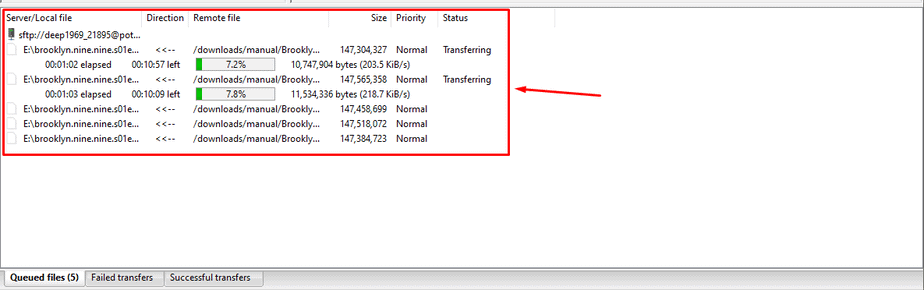
By using the above settings você será able to increase the overall number of files being transferred and get maximum velocidade de download possible.
It is também advisable that you stop all your active torrents while performing a file transfer as it ca provide an extra speed boost
Put this into practice
EvoSeedbox ships with one-click app installs and up to 10 Gbps per box.


