Evoseedbox Evoseedbox Evoseedbox Evoseedbox
  • 한국어
    • Nederlands (화란어)
    • English (영어)
    • Français (불어)
    • Deutsch (독어)
    • 日本語 (일어)
    • Português (포르투갈 포르투갈어)
    • Español (스페인어)
    • العربية (아랍어)
    • Русский (러시아어)
    • Türkçe (터어키어)
  • 에보씨드박스 홈
  • Wiki
  • Forum
  • Pricing
Client Area
View Categories
  • Home
  • Docs
  • Rclone Google Drive Setup

Rclone Google Drive Setup

1 min read

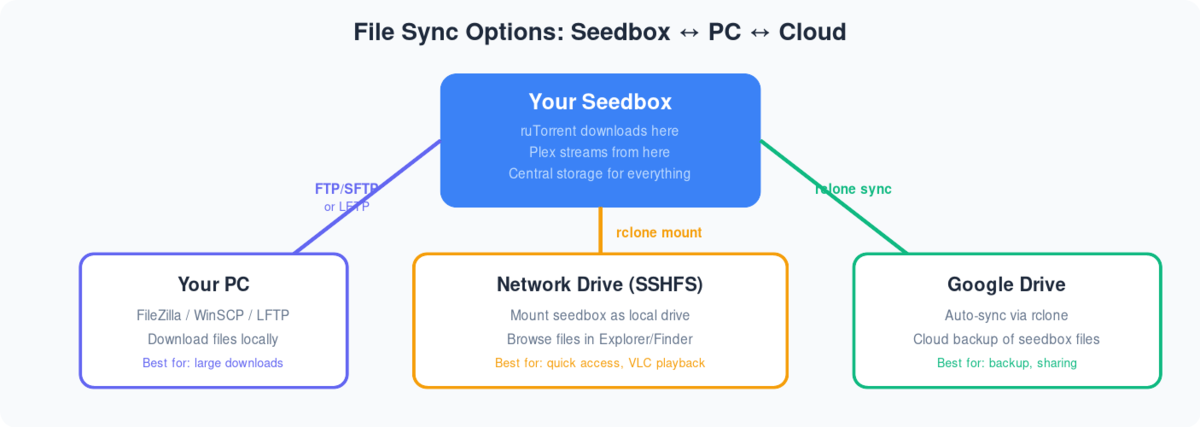
Diagram showing three ways to sync files from seedbox: FTP to PC, SSHFS network drive, and rclone to Google Drive

Following are the step-by-step instructions to setup rclonebrowser:

  1. 설치 rclonebrowser 당신의 clientarea dashboard
  2. Visit the rclonebrowser’s URL and login
  3. The initial window would have three tabs
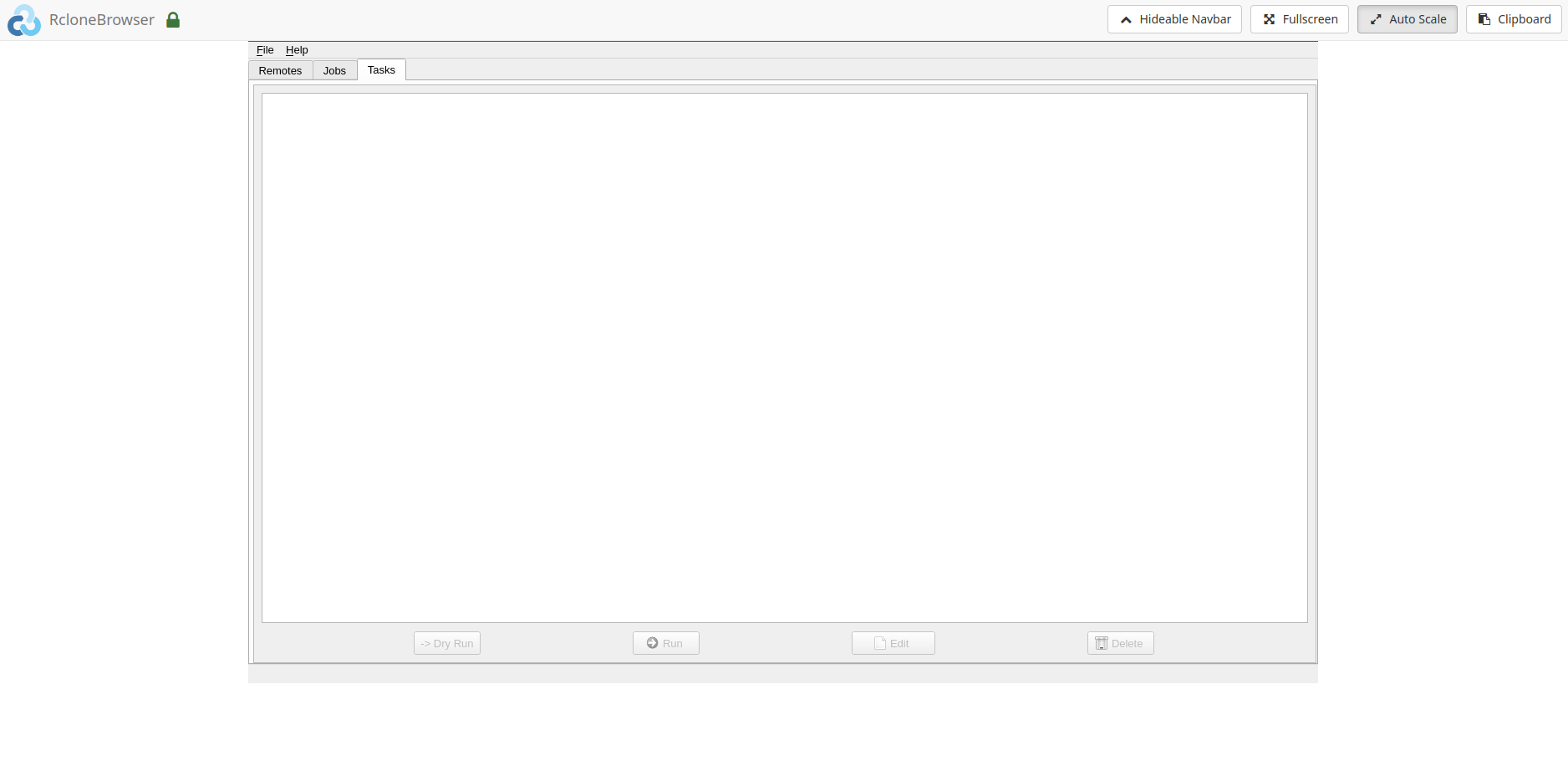
Rclone Gdrive Setup

4. 이동: the remotes tab and click on config
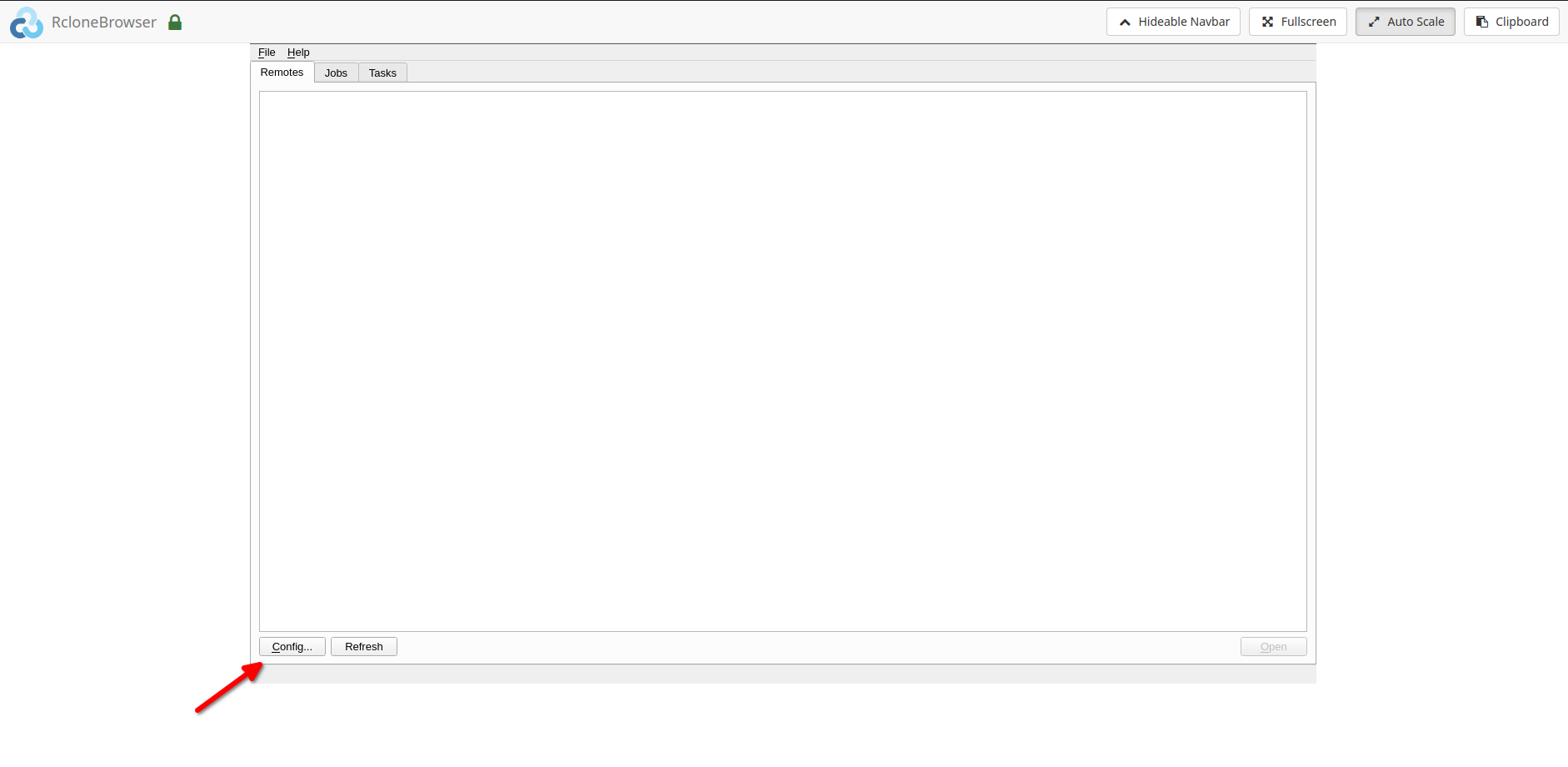
Rclone Gdrive Setup

5. Follow the onscreen instructions to complete the further steps
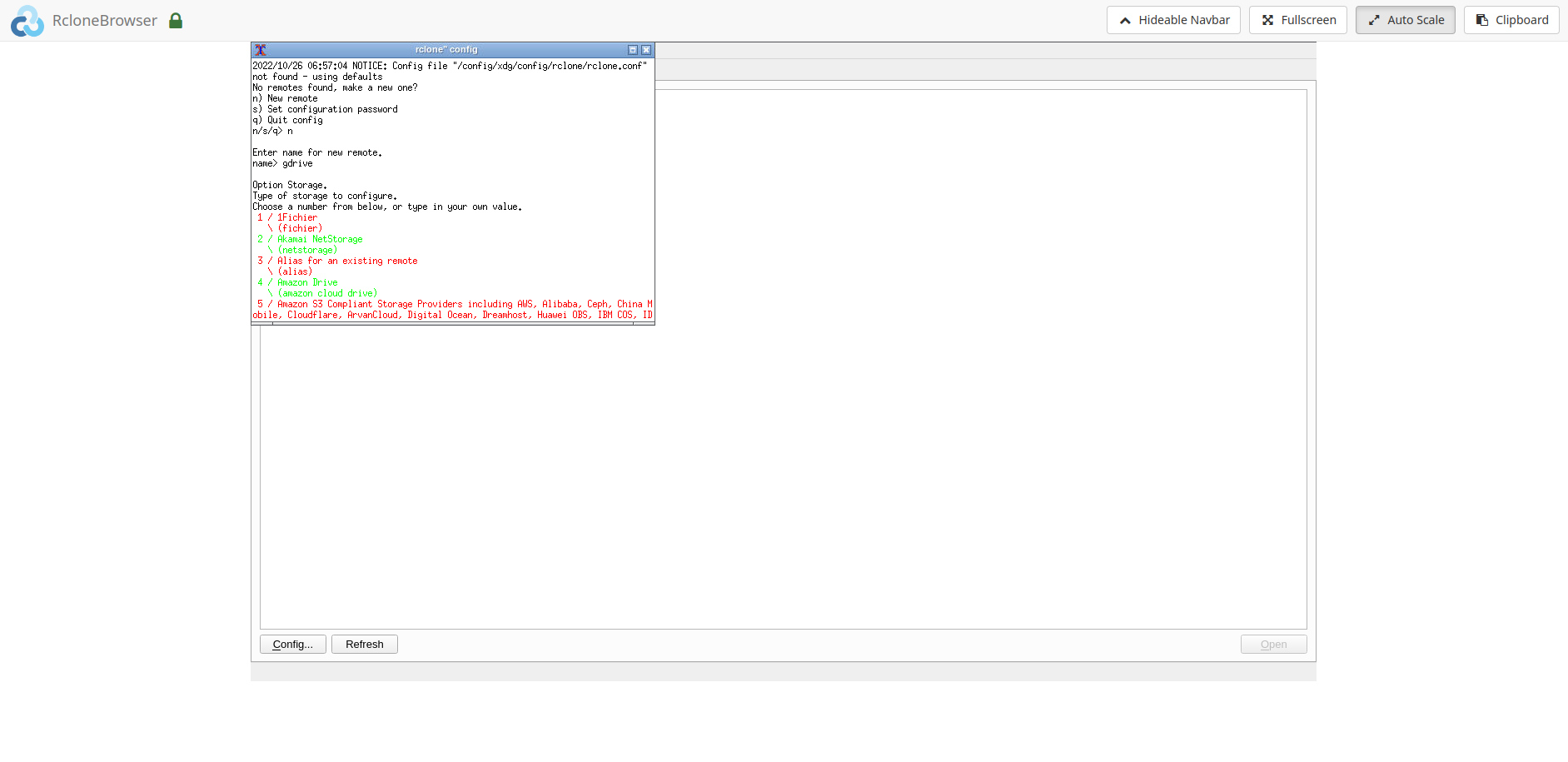
Rclone Gdrive Setup

6. The final steps would require the followings:
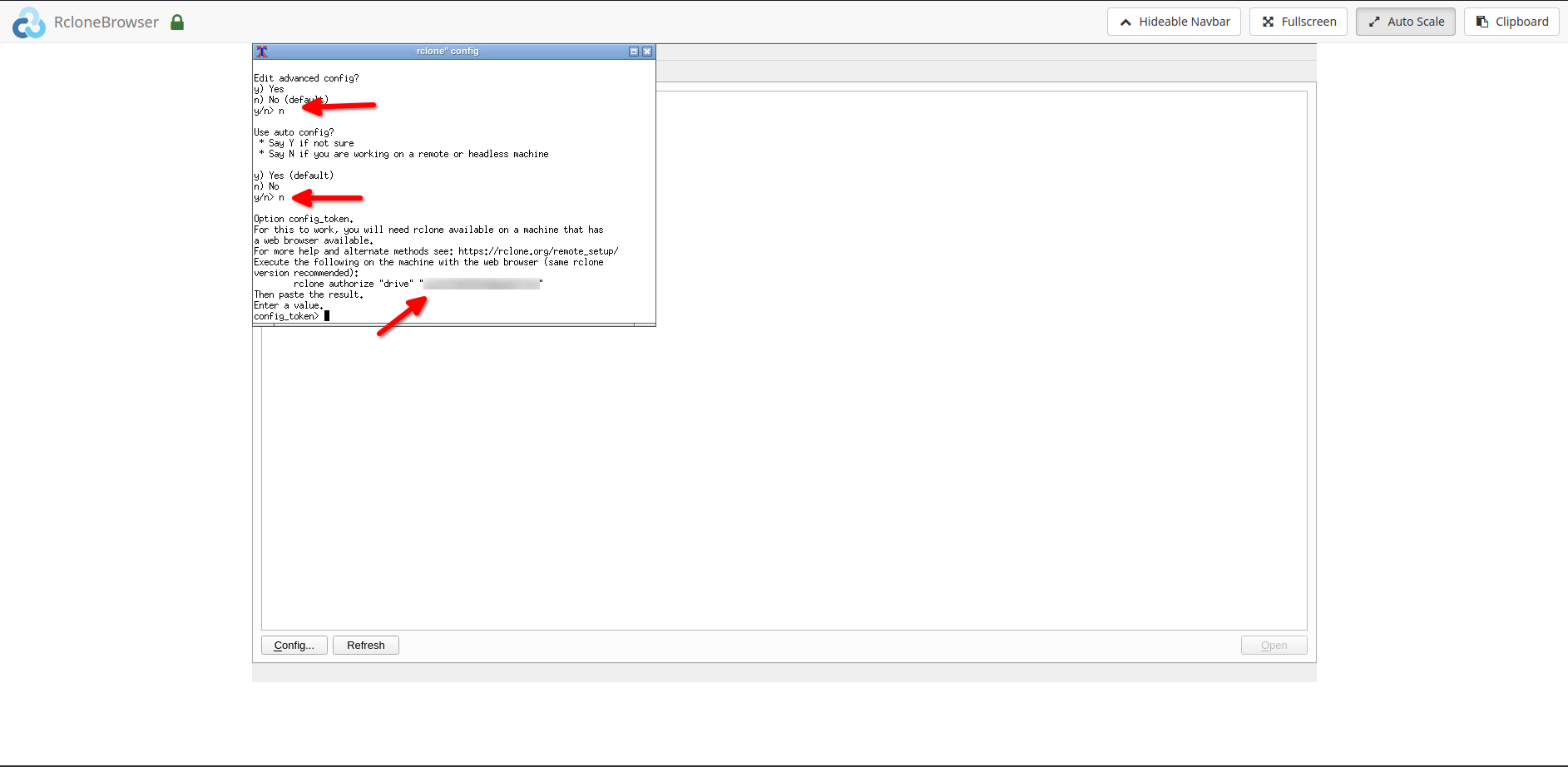
Rclone Gdrive Setup

6.1. Please enter ‘n’ when asked for ‘auto config’
6.2. After the above step, please do the followings:
6.2.1. 설치 rclone 당신의 local system.
6.2.2. Copy the rclone command i.e. ‘rclone authorize drive ’
6.2.3. Run the above command 당신의 local system, you would be directed 당신의 browser to give rclone permission to access your drive.6.2.4. Copy the ‘config token’ 당신의 command window and paste it into rclonebrowser.

참고: For copying and pasting please use the ‘clipboard’ option in the rclonebrowser.

  1. After completing the above step successfully, 할 수 있습니다 now access your remote. To access your remote, click on the open 버튼 by selecting the remote in the rclonebrowser.
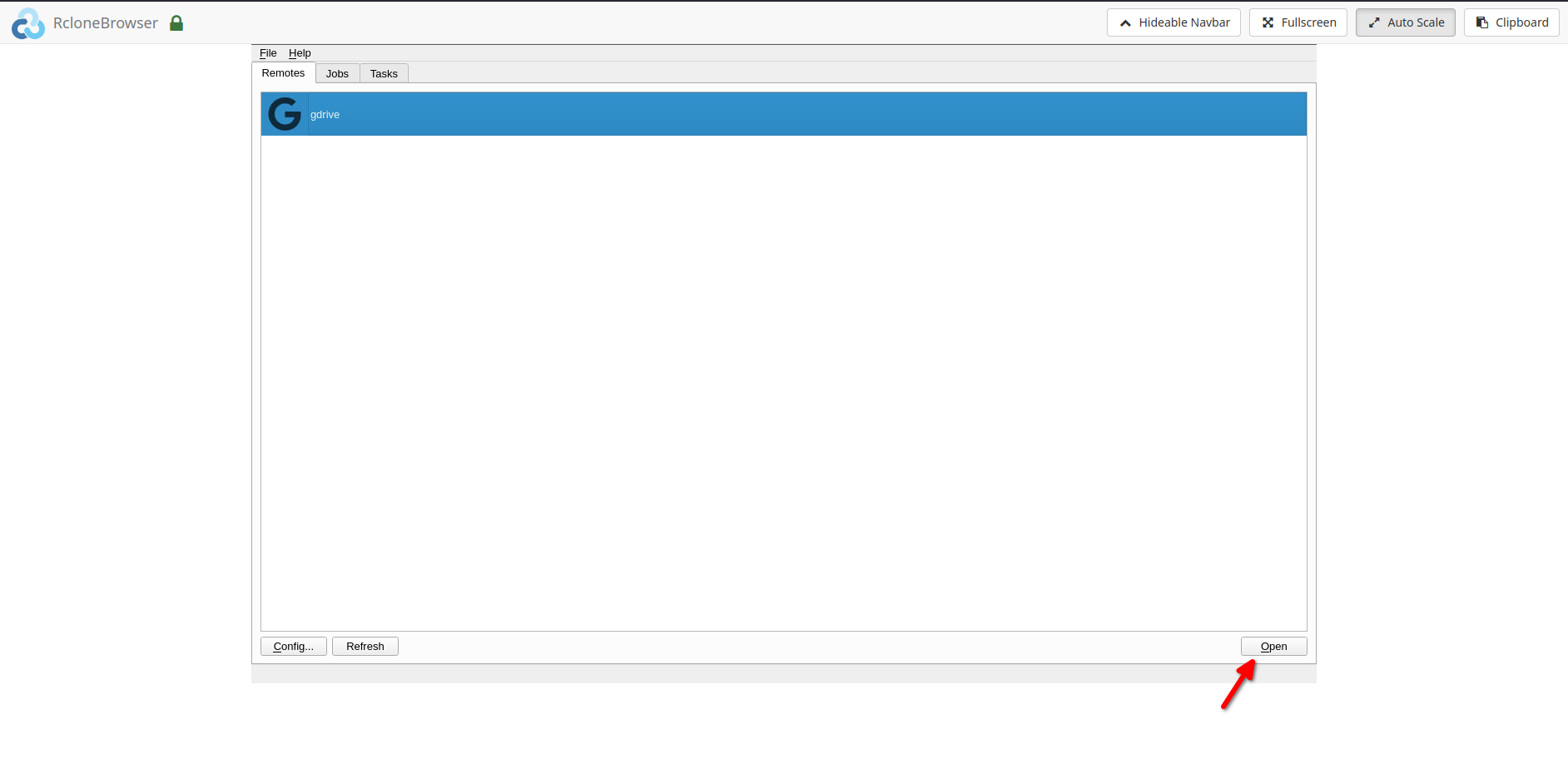
Rclone Gdrive Setup

  1. Your remote would open in a new tab.

Mount option and data sharing:

  1. You can mount your remote under the directory ‘/media’ in rclonebrowser.
  2. The same can be accessed under the ‘/home//rclone’ directory on 당신의 Seedbox.
  3. You can 또한 access 당신의 Seedbox ‘downloads’ directory in rclonebrowser under the ‘/home//downloads’ directory. Please note that 이것은 read-only. Writes can be done from 당신의 Seedbox if needed.

관련 가이드 #

  • Transfer to Google Drive
  • Sync Files to PC
  • Set Up Duplicati Backup
Updated on 2026년 03월 16일

What are your Feelings

  • Happy
  • Normal
  • Sad

Share This Article :

  • Facebook
  • X
  • LinkedIn
  • Pinterest
Table of Contents
  • 관련 가이드

We create amazing Seedboxes
for everyone to use 😊

Important Links

Scholarship for CS

Refund Policy

Privacy Policy

Terms of service

Cookie Policy

Acceptable Use Policy

Get in Touch

Contact Us

[email protected]

© 2025 Evoseedbox | All rights reserved. By Evo Created with ❤️

  • Nederlands (화란어)
  • English (영어)
  • Français (불어)
  • Deutsch (독어)
  • 日本語 (일어)
  • 한국어
  • Português (포르투갈 포르투갈어)
  • Español (스페인어)
  • العربية (아랍어)
  • Русский (러시아어)
  • Türkçe (터어키어)
Evoseedbox
  • 한국어
    • Nederlands (화란어)
    • English (영어)
    • Français (불어)
    • Deutsch (독어)
    • 日本語 (일어)
    • Português (포르투갈 포르투갈어)
    • Español (스페인어)
    • العربية (아랍어)
    • Русский (러시아어)
    • Türkçe (터어키어)
  • 에보씨드박스 홈
  • Wiki
  • Forum
  • Pricing
Client Area