What is Pyload?
Pyload is a light build and fully featured download manager which supports many of the one-click-hoster, container formats, and video sites and また plain ftp/http links.
方法: use Pyload?
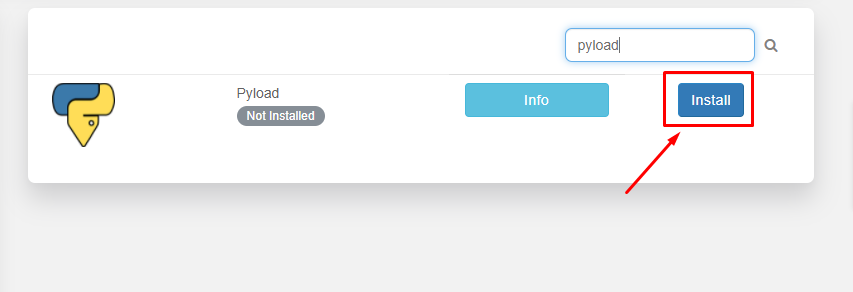
The first step is to install アプリ from the クライアントエリア.
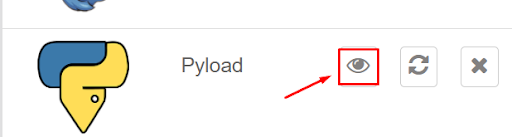
After the installation is complete, open アプリ from the installed apps section as 以下に表示.
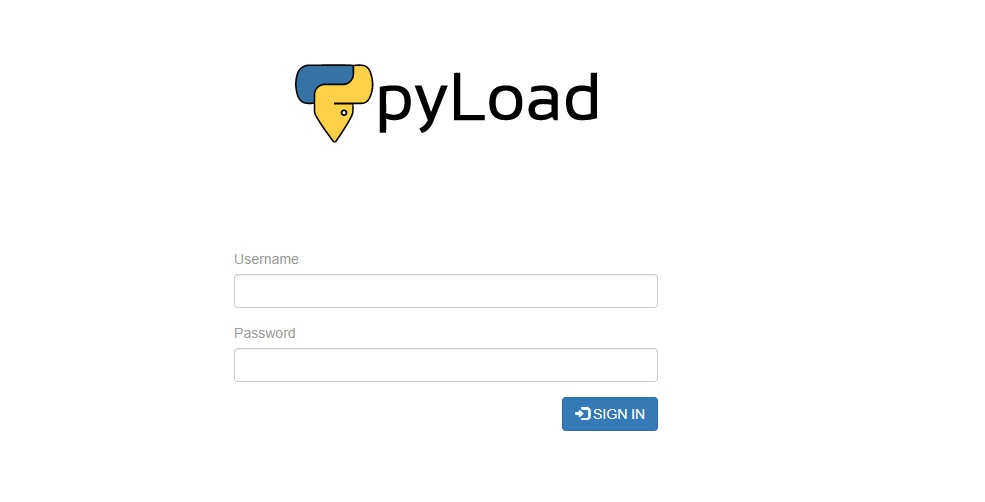
Pyload Webインターフェース will open in the new tab and 表示されます be prompted to provide ユーザー名 and パスワード for ログイン. Please use the login 認証情報 provided in the FTP details for ログイン.
成功後 login 表示されます see an interface like this:
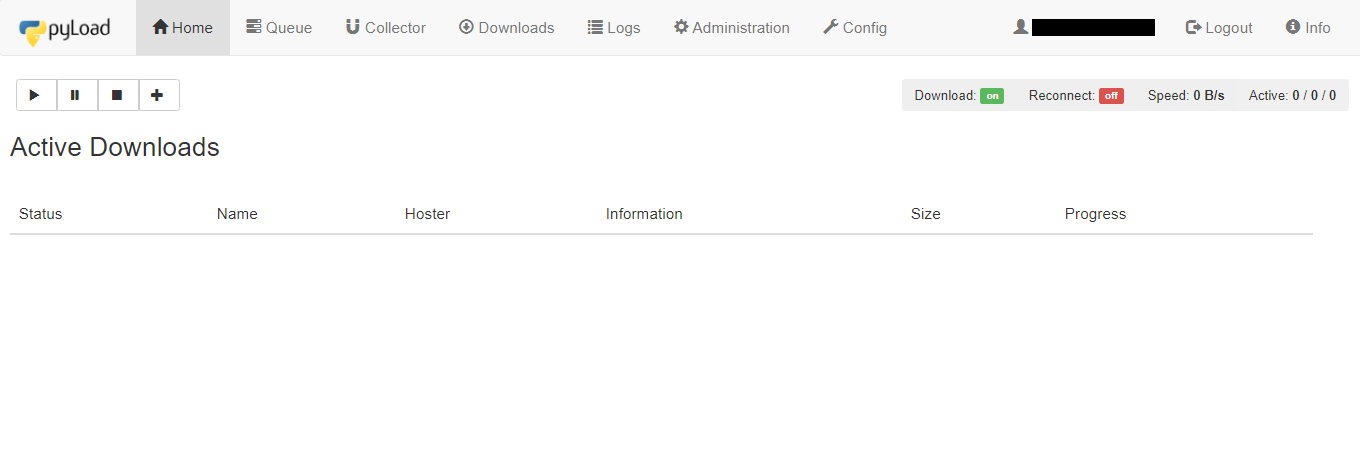
Let’s look at the 利用可能 tabs in アプリ:
- Home tab: It 提供します details about the current active downloads in progress
- Queue: It lists the files which are currently in the queue for download.
- Collector: It allows you to add packages(files) for downloading which can be moved to queue for downloading after the current download of files in the queue is completed.
- ダウンロードs: It 提供します the Pyload download history of あなたのSeedbox.
- Logs: It 提供します the seedbox log details.
- Administration: できます manage admin rights from here. add new user, edit パスワード.
- Config: もし wish to change the settings and configuration of the pyload.できます work around here.
Now let’s try downloading a file using an HTTPS link. Copy the link of the file you want to download and open the Home tab.
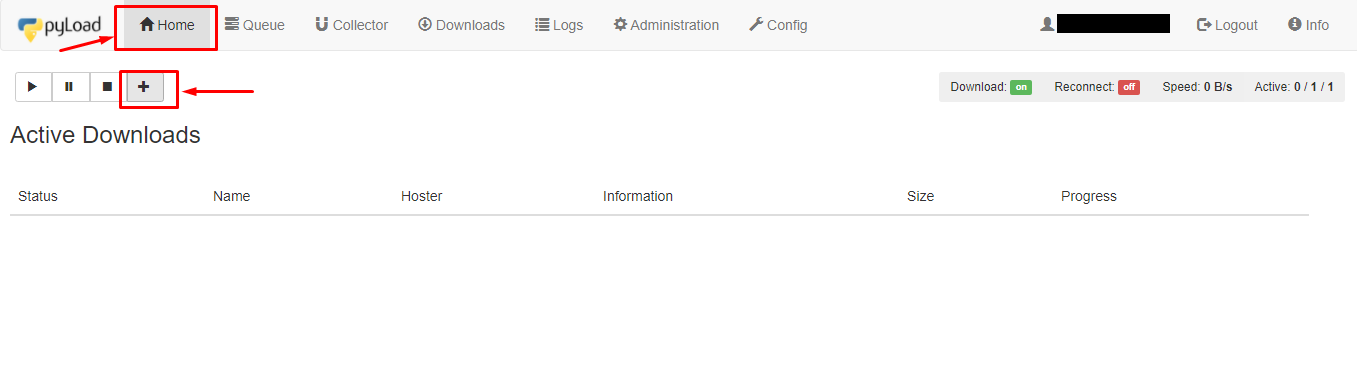
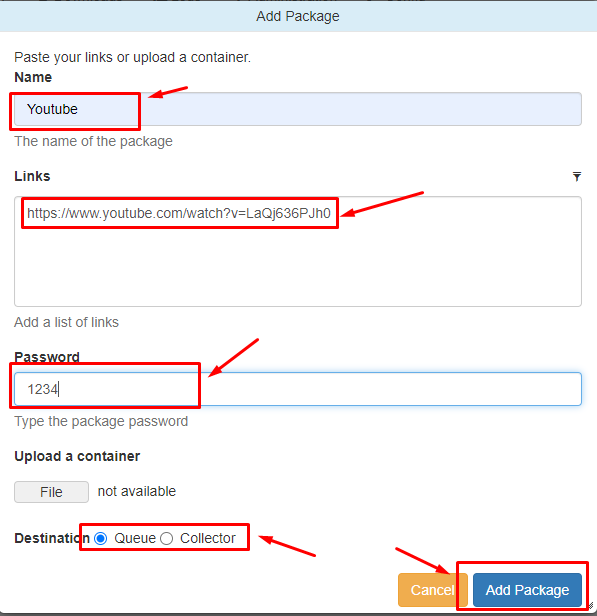
クリックしてください: the ‘+’ ボタン to add a package. A new window will open where you 必要があります add the name of the package. In the link section add links to the files you want to download and できます また set a パスワード. In the destination section, できます choose either Queue or Collector. クリックしてください: the ‘Add package’ ボタン to start downloading.
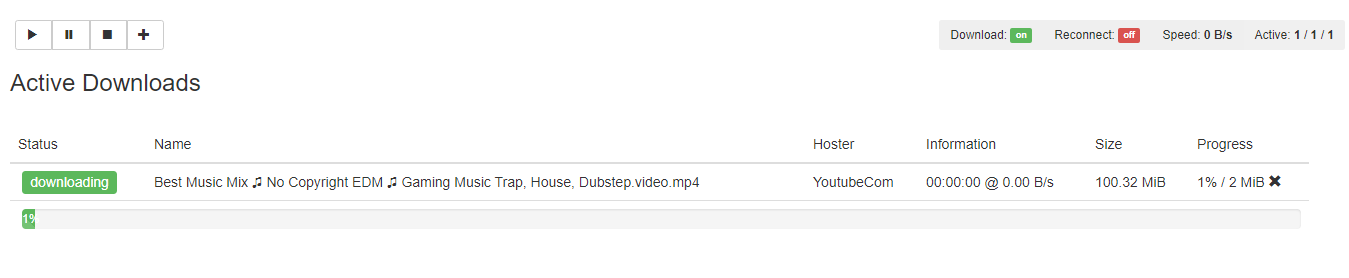
できます check the progress in the home section.
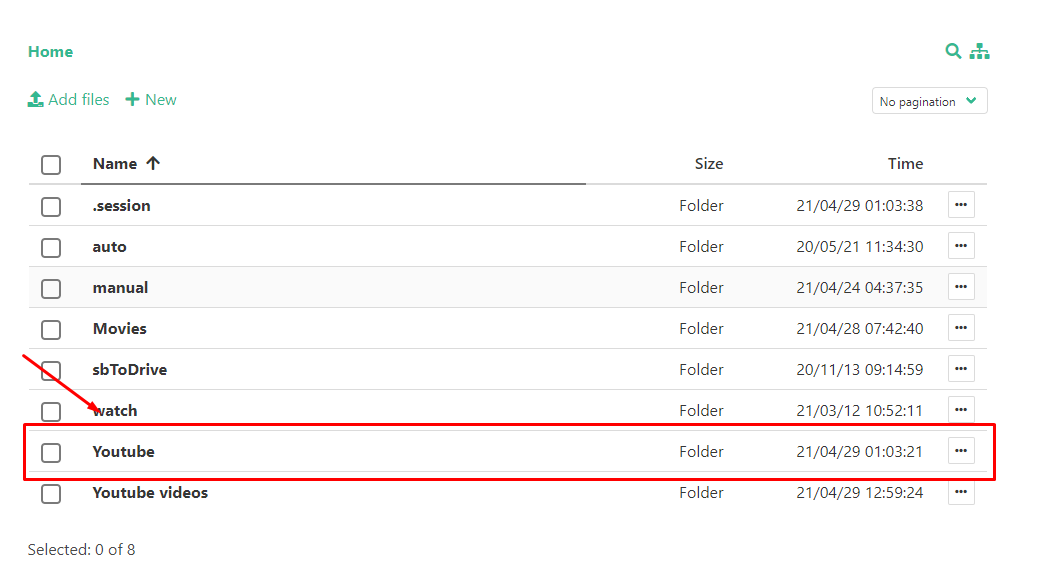
After the download is complete できます check the files sing the ファイルマネージャー.