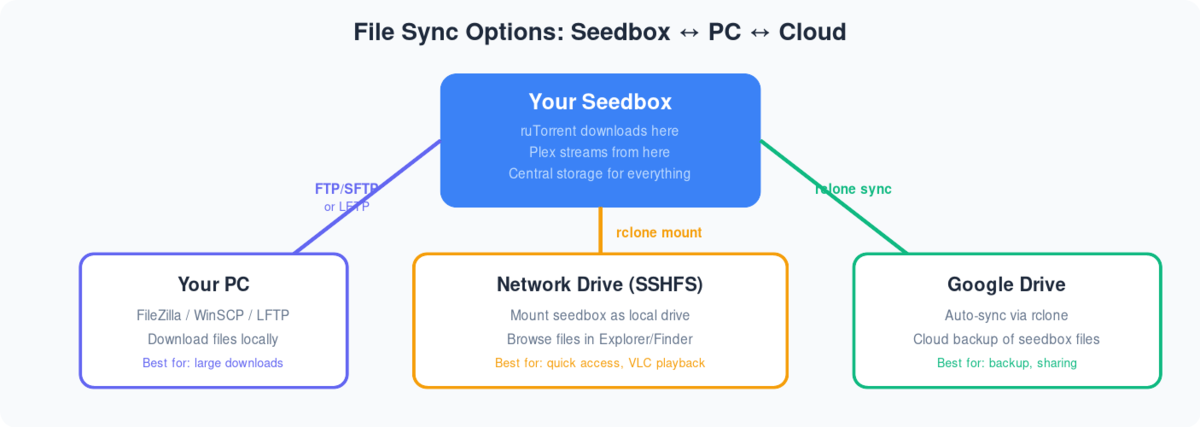
Following are the step-by-step instructions to setup rclonebrowser:
- تثبيت rclonebrowser من clientarea dashboard
- Visit the rclonebrowser’s URL and login
- The initial window would have three tabs
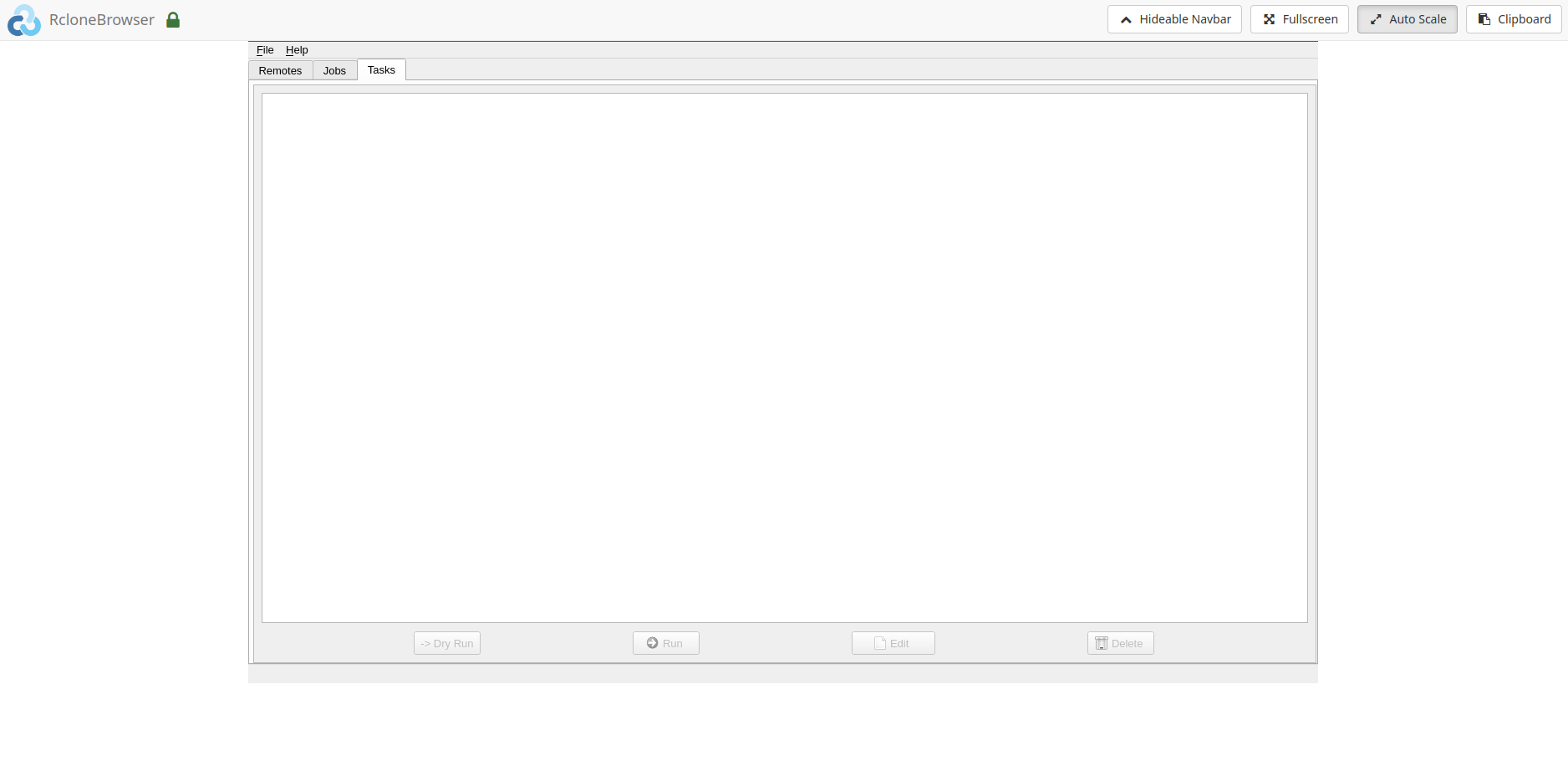
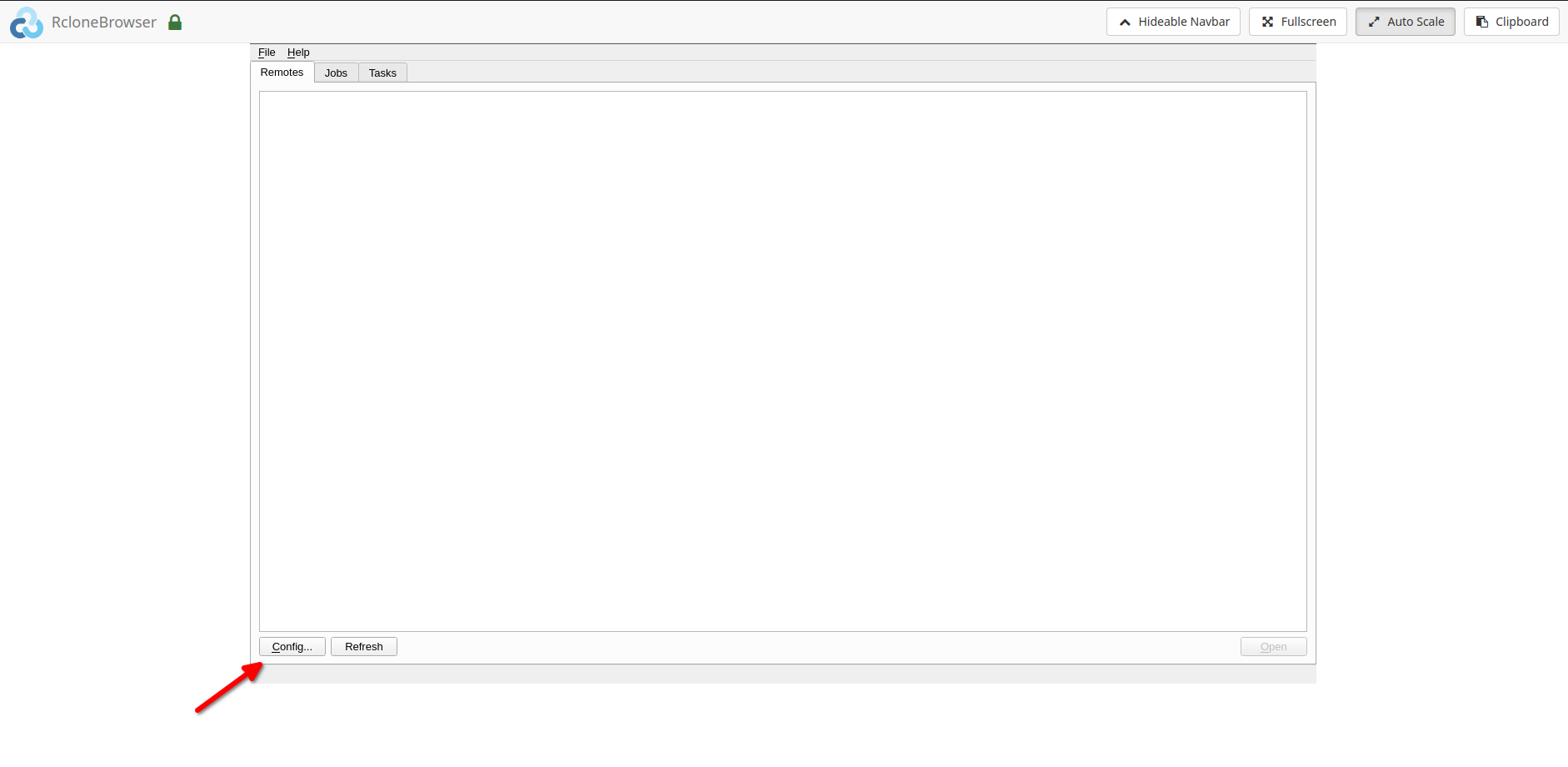
4. اذهب إلى the remotes tab and click on config
5. Follow the onscreen instructions to complete the further steps
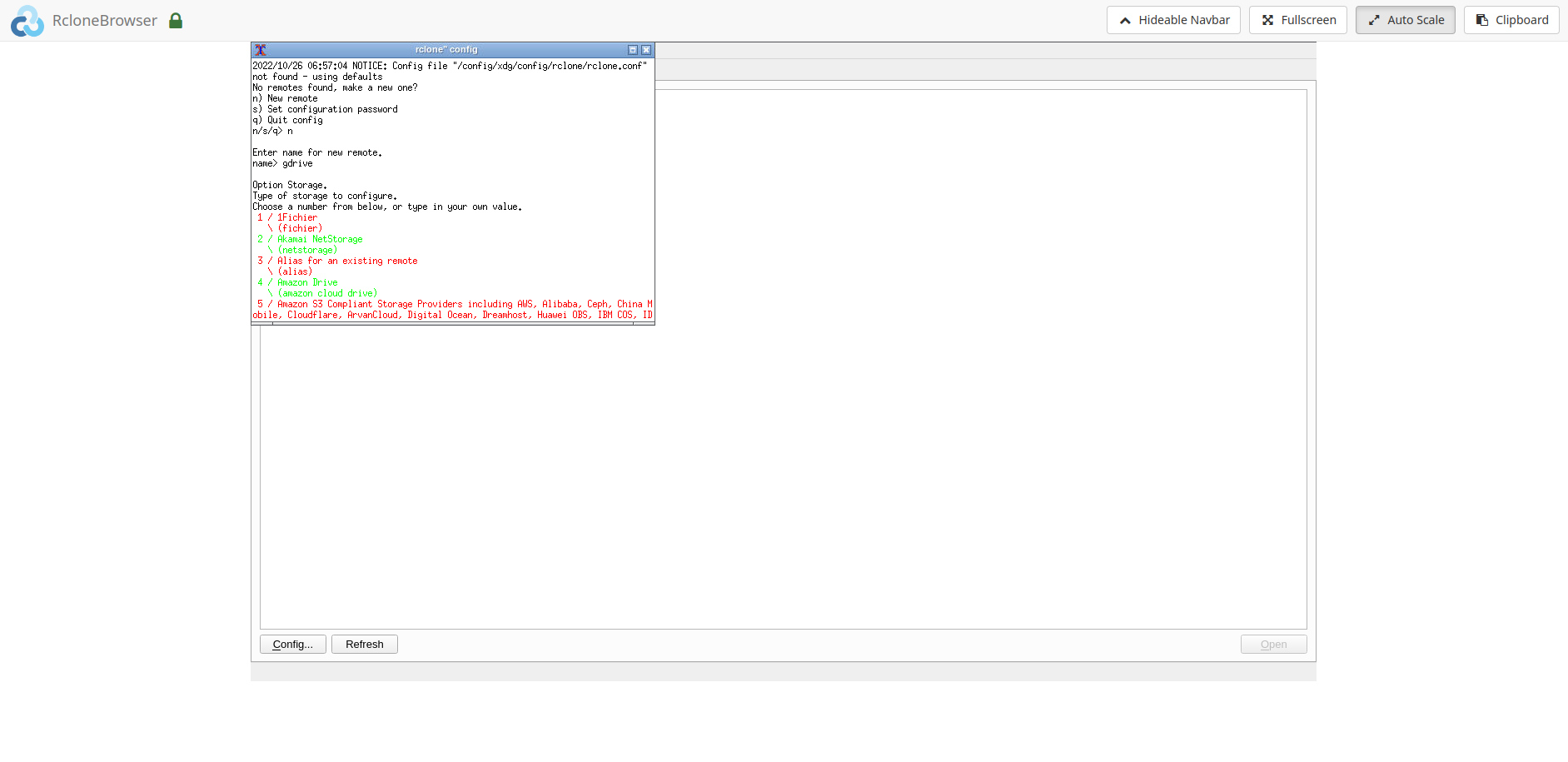
6. The final steps would require the followings:
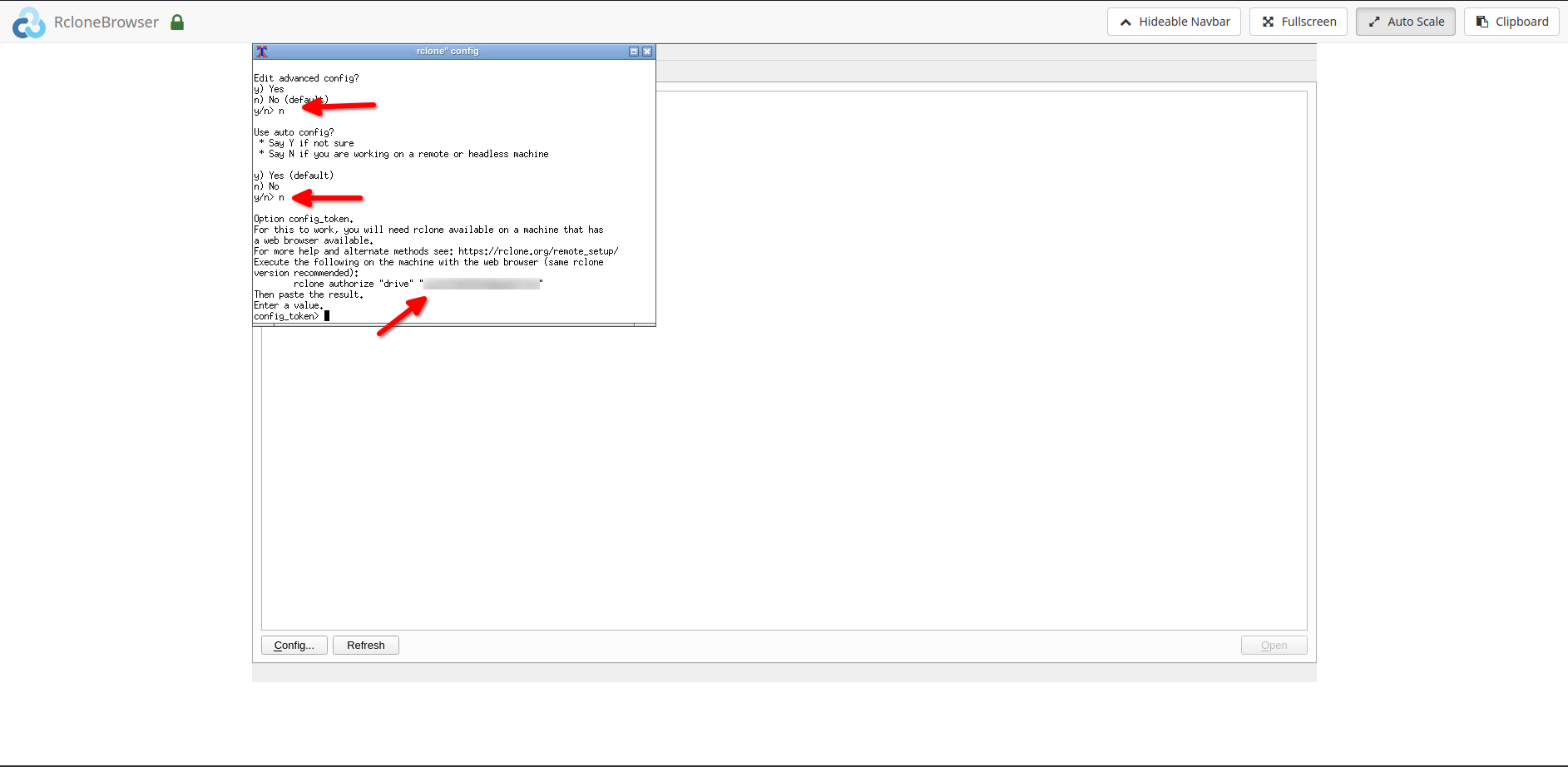
6.1. Please enter ‘n’ when asked for ‘auto config’
6.2. After the above step, please do the followings:
6.2.1. تثبيت rclone على local system.
6.2.2. Copy the rclone command i.e. ‘rclone authorize drive ’
6.2.3. Run the above command على local system, you would be directed في browser to give rclone permission to access your drive.6.2.4. Copy the ‘config token’ من command window and paste it into rclonebrowser.
ملاحظة: For copying and pasting please use the ‘clipboard’ option in the rclonebrowser.
- After completing the above step successfully, يمكنك now access your remote. To access your remote, click on the open زر by selecting the remote in the rclonebrowser.
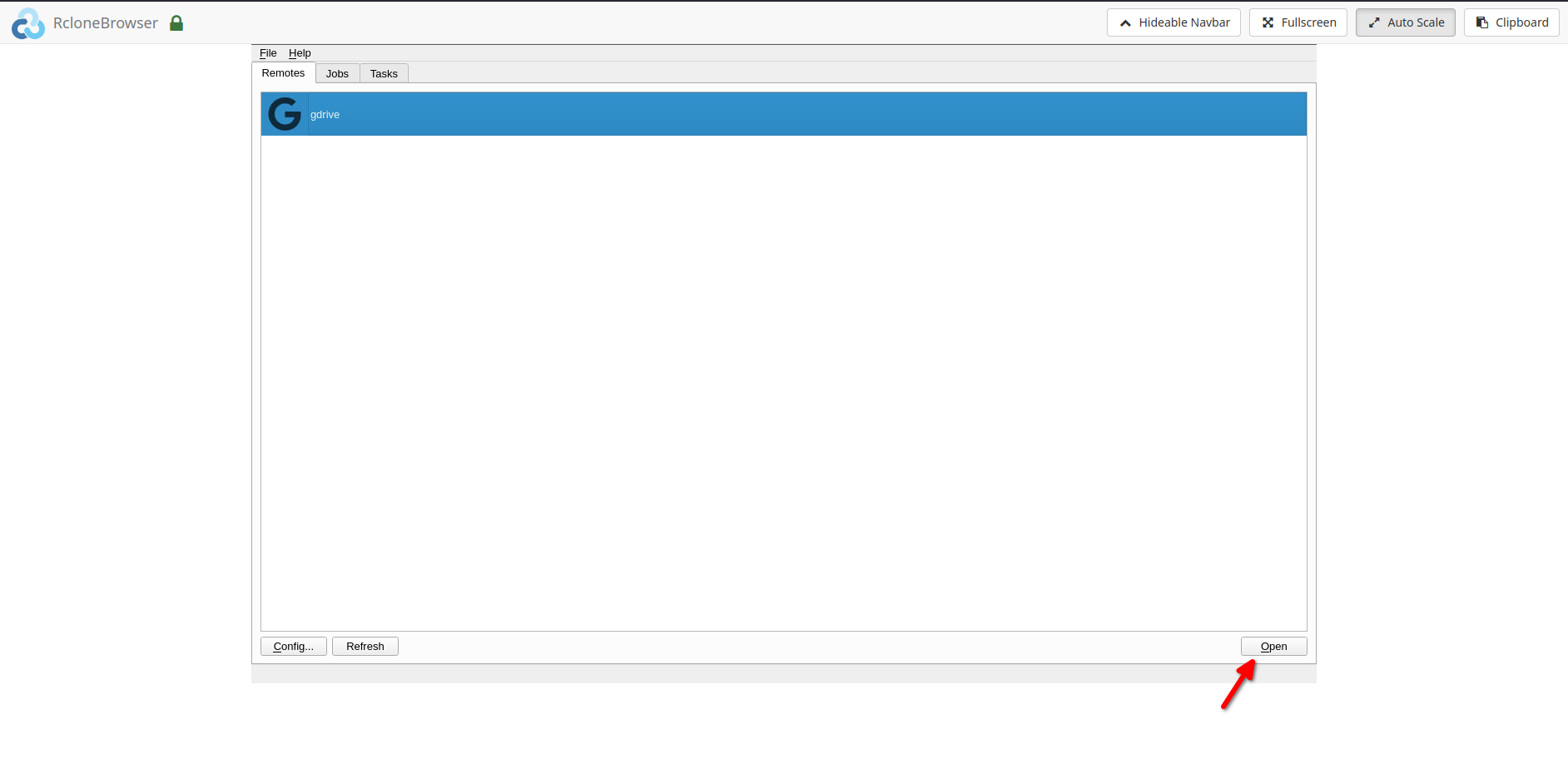
- Your remote would open in a new tab.
Mount option and data sharing:
- يمكنك mount your remote under the directory ‘/media’ in rclonebrowser.
- The same can be accessed under the ‘/home//rclone’ directory on الـ Seedbox الخاص بك.
- يمكنك أيضاً access الـ Seedbox الخاص بك ‘downloads’ directory in rclonebrowser under the ‘/home//downloads’ directory. Please note that هذا هو read-only. Writes can be done from الـ Seedbox الخاص بك if needed.


