Imagine this:
- Movies and Shows Galore: Your favorite content magically appears on your server, ready to watch, without you lifting a finger.
- Lightning-Fast Searches: Prowlarr scours the depths of the internet, unearthing the best torrents and Usenet releases in record time.
- Quality Control: No more blurry videos or crackling audio. Set your quality standards, and Prowlarr delivers.
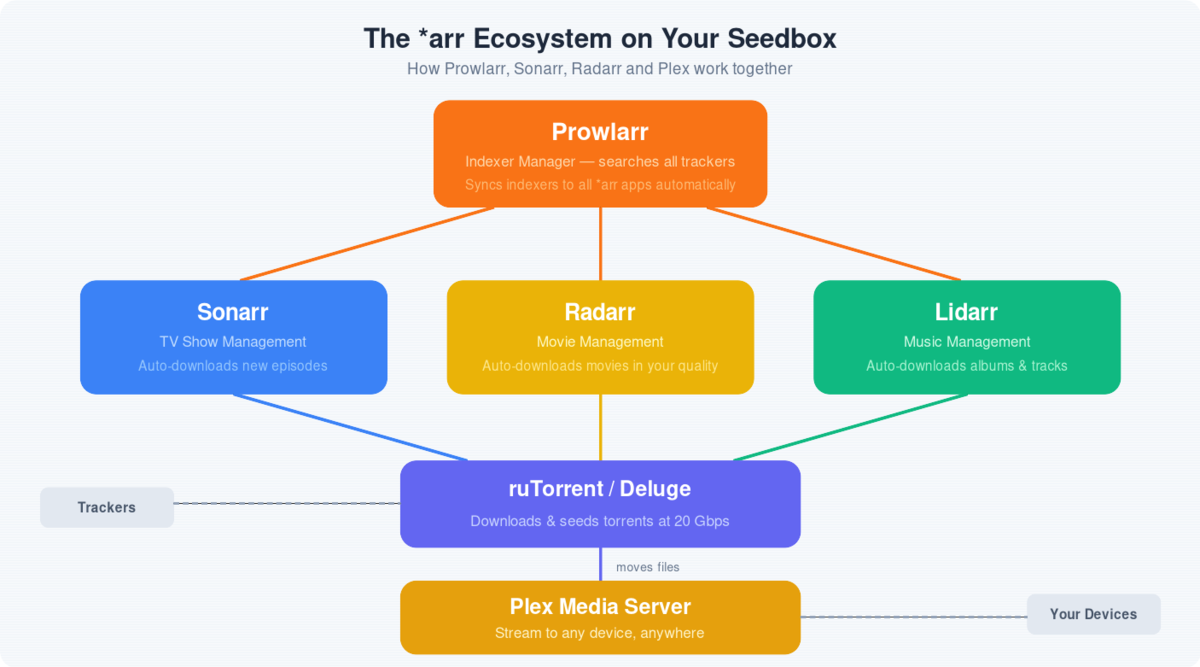
With Prowlarr, building your ultimate media library is a breeze. It works hand-in-hand with your trusty tools like Sonarr, Radarr, Lidarr, and Readarr, finding and grabbing those must-have files while you sit back and relax.
Unleash the power of automation. Try Prowlarr today and watch your media server transform!
Installing Prowlerr #
- Windows : Installing prowlarr in windows is pretty straightforward from the official site : Prowlarr
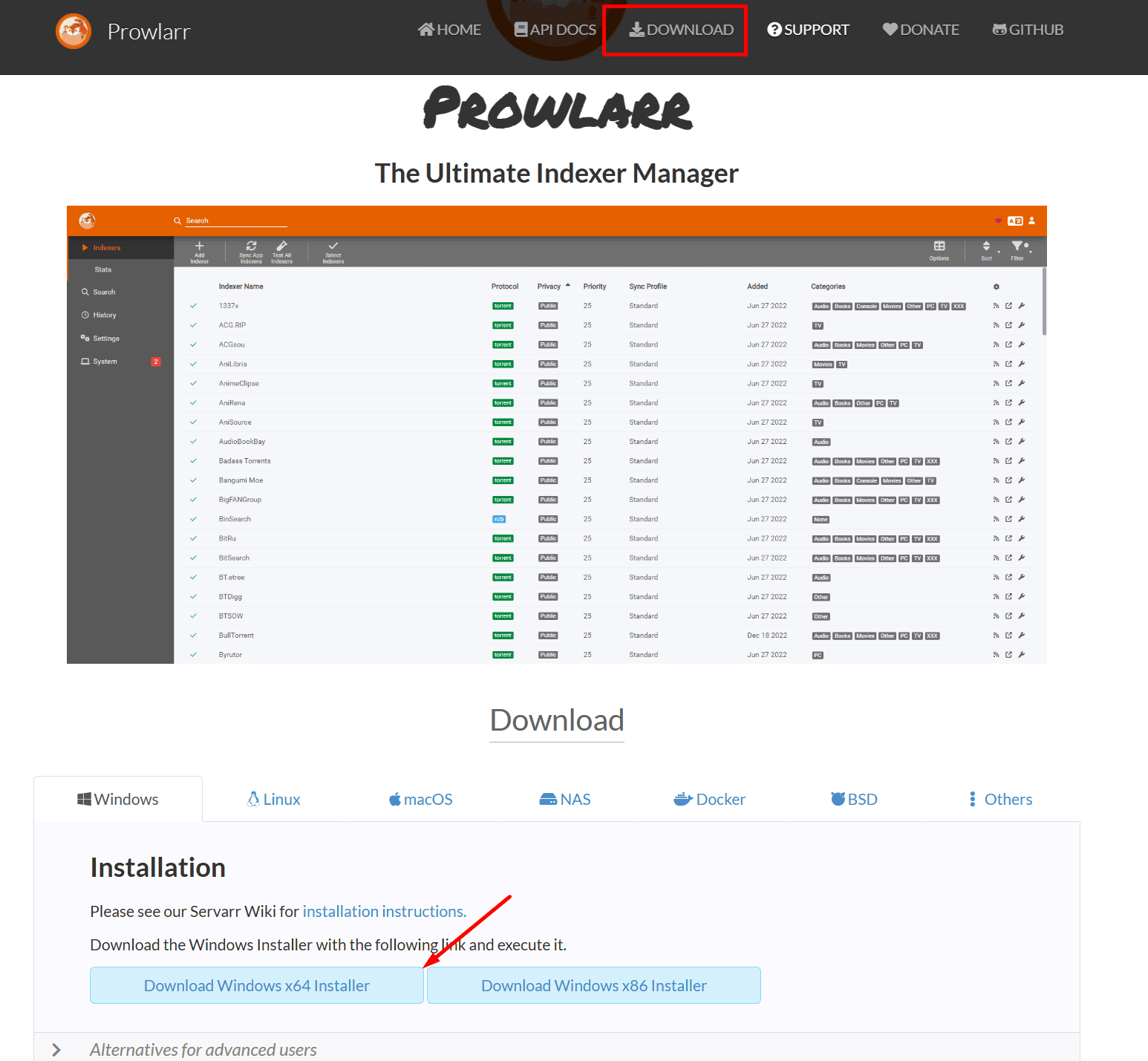
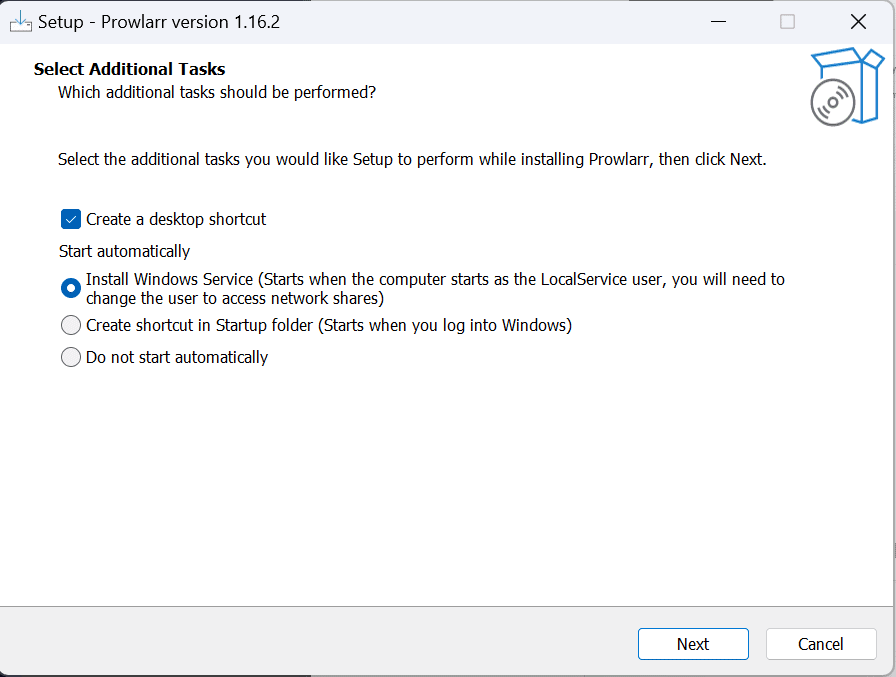
Run the installer, if you don’t want it to start autoamtically select that option. We recommend that you keep it active.
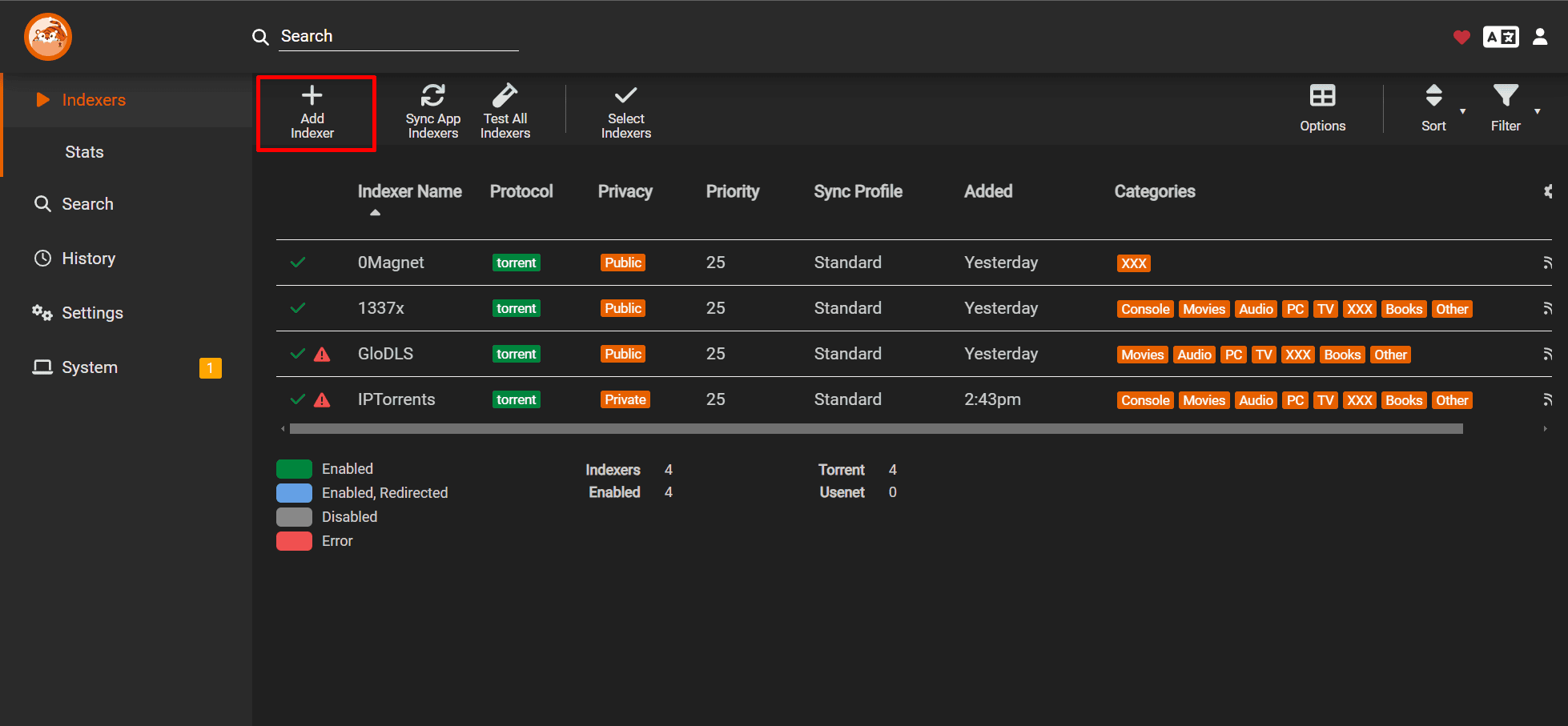
Once installed open prowlarr and select add indexer
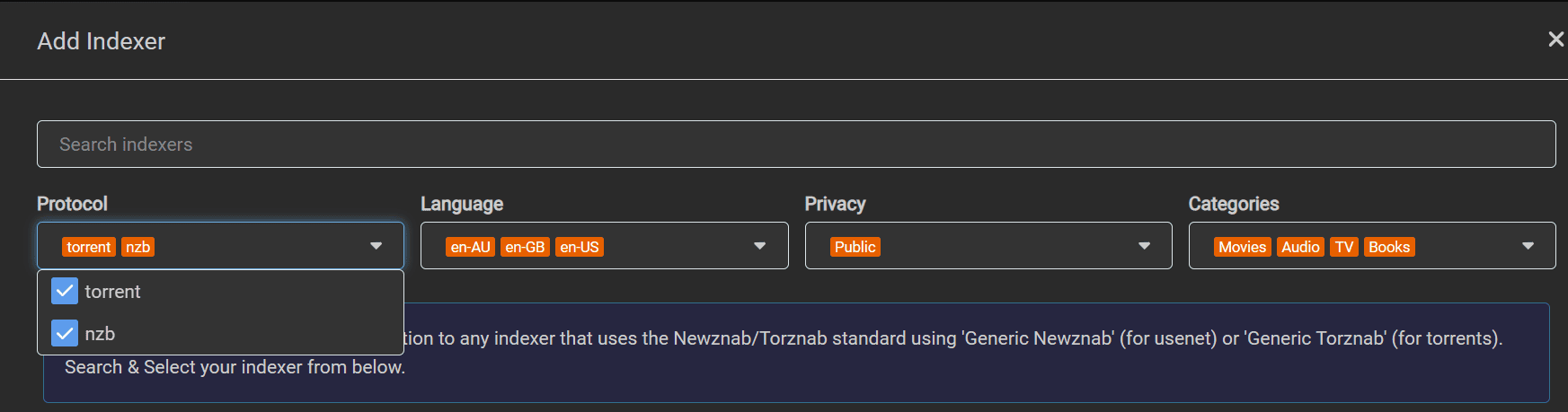
In protocol select torrent to NZB according to your requirement
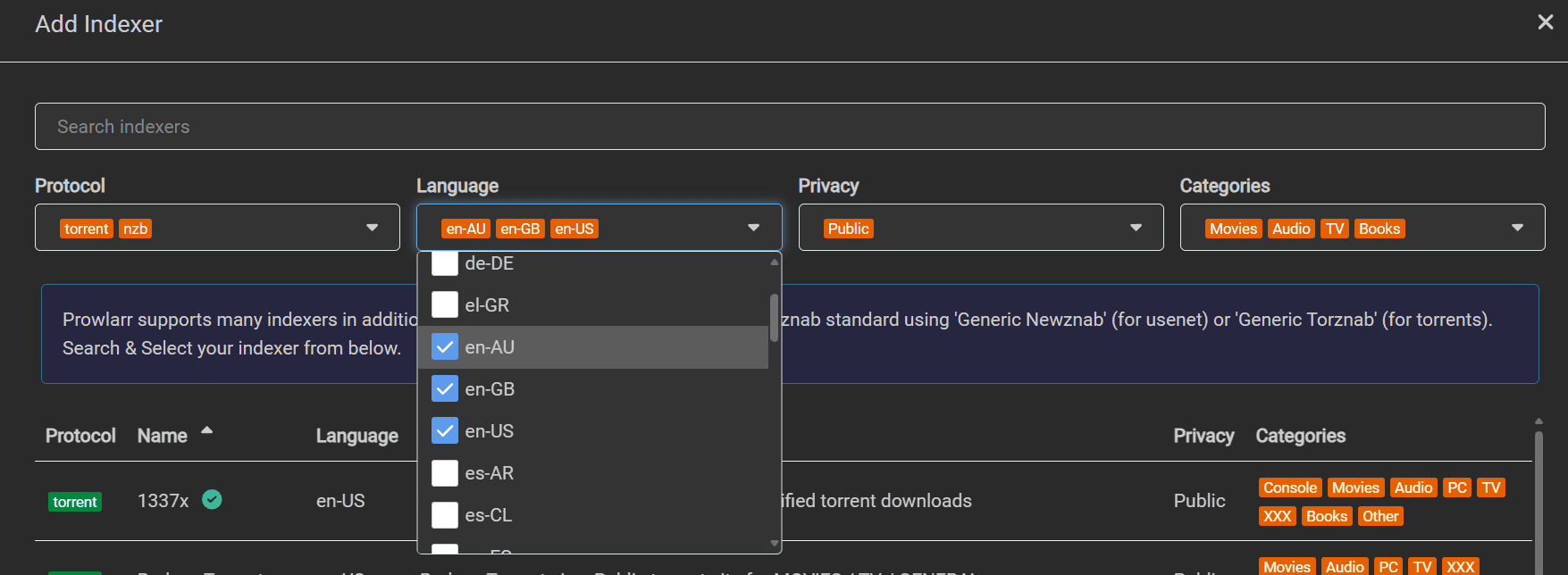
Then choose the language in which you want to search your content from torrent tracker or nzb indexers
Select the type of tracker you want to select from public and private and semiprivate. Private tracker means you need to login to the private tracker site before you can access to any torrent. Public torrent trackers are open and you don’t need any special sign in to access them.
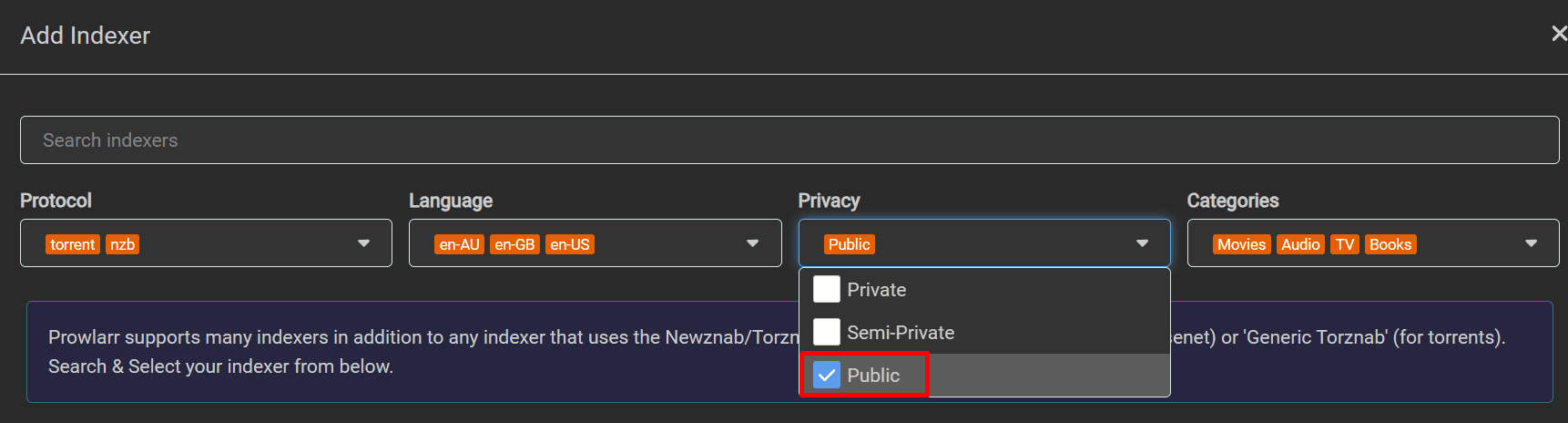
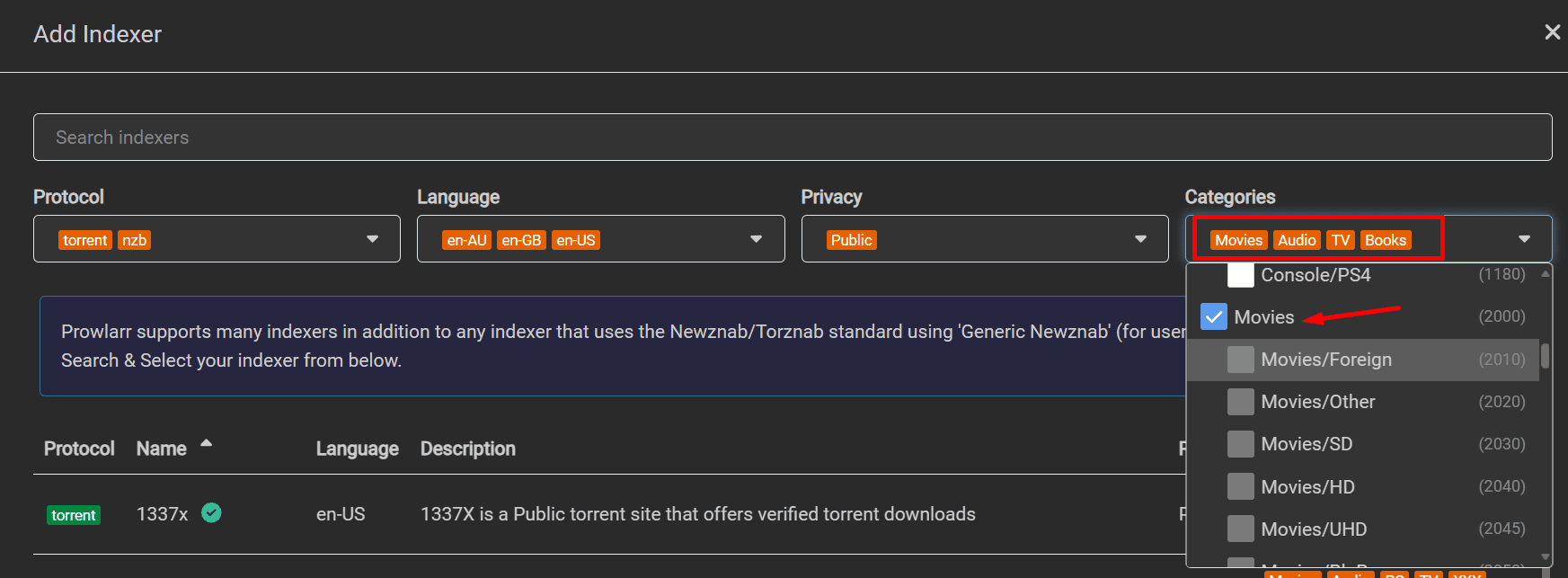
Select the type of content you want from Tv , Movies, Apps etc
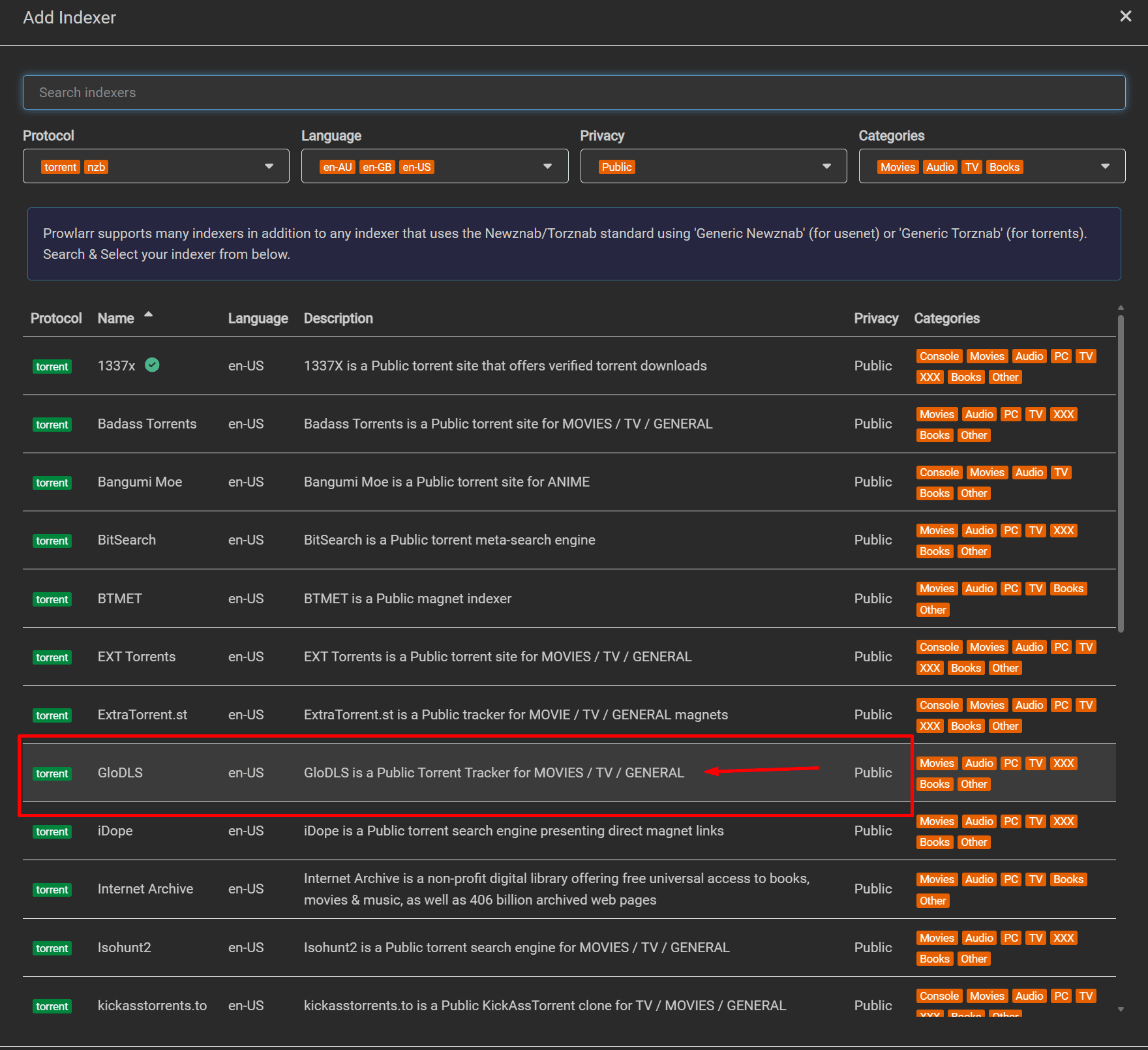
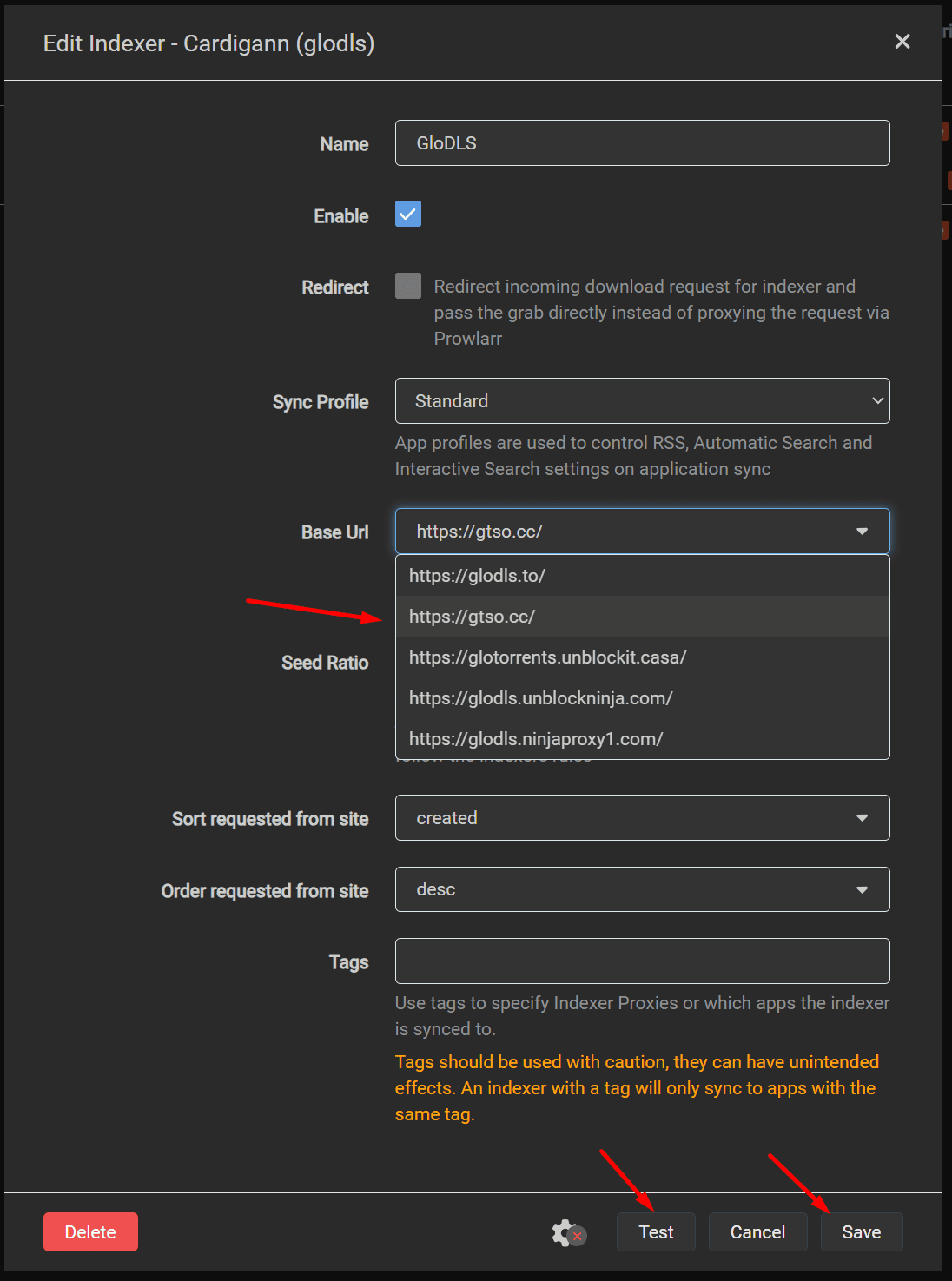
Then select the tracker you want to configure. In this case we are configuring a public tracker GloDLS.
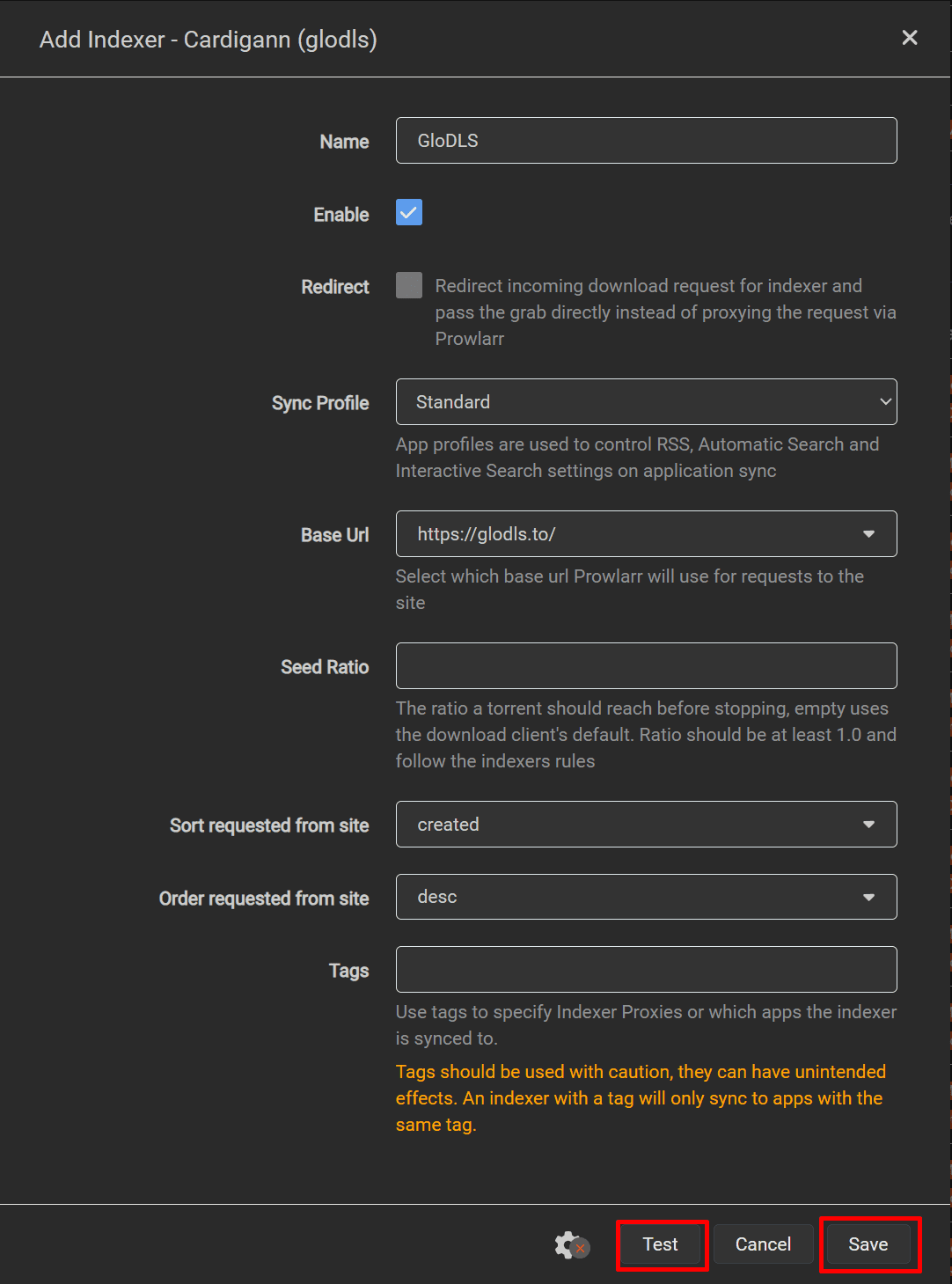
Once you click on the tracker Add Indexer option will open up and select the enable option then click test if it shows up a green tick then click on save.
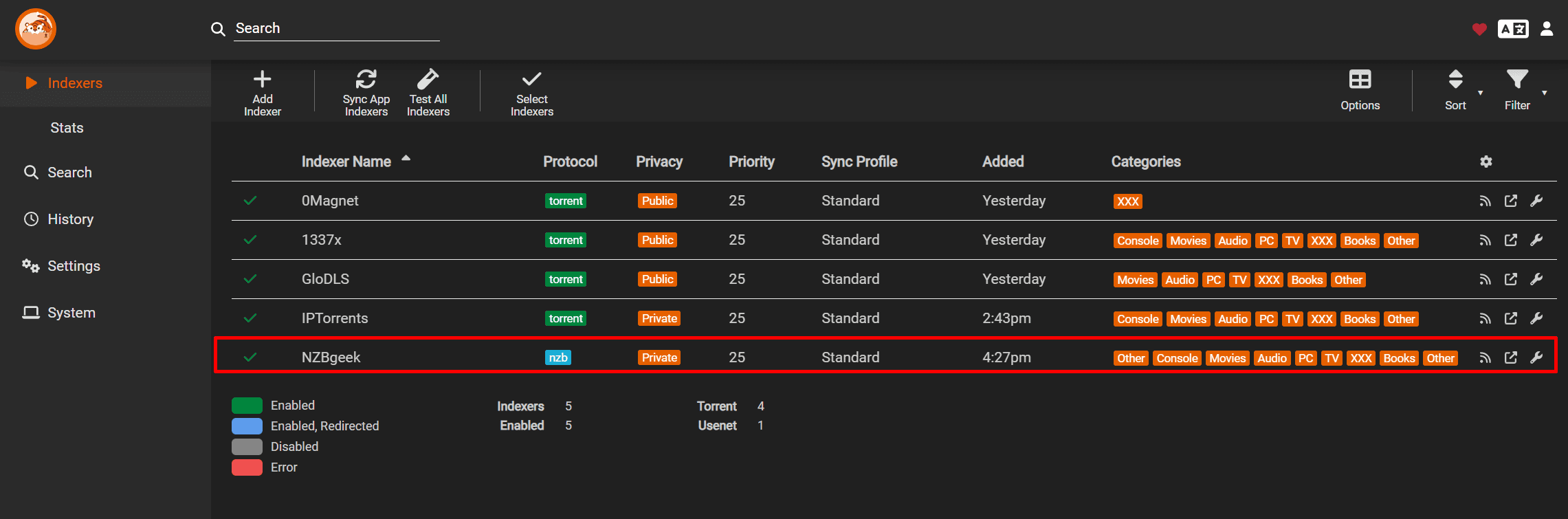
Once you close the torrent tracker, a green tick will appear next to it, indicating a successful addition of the tracker in Prowlarr.

For private tracker with Prowlarr settings: #
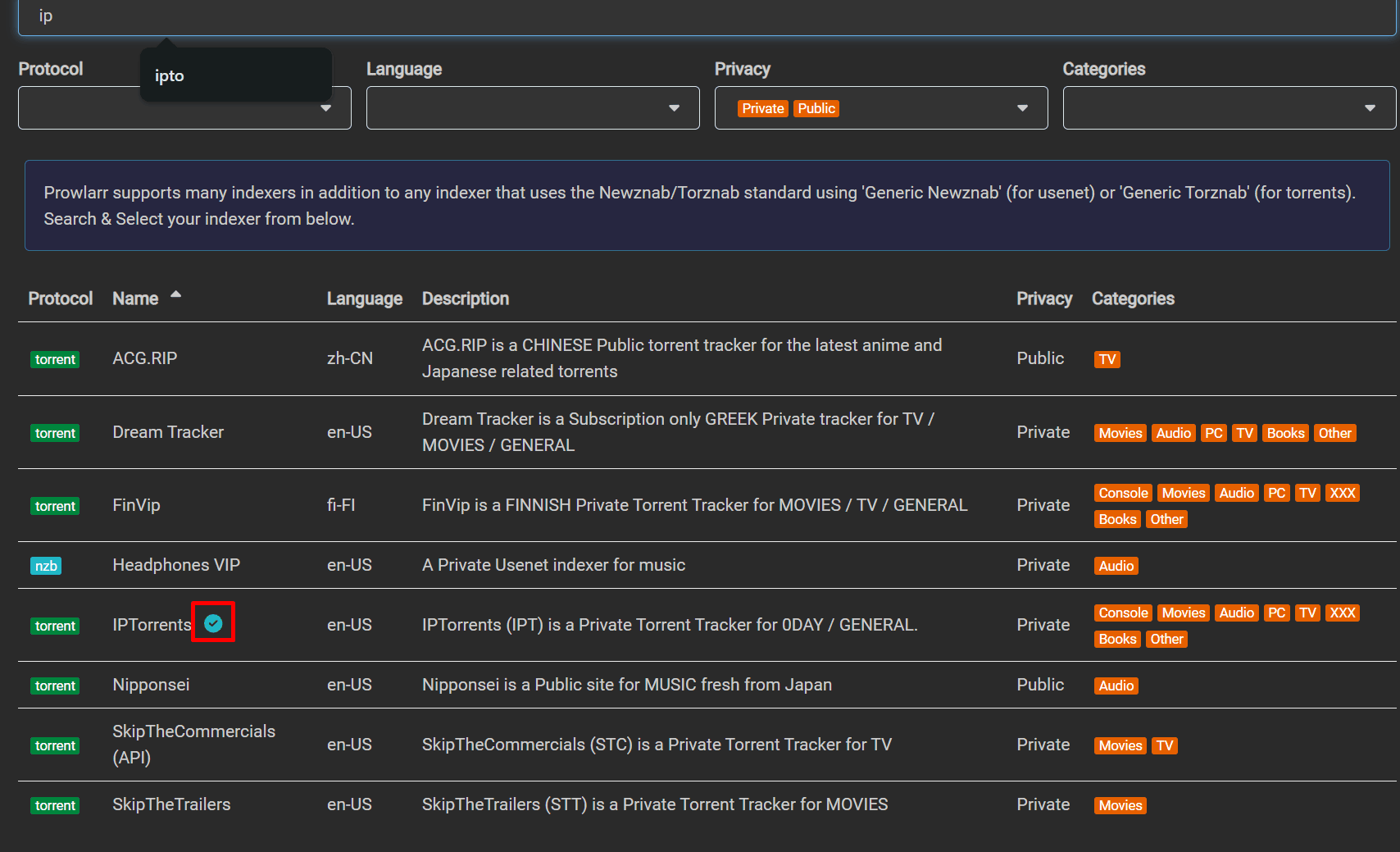
Search your private tracker in the indexer search and in privacy settings ensure to select privacy.
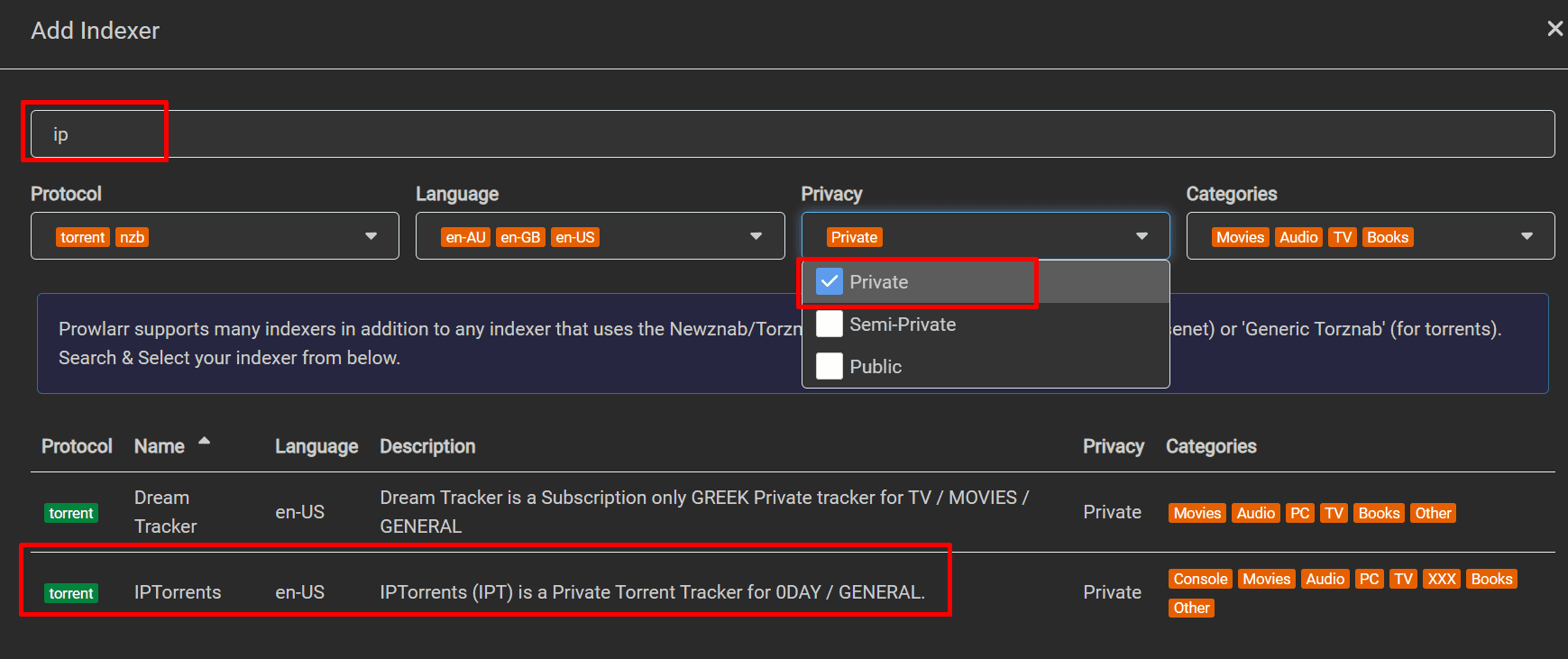
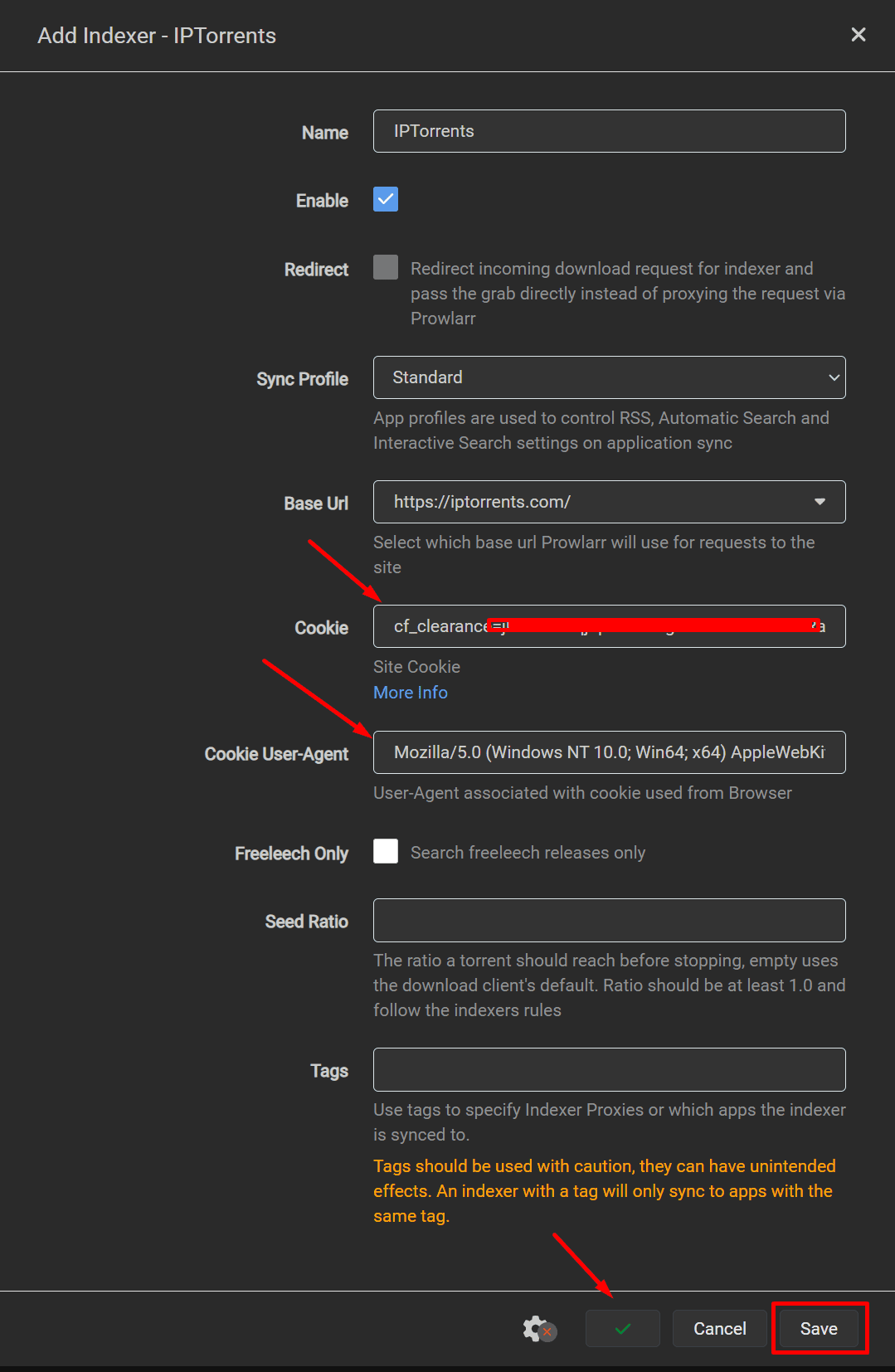
Once you click on your private tracker the below options will open up.
In our example we are using private tracker Iptorrent we have to fill in the fields cookie data and Cookie User-Agent
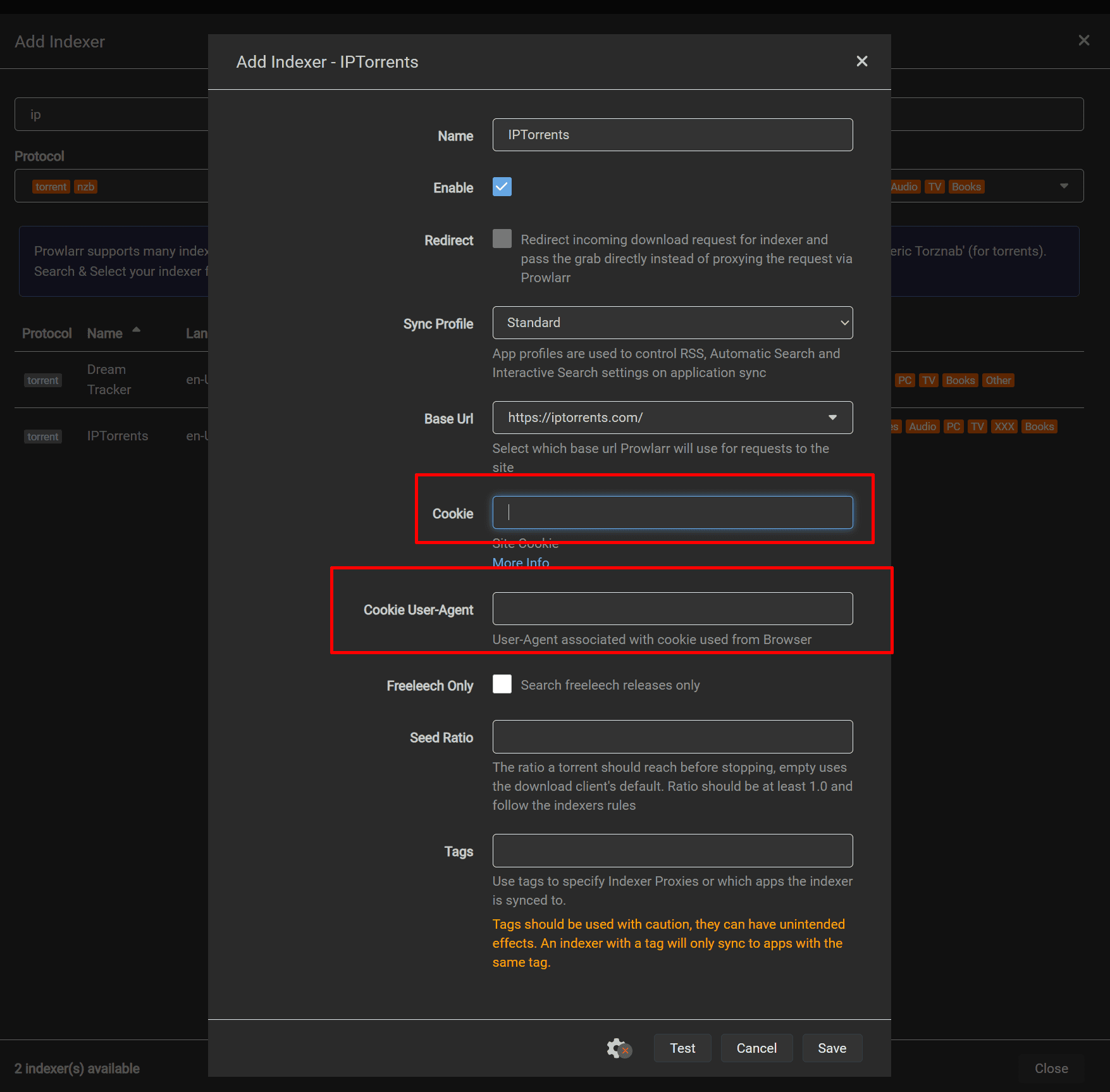
Login to Iptorrents and right-click anywhere on the webpage and click inspect
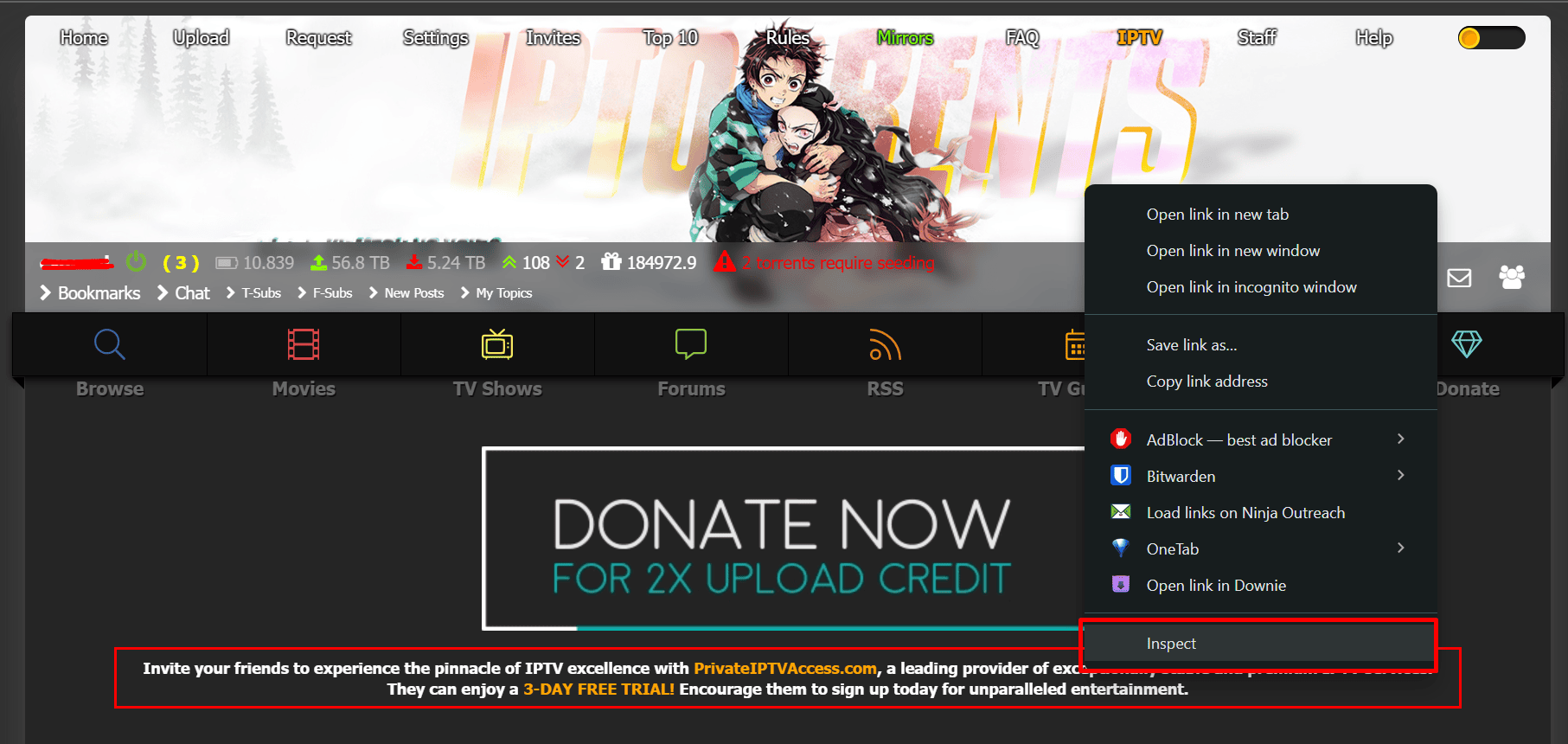
A new section will open in your browser on it click on the Network Tab
Under the section Name, select «t» and then copy all the text in front of the Cookie and User-Agent field as shown in the image below
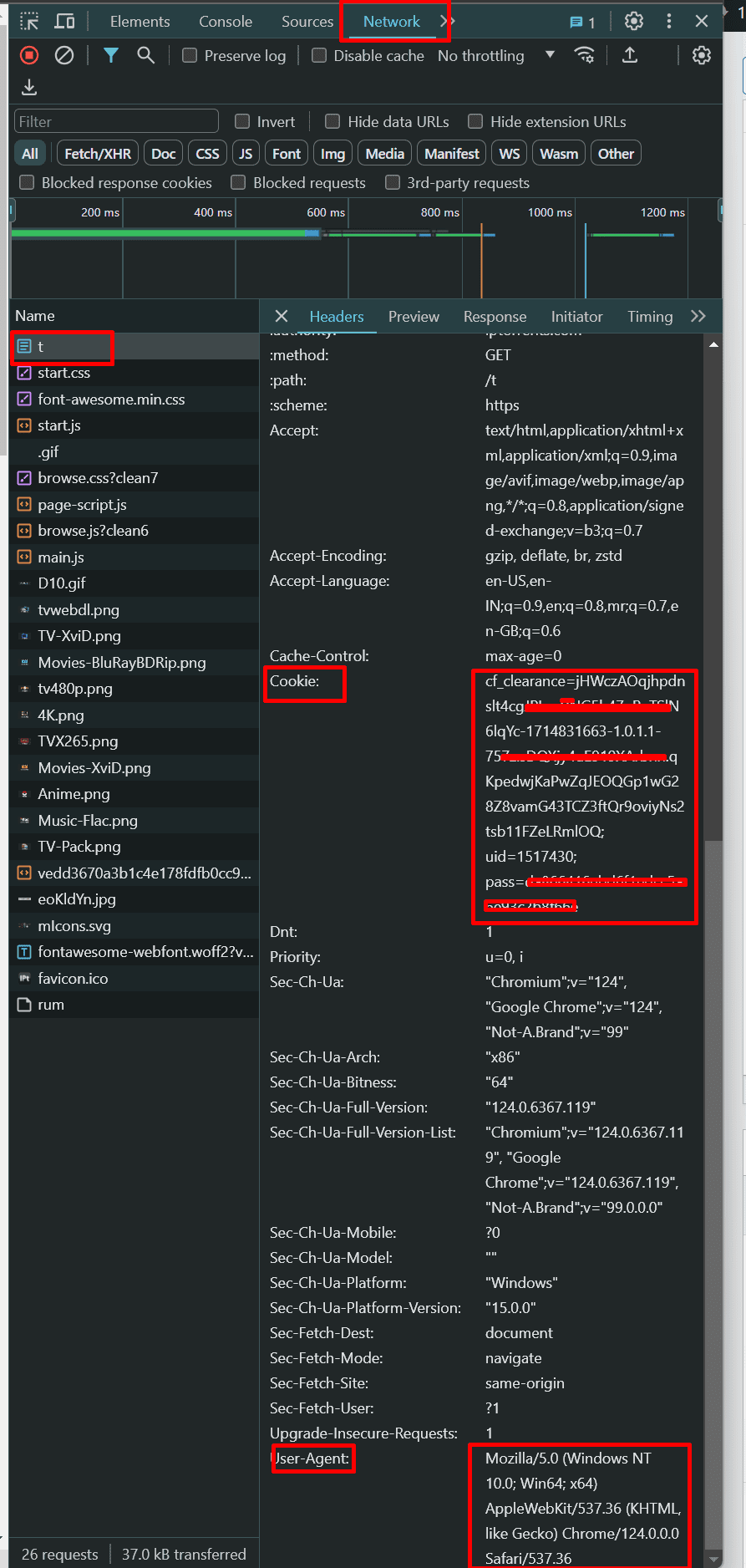
Paste the copied data in the prowlarr as shown in image below against the cookie and Cookie User-Agent field.
Click on Test and a green tick mark will show up which means you have set things correctly and then click on save
In front of your private tracker, a small green tick mark will show up.
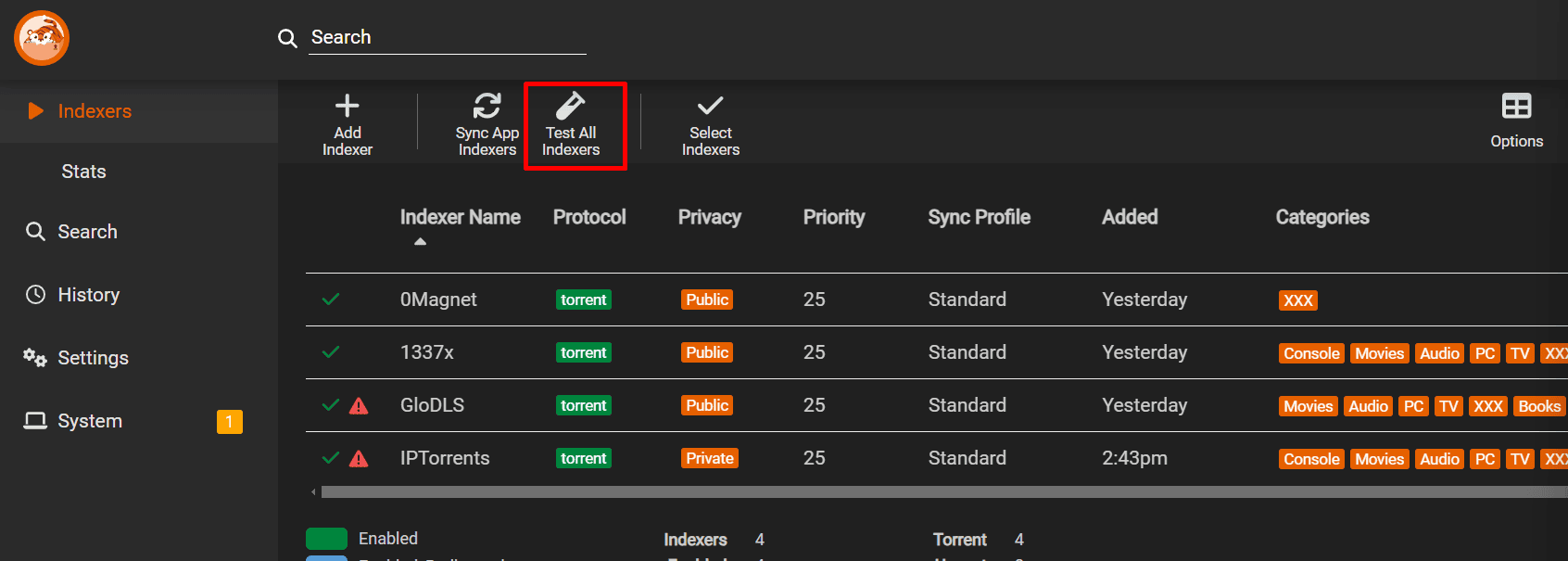
Periodically you can click on test all indexers to check if some of them are dead or there is some error in their settings.
If you see a warning sign, you can either correct the setting or remove the tracker accordingly.
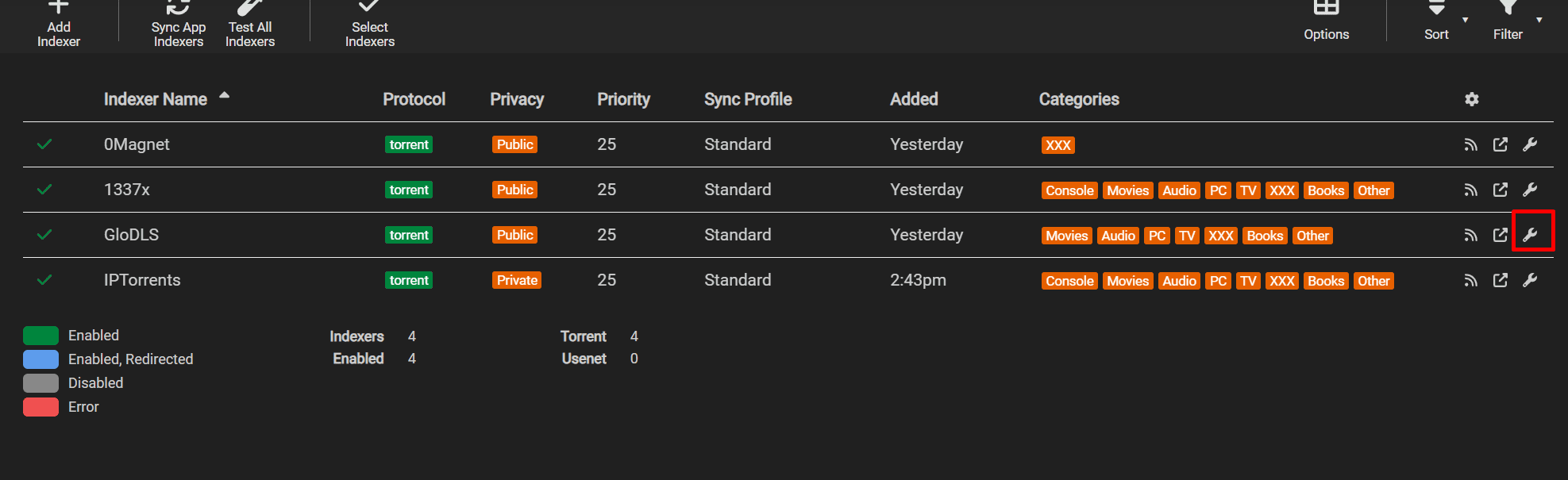
To correct it click on the spanner/settings symbol in front of the tracker.
Instruction for using Prowlarr with Usenet #
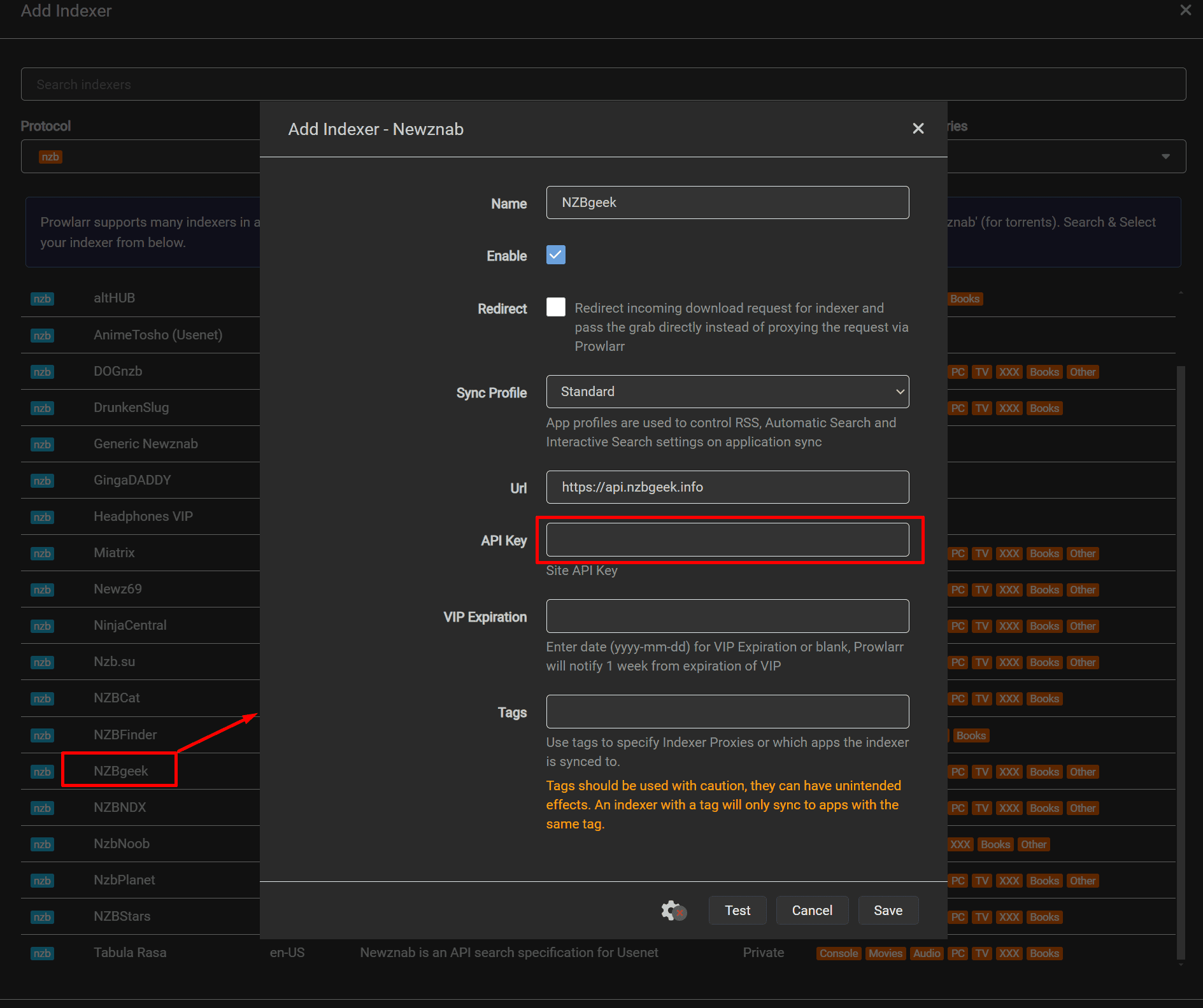
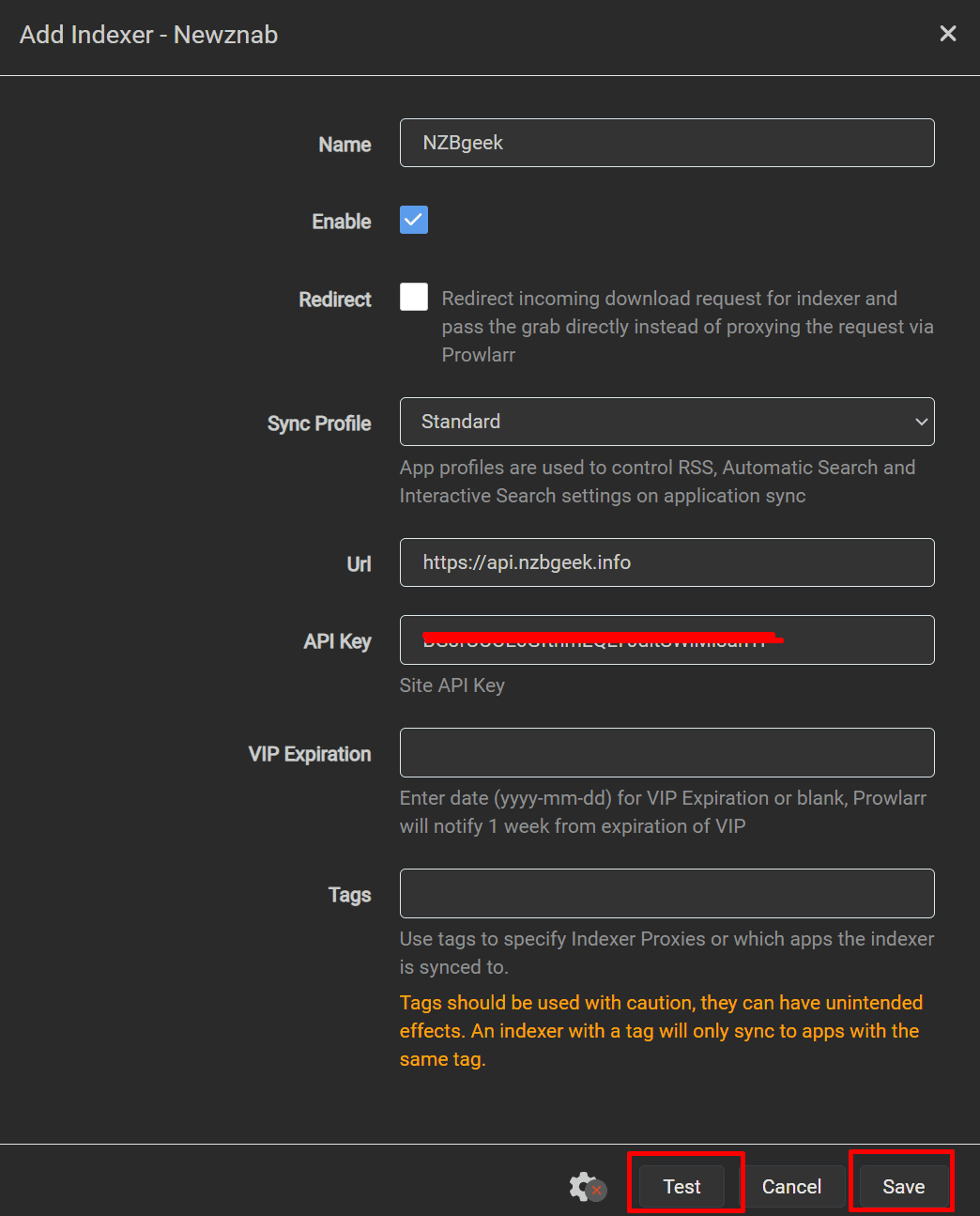
In Protocol select nzb and privacy depending on your Usenet indexer choose public or private


Connecting Prowlarr with other ARR Tools #
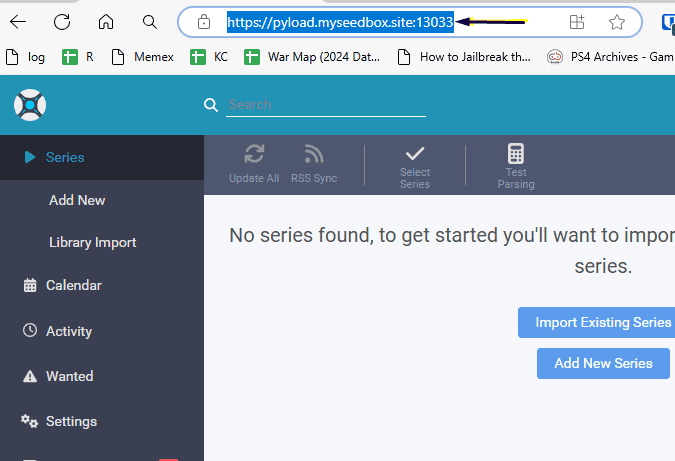
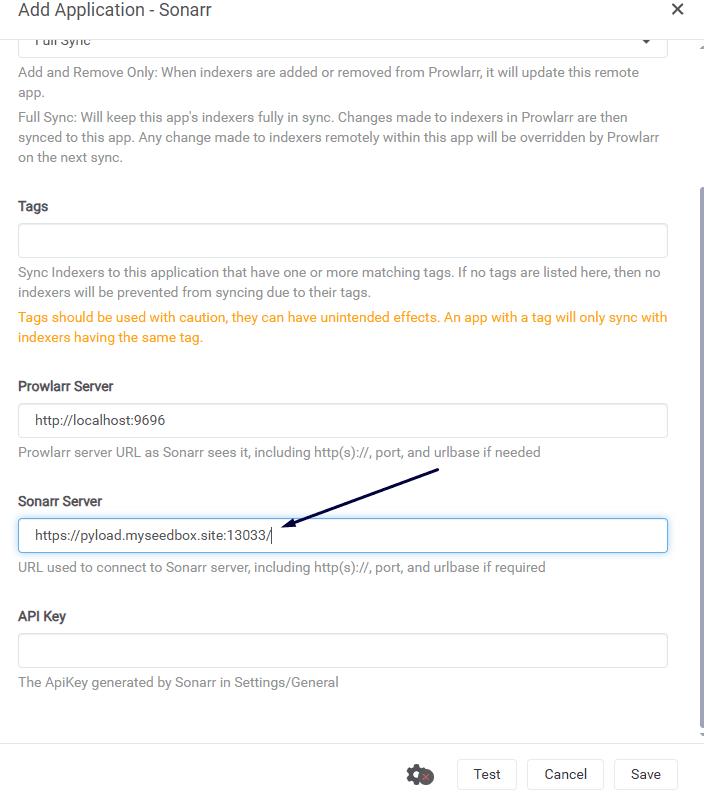
Connecting sonarr with prowlarr #
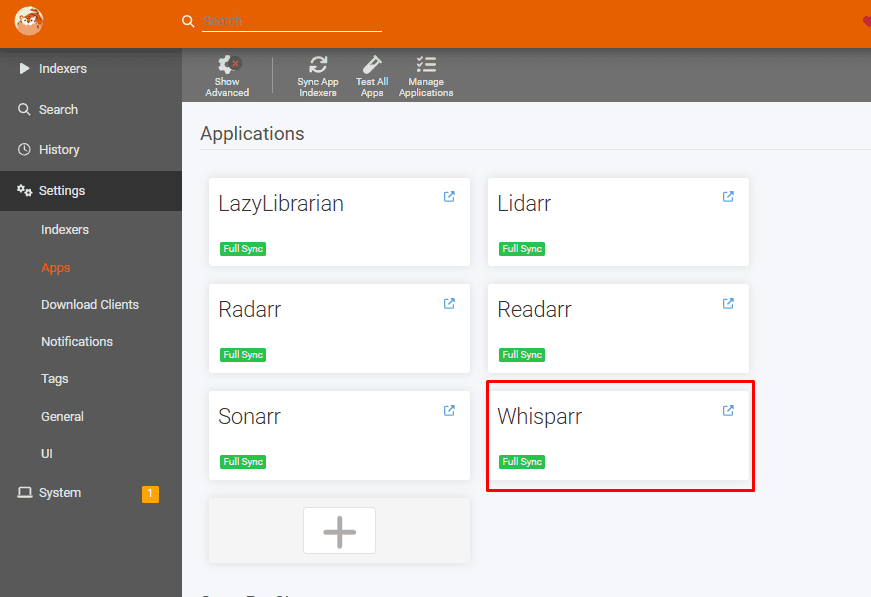
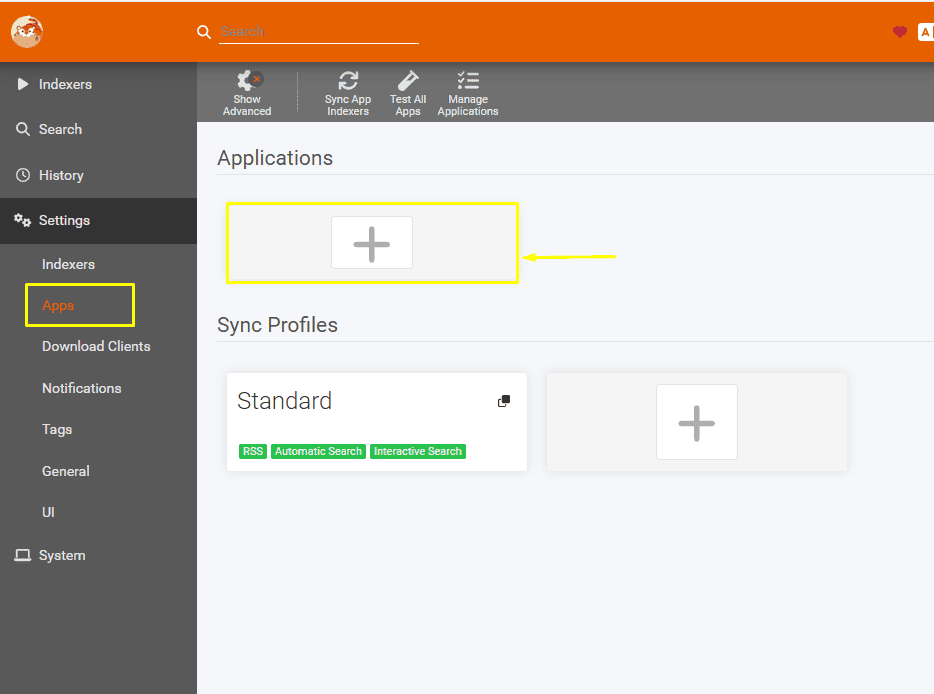
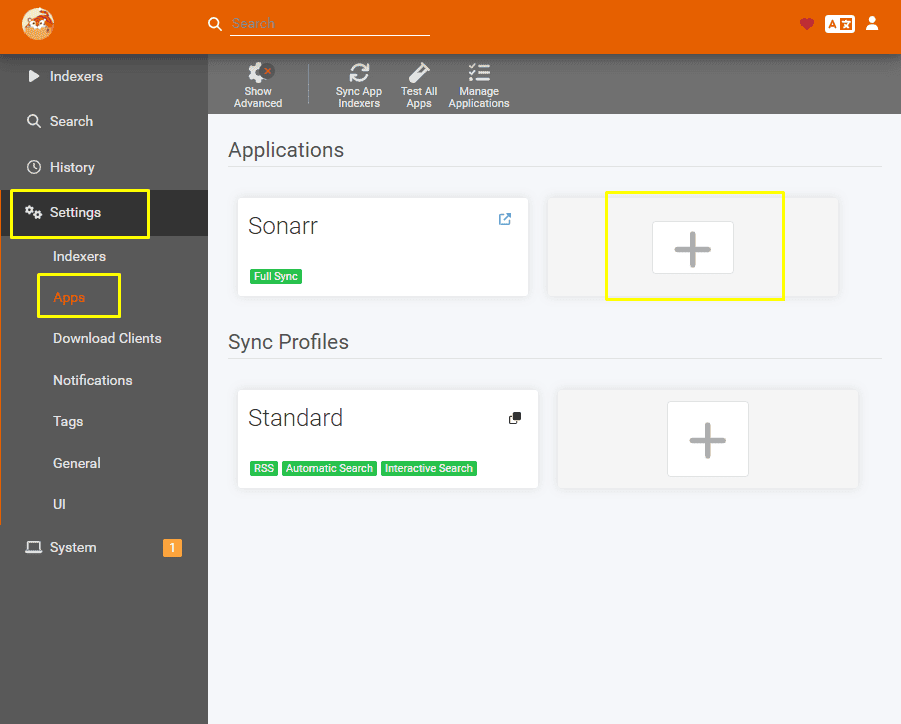
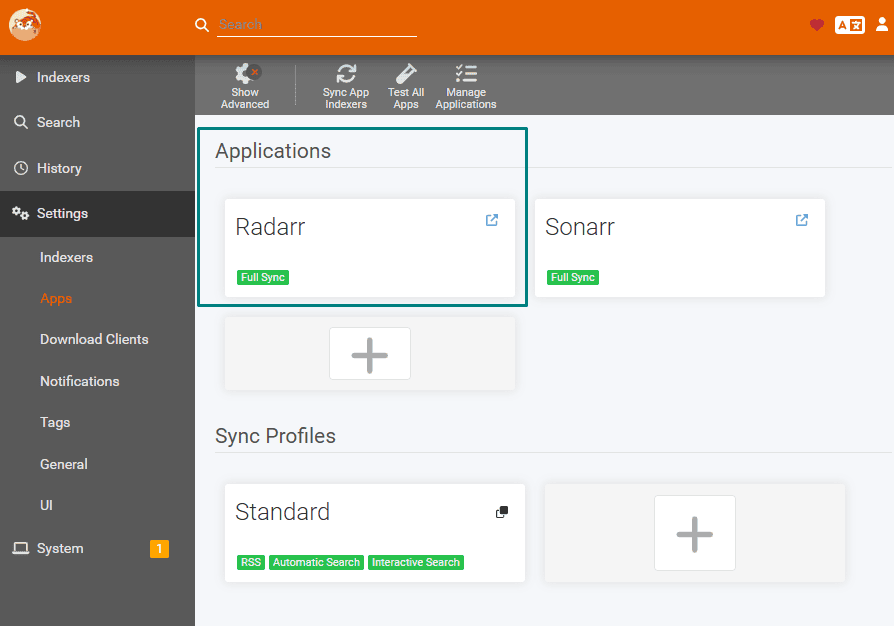
Open prowlarr go to settings and then select apps.
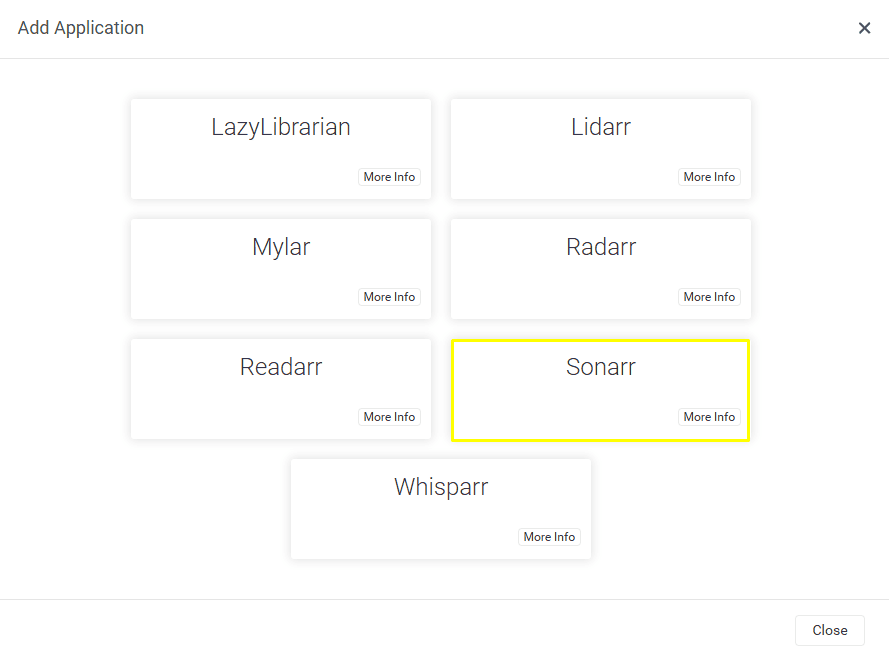
In apps section, click on the plus button under Applications.
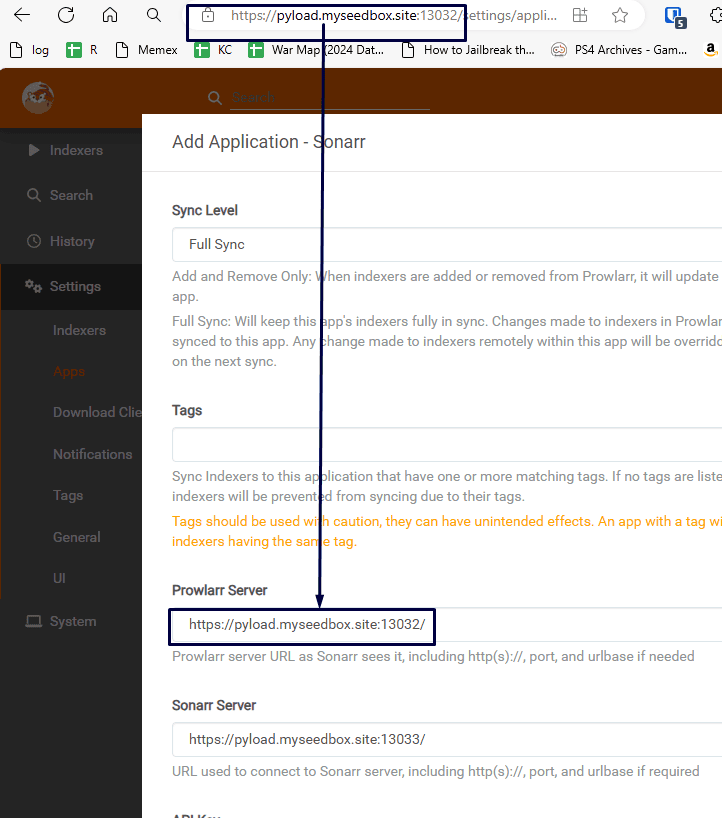
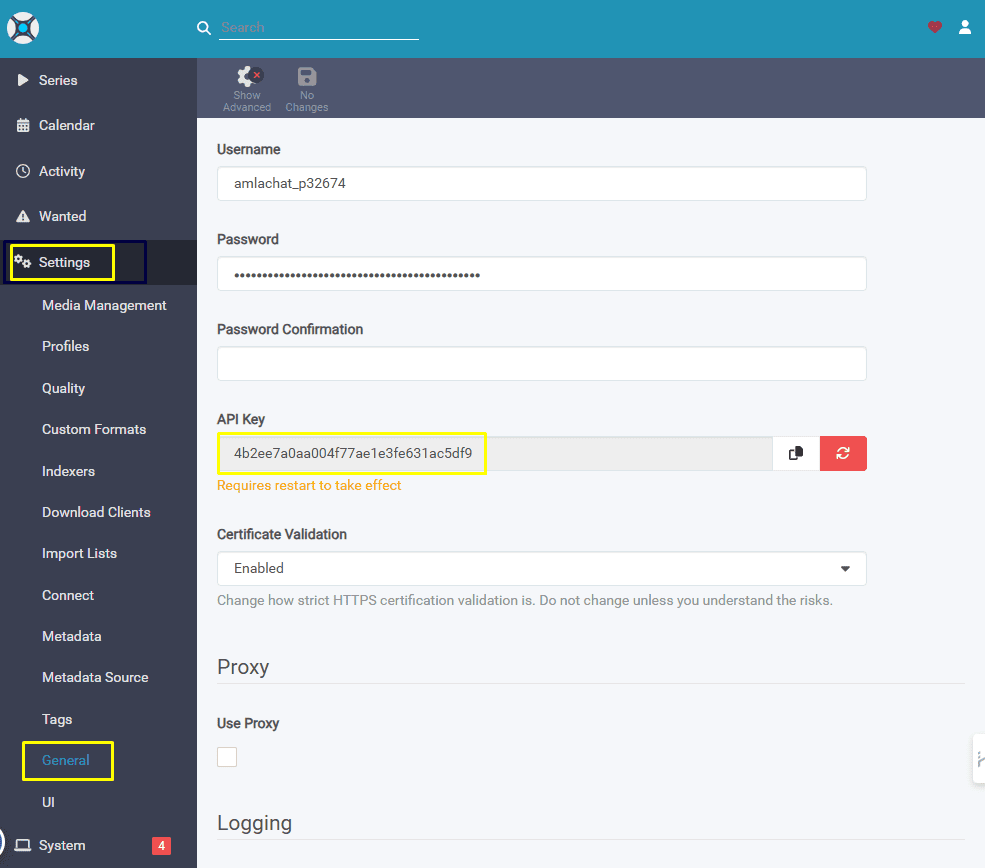
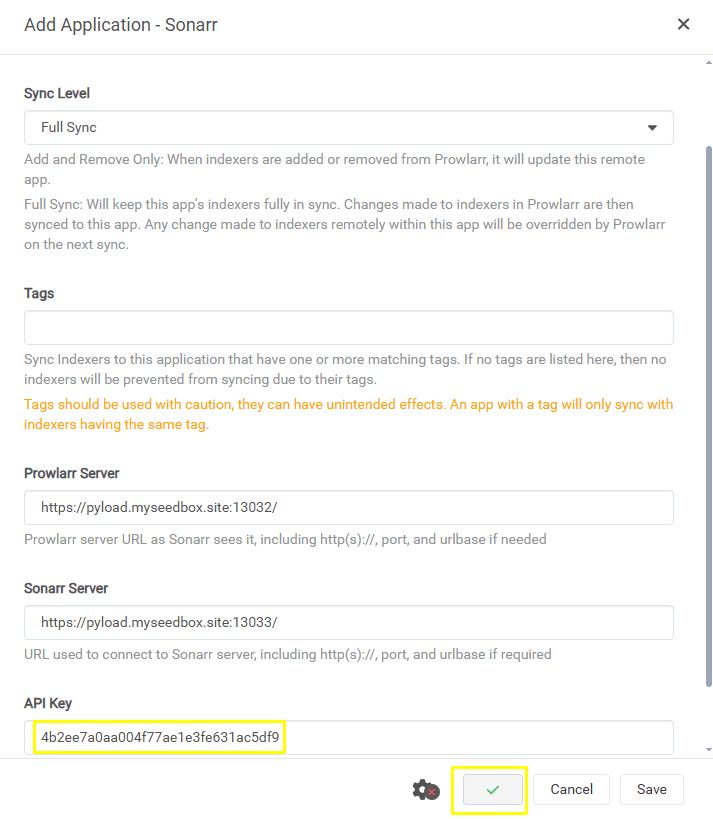
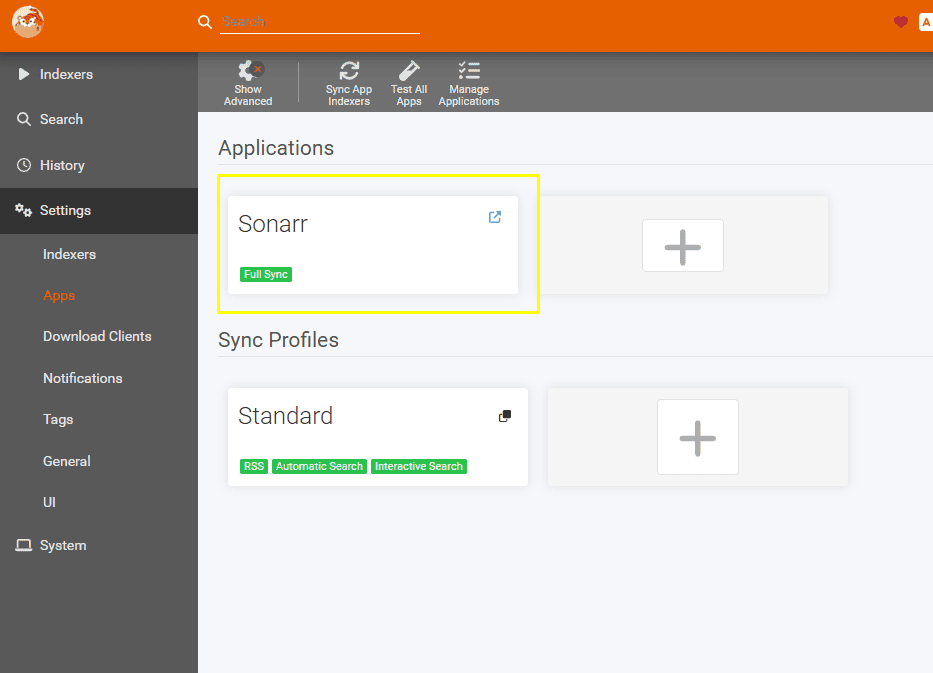
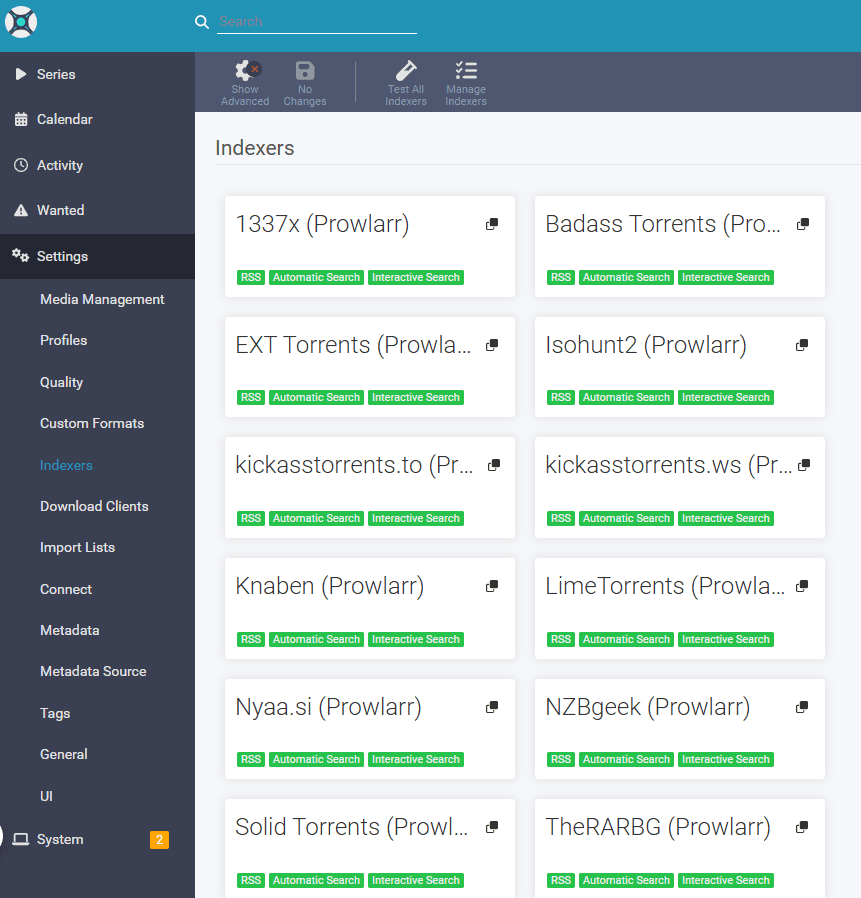
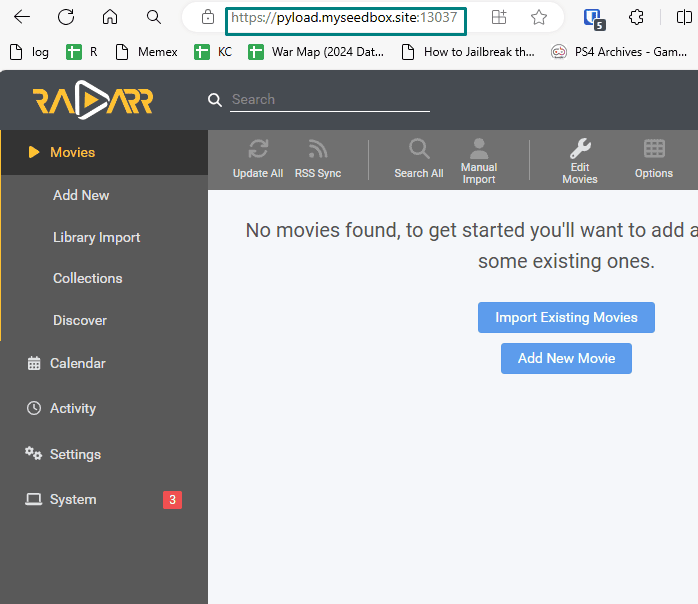
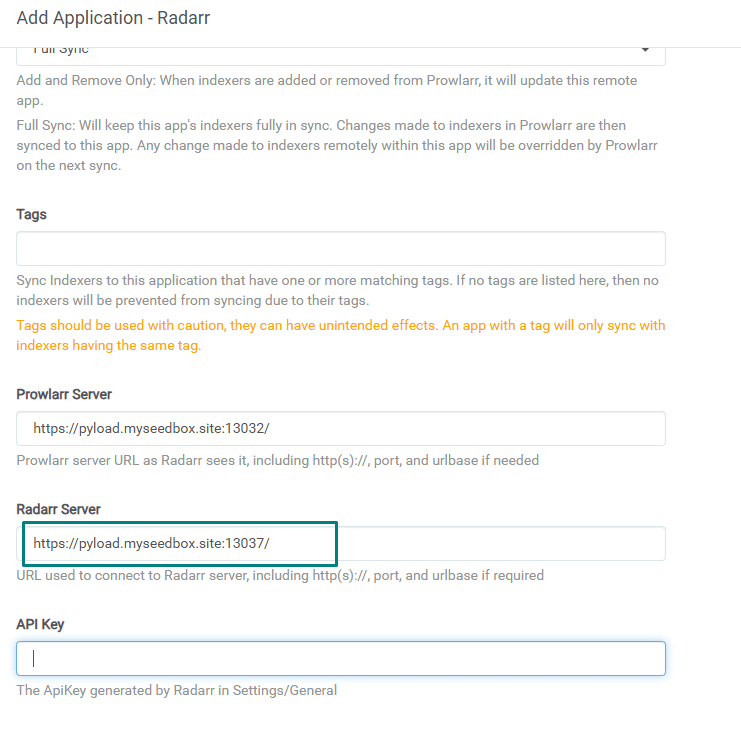
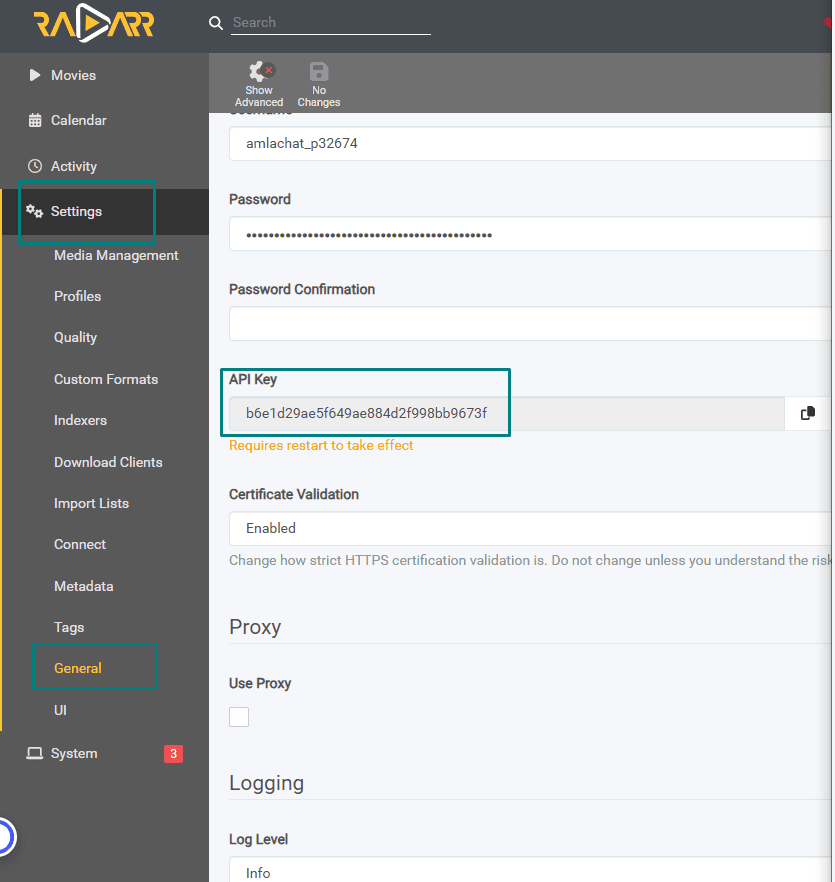
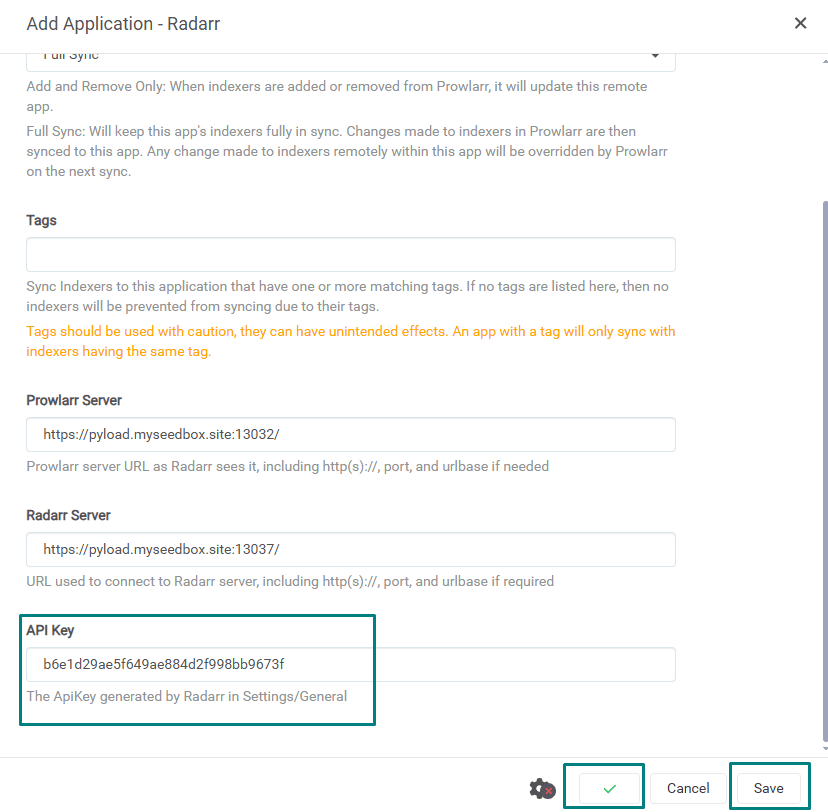
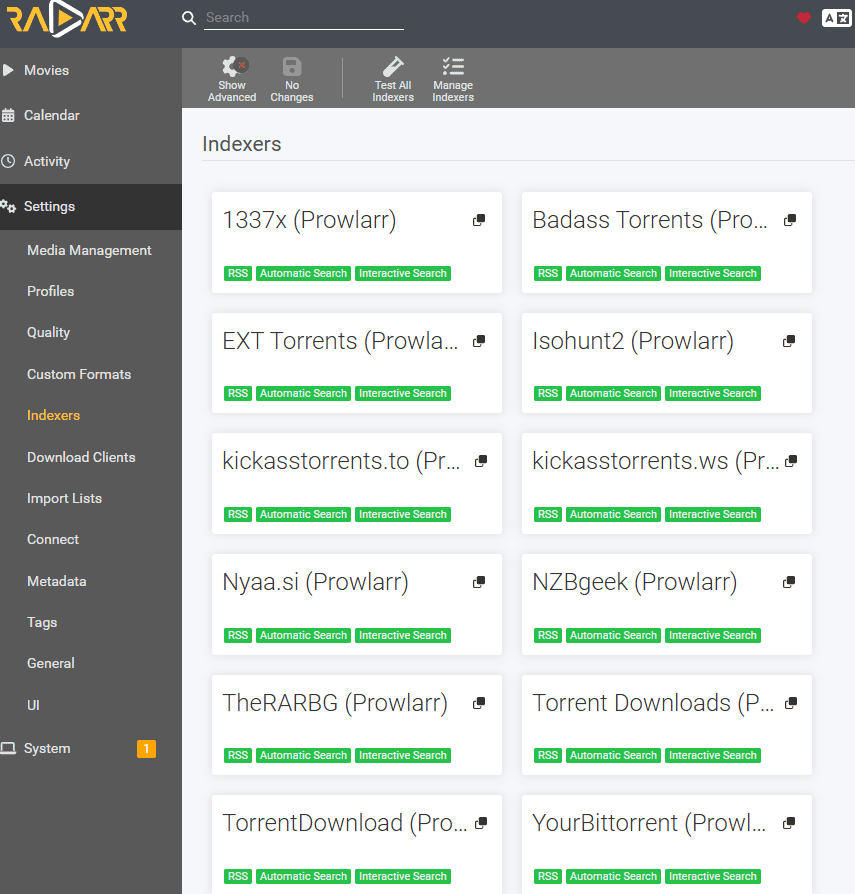
Connecting prowlarr with Radarr #
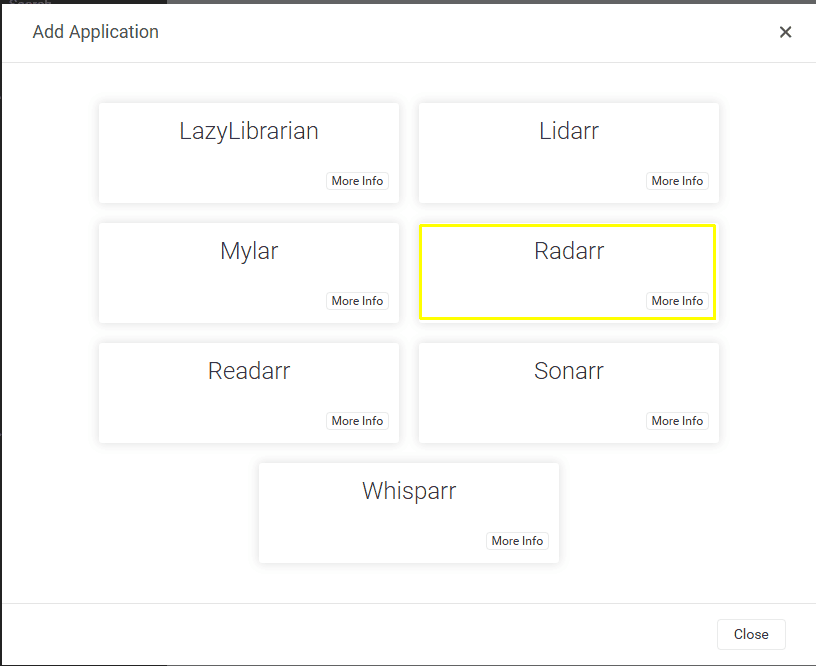
Similar to sonarr for radarr fill in the prowlarr server address in
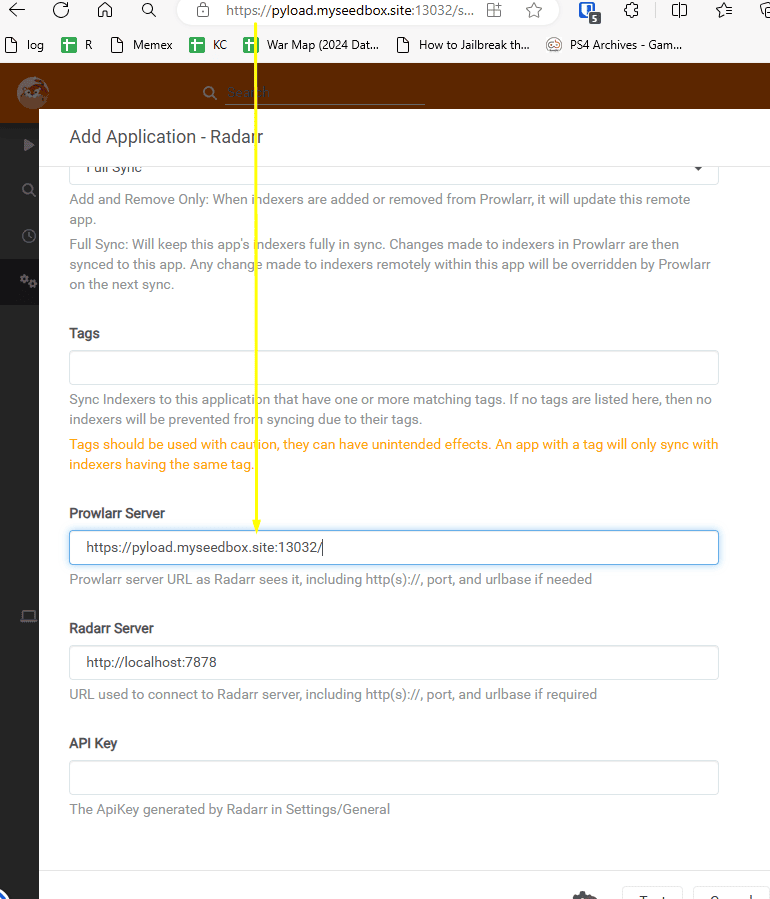
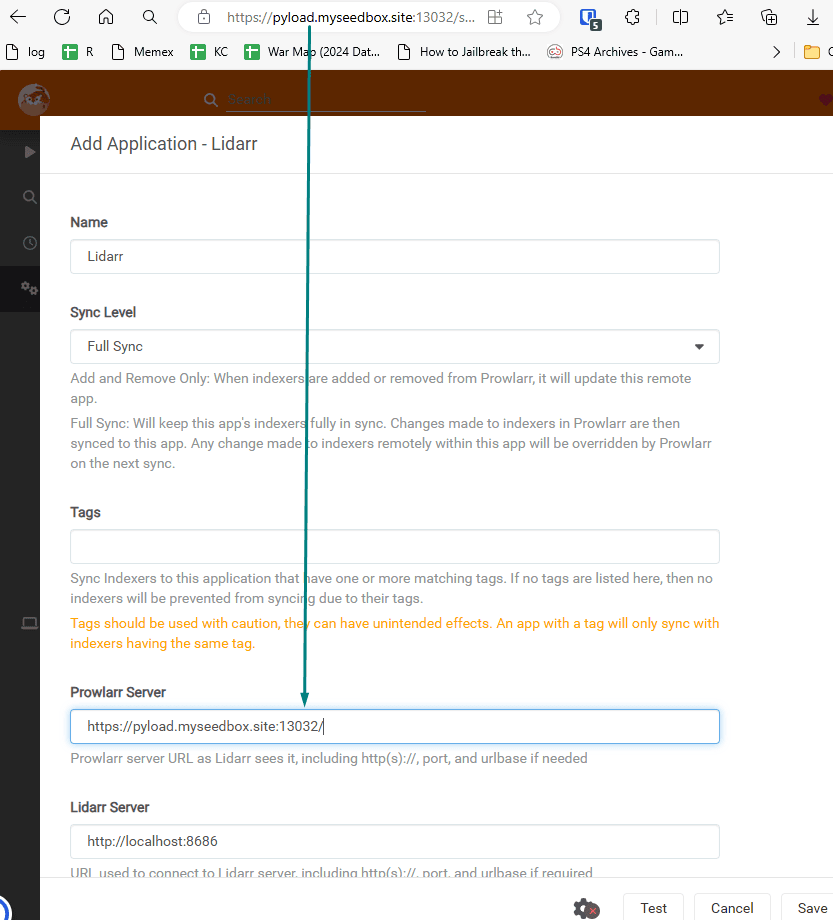
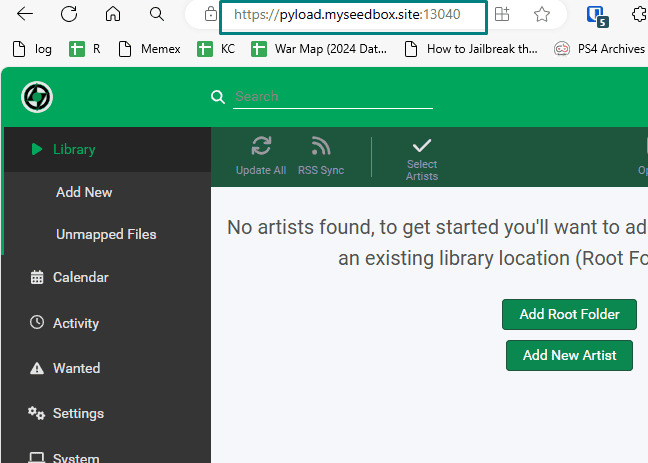
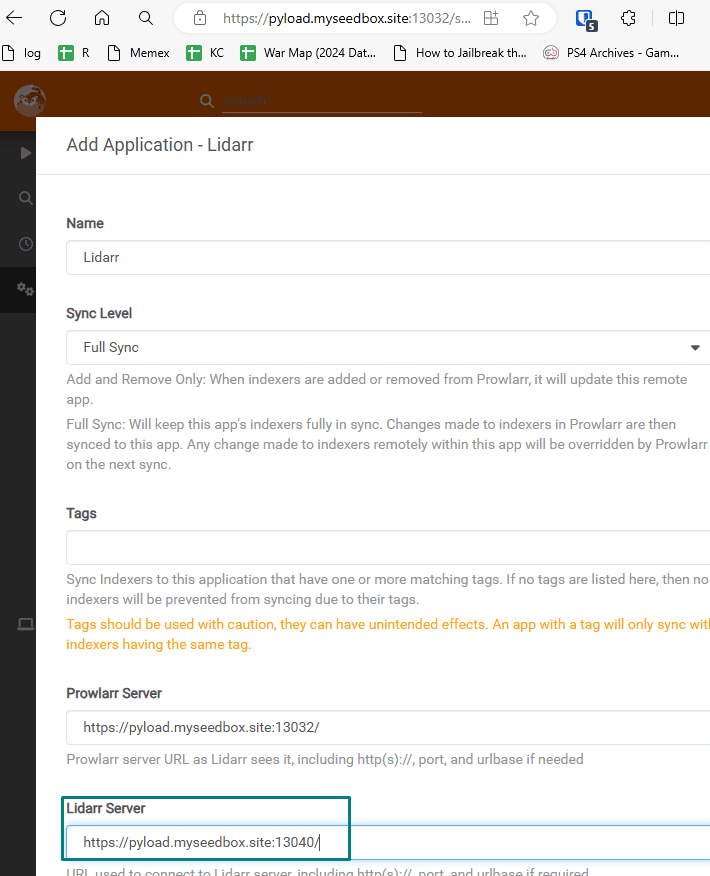
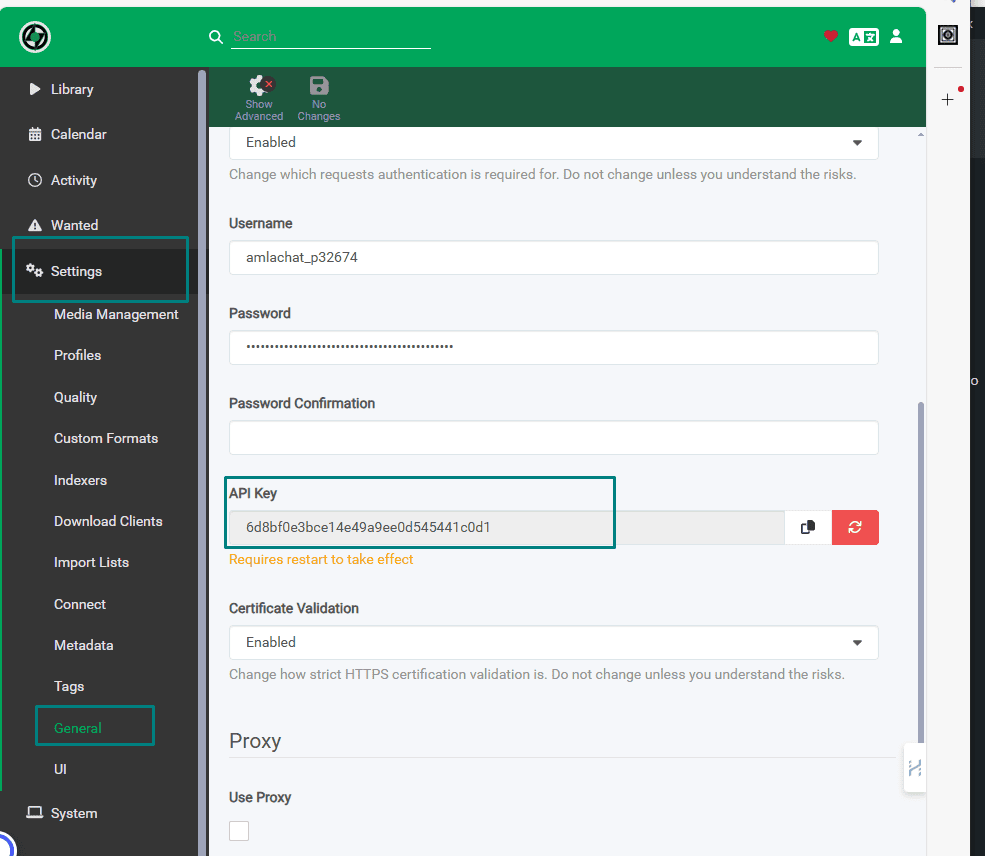
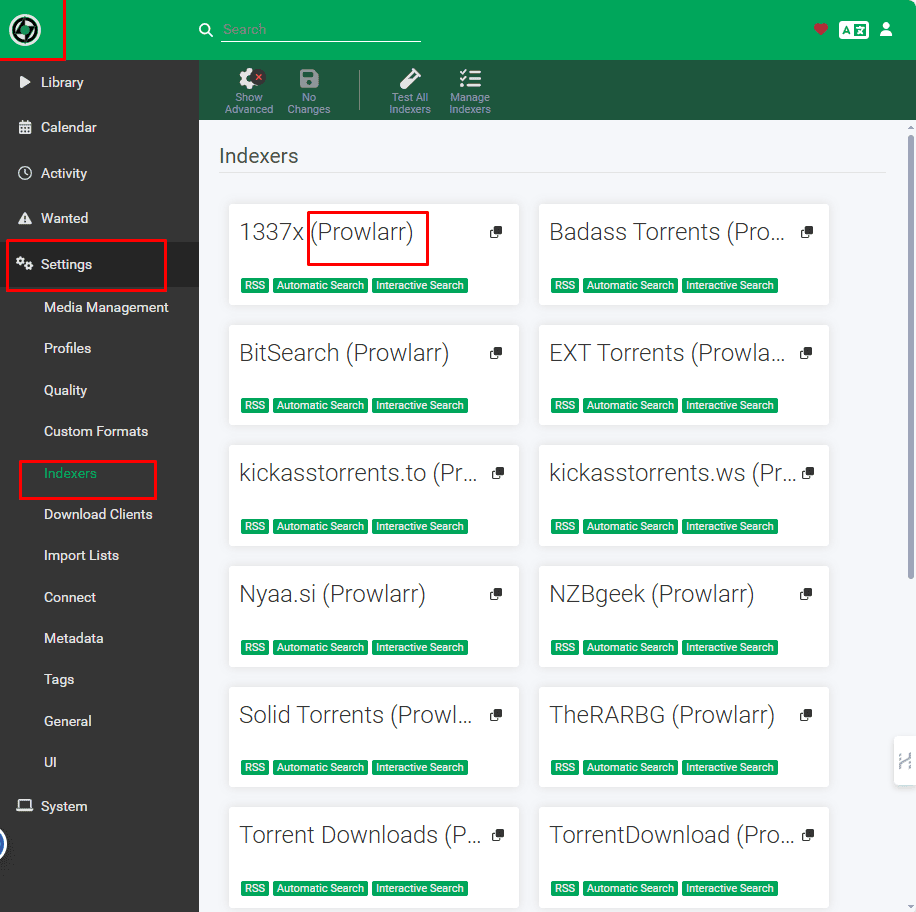
Setting up Lidarr with Prowlarr #
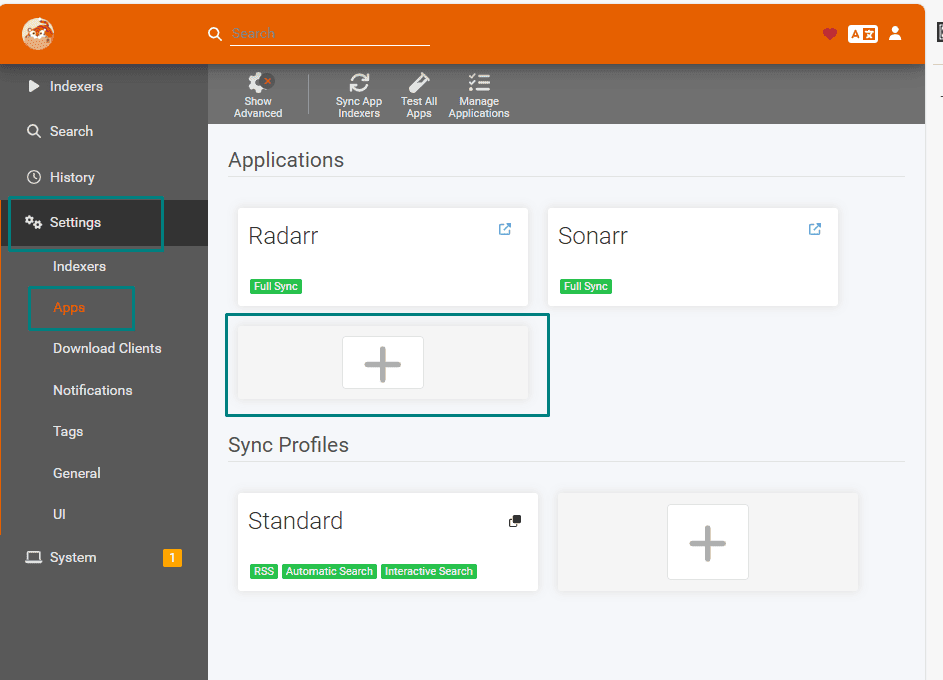
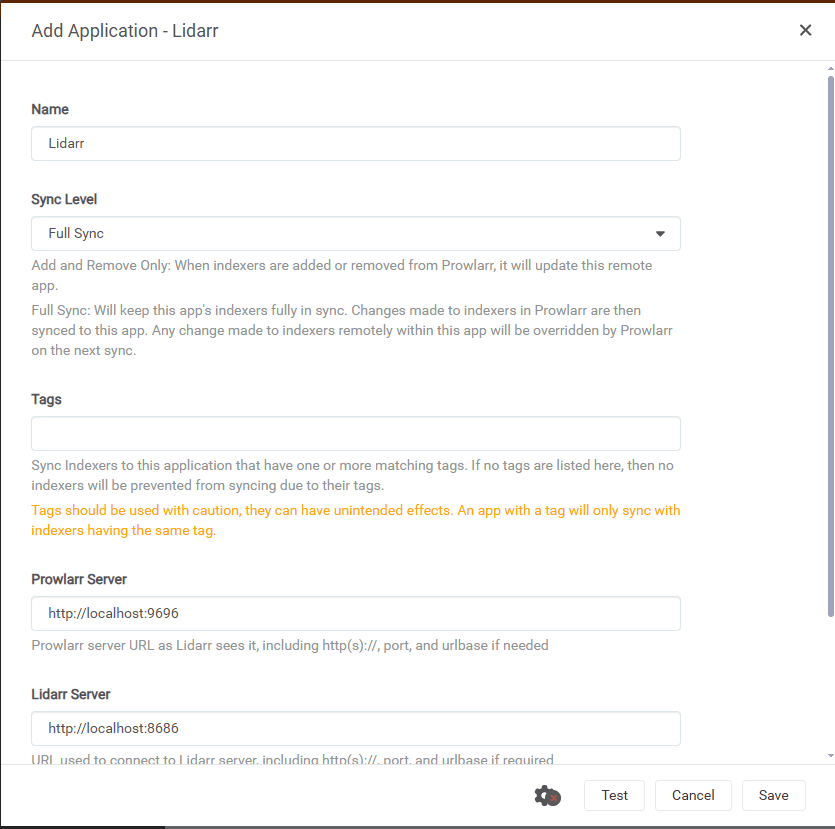
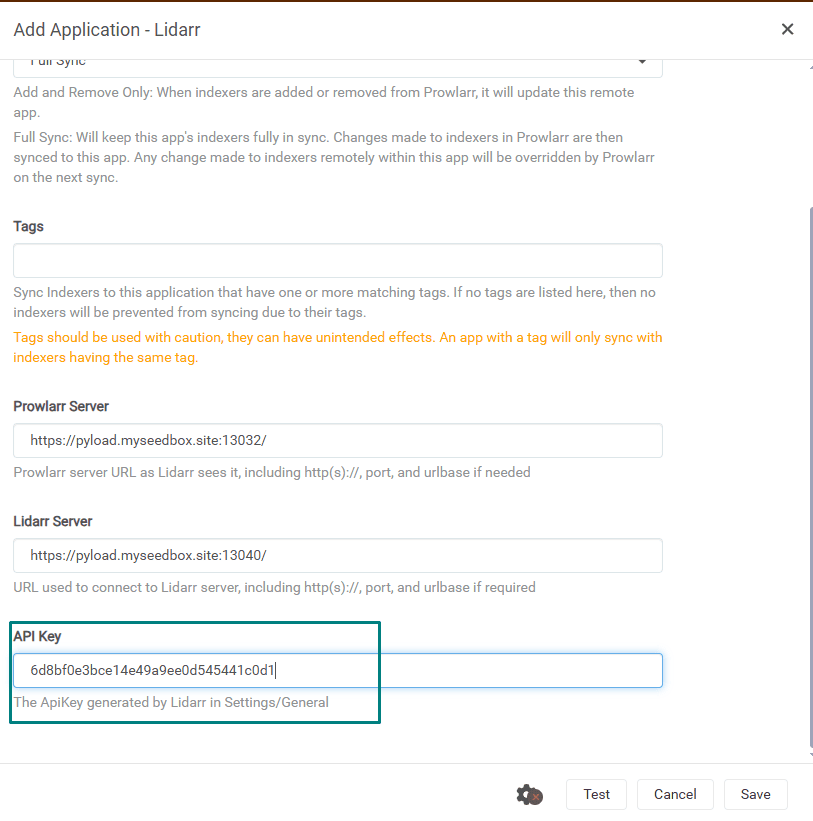
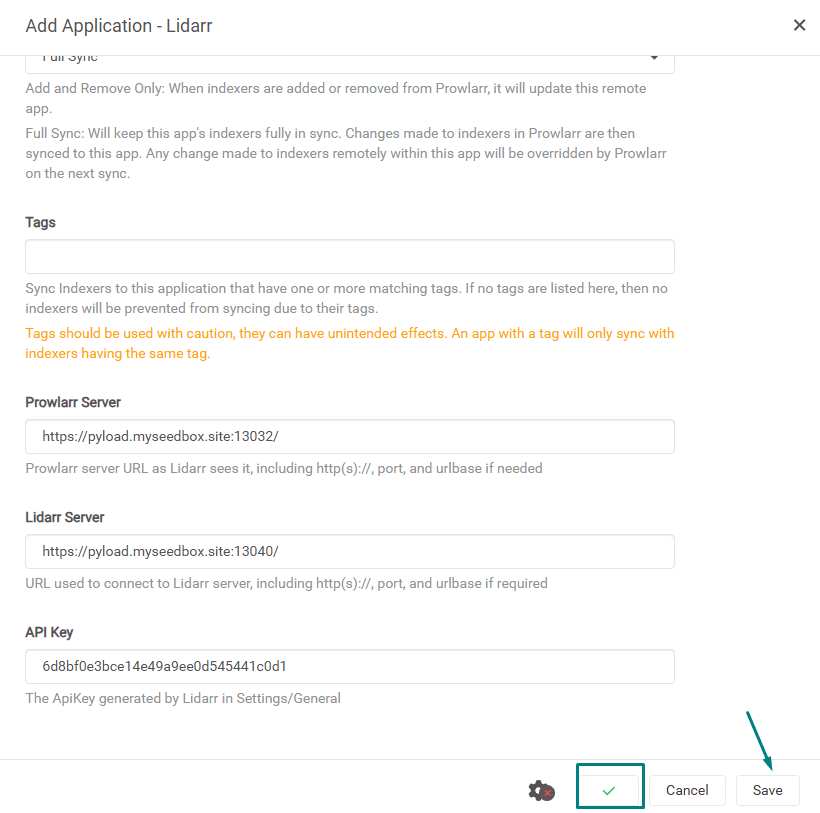
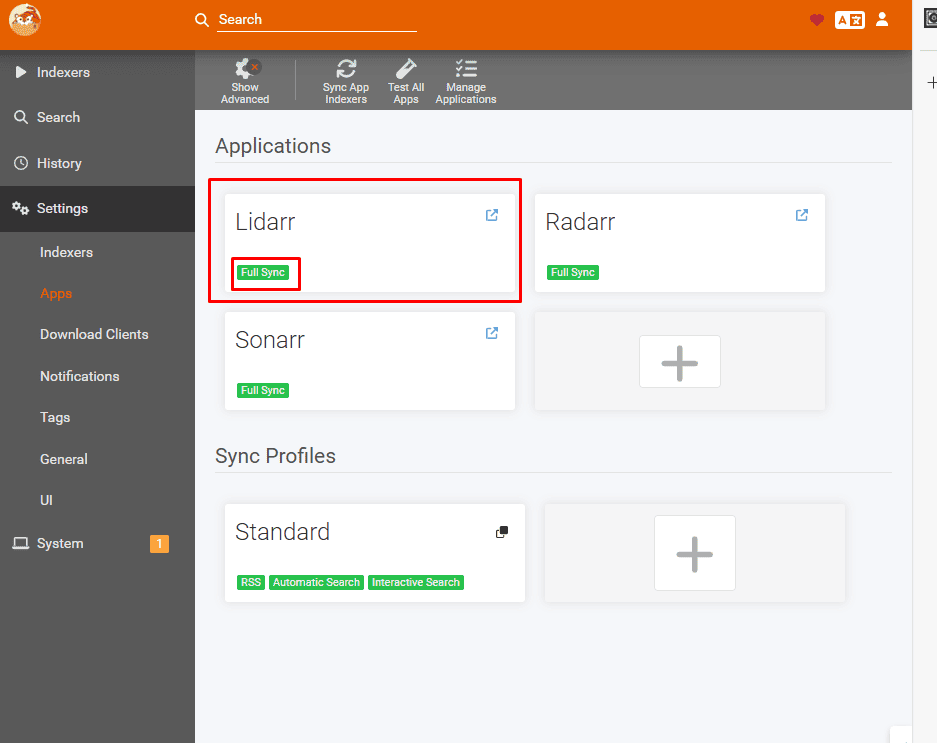
Open prowlarr go to settings and then select apps then click on the Plus button.

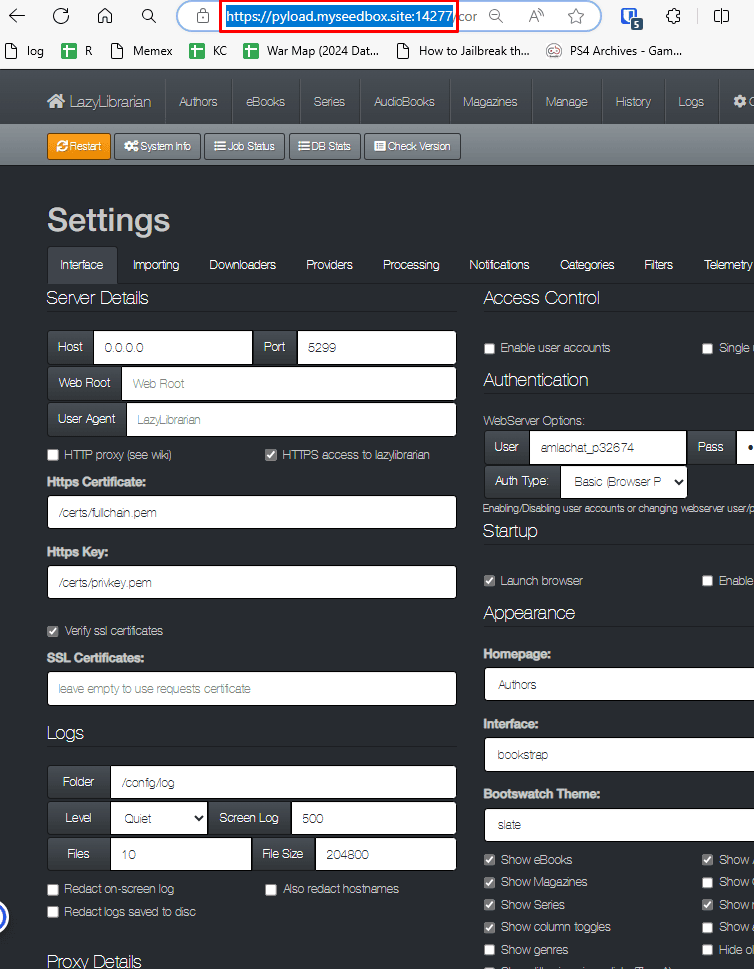
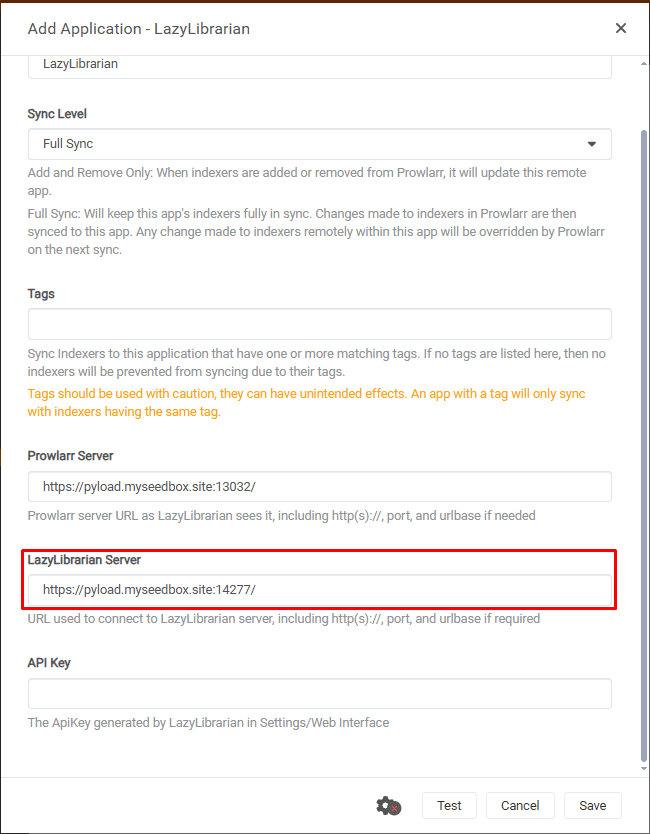
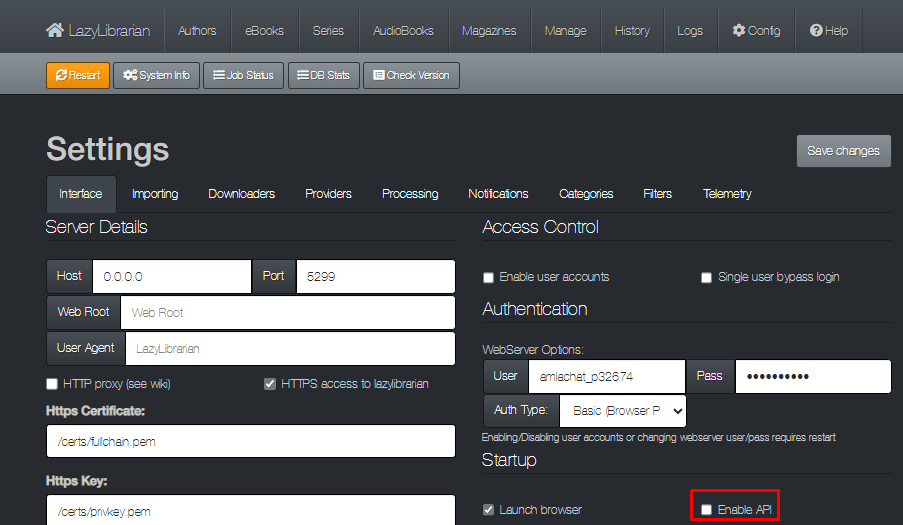
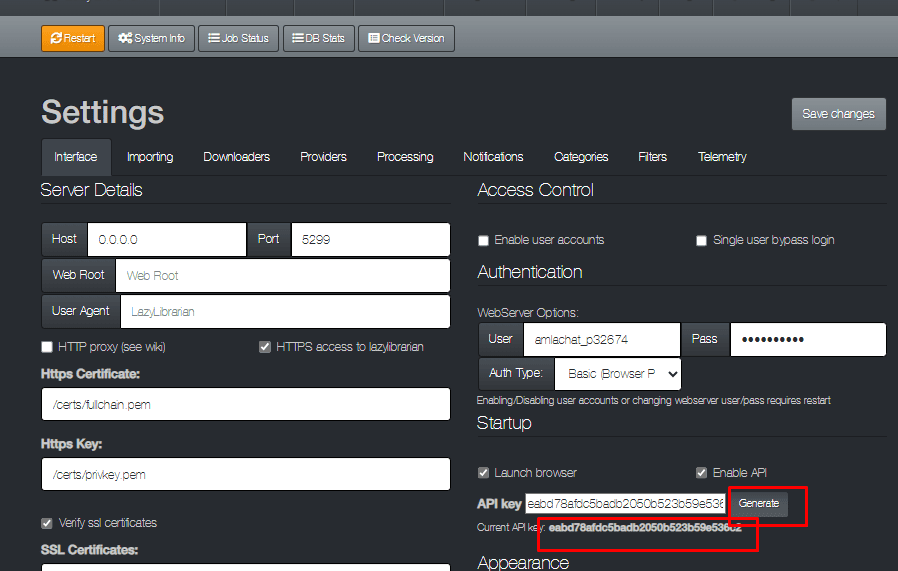
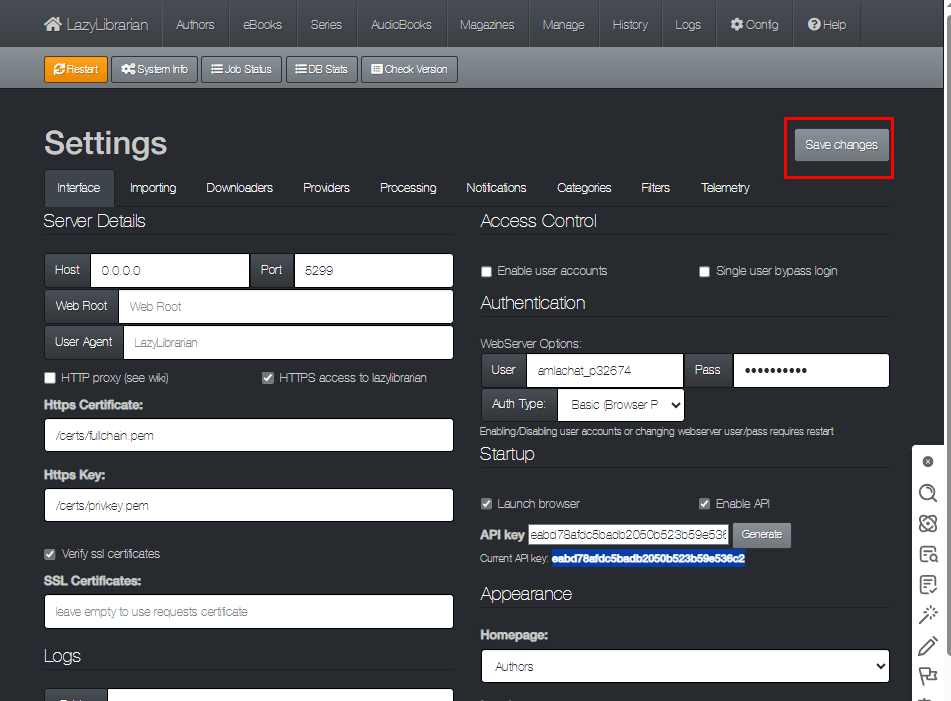
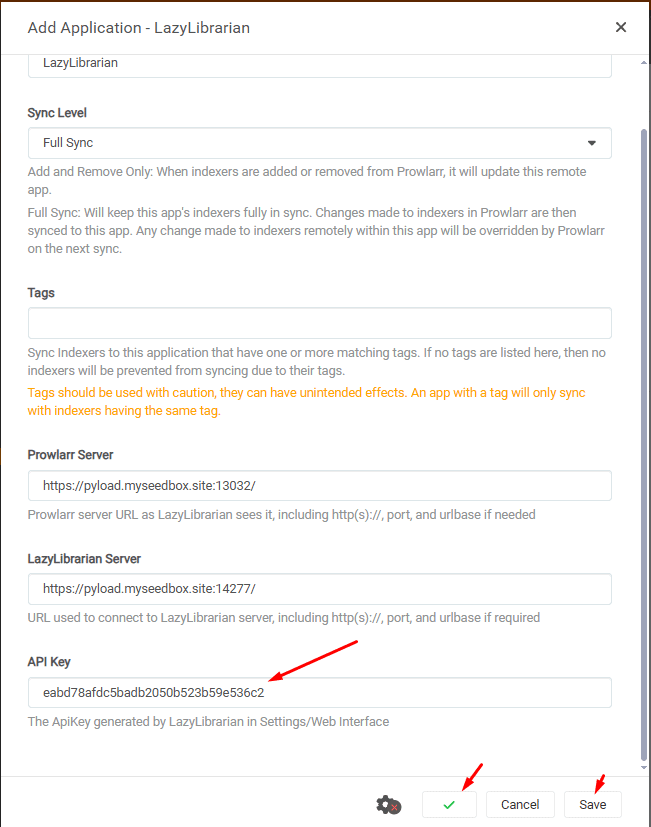
Setting up Prowlarr with LazyLibrarian #
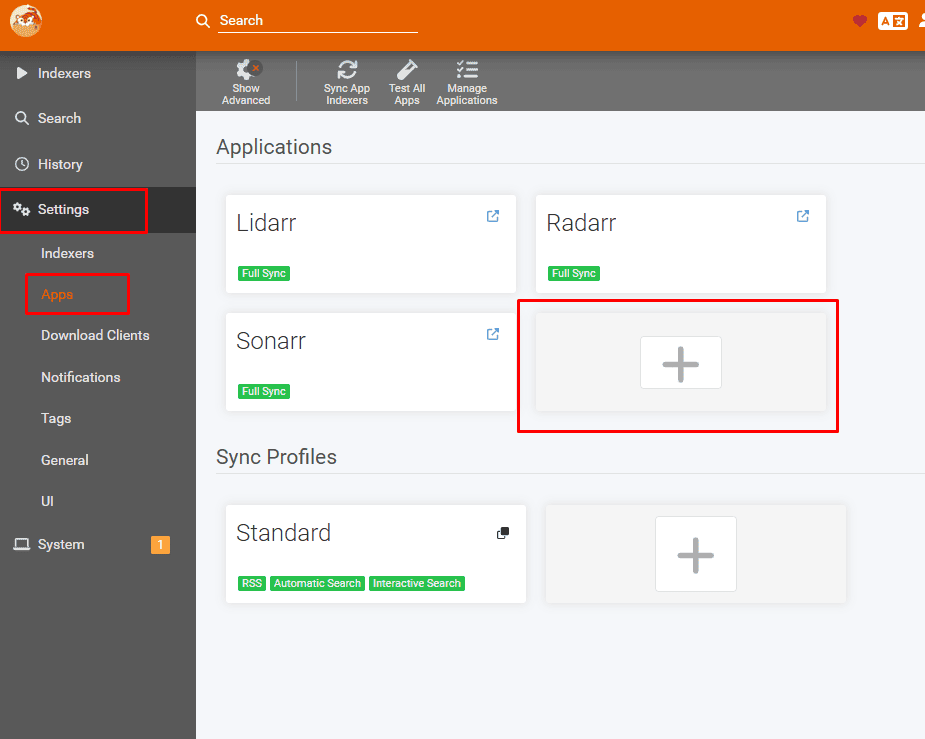
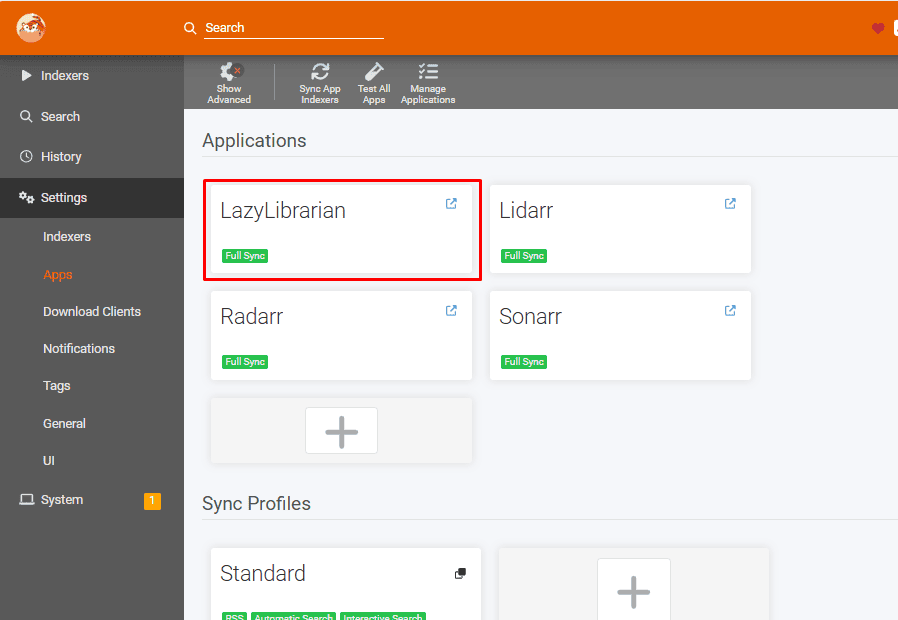
Open Prowlarr and go to settings and then click on apps .
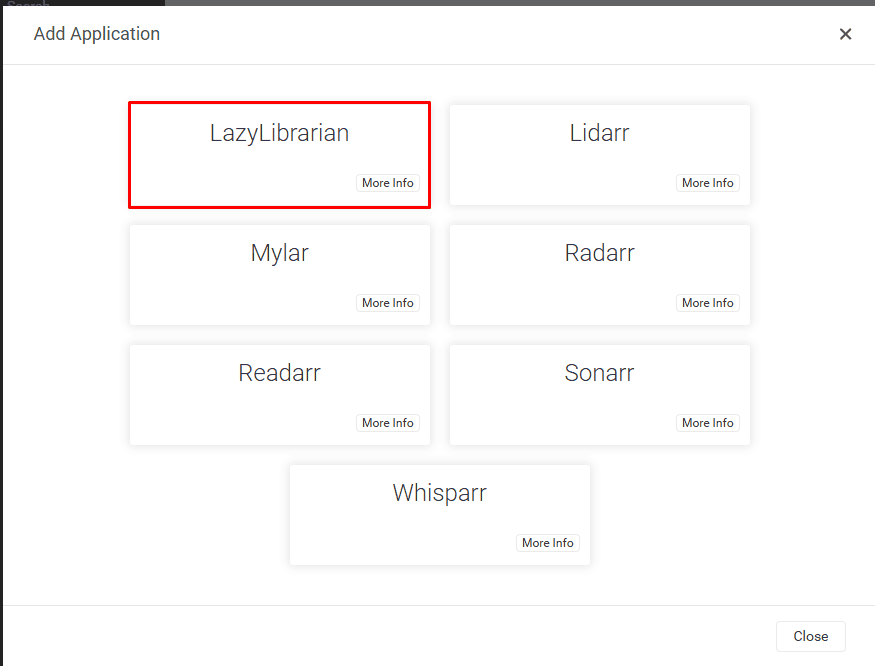
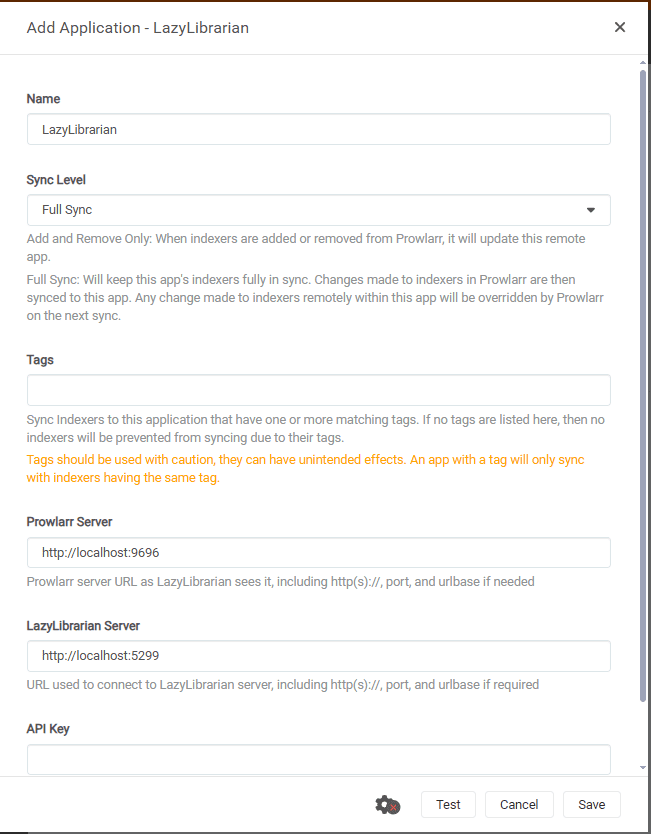
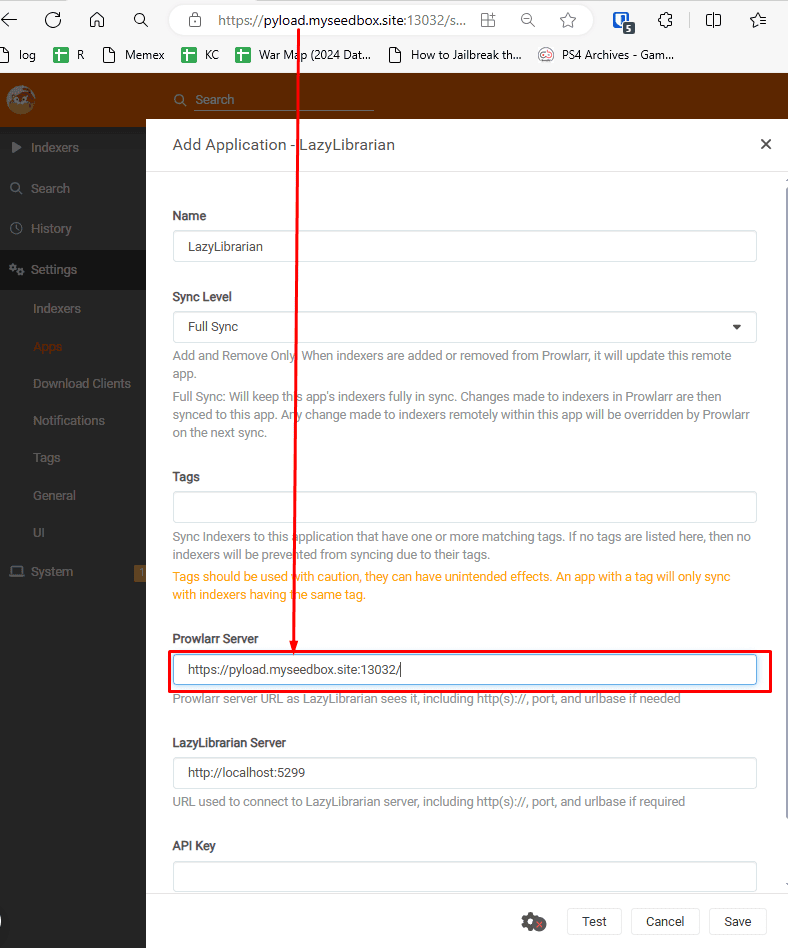
On the right hand side window click on the + button
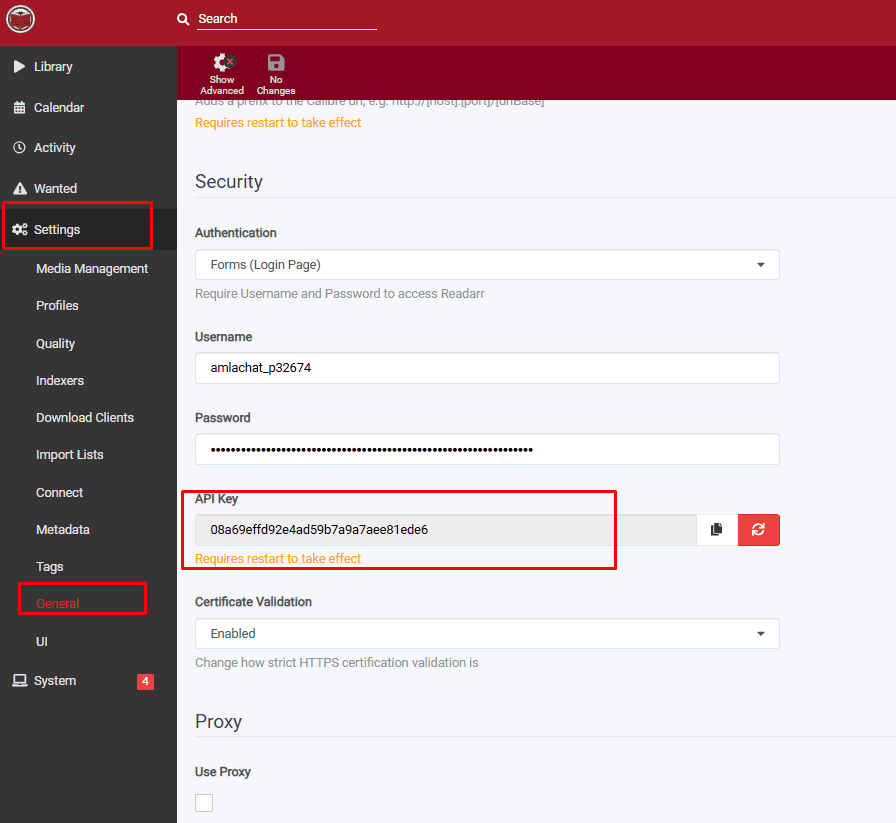
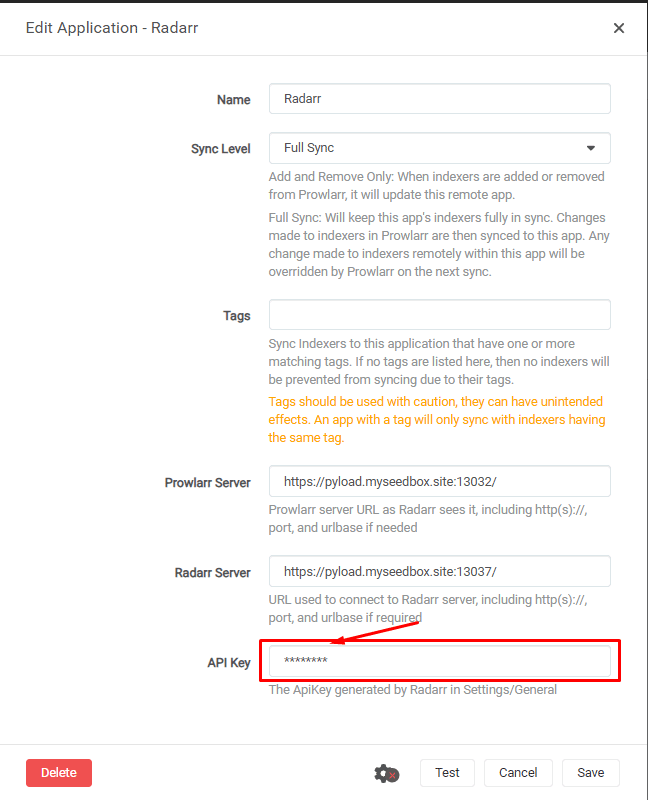
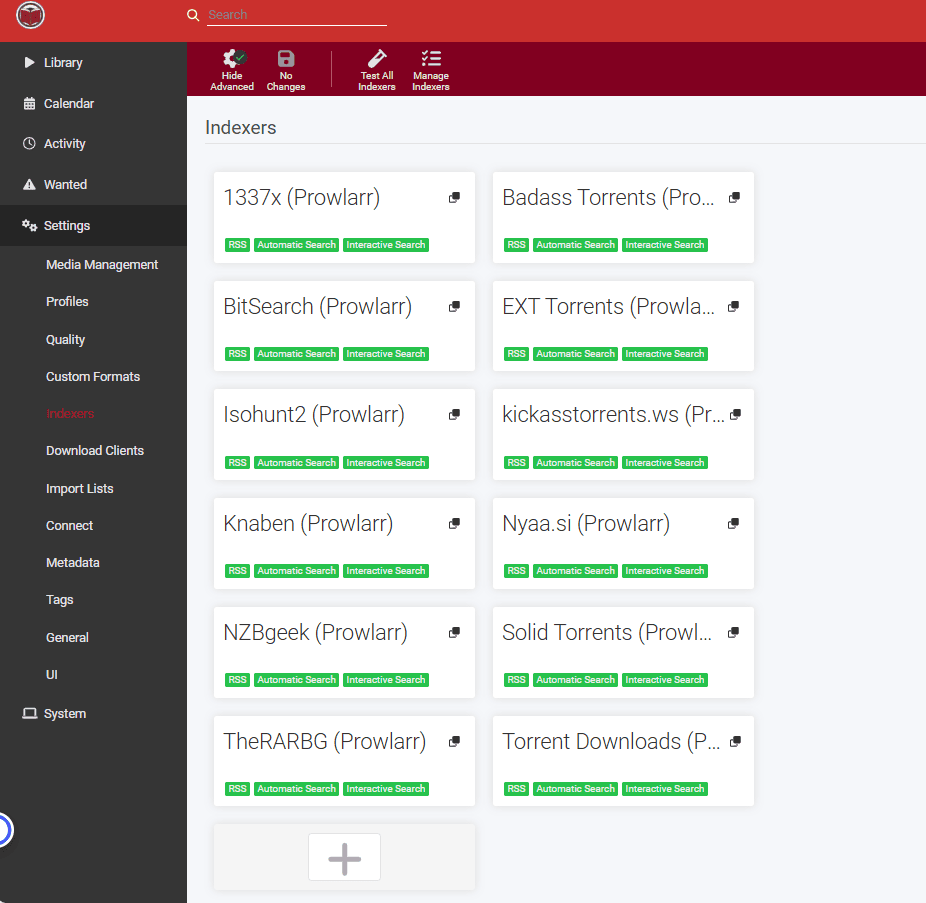
Setting up Readarr With Prowlarr #
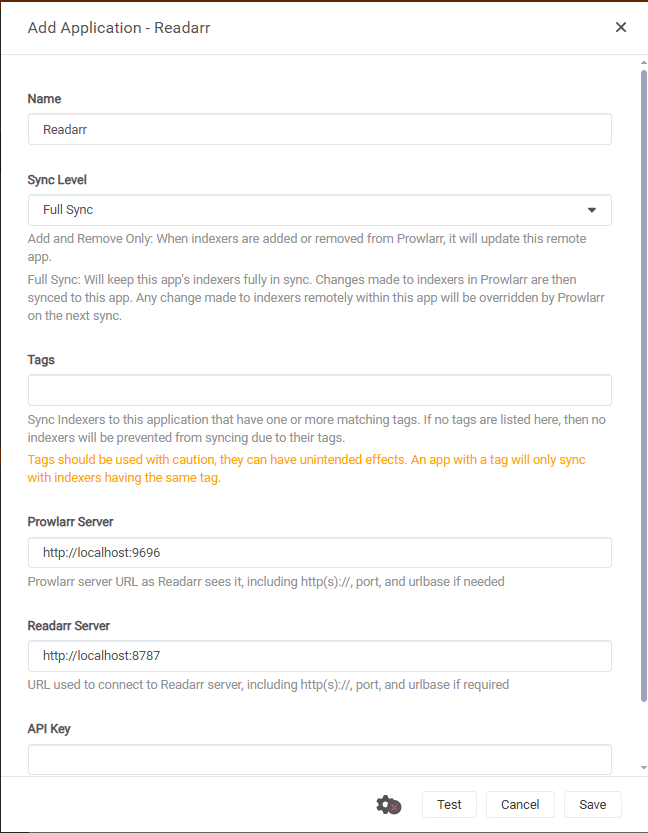
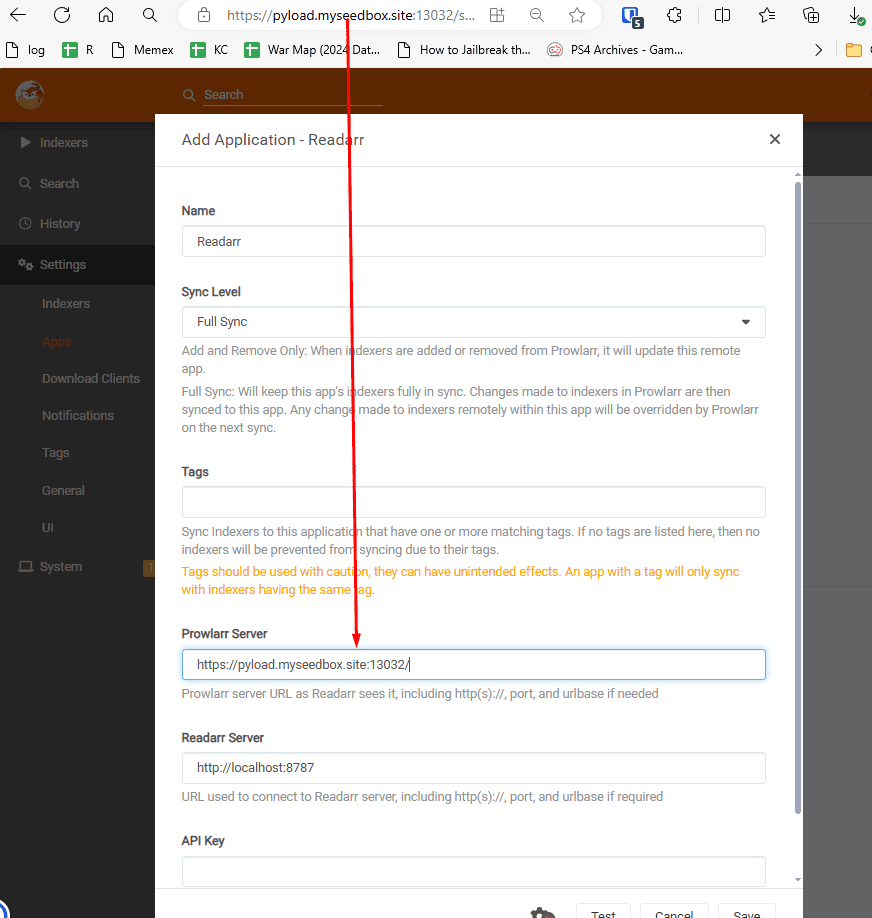
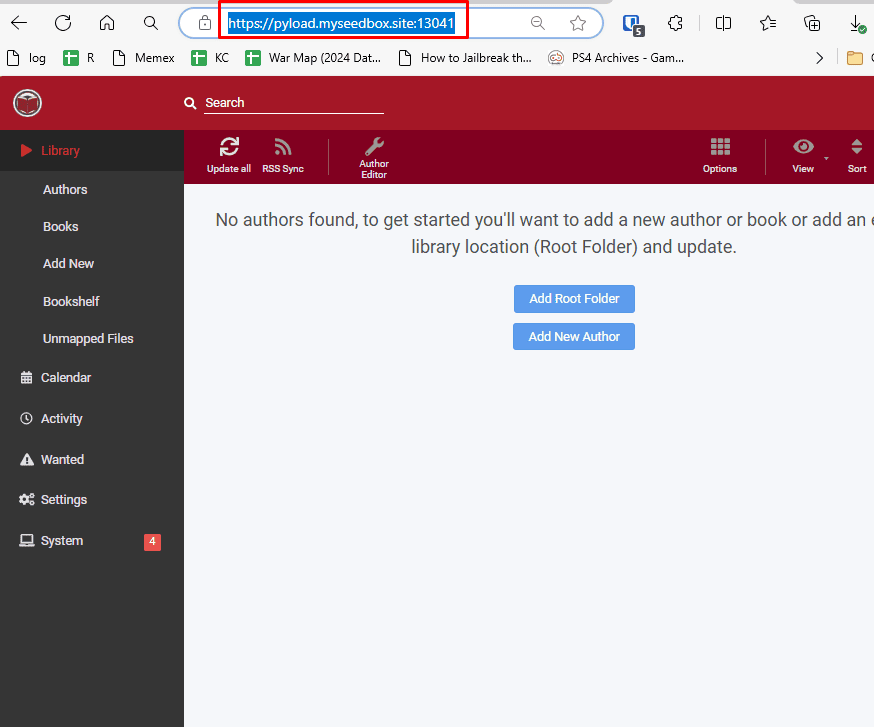
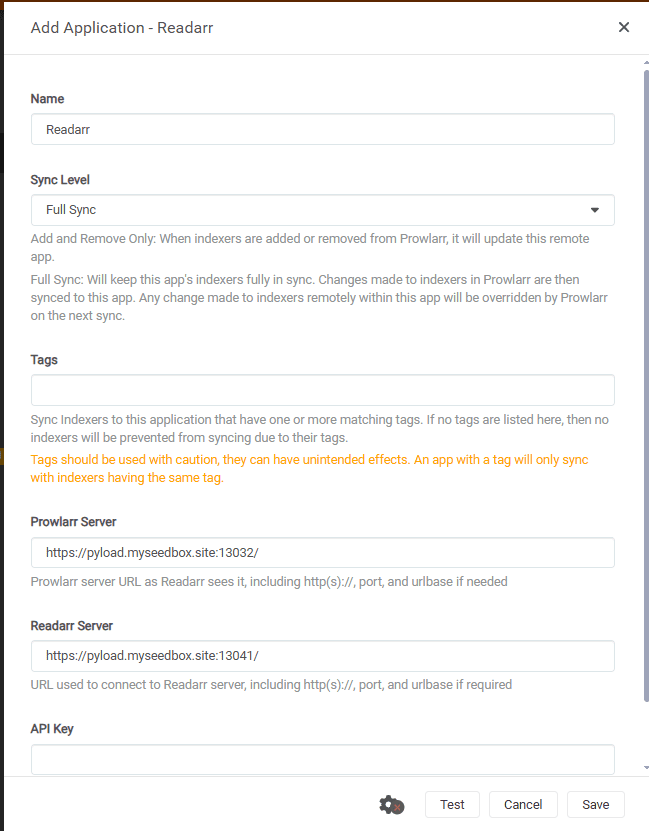
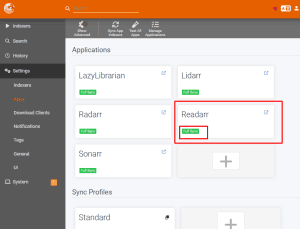
Open Prowlarr go to settings , then click on the Apps.
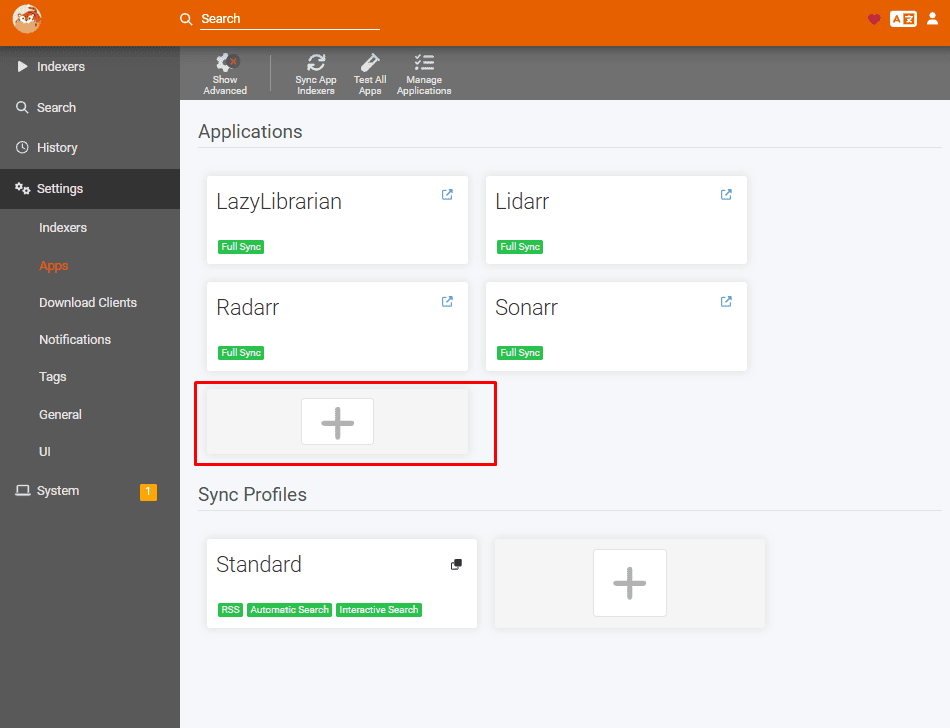
Click on the plus symbol under applications as shown in the image below
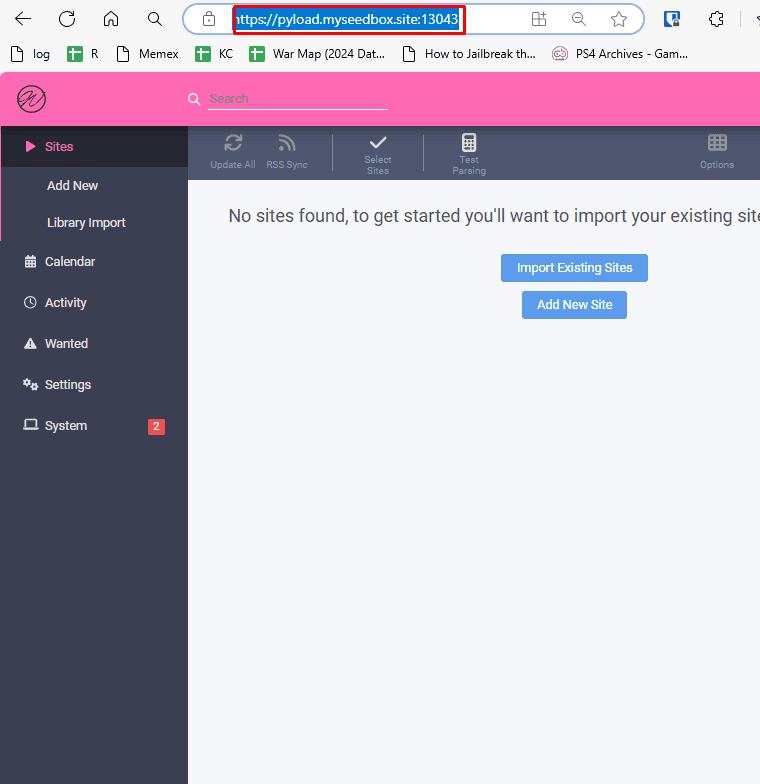
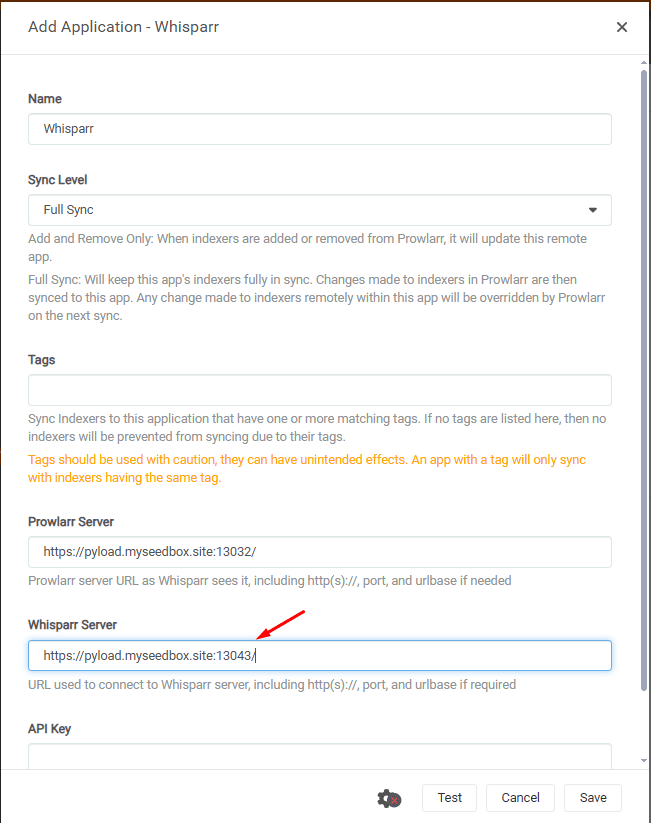
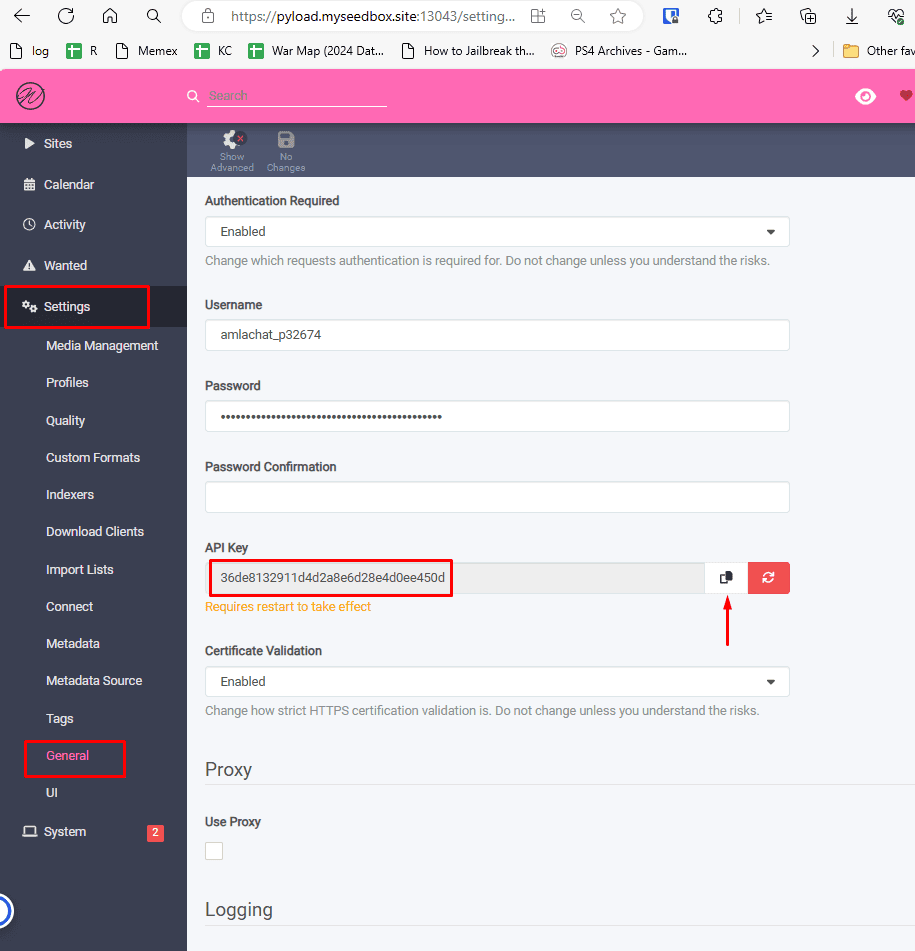
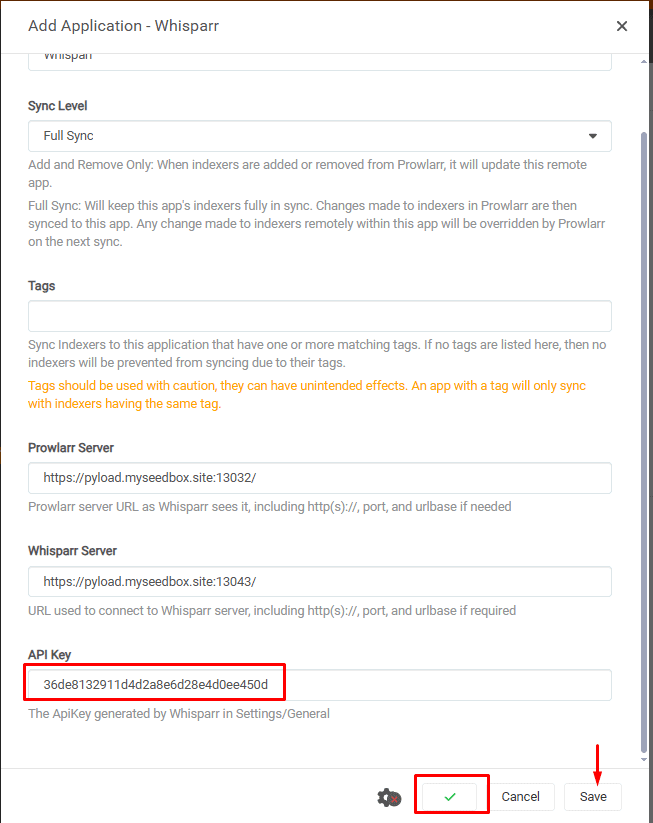
Setting up Whisparr with Prowlarr #
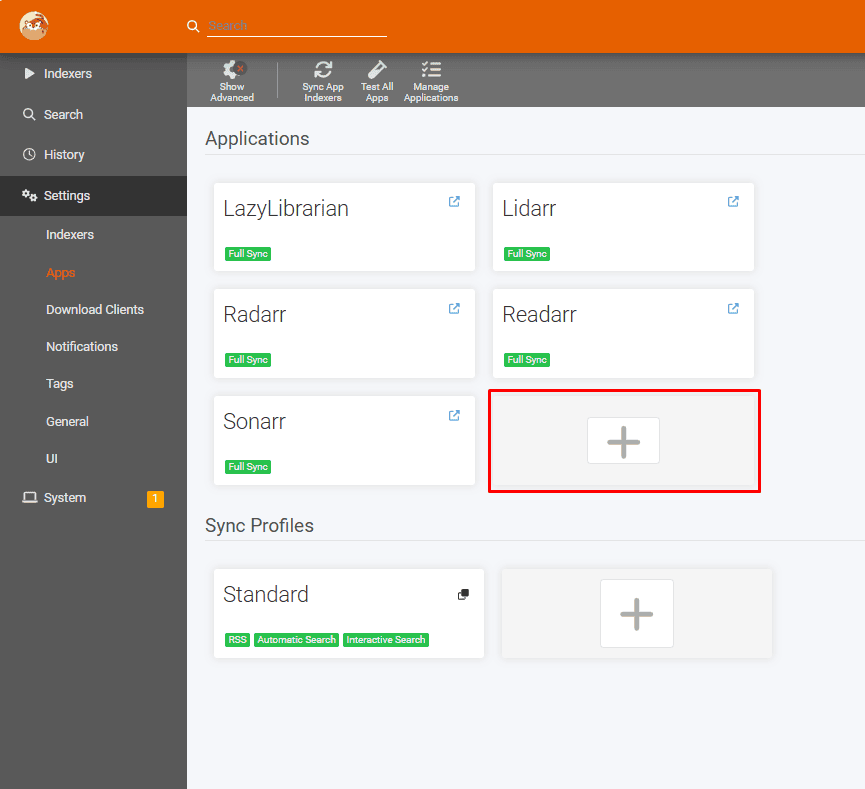
Open prowlarr app and go to settings and then select apps.
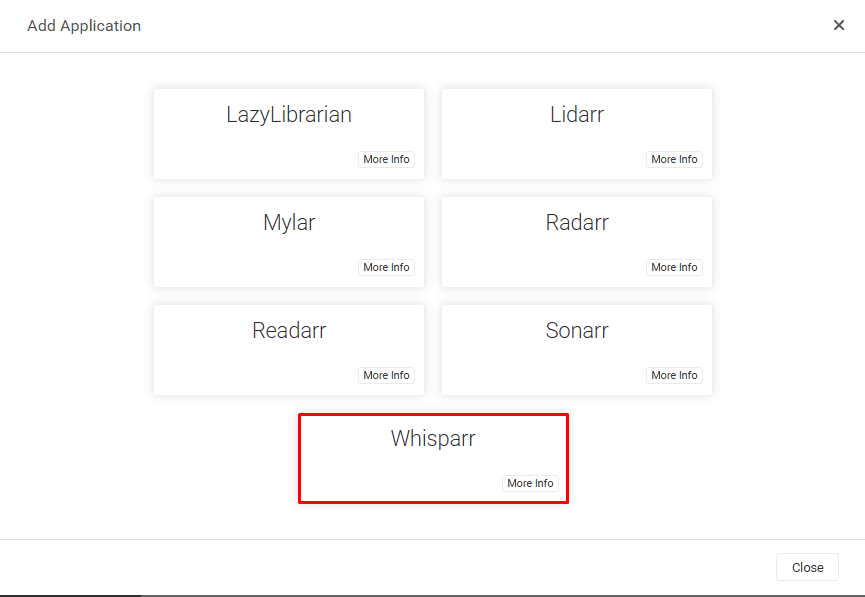
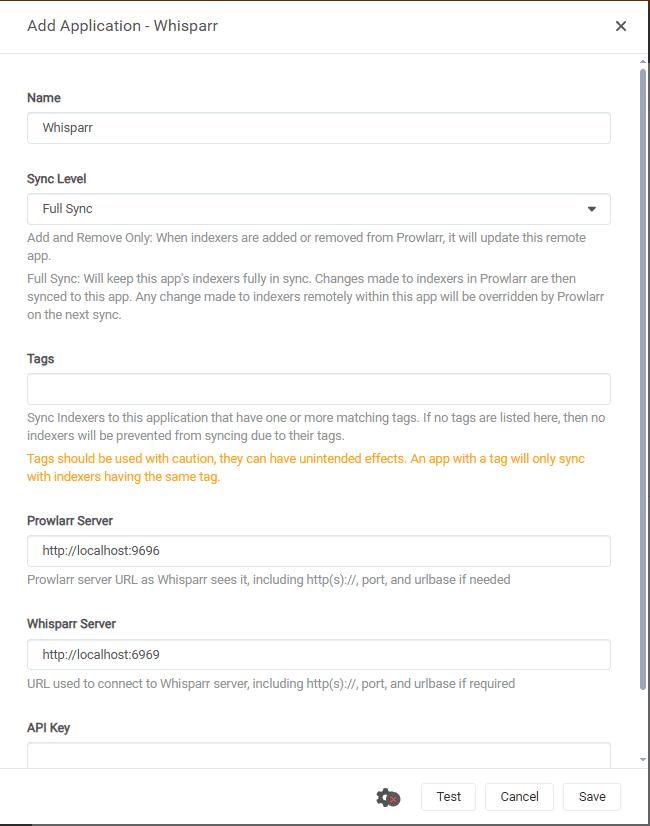
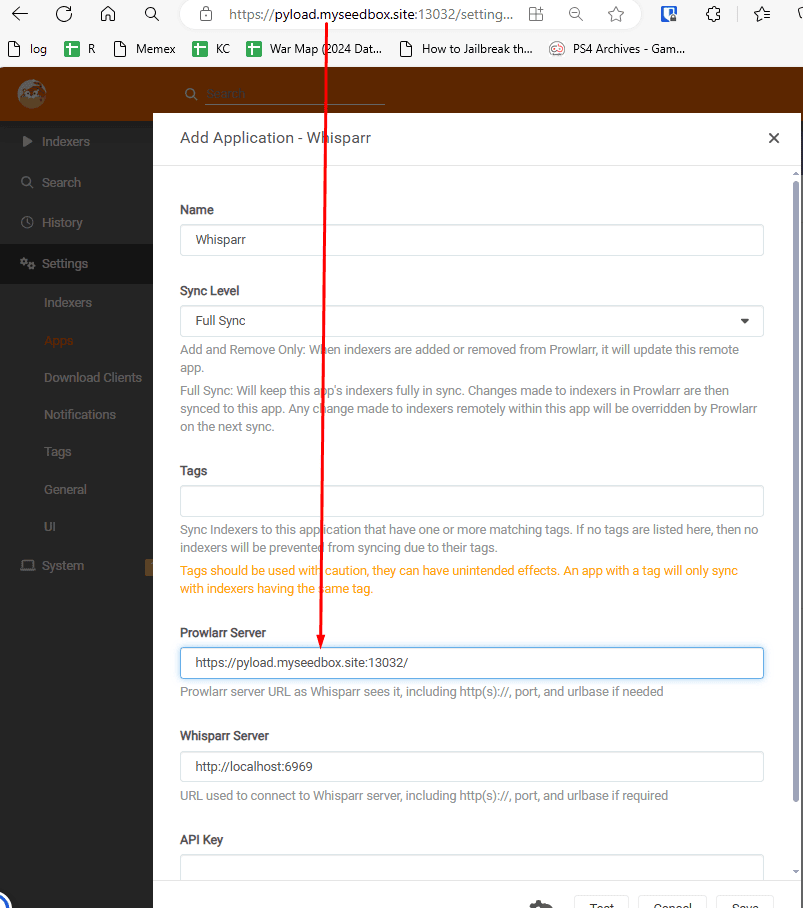
Under application, select the plus button.