Abrir SSH is a connectivity tool for secure remote access to tu seedbox. It is based on SSH protocol. It encrypts your traffic to eliminate eavesdropping, connection hijacking and other cyber security attacks.
Cómo access tu seedbox using Abrir SSH on the Windows system.
For accessing tu seedbox using AbrirSSH you first need to install AbrirSSH on tu seedbox.Let’s look into the installation of Abrirssh on evoseedbox.
1. Inicio de sesión to your área de cliente and search for AbrirSSH in the apps section.
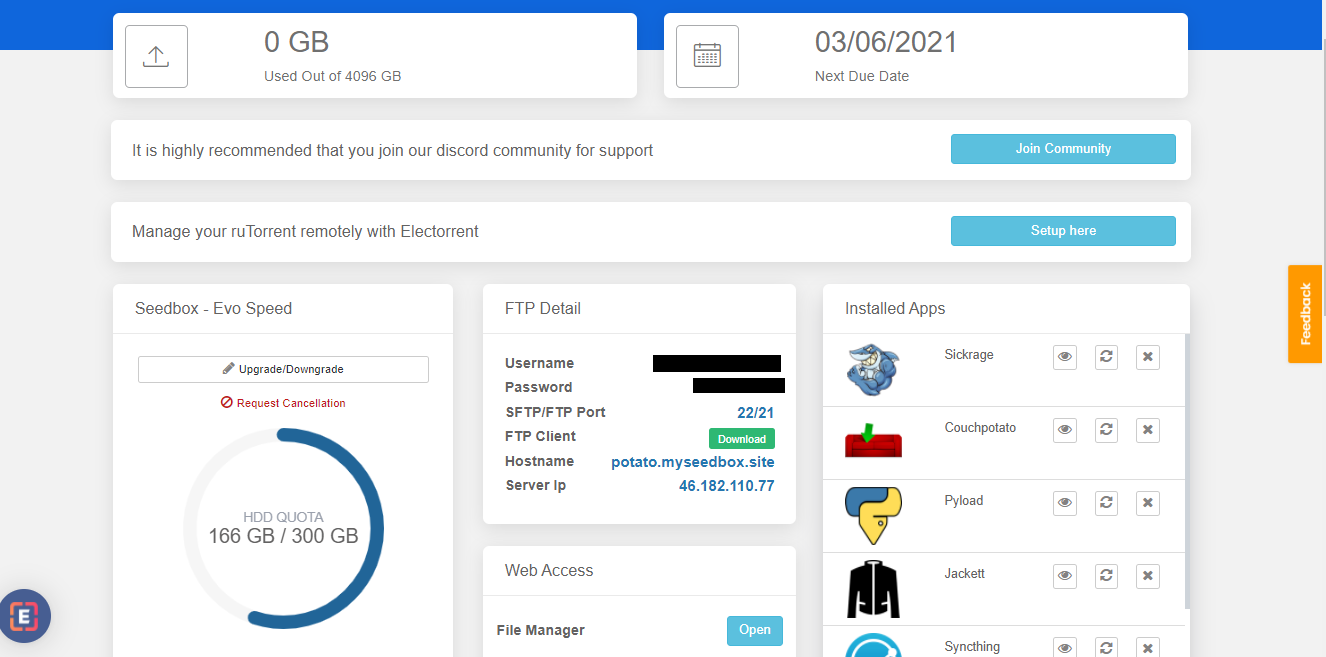

2. Haga clic en the install button and once the installation is complete open the app from the installed app section como se muestra abajo.

You will be able to see a pop-up where your host id and port number which will be used for creating a connection.

This completes our AbrirSSH installation on our Seedbox.To use Abrirssh on windows we need to first install openssh client on our windows too. This link will guide you how to check if Abrirssh is installed or not and also how to install it if not already installed.
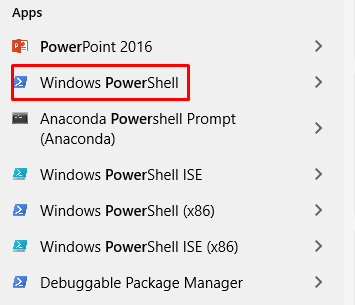
3. Once Abrirssh client is installed.Abrir powershell on windows by searching ‘Power Shell’ in windows apps.
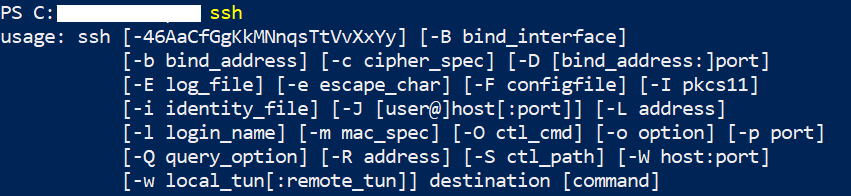
4. On opening the Power Shell type ‘ssh’ and hit enter. If Abrirssh is correctly installed verá the openssh usage guide como se muestra abajo.
5. Now to connect to tu seedbox type ssh command with the nombre de usuario provided in the FTP detail and hostid(provided in AbrirSSH window).
Following format should be used:
‘ssh nombre de usuario@hostid -p port no’

You will asked to enter contraseña which puede get from the FTP detail.

6. Después de entering the contraseña you should be able to use Abrirssh como se muestra abajo.

Using Abrirssh on Ubuntu #
Similar to Windows , first install openssh on tu seedbox and note the host id and port no as reference for making connection. Now lets try connecting tu seedbox using Abrirssh on ubuntu system.
- Abrir terminal on your system and type following command:
‘sudo apt update ‘
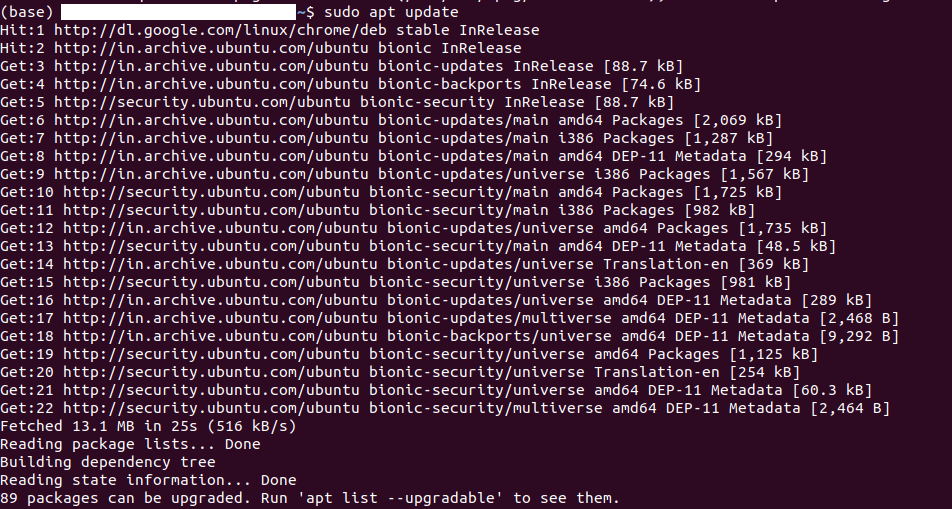
2. Once the above command execution is complete . Type ‘ sudo apt install openssh-client’ and press enter.

Si usted face an error as shown in the screenshot above, you need to kill the ongoing process which is using apt.
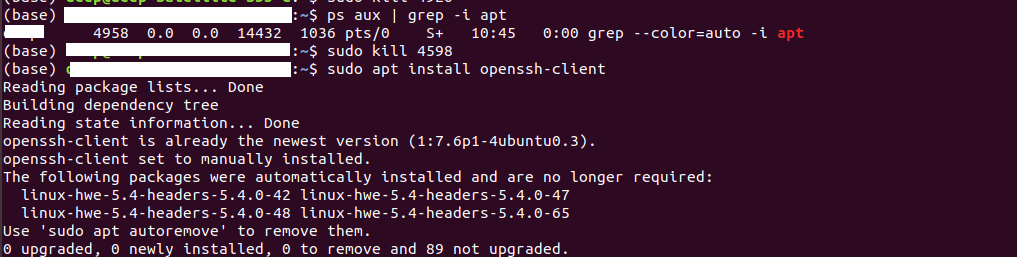
3. Type ‘ ps aux | grep -i apt’ and press enter which will list all the process ids which are currently using ‘apt’.

4. Kill the process using the command ‘sudo kill <process id>’. Después de th process has been terminated try again to install openssh client using the same command ‘sudo apt install openssh-client’
5. Puede now test your installation by creating a connection to tu seedbox as mentioned in the windows openssh connection section. Ex. ssh <nombre de usuario>@<host id> -p <port no.>

You will be prompted to enter contraseña and accept SH256 signature after which connecting process will be complete.


