Evoseedbox Evoseedbox Evoseedbox Evoseedbox
  • Türkçe
    • Nederlands (Hollandaca)
    • English (İngilizce)
    • Français (Fransızca)
    • Deutsch (Almanca)
    • 日本語 (Japonca)
    • 한국어 (Kore dili)
    • Português (Portekizce, Portekiz)
    • Español (İspanyolca)
    • العربية (Arapça)
    • Русский (Rusça)
  • Wiki
  • Forum
  • Pricing
Client Area
View Categories
  • Home
  • Dokümanlar
  • Nasıl Add Libraries in Plex and Synchronize Your Streaming Content

Nasıl Add Libraries in Plex and Synchronize Your Streaming Content

1 min read

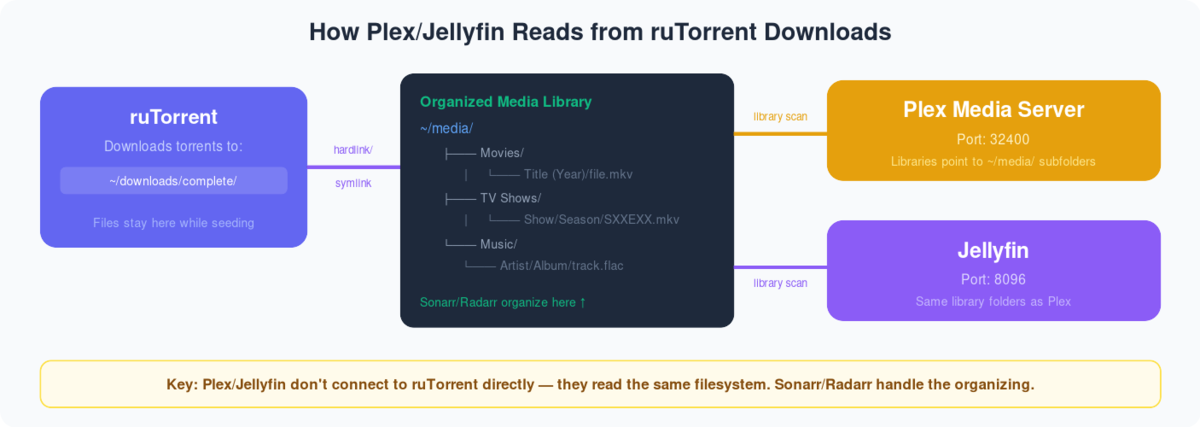
Diagram showing Plex and Jellyfin reading organized media folders that Sonarr Radarr populate from ruTorrent downloads
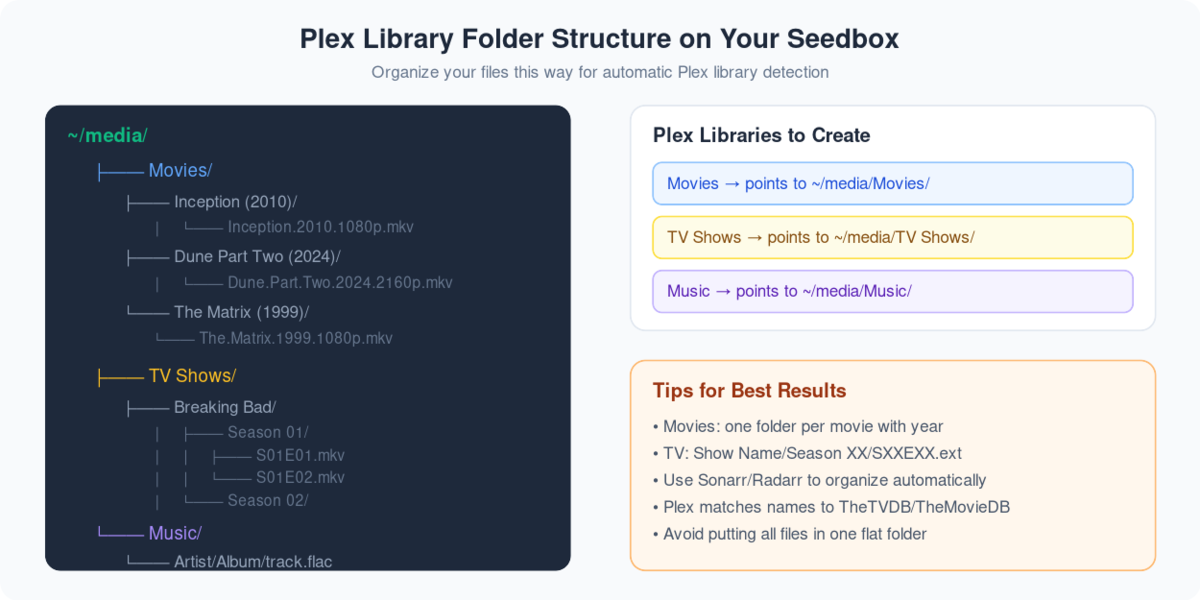
Recommended Plex folder structure showing Movies, TV Shows, and Music directories with proper naming

Through this guide, you’ll be able to add libraries in plex and synchronize your streaming content after downloading through rutorrent on seedbox’unuz. First of all, we need to understand what are plex libraries, they are merely representations of media types that you keep in the form of streaming content on seedbox’unuz. It helps you to divide your content into groups so that yapabilirsiniz filter and navigate the content in an easier manner.So, let’s look in to the steps you need to follow:

  1. Giriş yapın it your Plex Account.
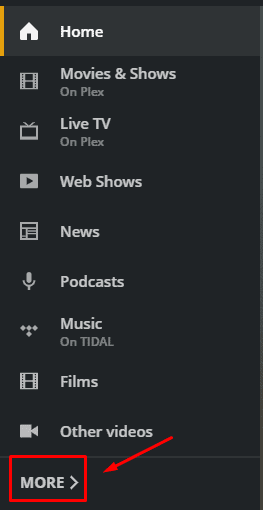
  2. Gidin: the ‘Home’ section and on the left  side of the screen and click on more options at the bottom of the palette.
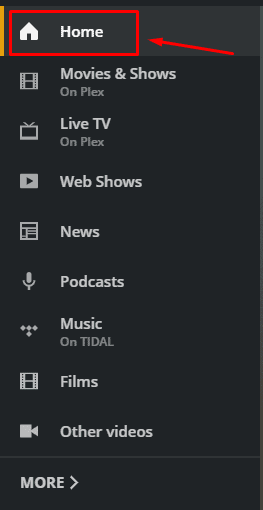
How To Add Libraries In Plex And Synchronize Your Streaming Content

How To Add Libraries In Plex And Synchronize Your Streaming Content

    
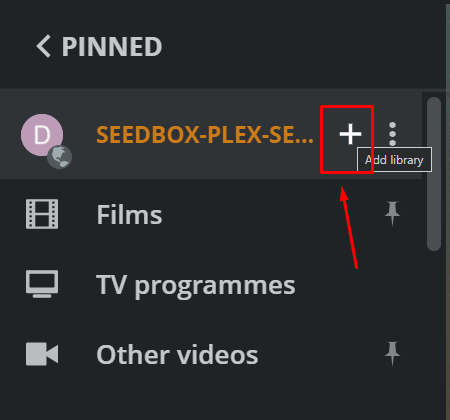
3. You will see the seedbox plex server, you might have a different name of the server. Tıklayın: ‘+’ düğme to add a new library.
How To Add Libraries In Plex And Synchronize Your Streaming Content

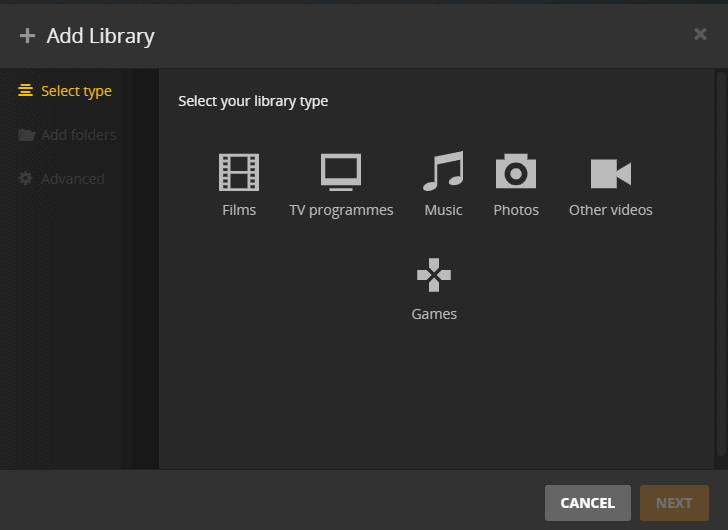
 4. You will be asked to select the library type. Seçin uygulamaropriate library based on the type of streaming content you want to add and give uygulamaropriate name and select the  library language. 
How To Add Libraries In Plex And Synchronize Your Streaming Content

 
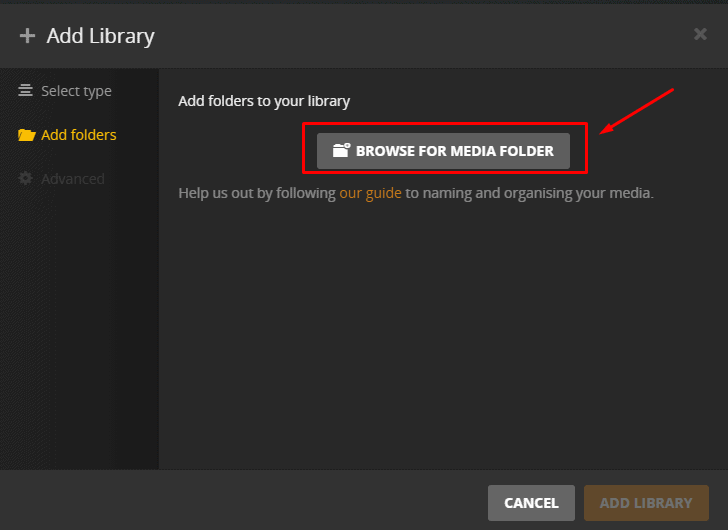
5. Click next to select the desired folder where you have downloaded the content.
How To Add Libraries In Plex And Synchronize Your Streaming Content

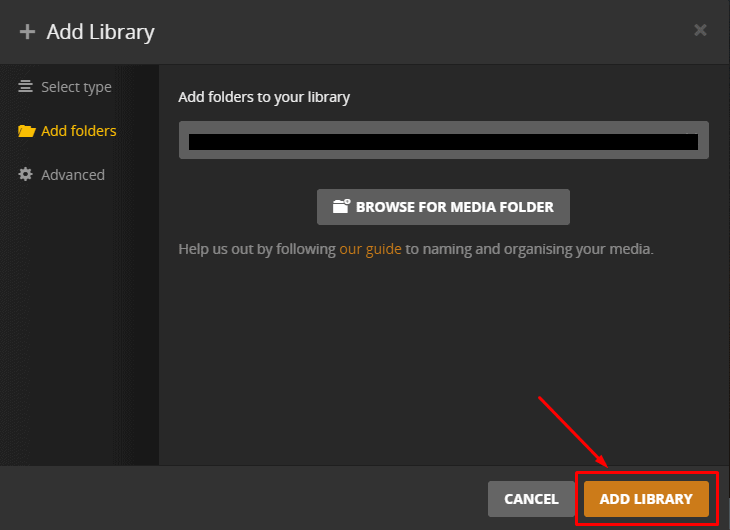
6. Browse the folder and then click on ‘add’.Then click on ‘ADD LIBRARY’ to complete süreç.
How To Add Libraries In Plex And Synchronize Your Streaming Content

7. It might take some time to add the library and olacak start synchronizing. When this process is complete you’ll be able to see the files in the new library. 

8. For later file additions in the library, synchronization is not done automatically but yapabilirsiniz do it manually by click on the ‘Scan library files’ option in the plex server drop-down menu as aşağıda gösterilmiştir.
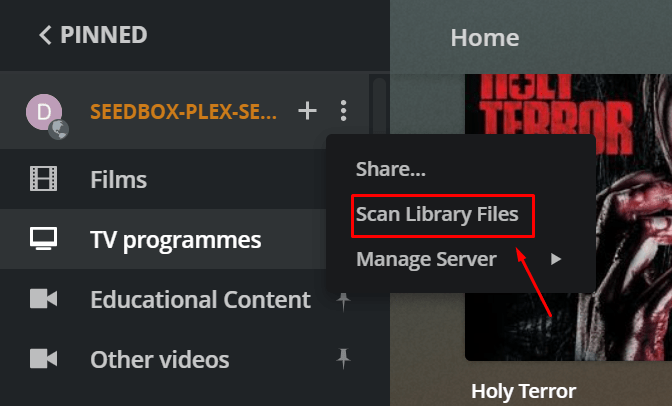
How To Add Libraries In Plex And Synchronize Your Streaming Content

Updated on 16 Mart 2026

What are your Feelings

  • Happy
  • Normal
  • Sad

Bu makaleyi paylaş :

  • Facebook
  • X
  • LinkedIn
  • Pinterest

We create amazing Seedboxes
for everyone to use 😊

Important Links

Scholarship for CS

Refund Policy

Privacy Policy

Terms of service

Cookie Policy

Acceptable Use Policy

Get in Touch

Contact Us

[email protected]

© 2025 Evoseedbox | All rights reserved. By Evo Created with ❤️

  • Nederlands (Hollandaca)
  • English (İngilizce)
  • Français (Fransızca)
  • Deutsch (Almanca)
  • 日本語 (Japonca)
  • 한국어 (Kore dili)
  • Português (Portekizce, Portekiz)
  • Español (İspanyolca)
  • العربية (Arapça)
  • Русский (Rusça)
  • Türkçe
Evoseedbox
  • Türkçe
    • Nederlands (Hollandaca)
    • English (İngilizce)
    • Français (Fransızca)
    • Deutsch (Almanca)
    • 日本語 (Japonca)
    • 한국어 (Kore dili)
    • Português (Portekizce, Portekiz)
    • Español (İspanyolca)
    • العربية (Arapça)
    • Русский (Rusça)
  • Wiki
  • Forum
  • Pricing
Client Area