How Jellyfin Works #
  JELLYFIN vs PLEX
  ═══════════════════════════════════════════════════════

  Feature              Jellyfin            Plex
  ───────              ────────            ────
  Price                Free ✓              Free + Plex Pass
  Open source          Yes ✓               No
  Mobile apps          Free ✓              Requires Plex Pass
  Hardware transcode   Free ✓              Requires Plex Pass
  Live TV/DVR          Free ✓              Requires Plex Pass
  Plugins              Community ✓         Official store
  External sharing     Via URL             Plex Friends ✓
  Offline sync         Not yet             Plex Pass ✓

  ┌──────────────────────────────────────────────────┐
  │  Jellyfin = 100% free, all features included.    │
  │  Plex = polished UI, better mobile experience.   │
  │  Both work great on your seedbox.                │
  └──────────────────────────────────────────────────┘
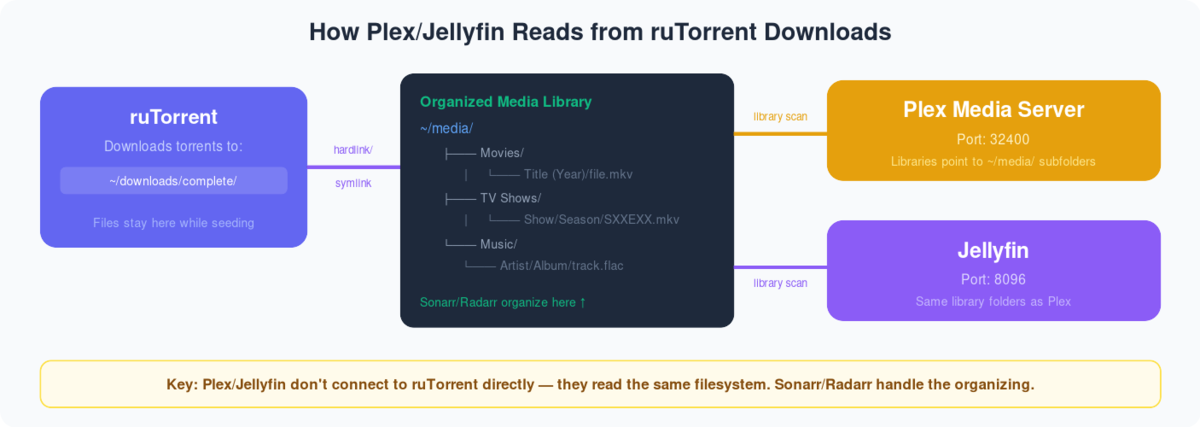
Connecting jellyfin with our seedbox and configuring is very simple just follow the below steps and 보게 될 것입니다 be ready to stream your media:
Step1: Login 당신의 Evoseedbox 클라이언트 영역 and look for Jellyfin in 앱s section
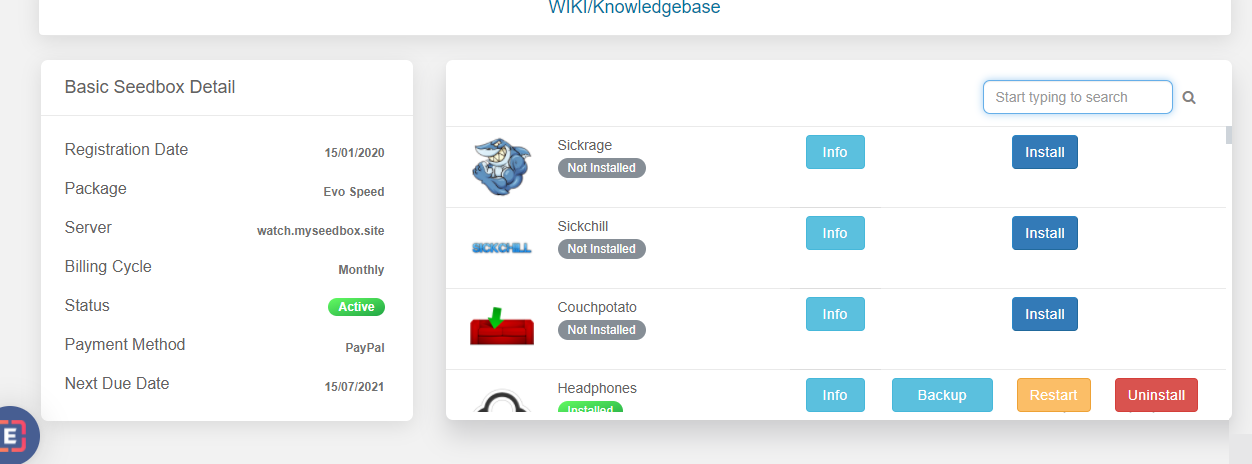
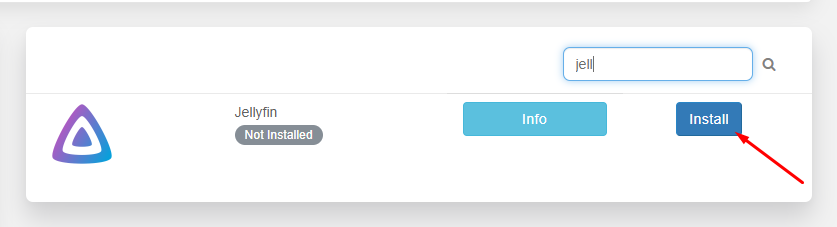
Step2: 클릭하세요: the install 버튼 and Jellyfin will install automatically on 당신의 Seedbox.
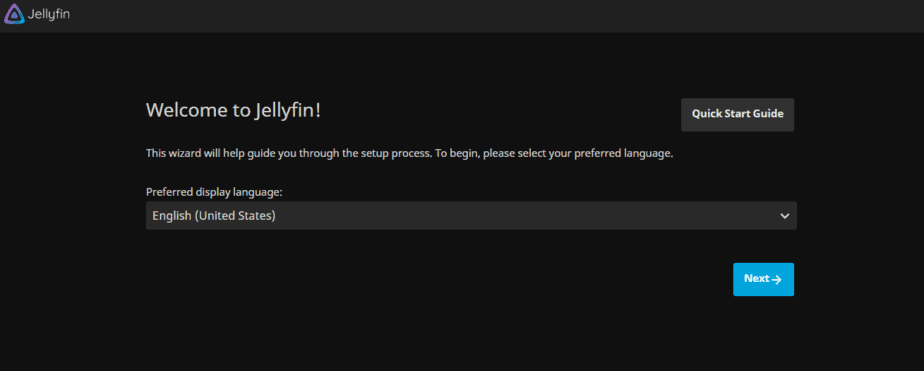
Step3: Once you are done with the installation of jellyfin, open jellyfin 당신의 클라이언트 영역. 선택 your preferred language from the dropdown menu and click on next.
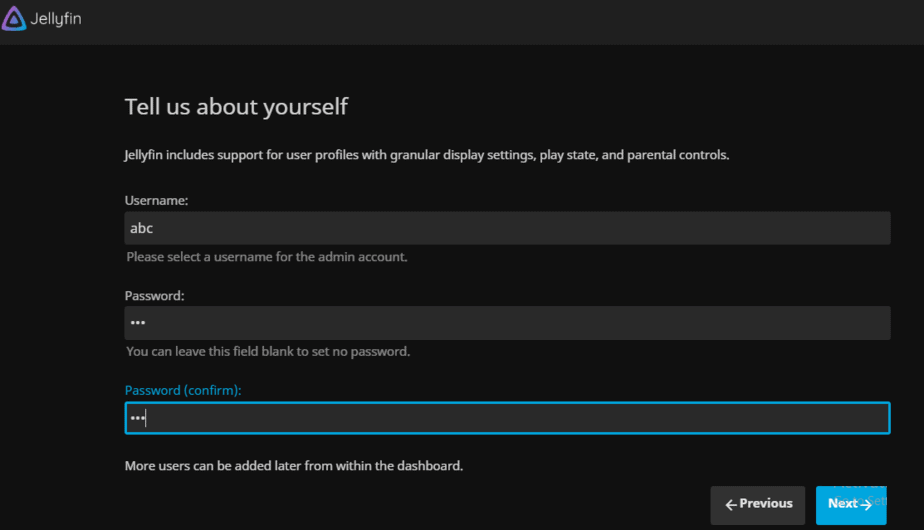
Step 4: Now we need to set up a 사용자 이름 and 비밀번호 that will be used every time we try to login into the jellyfin account. We can leave it blank in the 비밀번호 area if we don’t wish to set a 비밀번호.
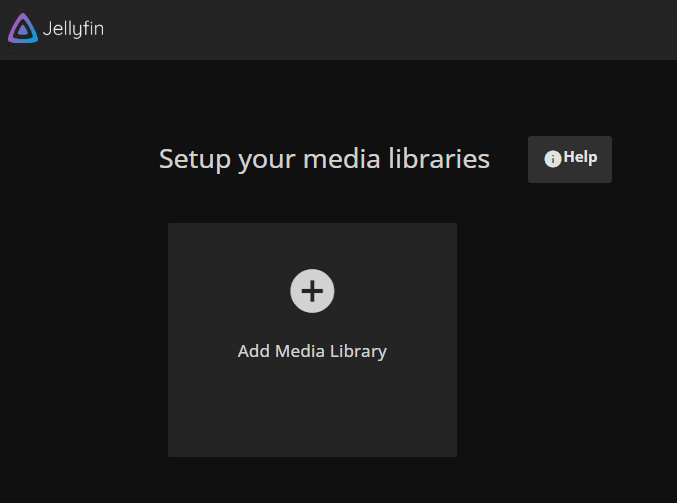
Step 5: The next step is to set up a media library, i.e. setting up the content we want to stream using jellyfin. 클릭하세요: the add media library.
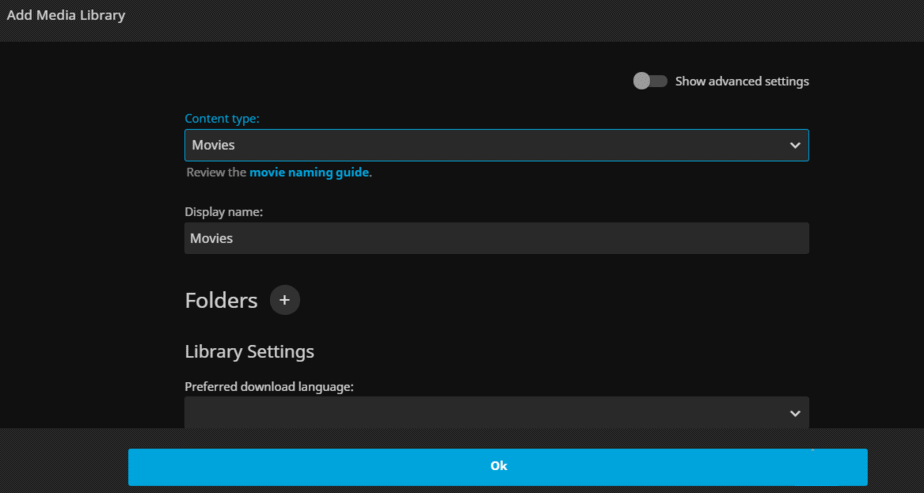
Step 6: In the content type, we 해야 합니다 mention the type of media that like movies, Tv shows, music, etc. write the name of the folder that you wish to give to the library, this folder name will be displayed when you use jellyfin to stream your media.
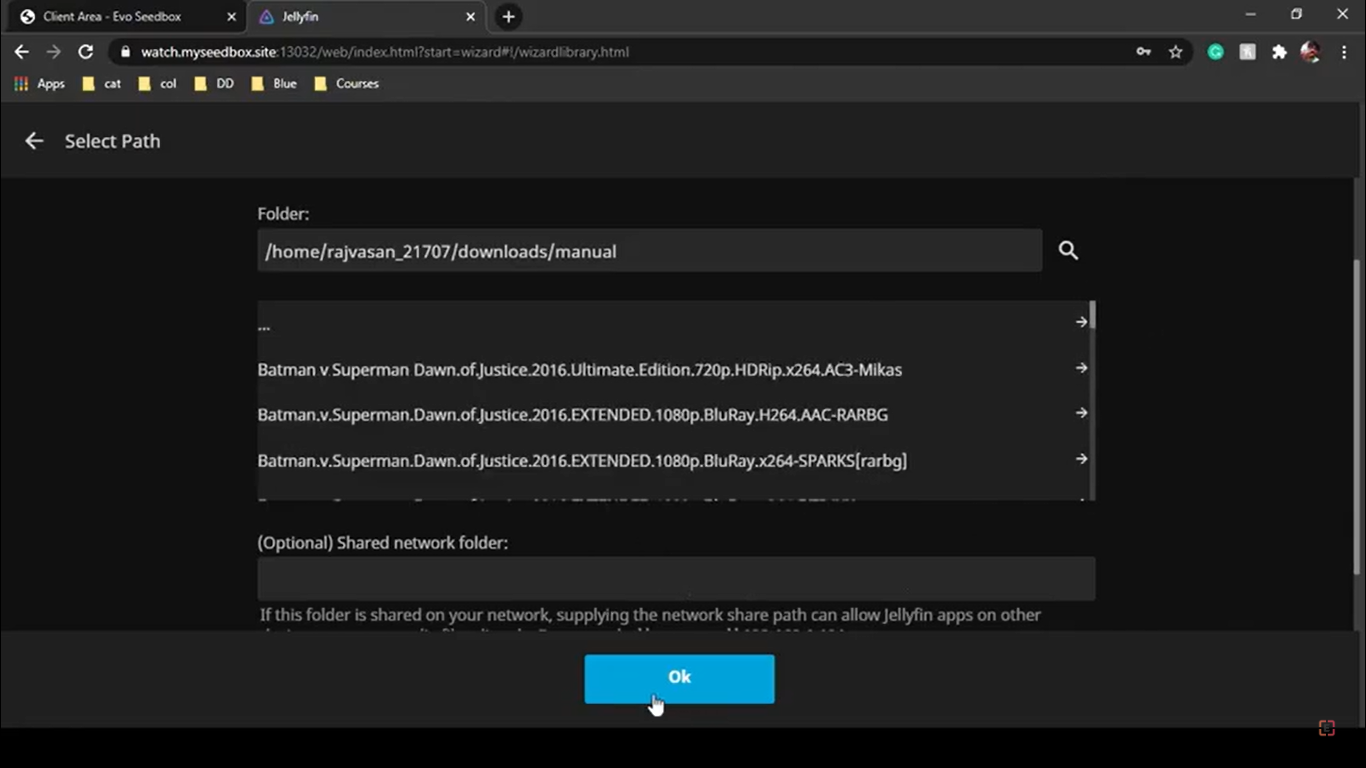
Step 7: 클릭하세요: the “+” icon beside folders and set up the path for your media. Here you need to select the path wherein all your movies and tv shows are downloaded.
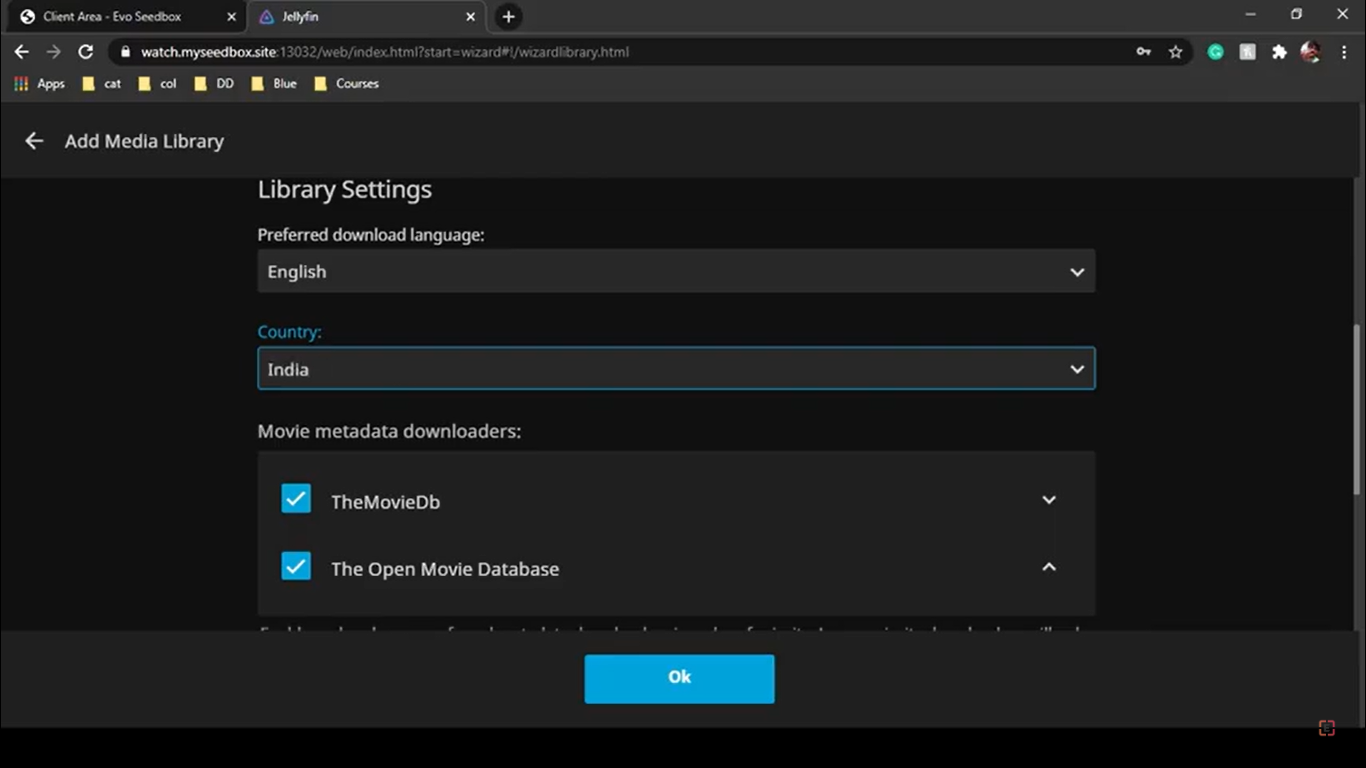
Step 8: 선택 the preferred language in which you wish to download the metadata(Ratings, cast, genre, etc.) for all your movies, and then click on the OK 버튼.
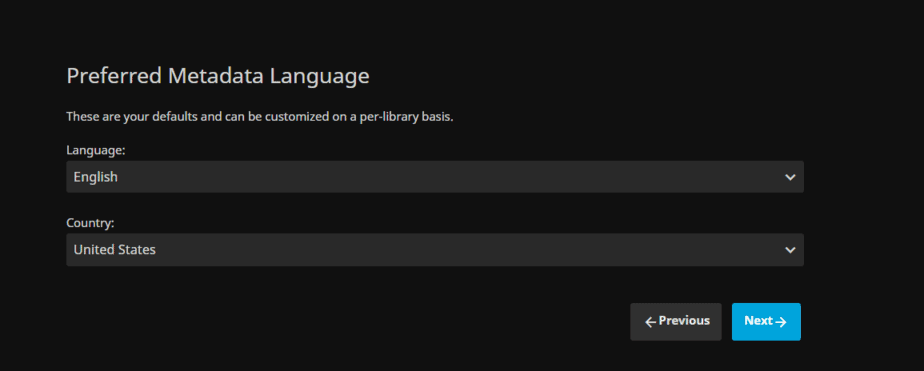
Step 9: 클릭하세요: the Next 버튼 as you have already set your preferred metadata languages.
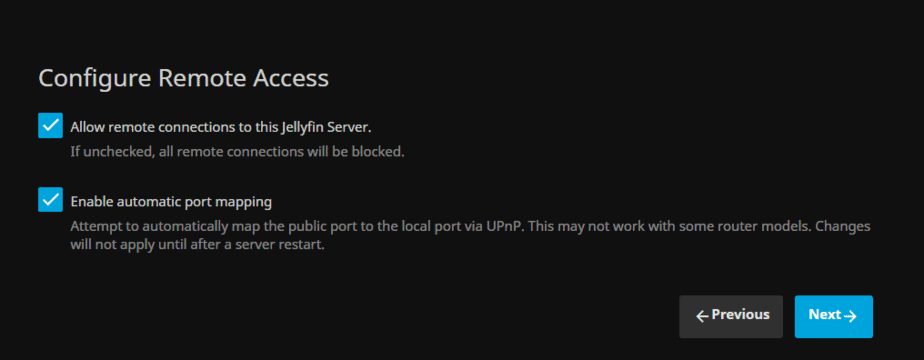
단계 10: Check in both the boxes and click on the Next 버튼. Allow remote connection will let you stream your media from different devices like your android phone.
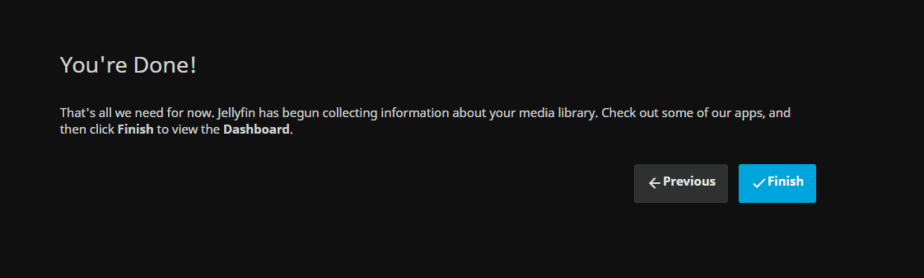
단계 11: 클릭하세요: the Finish 버튼 and you are done with configuring jellyfish for 당신의 Seedbox.
That was the whole process of configuring jellyfin with a seedbox. Now 보게 될 것입니다 be redirected to a sign-in page. Here you 해야 합니다 log in using the 사용자 이름 and 비밀번호 that we had 구성d earlier.
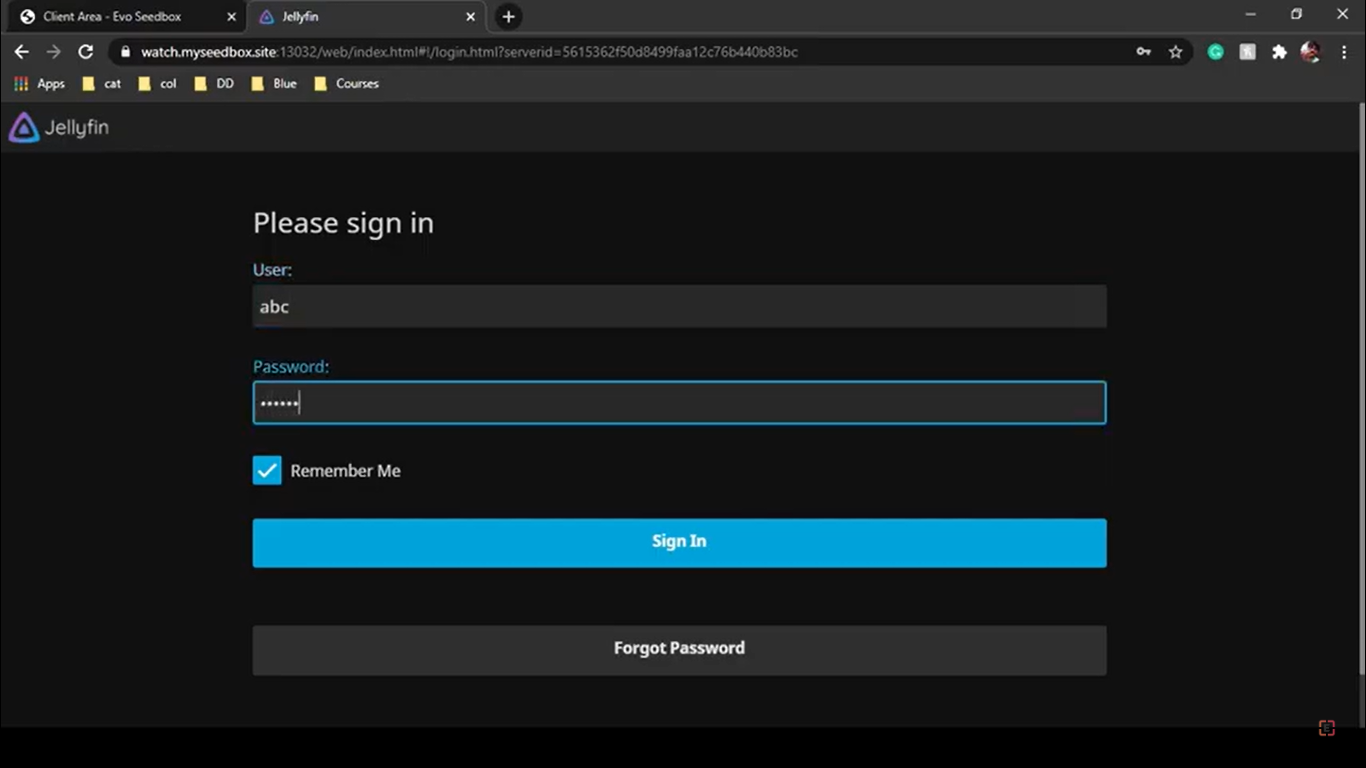
nce you sign in 할 수 있습니다 view the folder that you have created. Jellyfin will automatically show the metadata that it has fetched. Here 할 수 있습니다 see that the posters of the movie are visible so 이것은 the metadata that jellyfin fetches automatically from the internet.
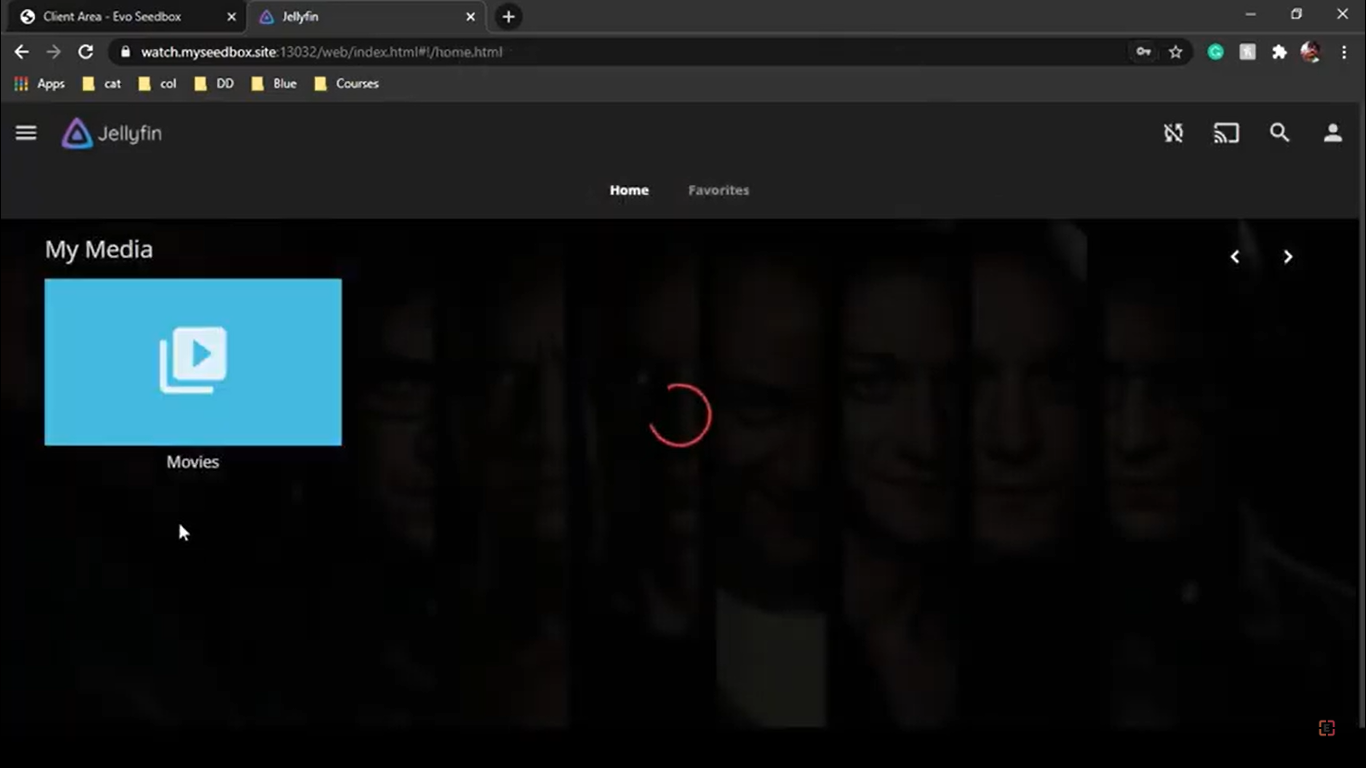
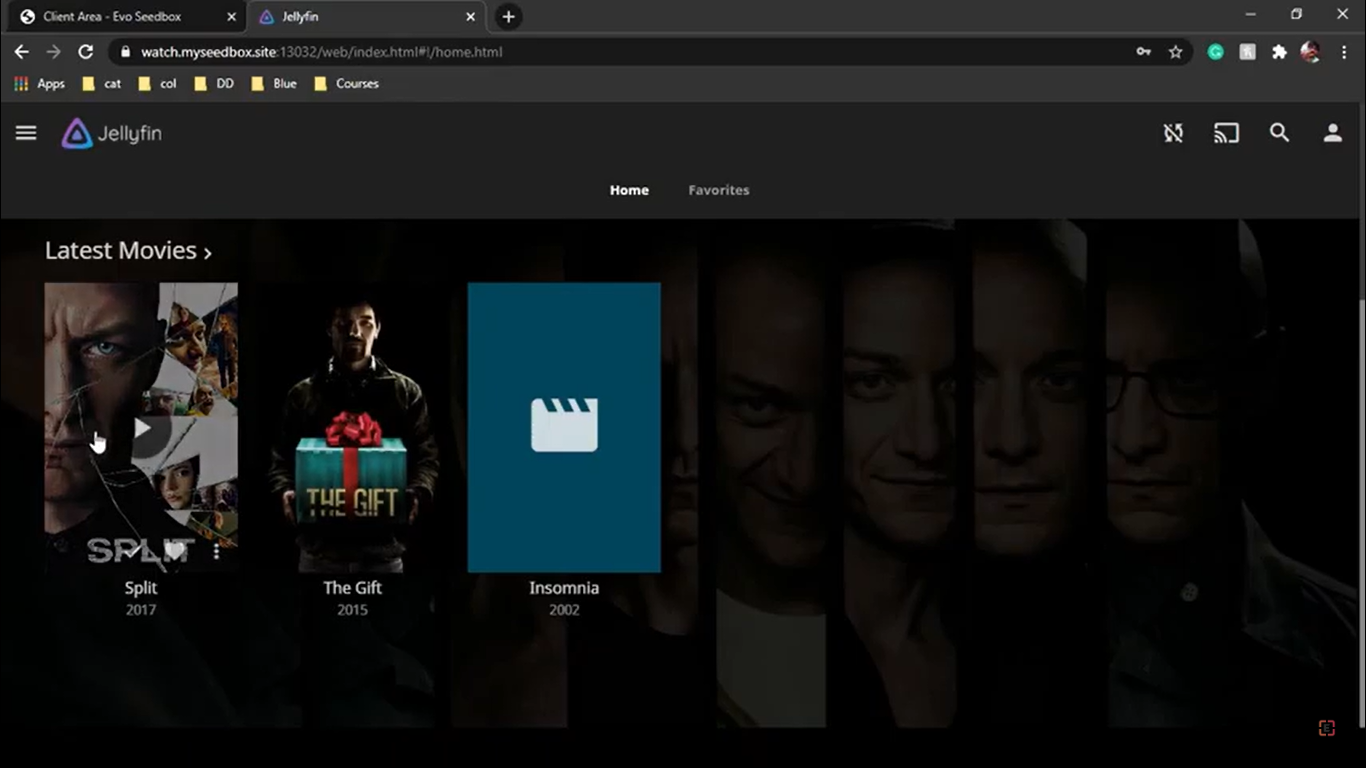
You are now all set to enjoy your Movie night or maybe just watch an episode over lunch 당신의 mobile.
The Jellyfin Ecosystem #
  RECOMMENDED JELLYFIN STACK
  ═══════════════════════════════════════════════════════

  Jellyseerr ───▶ Sonarr (TV) ────▶ Renames & ───▶ Jellyfin
  (requests)      Radarr (Movies)    moves files     (streams)
                  ▲                                   │
                  │                                   ▼
               Prowlarr ◀─────────────────────── Jellystat
               (indexers)                         (analytics)

  Optional:
  ├── Bazarr        (automatic subtitles)
  ├── Jellyseerr    (request & discovery UI)
  └── Homarr        (dashboard for all apps)


