Note: Subsonic requires a paid license after the trial period. Navidrome is a free, open-source alternative that’s fully compatible with all Subsonic apps. We recommend Navidrome for new installations.
Subsonic is a media streaming app which できます use to listen to music, stream movies.できます use it from anywhere from any device as it また offers mobile applications. このチュートリアルでは, we will explore how to install and set up subsonic on evoseedbox. 1. Login あなたの クライアントエリア and scroll down to アプリ section.
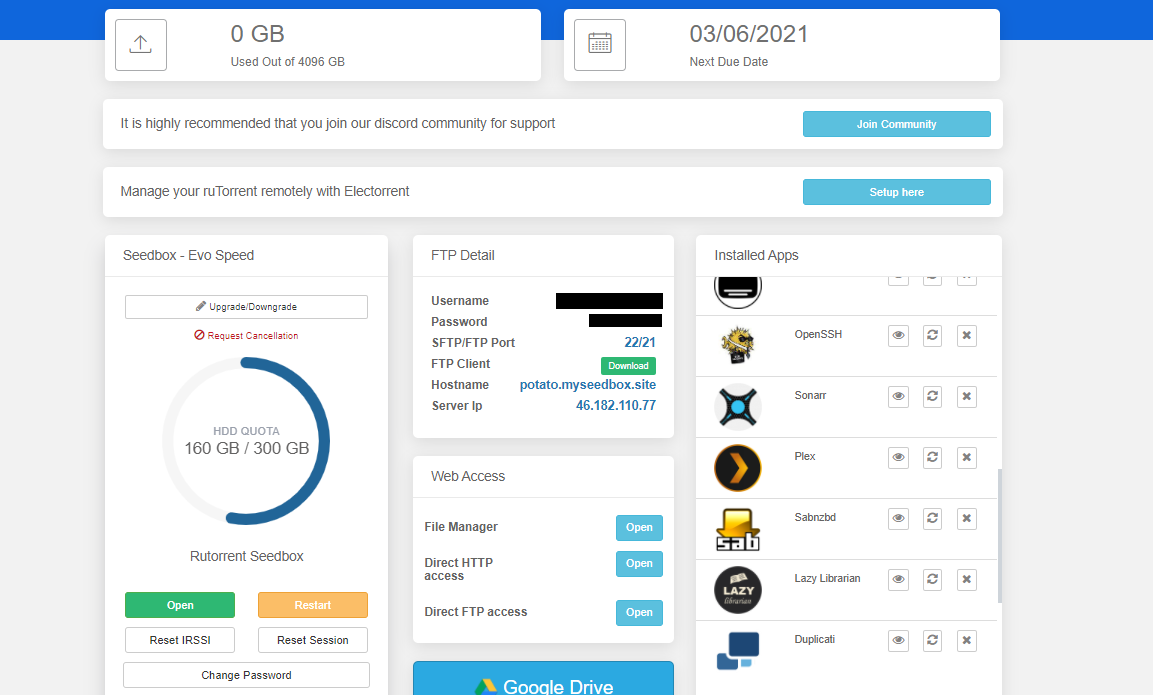
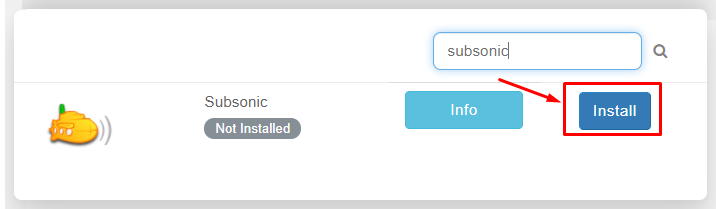
2. 検索 for subsonic and click on the install ボタン.
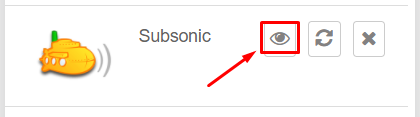
3. Once the installation is complete open it from the installed apps section by clicking on the eye ボタン.
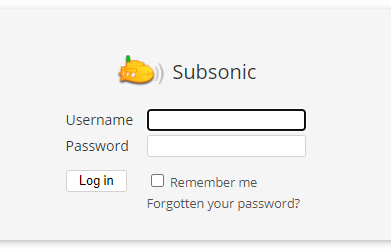
4. The app will open in a new tab where you need to use 認証情報 provided in FTP detail for login
5. After logging, 表示されます land on the home page of アプリ as 以下に表示.
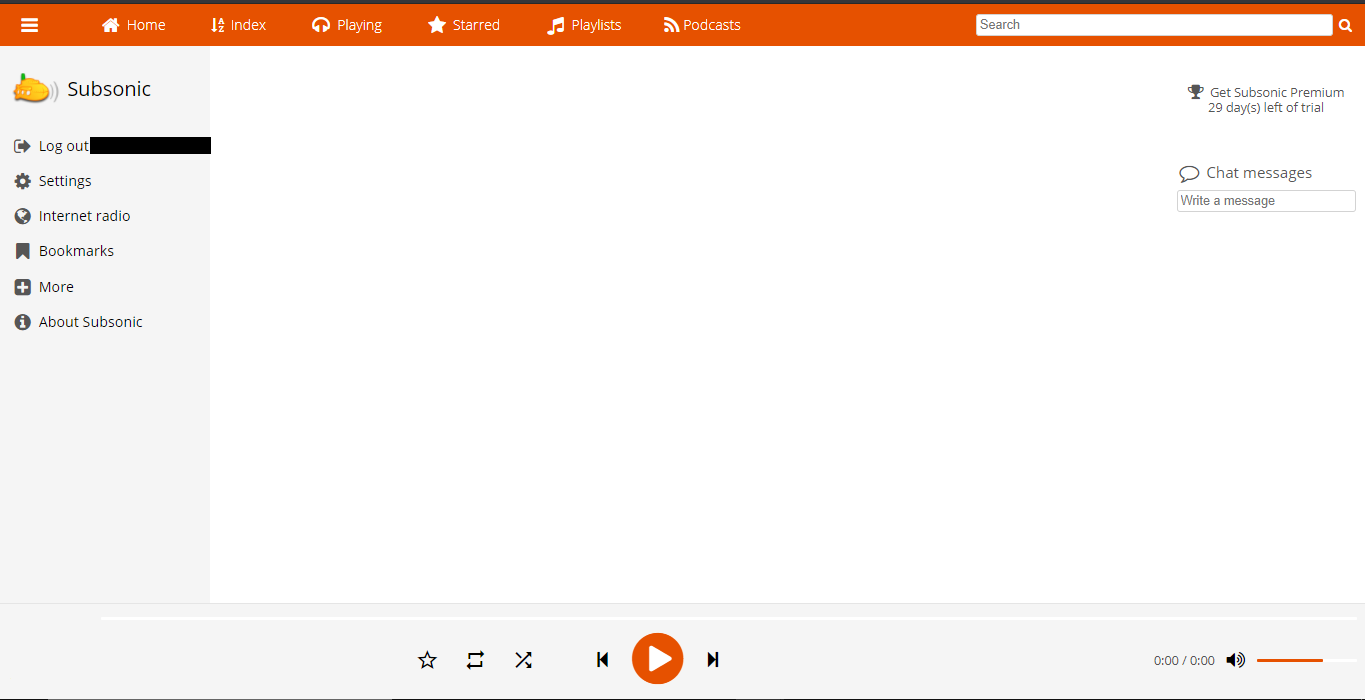
6. All media files are automatically synchronized by subsonic if you want to add media folders manually. クリックしてください: the setting tab.
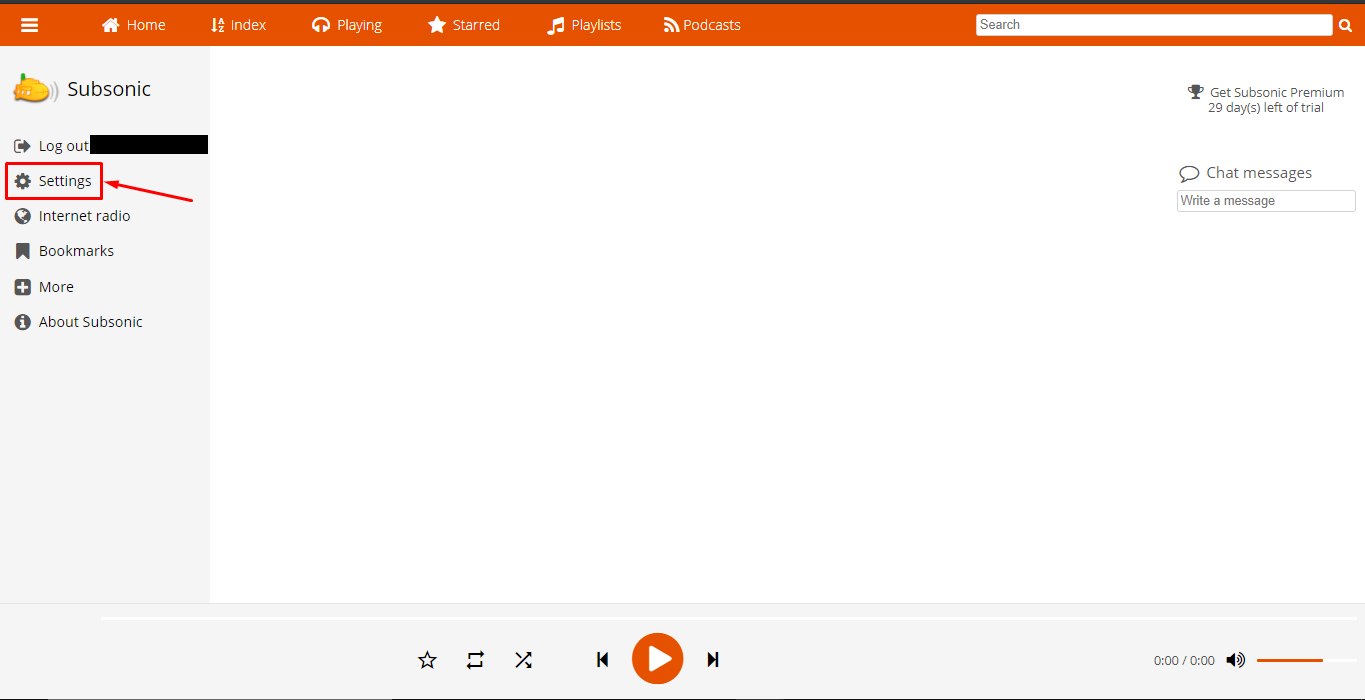
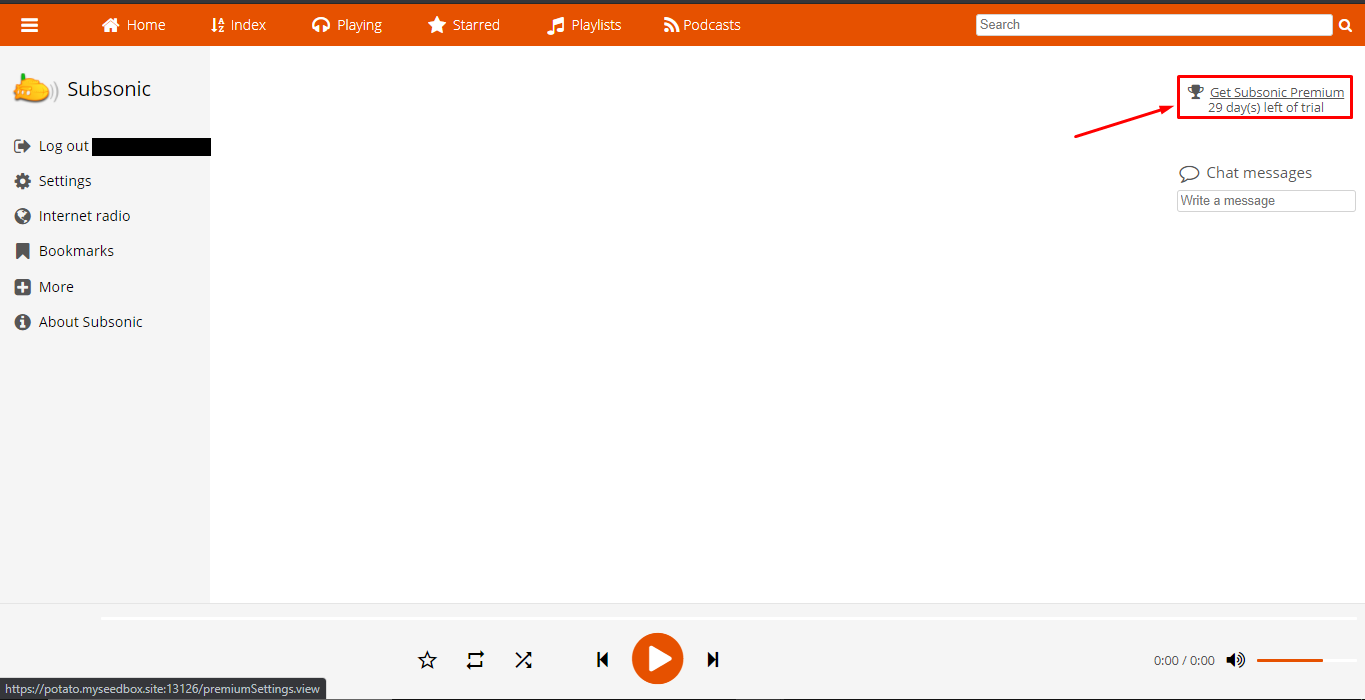
If in case the settings tab doesn’t open from here, click on the ‘Get Subsonic premium’ on the top right, you’ll be directed to the upgrade section from the settings tab.
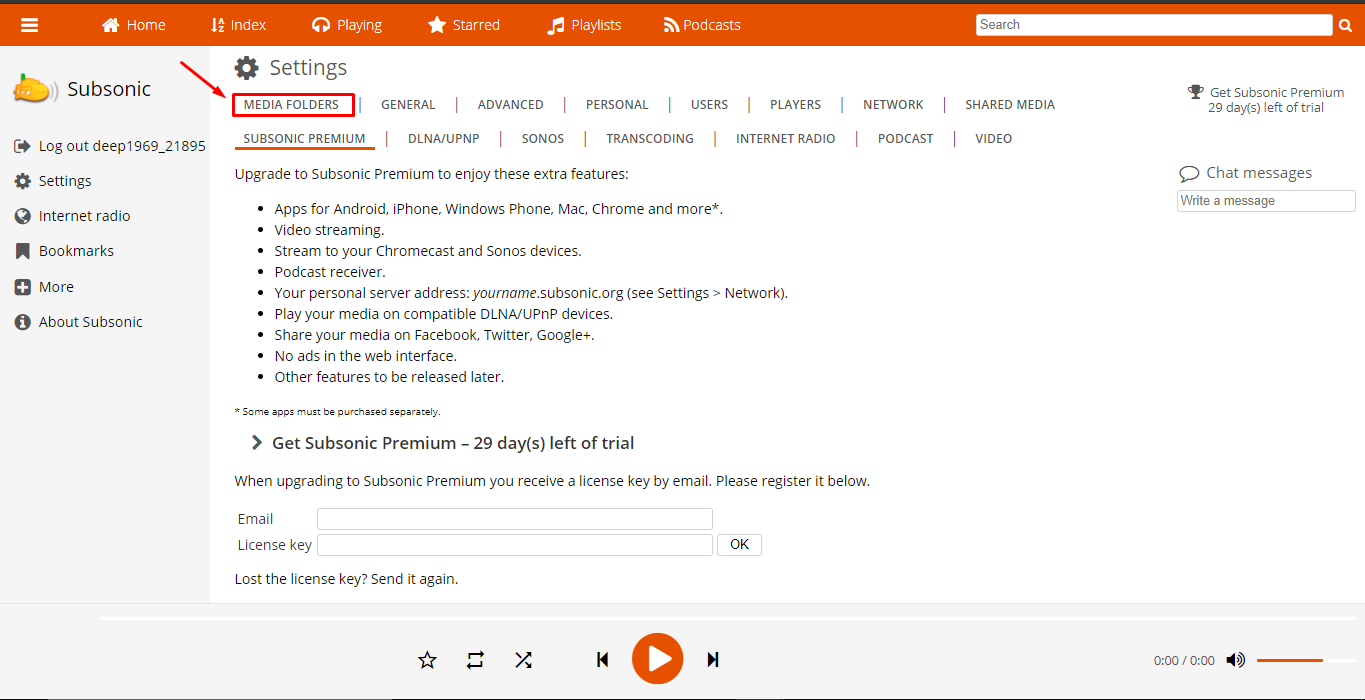
7. From the settings tab, できます click on the media folders tab to add a new media folder or edit the path of the existing media folder.
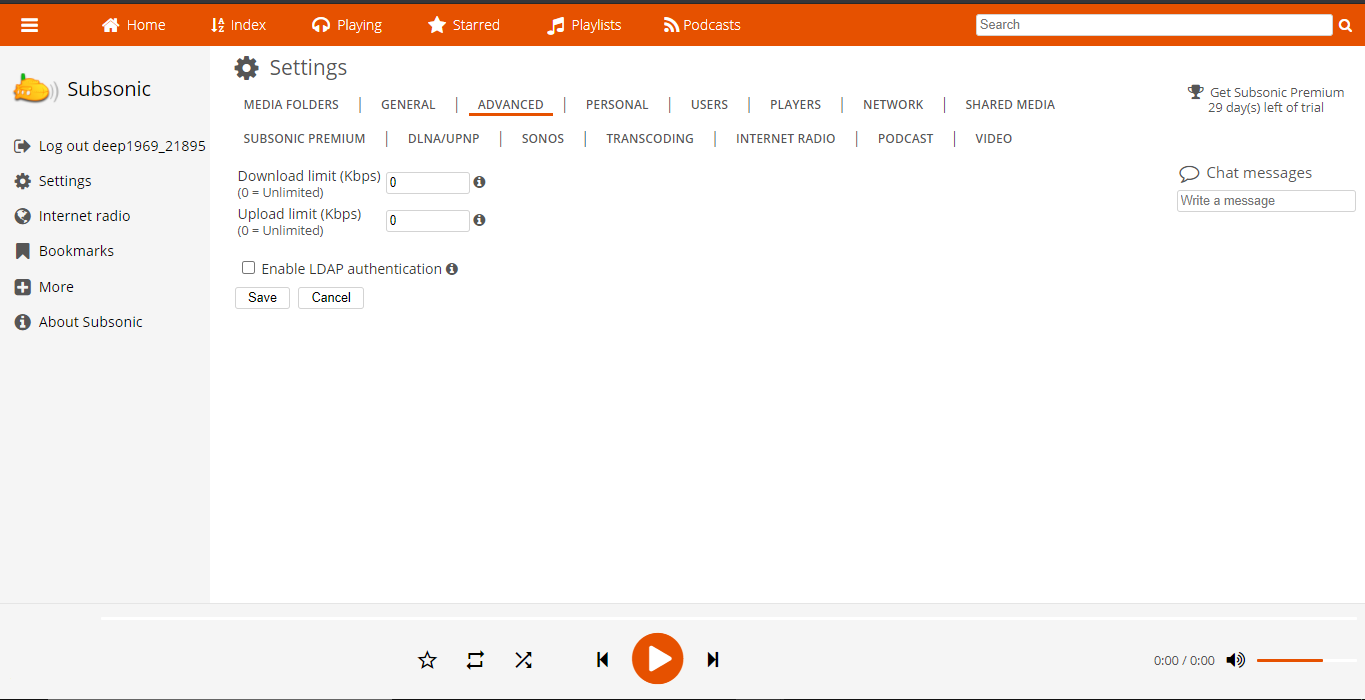
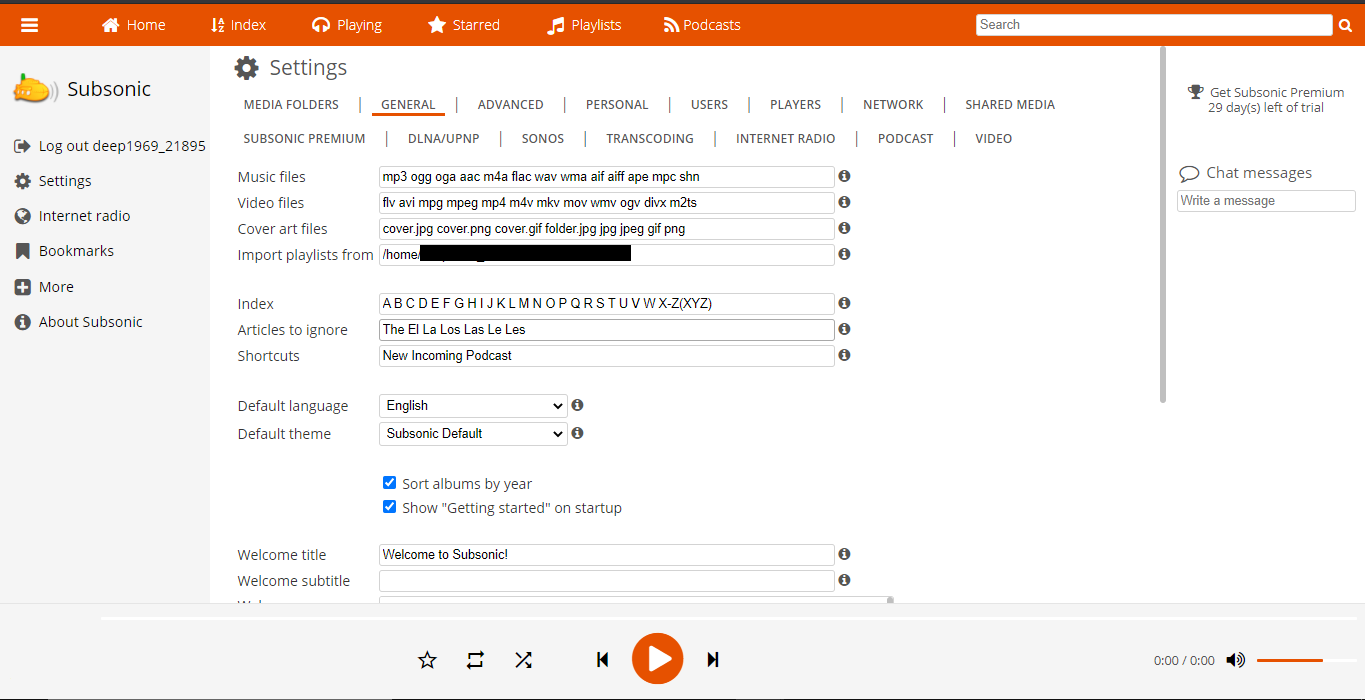
8. In the general settings tab, できます see the audio and video formats supported and また choose formats for cover images.
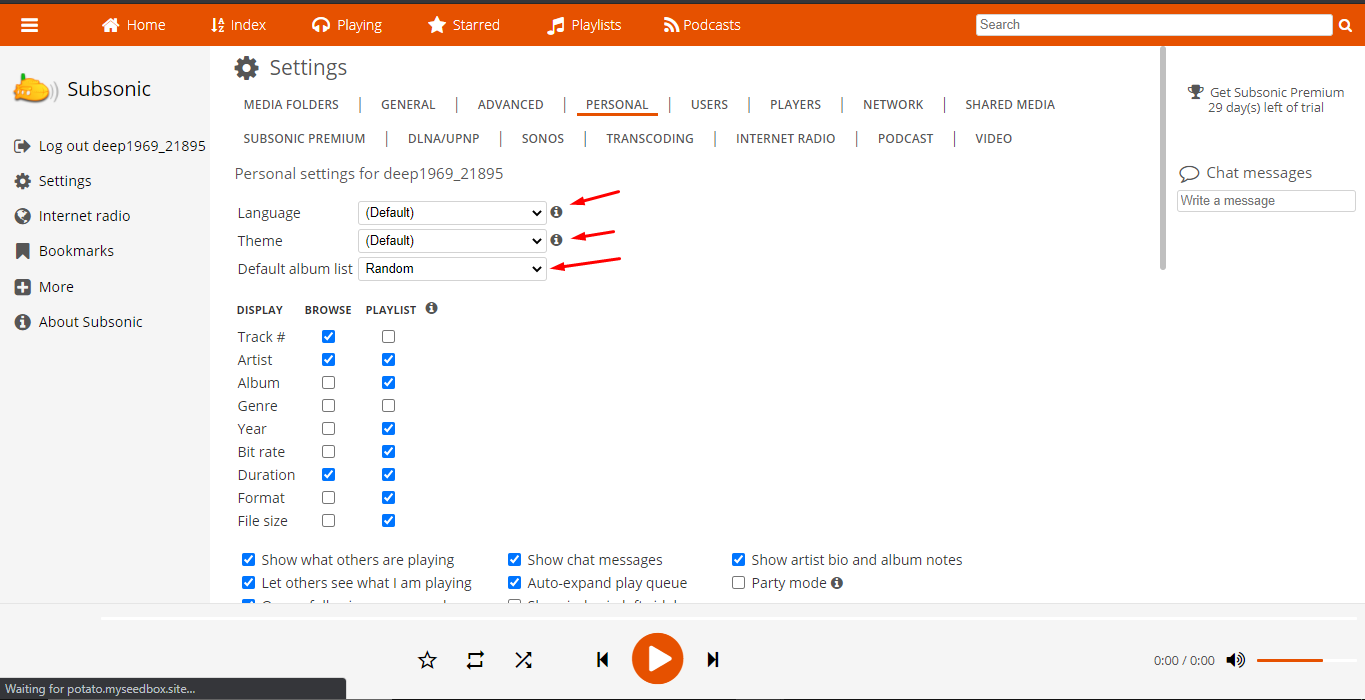
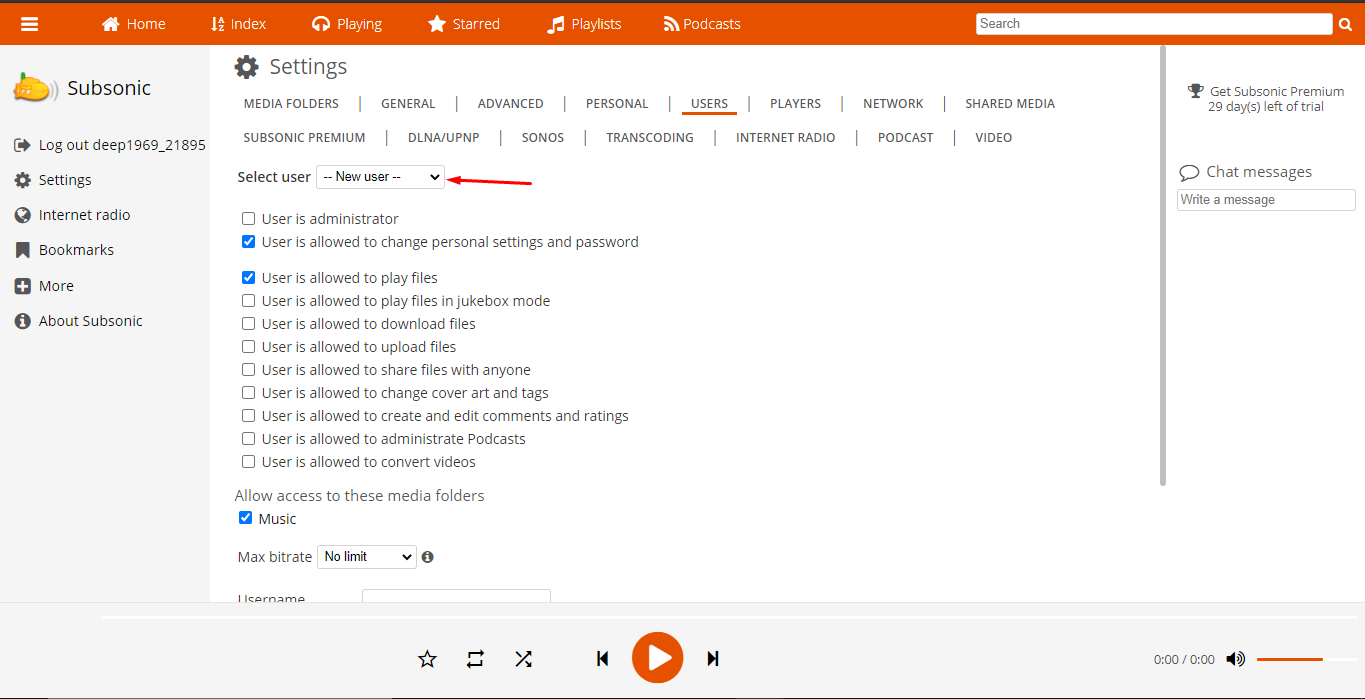
9. There are other settings tabs through which できます 設定する subsonic according あなたの needs as 以下に表示.