1. Navigate あなたの クライアントエリア and locate アプリ and click install.

2. Scroll up and click the eye icon to open アプリ.
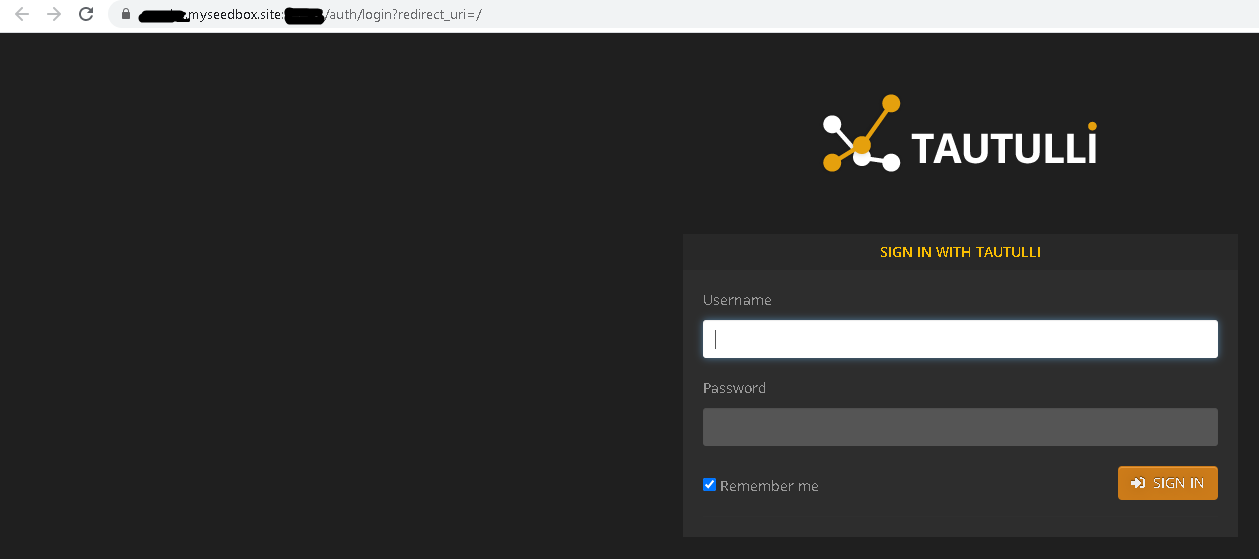
3. You are redirected to this page. ログイン with your user name and パスワード from the クライアントエリア. It is the same as your server log in. できます find this information under FTP detail.
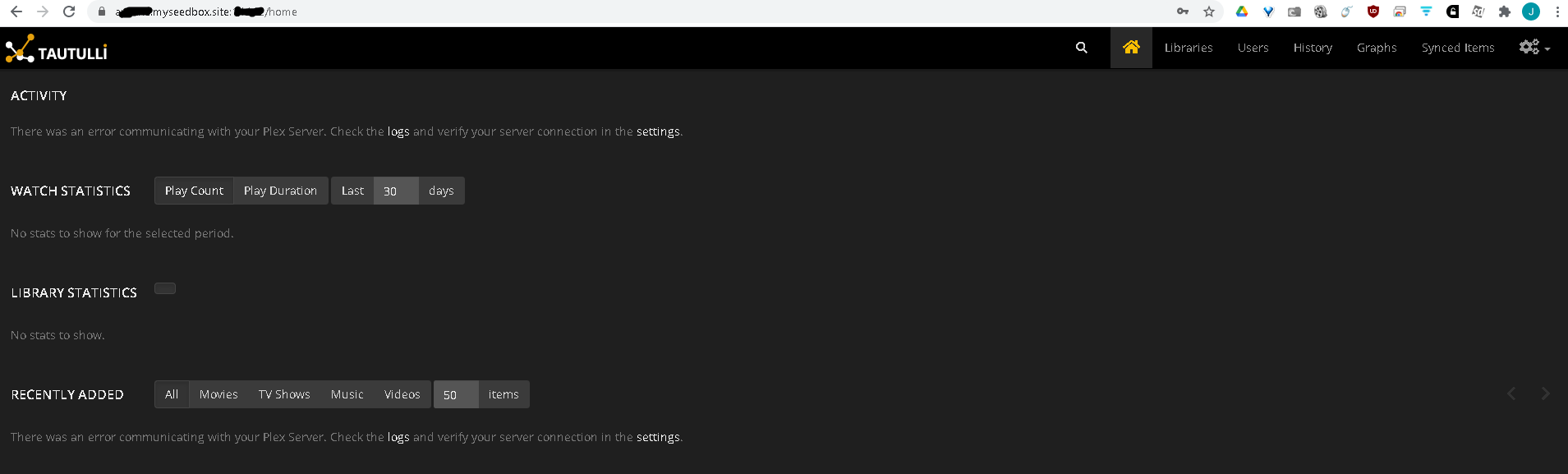
4. After you successfully logged in, 表示されます see this screen. Click the settings icon at the top right of the web page.
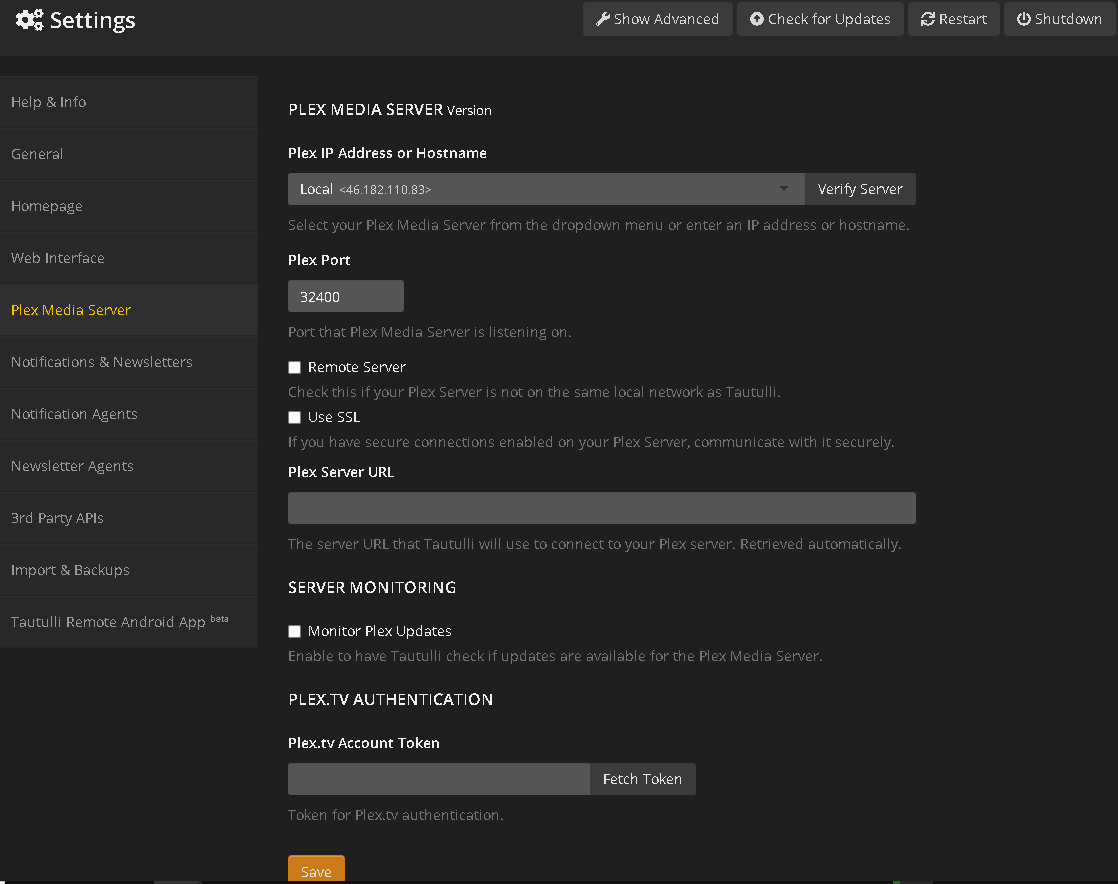
5. After you click the settings ボタン, navigate down to the "Plex Media Server" tab and 表示されます see this screen.
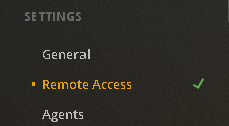
6. Navigate あなたの plex servers settings to obtain the Plex IP Address and port number. On the left side of the web page, 表示されます see several options. Near the bottom 表示されます see Settings -> Remote access. Click the remote access text.
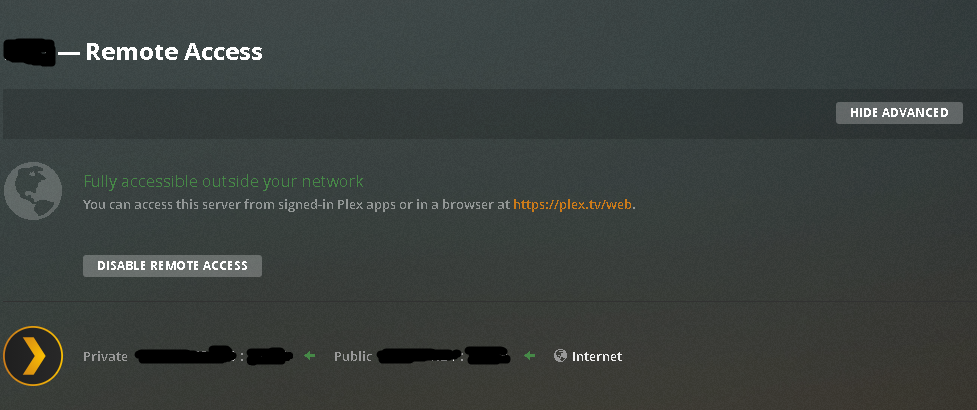
7. これは the screen what will open after you click remote access. The IP address and port you want to use is the Public one, NOT the private one.
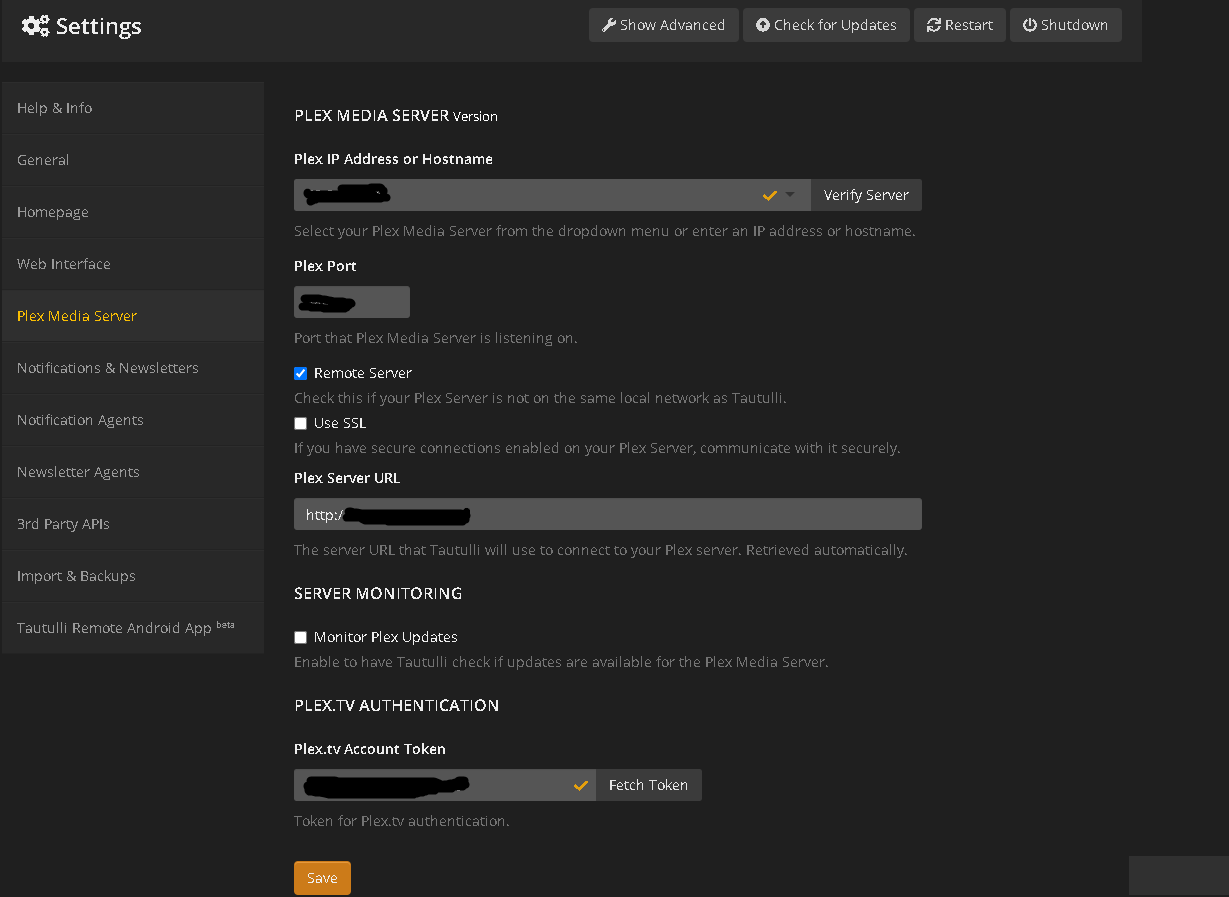
8. Paste that information into the respective field. The IP address ONLY goes on the top line. Example format: 99.99.99.99. DO NOT include the port number behind the IP address. Enter that into its own box.
My server is remote, so I ticked remote. I do not have SSL enabled, so I left that blank.
The plex server url automatically generates.
Finally, click the "fetch token" ボタン on the bottom right, and なります prompt you to allow アプリlication to access your server. Accept this and your account token will auto generate. Click save.
9. After you click save, click the home ボタン on the top right of your screen.
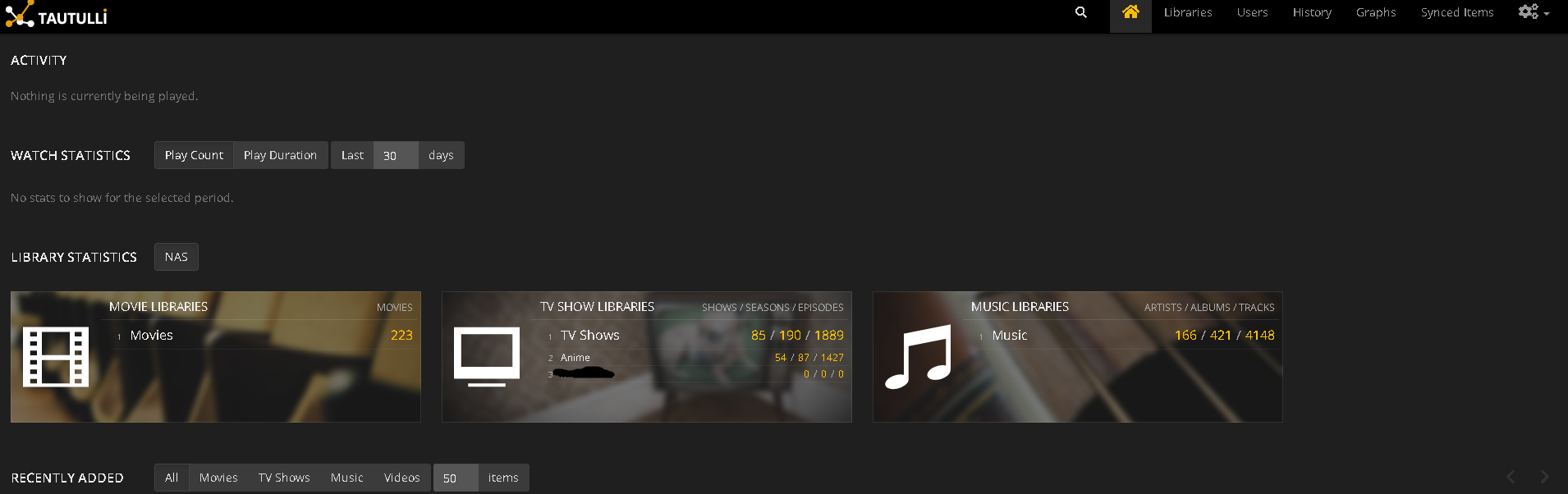
Your home page will display information about your plex server.