Si usted are getting slow speeds, puede easily reroute tu seedbox:
Paso 1: Vaya a the reroute link: http://myseedbox.site
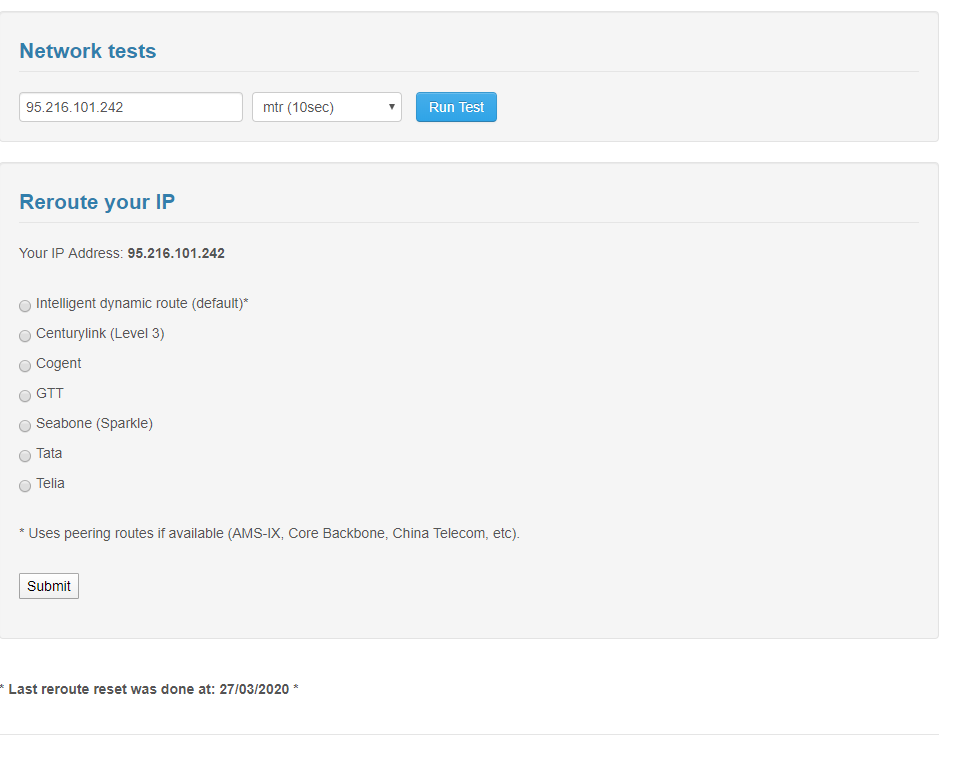
Paso 2: Seleccione any of the backbones and haga clic en submit
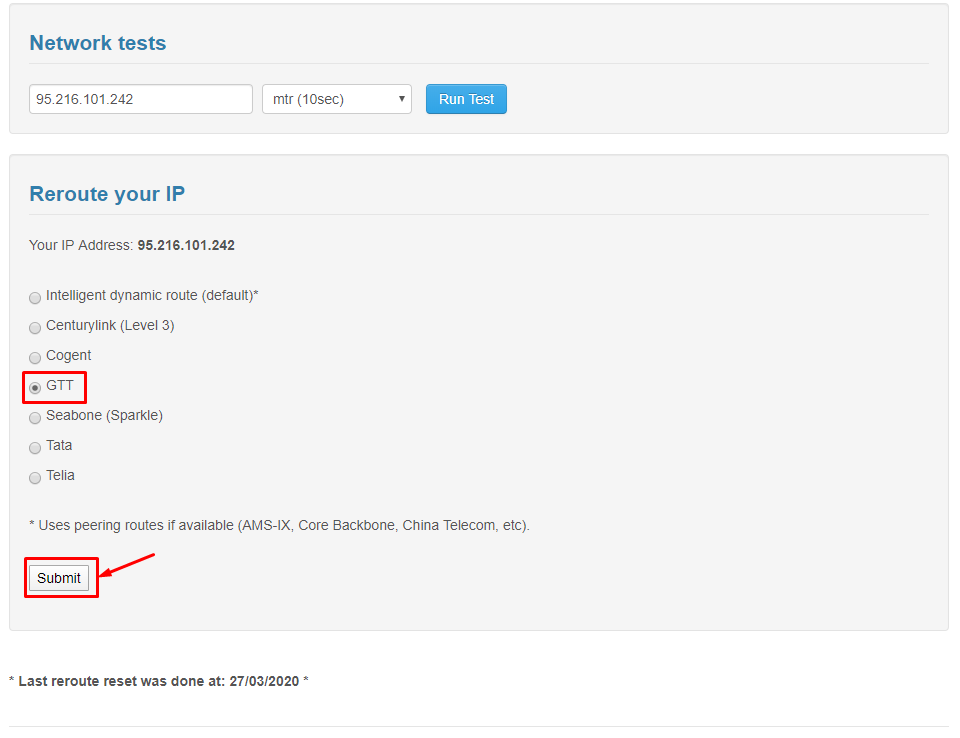
Después de the page has refreshed haga clic en Run tests:
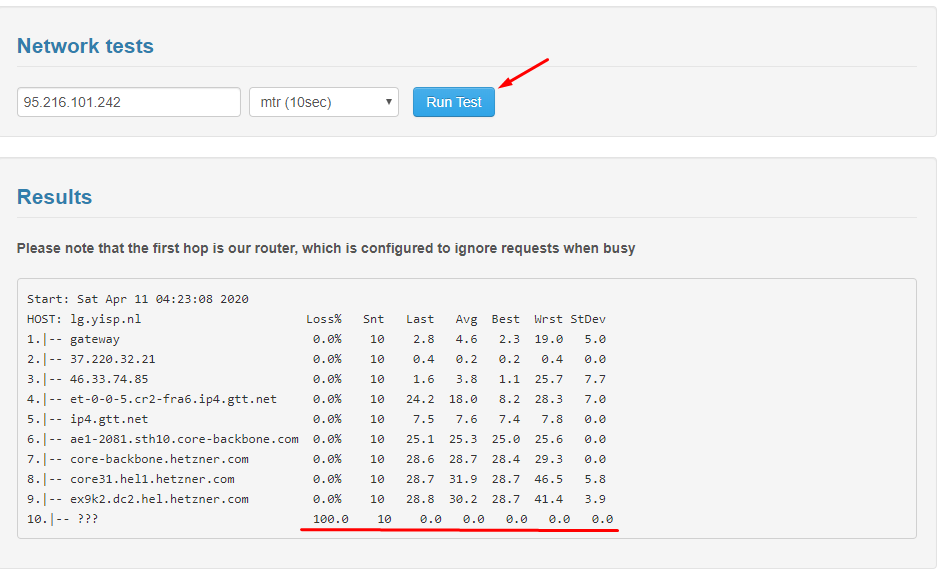
Based on the results below are the important paramenters you have to look at for optimal speeds:
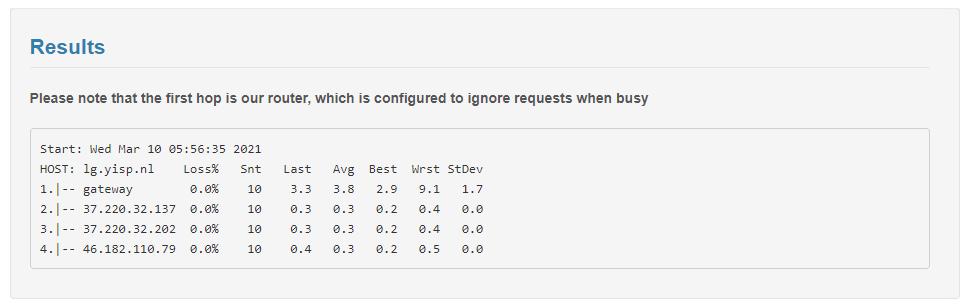
Run test on all the backbones till you find best speeds.
Reroute Tu Seedbox for Better Speeds #
Si usted are experiencing slow transfer speeds between tu seedbox and your PC, rerouting can help. Rerouting changes the network path (backbone) your data takes between the datacenter and your ISP, potentially bypassing congested routes.
Steps to Reroute #
- Abrir the reroute tool from tu seedbox dashboard or direct link
- Seleccione a different backbone from the dropdown (common options: Telia, Cogent, Level3, GTT)
- Click Submit
- Click Run Tests to measure the speed on the new route
- Compare the results: look for the route with the highest velocidad de descarga and lowest latency
What to Look For #
- Descargar speed: Higher is better. Compare across all disponible backbones.
- Latency (ping): Lower is better. High latency causes slow FTP transfers even on fast connections.
- Packet loss: Should be 0%. Any packet loss indicates a problematic route.
Cuándo to Reroute #
Rerouting is most useful when your speeds suddenly drop but tu seedbox itself is performing normally. This typically happens when your ISP’s peering with a specific backbone becomes congested, especially during peak evening hours.


