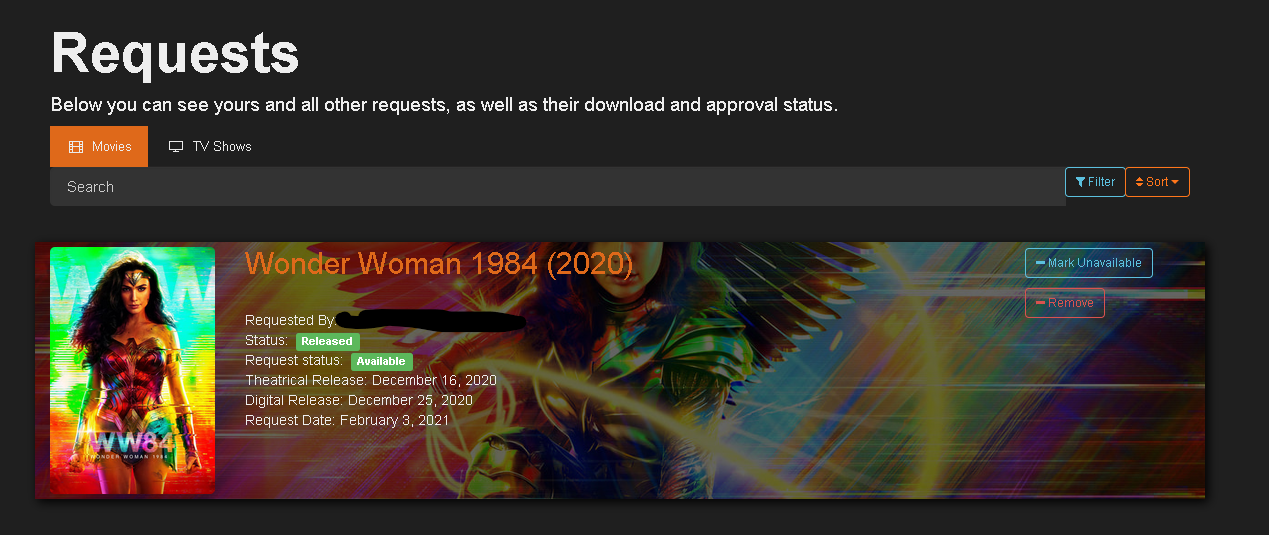
Ombi is a self-hosted web application that automatically gives your shared Plex or Emby users the ability to request content by themselves! Ombi can be linked to multiple TV Show and Movie DVR tools to create a seamless end-to-end experience for your users.
- First lets install Ombi from our área de cliente by clicking install.

2. Once its installed, scroll up and click the eye button to launch the app.
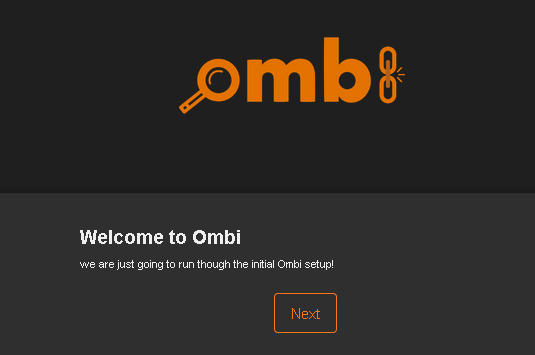
3. Once it is exitosoly launched, verá this screen.
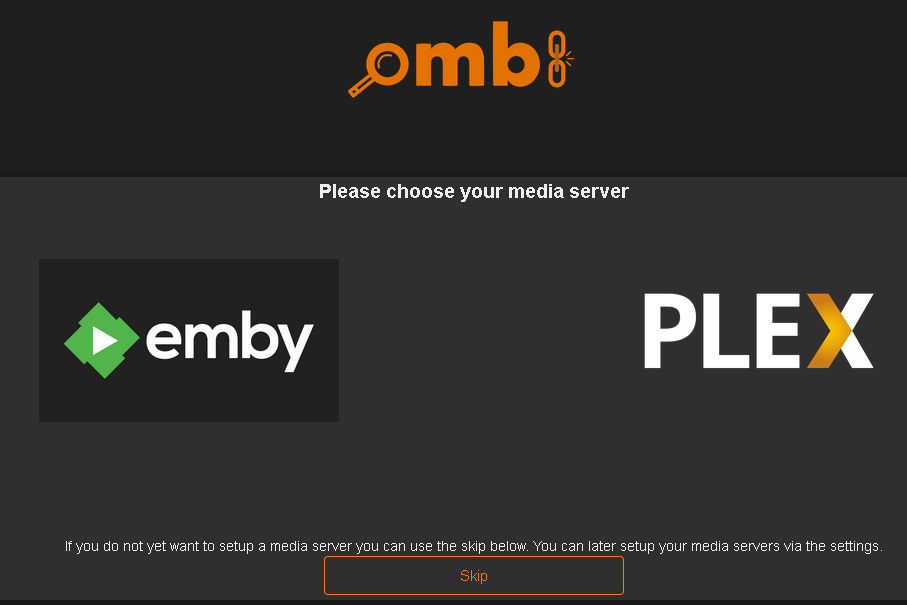
4. Now select your media server. For this guide we are using PLEX.
5. Ingrese your PLEX nombre de usuario and contraseña. Or request token, or continue with plex.
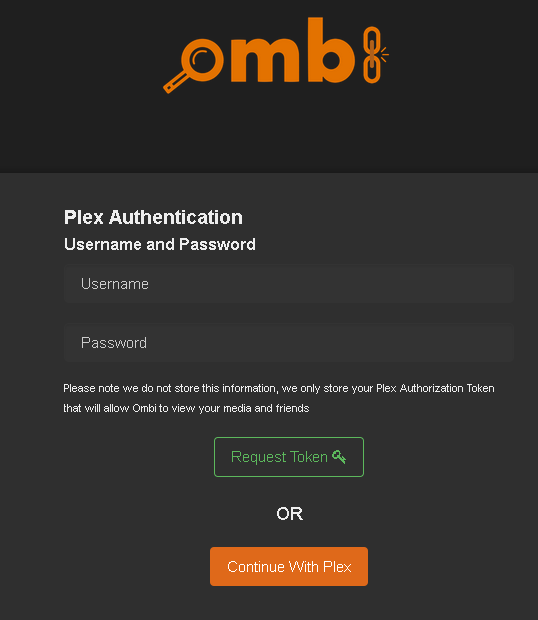
6. I selected to continue with plex and if you do as well, verá this screen.
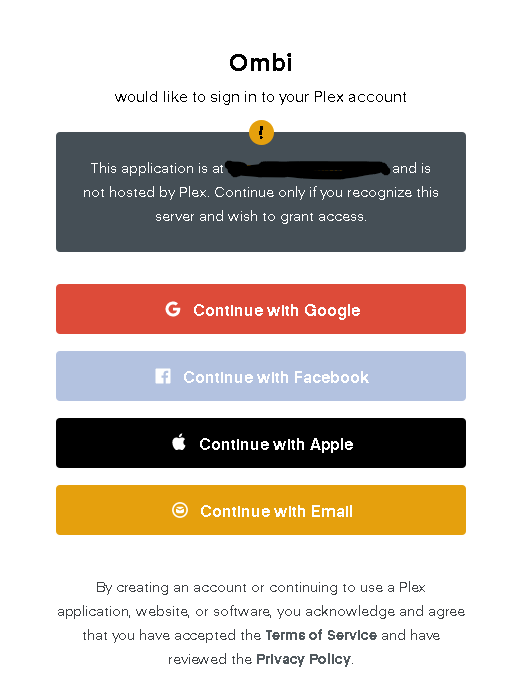
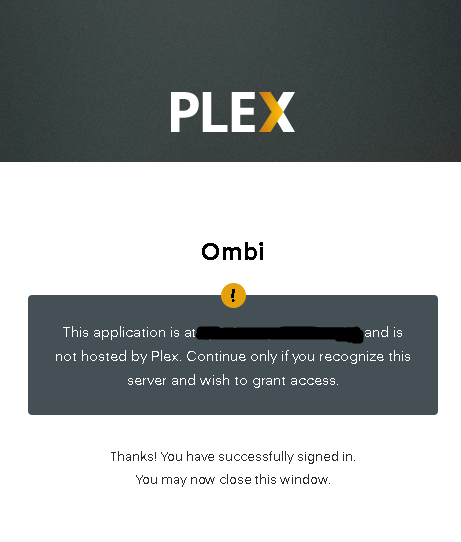
7. You will be notified with this screen after the log in is exitoso.
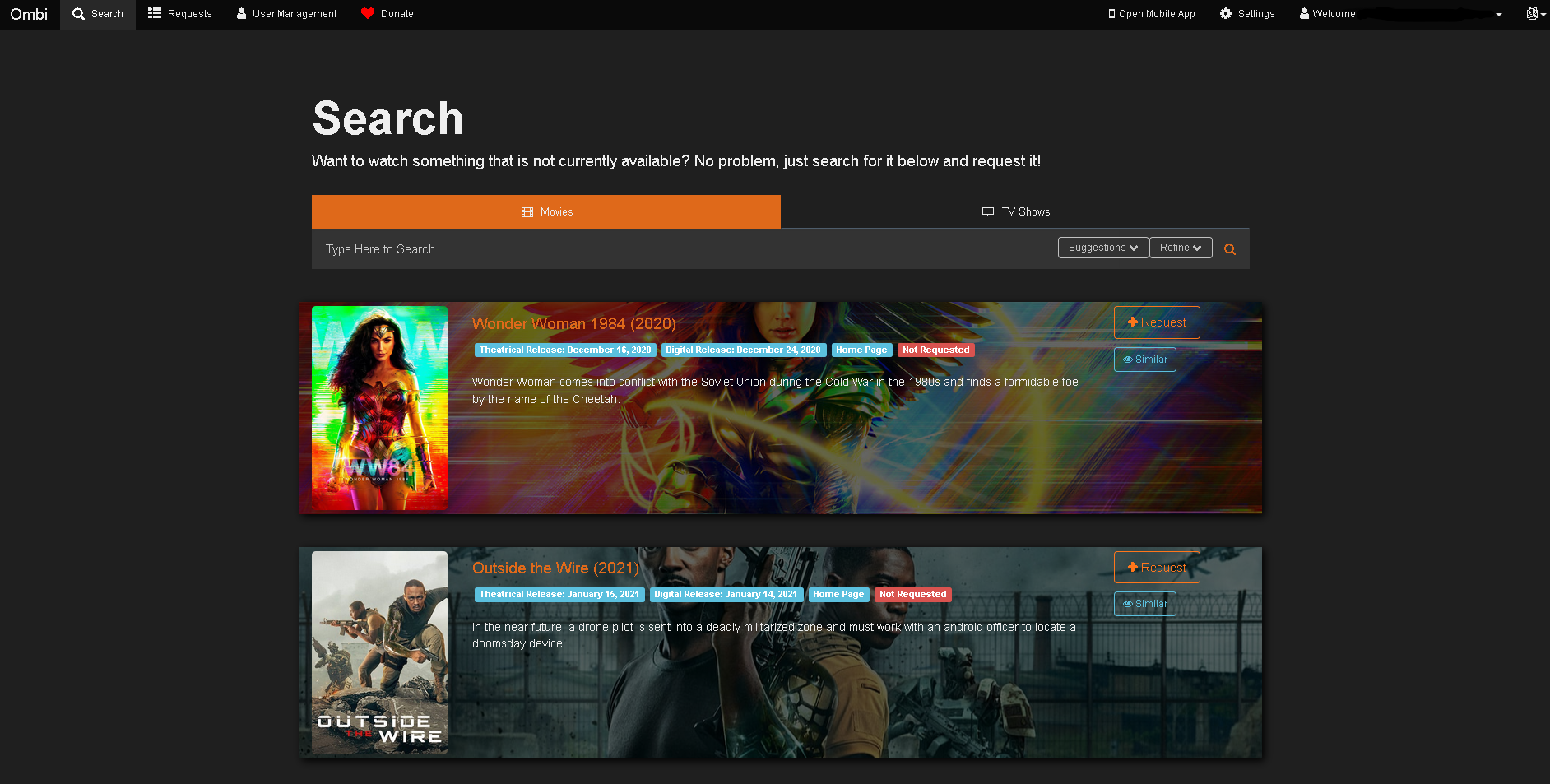
8. Now that we are logged in with our plex account, verá this screen.
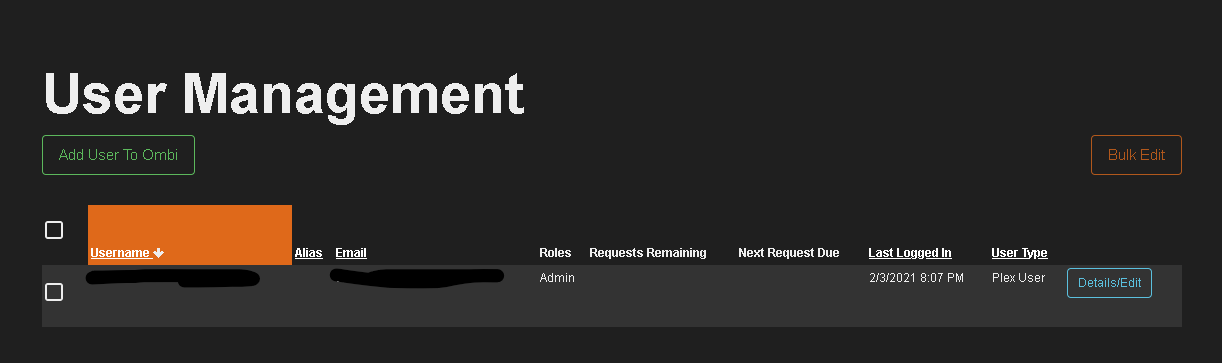
We need to add users so they can request content. At the top left, verá "User management". Click that
9. You will be greeted by this screen. Click add user to Ombi.
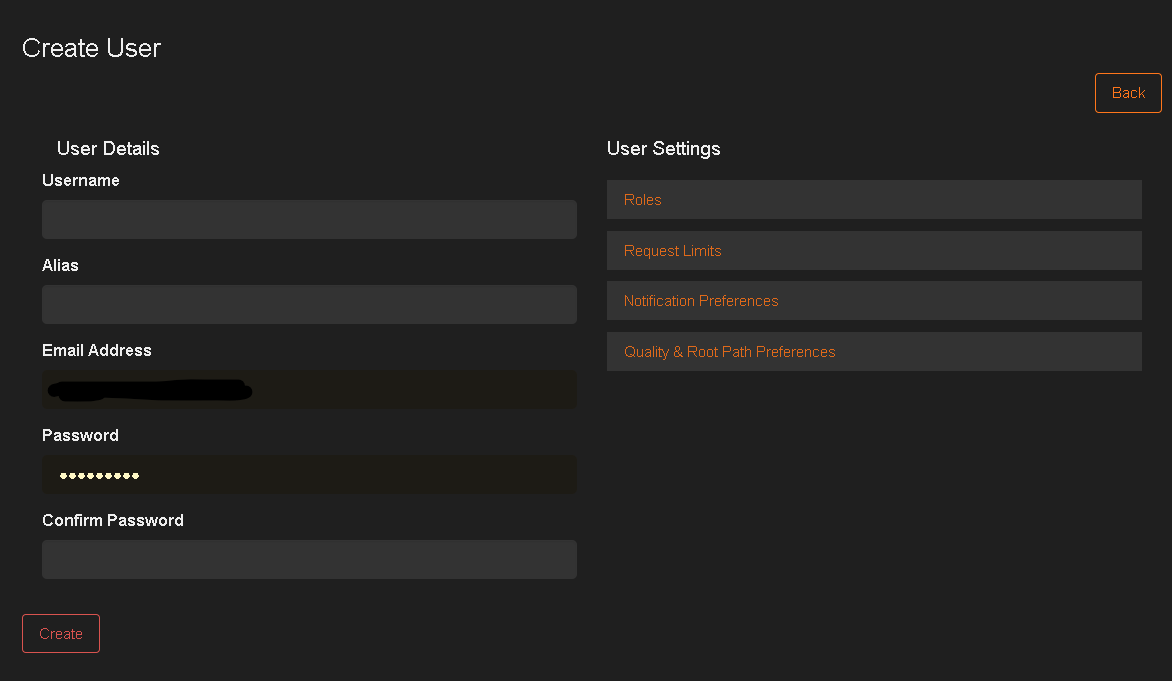
10. Now fill in the requested information.
Nota: You must assign a role for the account to be created. Seleccione the role you best deem fit for that specific user.
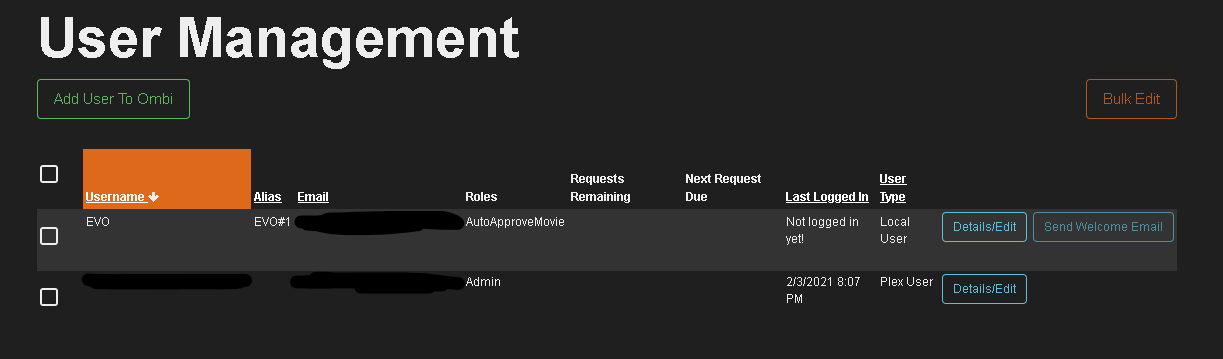
11. Después de the user has been exitosoly managed, verá this screen.
12. To make a request, search or locate a TV show or Movie and click "Request"
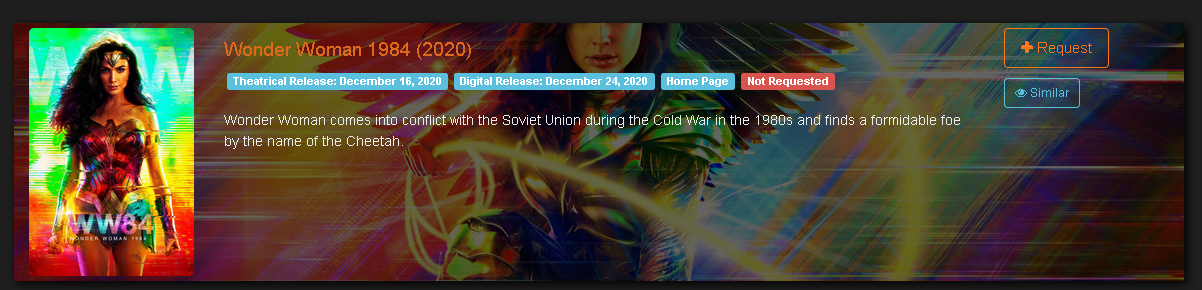
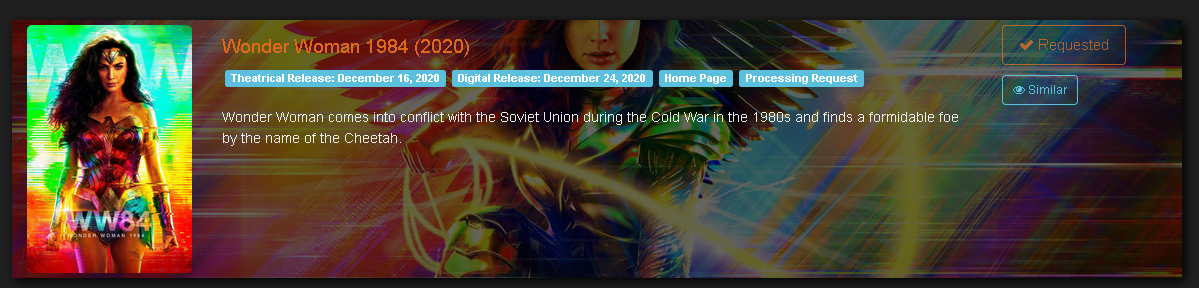
13. It will then say "Requested" if it has been exitoso.
14. The admin will see it in their request que, where you have some options. You access this by selecting "Request".
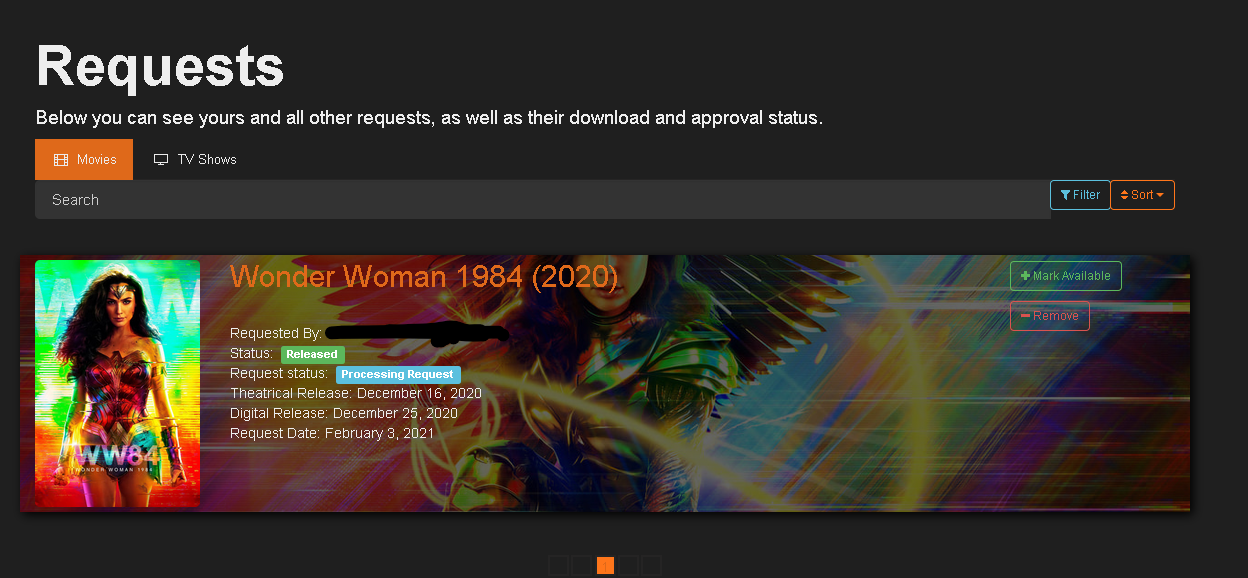
15. Una vez que mark it as filled, verá the request status changed to "Available".