Hey, so you want to use الـ Seedbox الخاص بك as a cloud sharing platform or to manage files and media remotely? Then this app called Nextcloud is perfect for you!
In this article, we will learn how to use Nextcloud and about the basic features of التطبيقlication.
The first step is to install the Nextcloud app. This can be done with just one click من evoseedbox dashboard.
Now that your Nextclud app is installed on الـ Seedbox الخاص بك =, it is time to look inside التطبيق.
افتح التطبيق and ستظهر لك be asked to log in. Use the FTP بيانات الاعتماد given in الـ Seedbox الخاص بك’s dashboard.
Once you sign in, ستظهر لك find on a window like this:
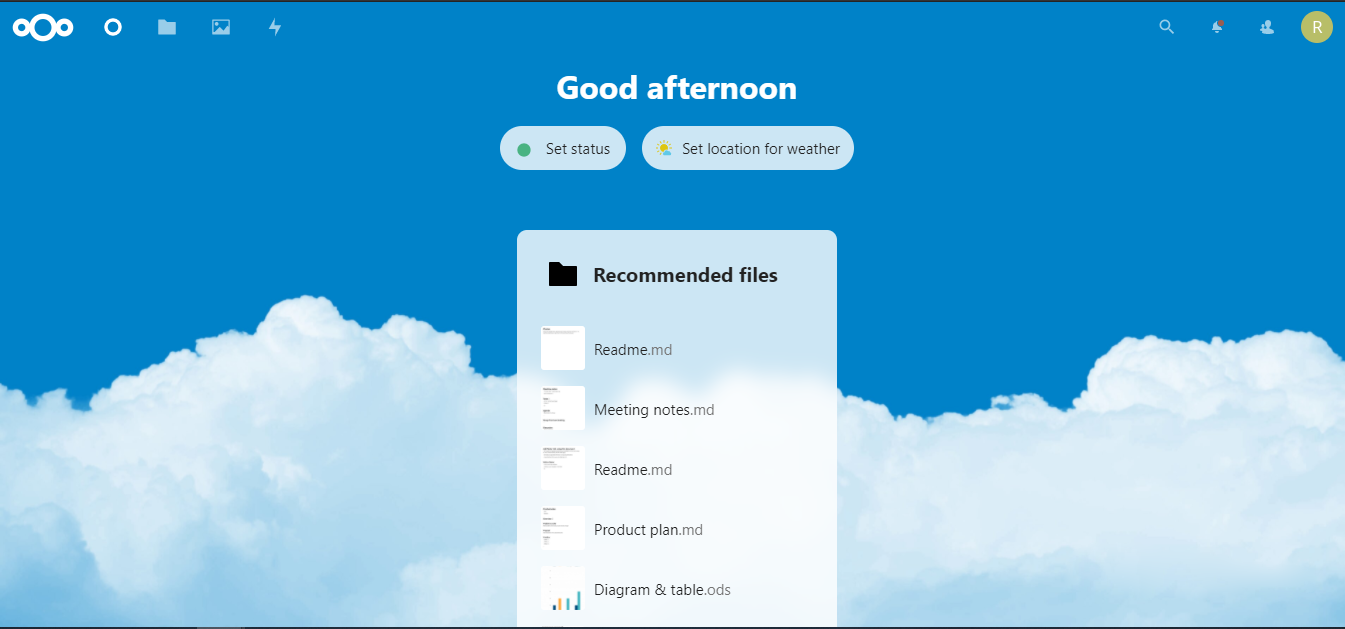
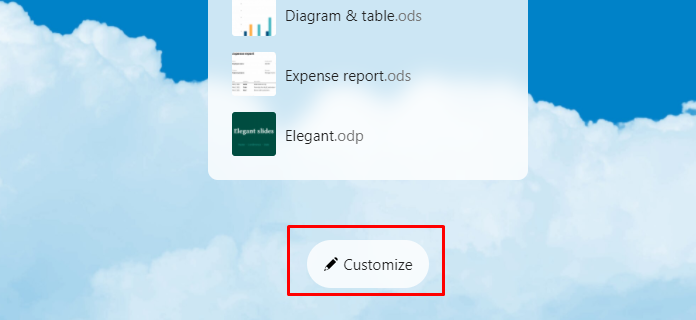
Looks nice right? يمكنك customize it too. Just scroll down a bit to find the customize زر.
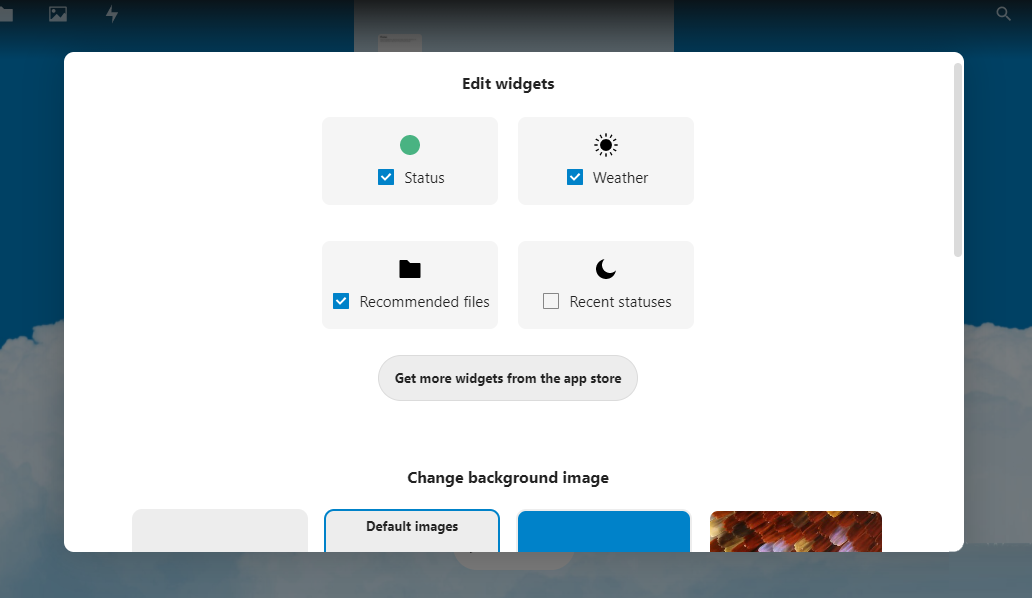
A pop-up will appear on the screen. Over here, يمكنك add widgets like weather, recommended files, etc. يمكنك even get more widgets from the Nextcloud app store.
إذا scroll down a little bit, يمكنك find many in-build options for the background. إذا do not like the given options, then يمكنك choose you won as well.
ملاحظة: The image must be في Nextcloud space.
Now let us get into the more interesting and useful part of التطبيق. File management.
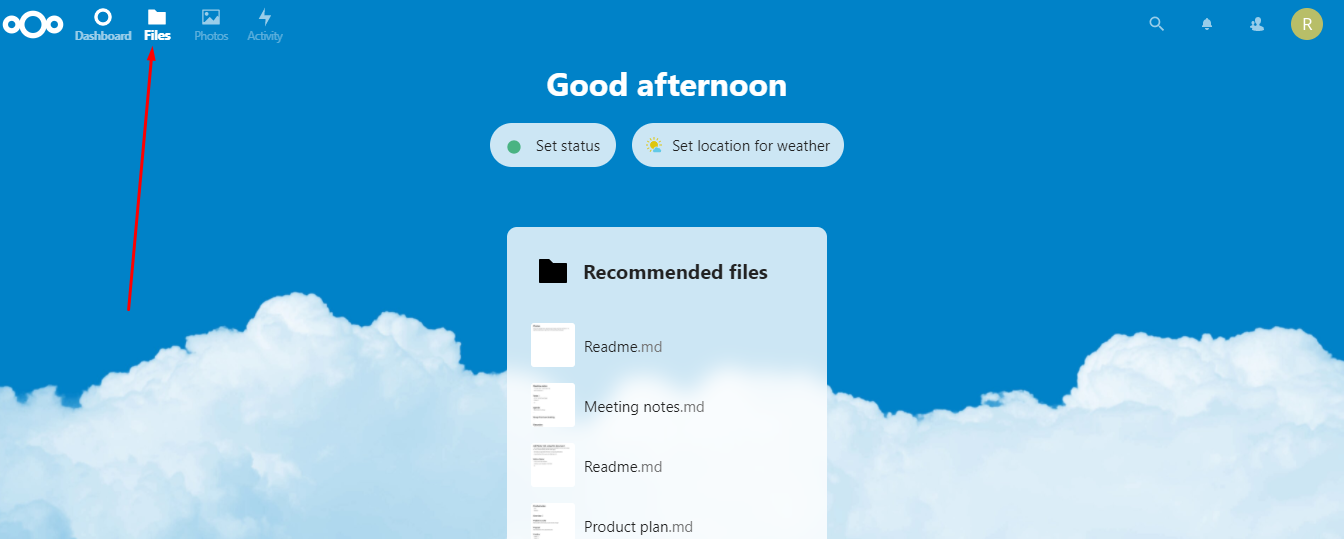
On the top-left side of the dashboard, يمكنك find the Files icon. انقر على it to manage your files.
By default, there are some files added إلى account. These are just there to show the usability of التطبيق. Plus, these files contain Manual and documentation, if you want to read them.
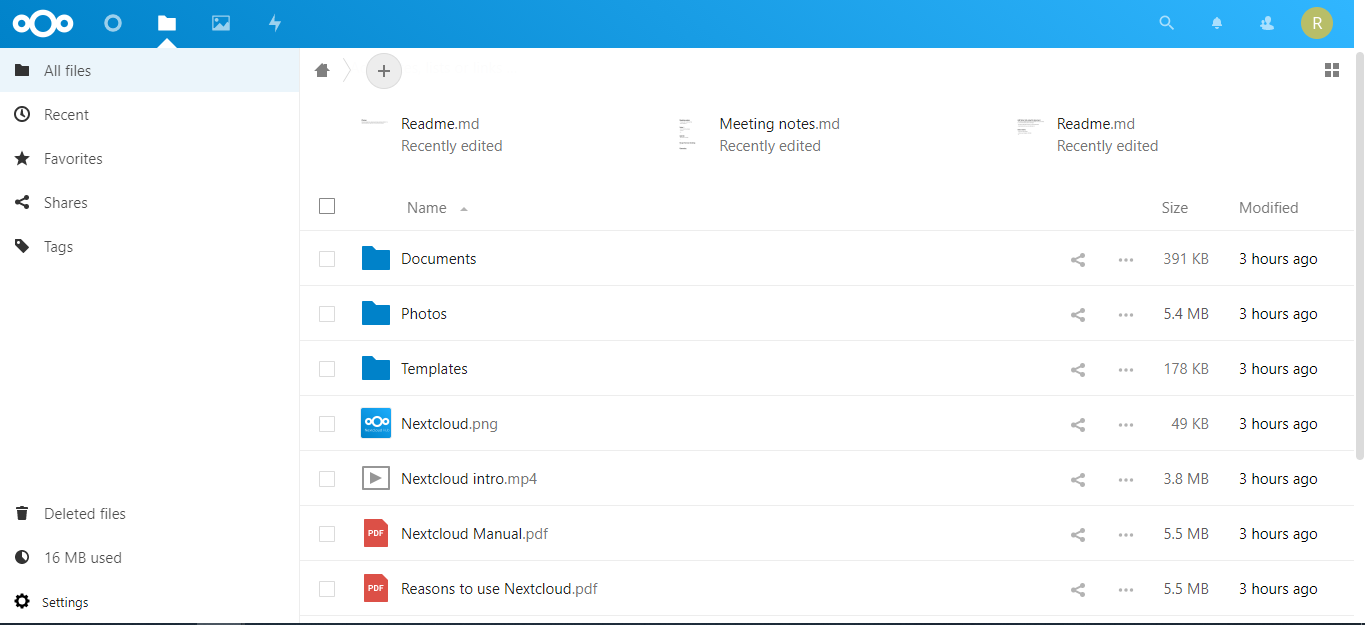
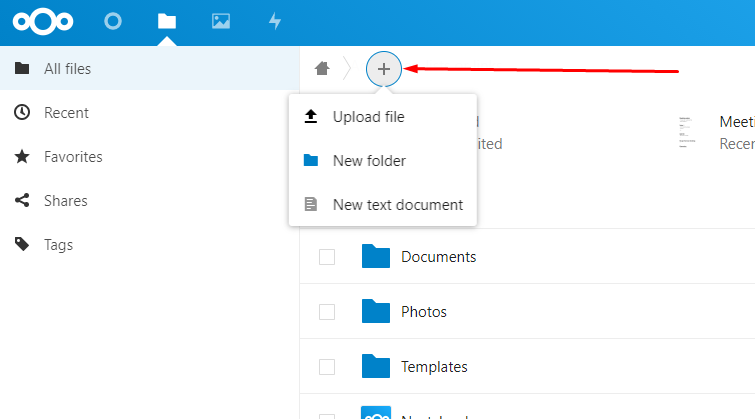
From the “+” زر, يمكنك add a new document or a new folder or even upload a new file.
Naturally, the file will be uploaded to الـ Seedbox الخاص بك, as it is the acting server behind التطبيقlication.
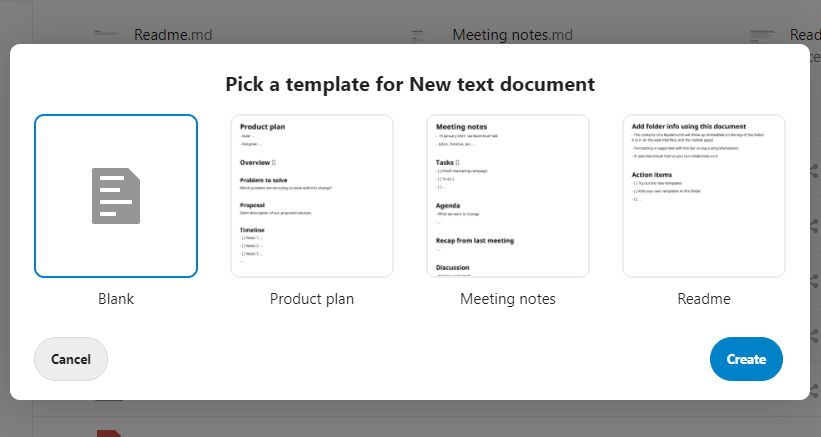
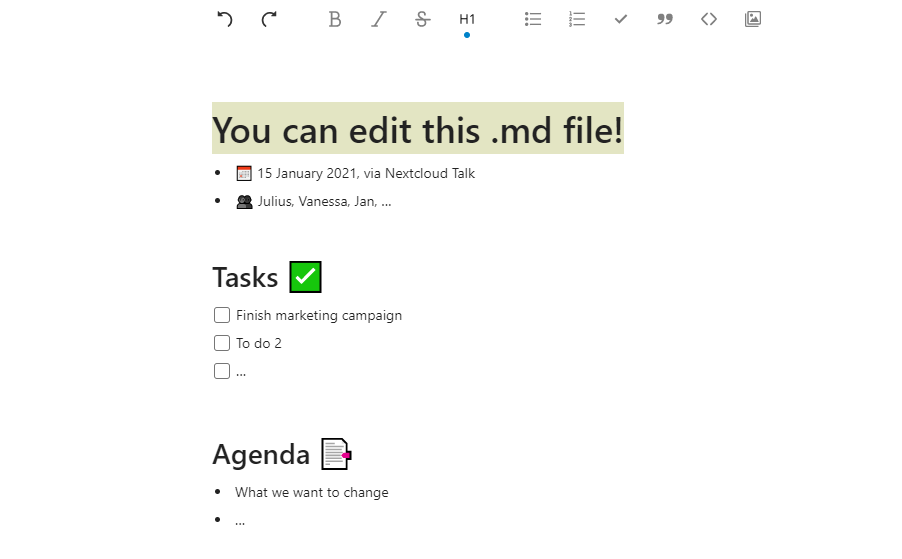
إذا are making a new document then يمكنك actually use premade templates and edit them.
إذا want to access only media, that is video or images في Nextcloud app, then يمكنك use the option of photos, in the main menu.
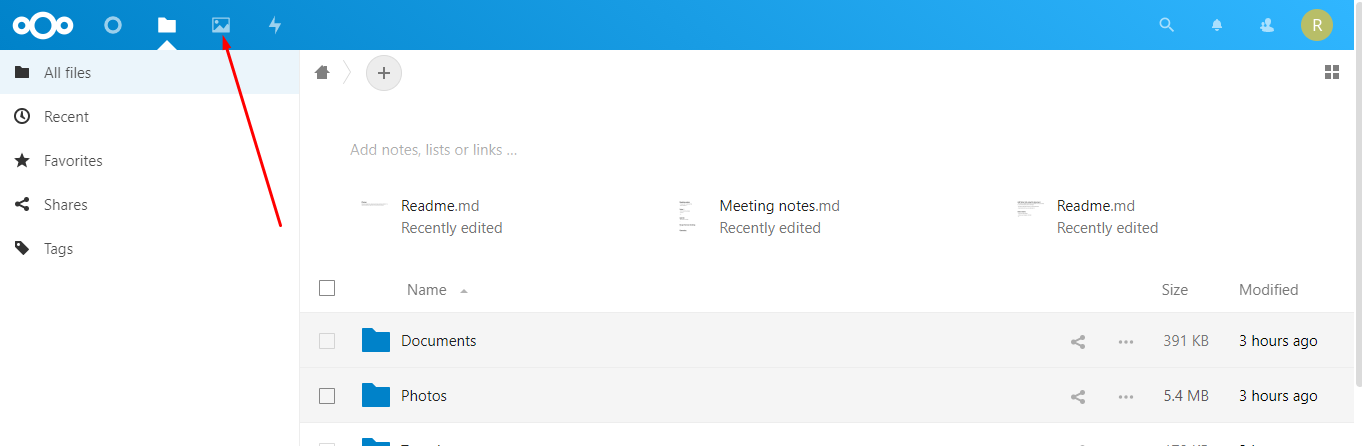
There are some pre-added photos and videos to show you how التطبيق can be used. Similarly, يمكنك upload your videos or photos and manage them using the Nextcloud app.
Share files directly from Nextcloud.
It is really really easy to share files using Nextcloud. Just open the Nextcloud app and find the file you want to share.
Let us say, you want to share the Nextclud manual, click on the share icon in it.
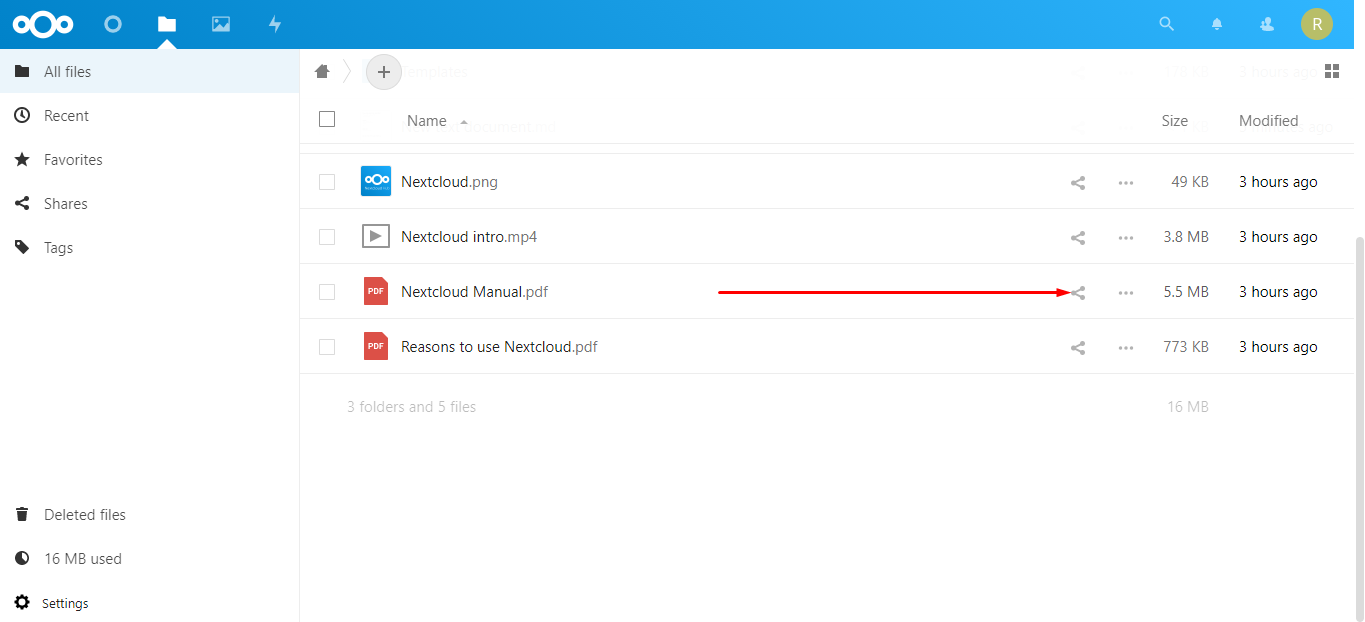
A sidebar will appear, from here, click on the plus زر to create a sharable link for this document.
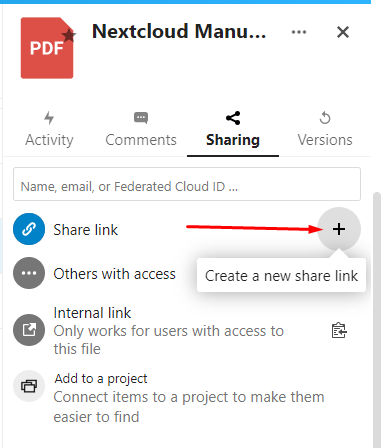
Once the link is created, copy the link and share it with anyone you’d like to share it with. They can access the file and even download it.
إذا want to keep this link secure, click on the 3 dots that appear after the link is created.
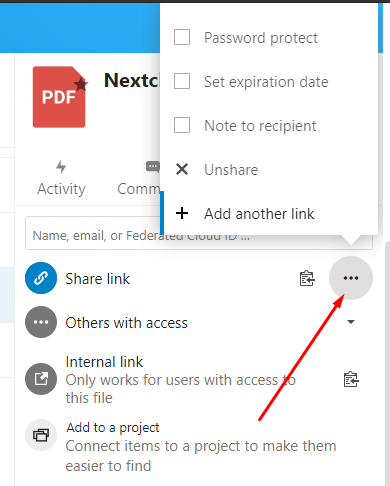
Here, يمكنك add a كلمة المرور to the document link, set an expiration date, add a note to the receiver, or even unshare the document.
Adding plugins/apps to Nextcloud
On the top-right corner of التطبيقlication, يمكنك find your user profile menu. From here, click on التطبيقs menu.
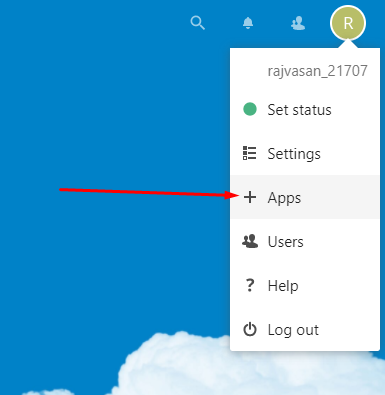
By default, a few apps are added إلى Nextcloud.
On the left-hand side, يمكنك see a sidebar with many options.
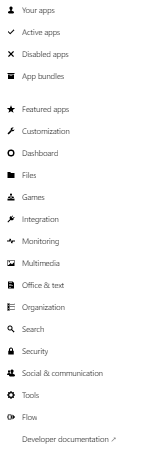
These are different categories متاح for apps. يمكنك find whichever app suits your needs and add it إلى Nextcloud account.
In this case, we are taking the Analytics app as an example.
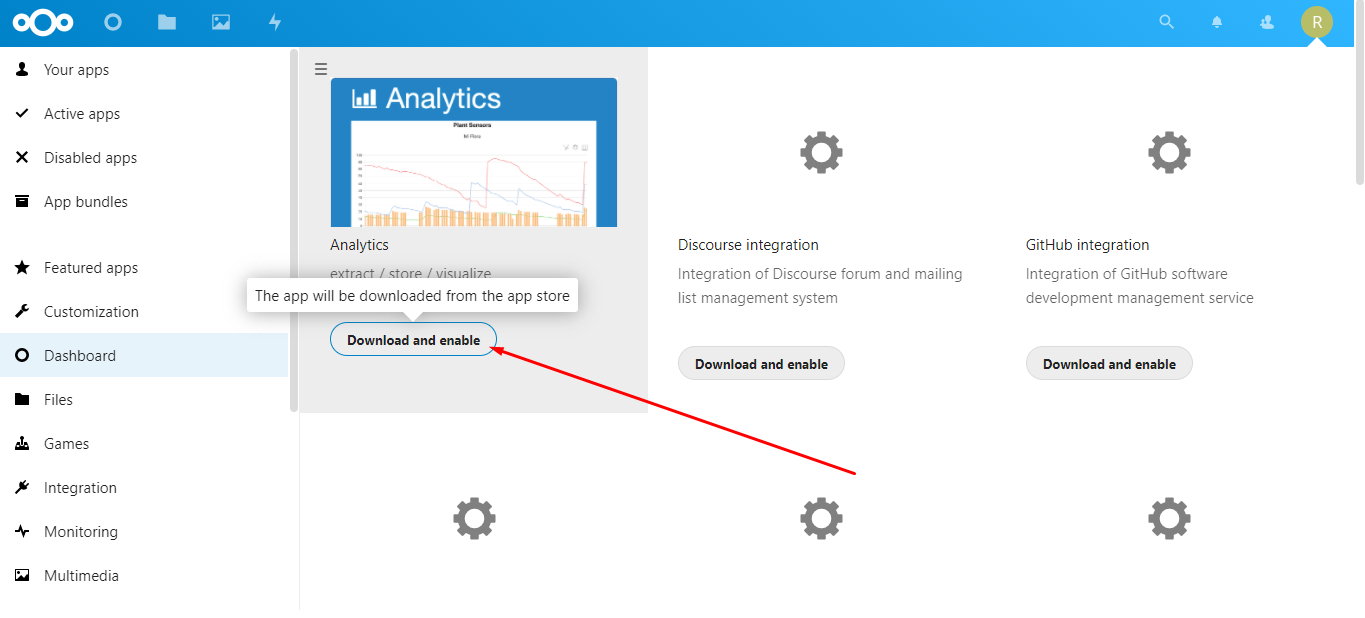
اذهب إلى the dashboard app category, and the first app you’ll find is analytics.
انقر على the “تحميل and Enable” زر to add your app.
It will ask you to enter the كلمة المرور, the same كلمة المرور you يستخدم لـ log in to the Nextcloud app.
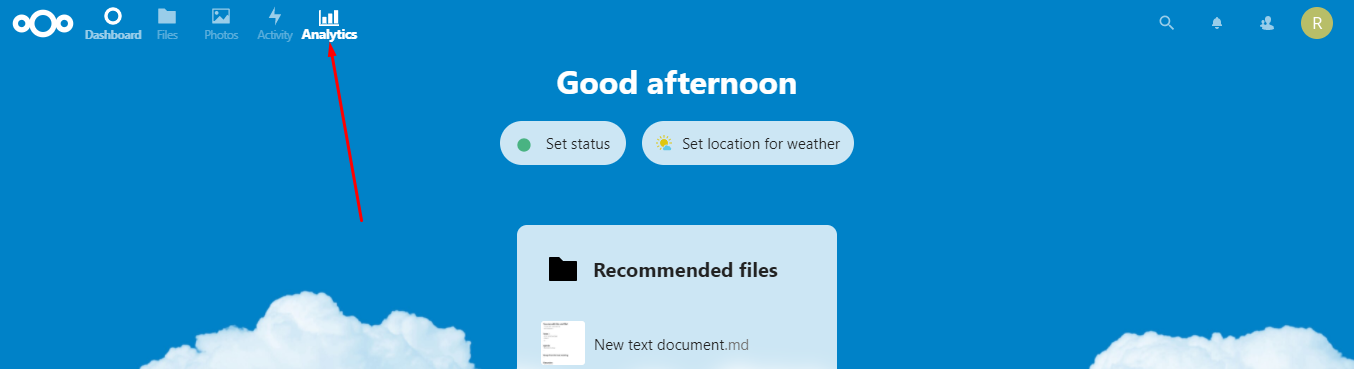
يمكنك see the analytics app is installed.
Adding a new user/group to Nextcloud
What if you want to add a new user إلى account? With Nextcloud يمكنك do it with a few steps.
On the top-right section, click على account and then click on the “Users” tab from the menu.
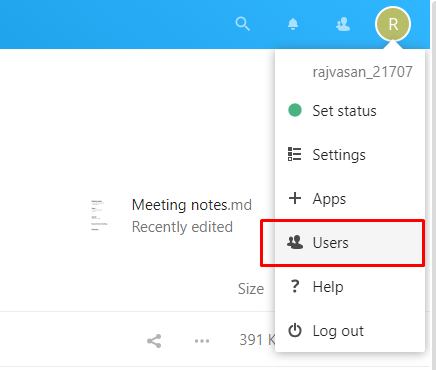
You will be able to see all the existing users from here and basic information like their اسم المستخدم, group to which they belong, and space allocated to them.
On the left sidebar, يمكنك see a زر to add a new user. انقر على it.
Then ستظهر لك be asked to put down basic information about the user.
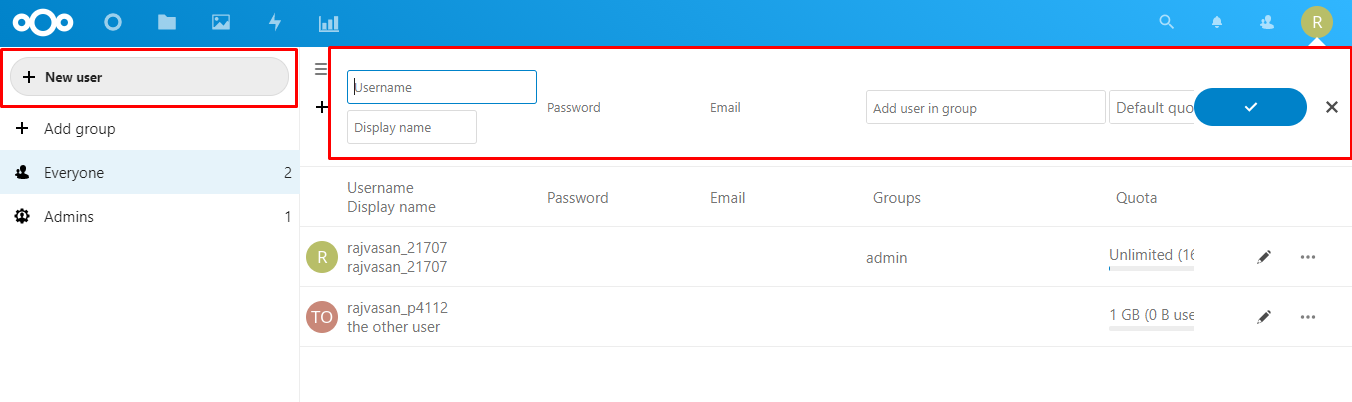
Once you have added the info, click on the blue “tick” زر to save the user. A new user is created.
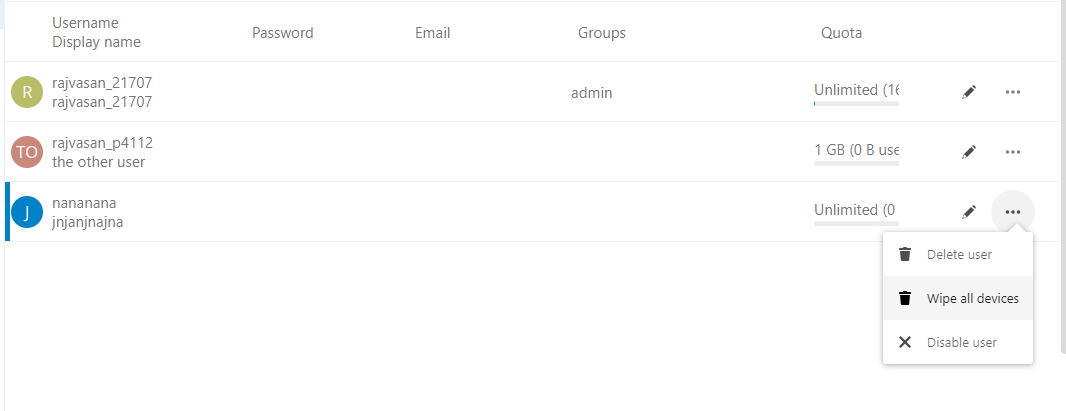
إذا want to remove or disable a user, then click on the 3 dots beside and user and select any action you want to perform.
Tracking activity in the Nextcloud app.
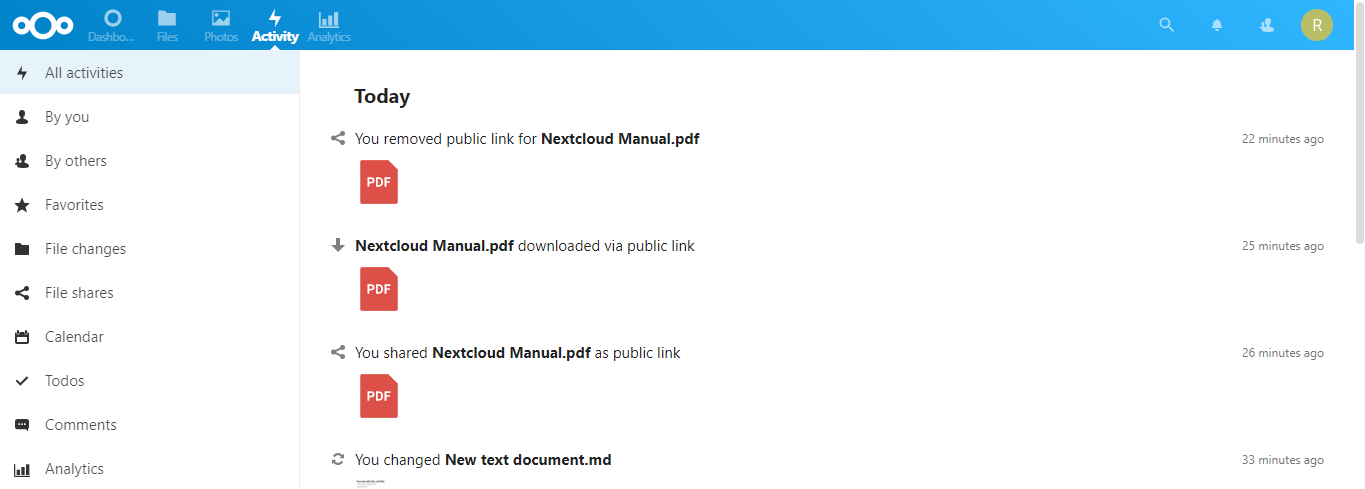
إذا are the admin, then you need to be aware of all the things that are happening في Nextcloud account.
Just click on the “Activity” tab from the top-left menu and يمكنك see all the activities.
That covers all the basic usage of the Nextclooud application. Once you start using it, you find out how powerful it really is.
And in case you have stuck anywhere, just hit us up using the chat or raise a ticket.
We will guide you through.


