## 🎬 Hoe Play Videos in ruTorrent
The MediaStream plugin lets you watch video files directly in uw browser without downloading them first!
—
## 📋 Quick Start (3 Easy Steps)
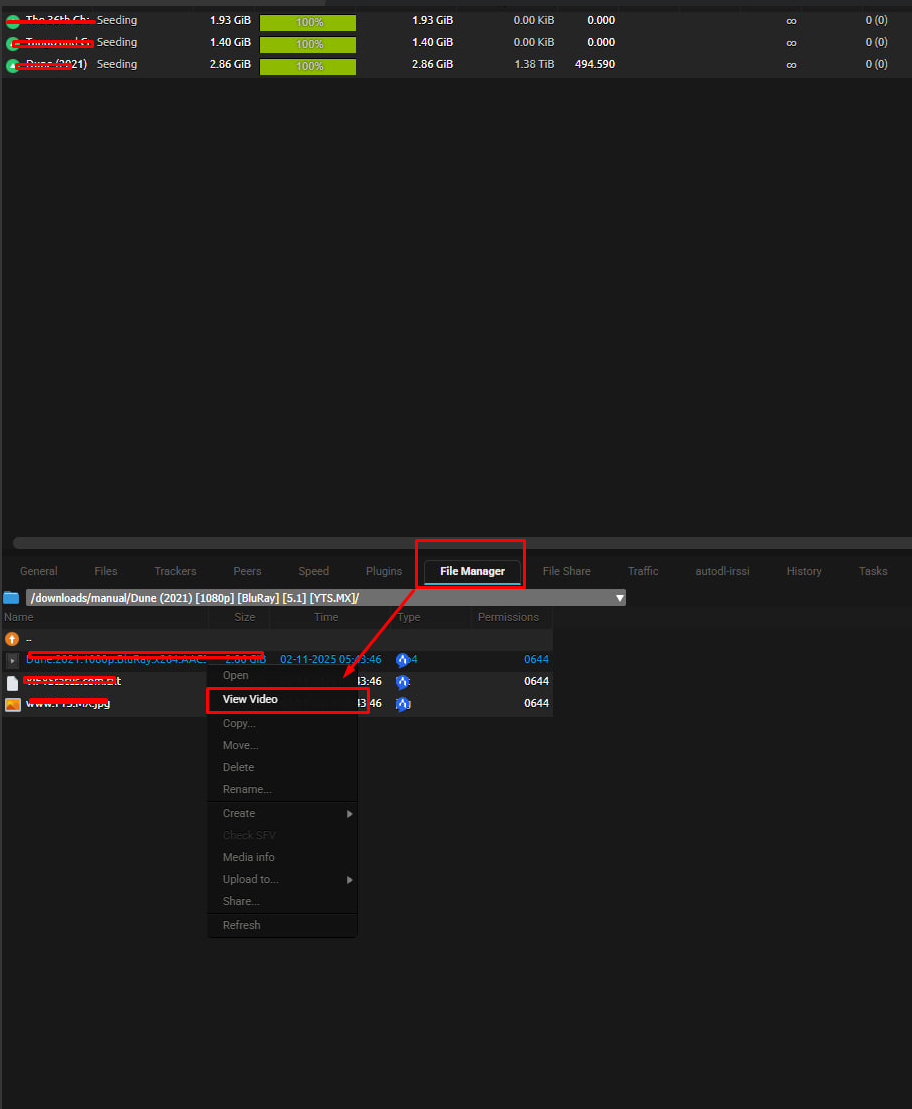
### Stap 1: Find Your Video1. Click the **FileManager** knop in ruTorrent's top toolbar2. Browse through your folders to find a video file3. Look for common video formats: `.mp4`, `.mkv`, `.avi`, `.webm`, etc.
### Stap 2: Play the Video**Right-click** on any video file and select **"View Video"** from the menu

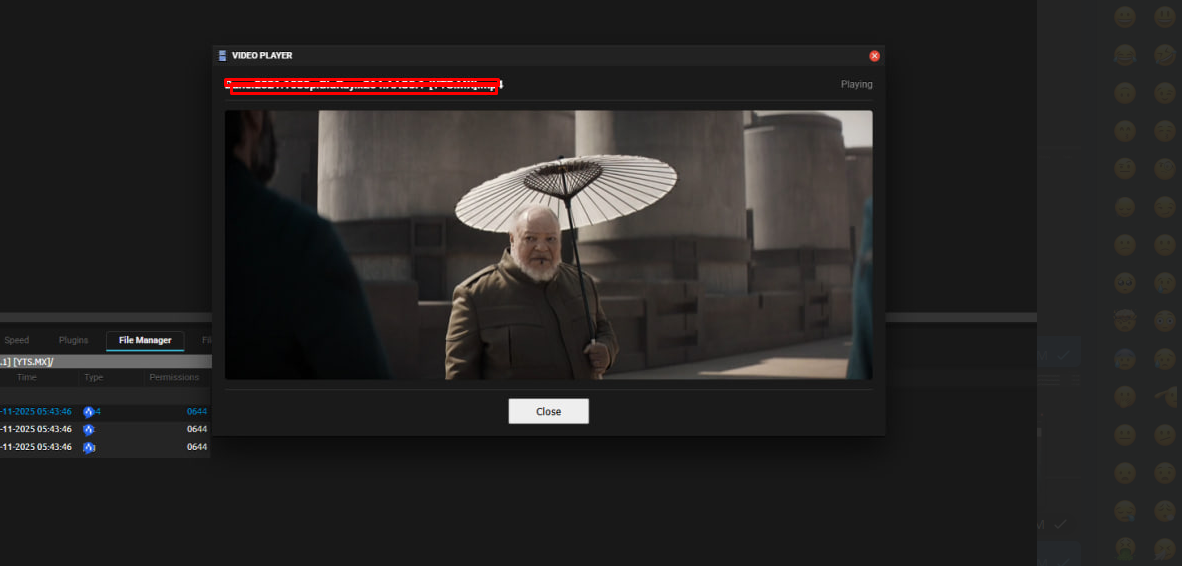
### Stap 3: Enjoy!– The video player will open in a popup window- Click the **play knop** ▶️ to start watching- Use the controls at the bottom to adjust volume, seek, or go fullscreen
—
## 🎮 Player Controls
### Basic Controls| Control | What It Does ||———|————–|| **Play/Pause** ▶️⏸️ | Start or pause the video || **Volume** 🔊 | Adjust sound level (or mute) || **Seek Bar** ━━━━●━━━━ | Jump to any part of the video || **Fullscreen** ⛶ | Watch in fullscreen mode || **Sluiten** ✖️ | Sluiten the player window |
### Keyboard Shortcuts– **Spacebar**: Play/Pause- **F**: Fullscreen toggle- **M**: Mute/Unmute- **Arrow Keys**: Seek forward/backward- **Escape**: Exit fullscreen
—
## ⚙️ Customizing Your Experience
### Opening Settings1. Ga naar **ruTorrent Settings** (gear icon ⚙️ in top toolbar)2. Find **"MediaStream"** in the left sidebar3. Adjust your preferences!
### Available Settings
#### 🎨 Player Appearance– **Player Width**: How wide the video window is (default: 800px)- **Player Height**: How tall the video window is (default: 600px)
#### 📹 Video Quality– **Default Quality**: Choose your preferred quality – 🟢 **Auto**: Let the browser decide (recommended) – 🔵 **720p**: HD quality – 🔴 **1080p**: Full HD quality – ⚫ **Original**: No transcoding (highest quality)
#### 🔊 Audio– **Default Volume**: Set your preferred volume level (0-100%)- **Muted by Default**: Start videos muted (useful in offices!)
#### 🎞️ Format Support– **Enable/Disable Formats**: Choose which video formats you want to play- **Three Categories**: – ✅ **Recommended**: Works great in all browsers (MP4, WebM, Ogg) – ⚠️ **May Work**: Requires proper codecs (MKV, AVI, MOV, etc.) – 🔶 **Limited Support**: Older/specialized formats (FLV, WMV, etc.)
—
## 📂 Supported File Formats
### ✅ Always Works (Recommended)These formats play perfectly in all modern browsers:- **MP4** (.mp4, .m4v) – Most common format- **WebM** (.webm) – Modern web format- **Ogg** (.ogv, .ogg) – Open source format
### ⚠️ Usually Works (May Require Codecs)These formats work if your browser supports the video codec inside:- **MKV** (.mkv) – Matroska container- **AVI** (.avi) – Common Windows format- **MOV** (.mov) – QuickTime format- **FLV** (.flv) – Flash video- **WMV** (.wmv) – Windows Media Video- **MPG/MPEG** (.mpg, .mpeg) – MPEG format- **3GP** (.3gp) – Mobile video format- **And many more!**
### 💡 Pro TipIf a video won't play, it's usually a codec issue, not a format issue. Try converting it to MP4 (H.264 codec) for best compatibility.
—
## 🔍 Troubleshooting
### "Video won't play" or shows black screen**Cause**: Your browser doesn't support the video codec
**Oplossings**:1. Try a different browser (Chrome/Edge usually have best support)2. Convert the video to MP4 format with H.264 codec3. Check if the video file is corrupted by downloading it first
### "View Video" option doesn't appear**Cause**: File isn't recognized as a video
**Oplossings**:1. Check if the file extension is enabled in Settings2. Make sure the file actually is a video (not mislabeled)3. Reload ruTorrent page (Ctrl+F5)
### Player window is too small/large**Oplossing**: Ga naar Settings → MediaStream and adjust Player Width/Height
### Video is choppy or buffering**Causes**: Network speed, server load, or video bitrate
**Oplossings**:1. Lower the quality setting in Settings2. Wait for more of the file to download3. Try during off-peak hours if server is busy
### No sound**Oplossings**:1. Check if browser tab is muted (look for 🔇 icon on tab)2. Check video player volume control (bottom left)3. Unmute in Settings if "Muted by Default" is enabled4. Some videos don't have audio tracks – download to verify
—
## 🎯 Best Practices
### For Best Performance1. ✅ Use **MP4 files** with H.264 codec when possible2. ✅ Keep player dimensions reasonable (don't go 4K on a 1080p monitor)3. ✅ Use **Auto quality** setting unless you have specific needs4. ✅ Sluiten player when done to free up server resources
### For Privacy– 🔒 Remember: Video streaming creates temporary logs on the server- 🔒 Respect your server's bandbreedte and opslag limits- 🔒 Don't share your streaming links – they're tied naar uw session
### For Multi-User Setups– 👥 Each user has their own settings (they don't affect others)- 👥 Settings are saved per-user automatically- 👥 U kunt reset to defaults anytime in Settings
—
## 📖 Quick Reference
### Common Workflows
#### "I want to preview a video before downloading"1. Open FileManager2. Right-click video → View Video3. Watch enough to decide4. Sluiten player and continue/stop download
#### "I want to watch a completed download"1. Open FileManager2. Navigate to completed downloads3. Right-click video → View Video4. Enjoy in fullscreen!
#### "I want to check video quality"1. Open FileManager2. Right-click video → View Video3. Click fullscreen ⛶4. Assess quality visually
#### "I want to show someone a clip"1. Open FileManager2. Right-click video → View Video3. Use seek bar to find the moment4. Share screen (player only works for you, not shareable links)
—
## 🆘 Still Need Help?
### Check the LogsIf something isn't working, check the ruTorrent log (bottom panel):- Look for **[mediastream]** messages- Note any error messages- Share these with your administrator
### Contact Your AdministratorYour server admin can:- Check server-side logs for streaming errors- Verify file permissions are correct- Installereneren missing codec support- Adjust streaming buffer sizes for performance
### Report IssuesWhen reporting problems, include:- Video file format and size- Browser name and version- Fout message from ruTorrent log- What you expected vs. what happened
—
## 🌟 Pro Tips & Tricks
1. **Multi-Monitor Setup**: Drag player to second monitor and go fullscreen for dedicated viewing2. **Quick Preview**: Double-click to play, spacebar to pause at interesting frames3. **Format Testing**: Try different browsers if playback fails – Firefox vs Chrome vs Edge can differ4. **Bandwidth Management**: Lower quality settings during peak hours5. **Seek Before Loading**: Use seek bar to jump ahead – player will start buffering from that point
—
## 📝 Version Information
**Plugin Version**: 2.0.0 **Last Bijwerkend**: November 2025 **Author**: Evoseedbox Team
–
—
## 🙏 Enjoy Your Videos!
Happy streaming! Remember to thank your server administrator for setting this up. 🎬🍿
—
*This guide is for MediaStream Plugin v2.0.0 and above. Als u're using an older version, some features may not be beschikbaar.*


