Duplicati was designed for online backups from scratch. It is not only data efficient but 또한 handles network issues nicely. E.g. interrupted backups can be resumed and Duplicati tests the content of backups regularly. That way broken backups on corrupt 저장 공간 systems can be detected before it’s too late.
Remember when storing data, the rule of 3 applies. Duplicati is a great choice for one of those 3 options.
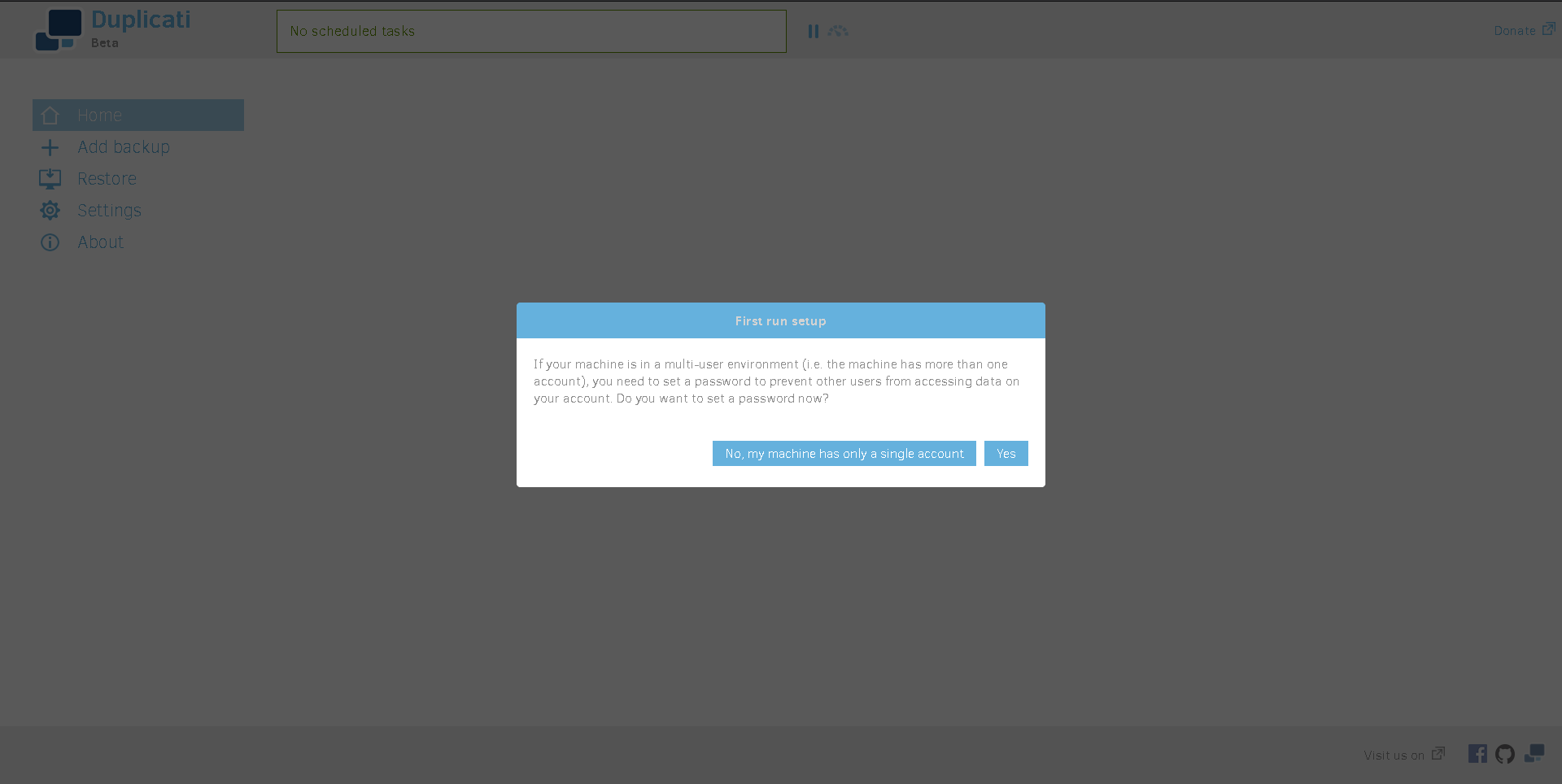
When you first open 앱, 보게 될 것입니다 be greeted with this screen. 선택 앱ropriate answer for your situation.
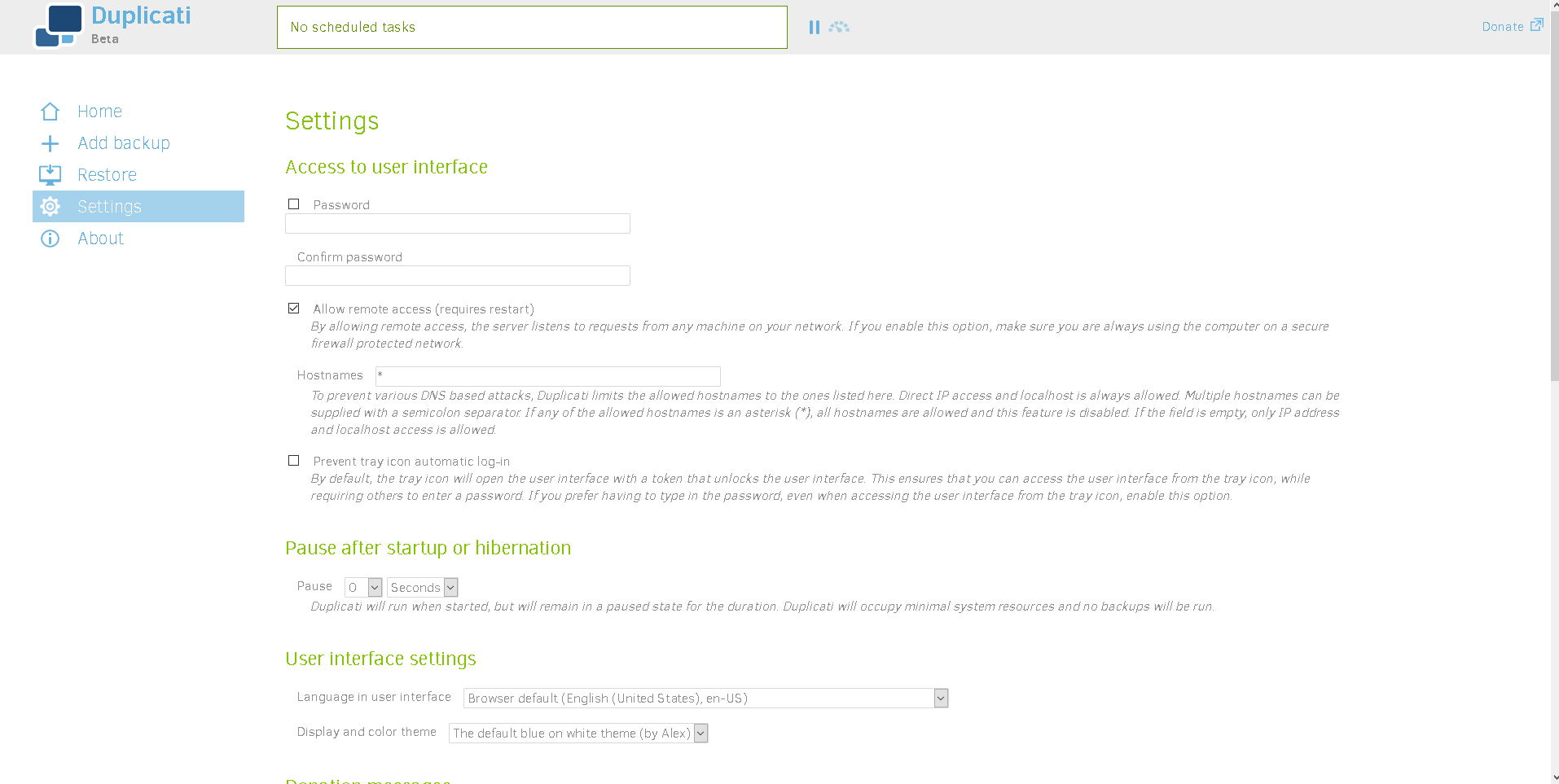
The next screen 보게 될 것입니다 see if you select Yes is below. Set your 비밀번호 and adjust any other settings you see fit. I left all the other settings other than the 비밀번호 at default.
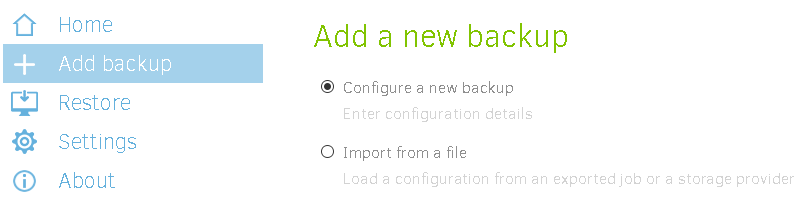
Next we need to start backing up our data. 선택 add back up, and then 구성 a new back up.
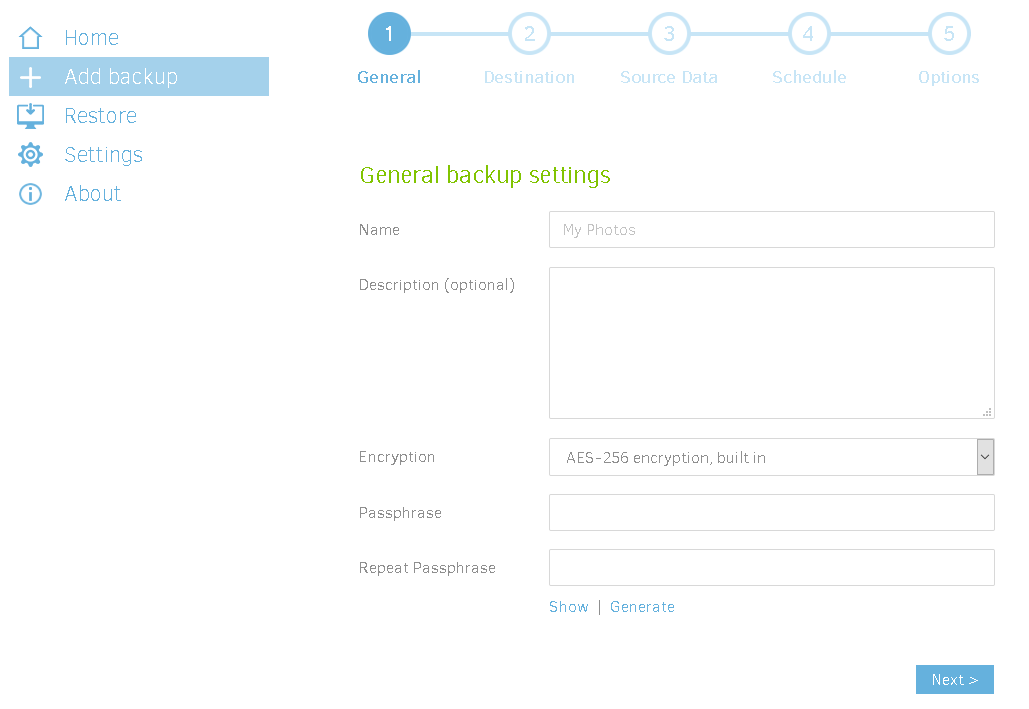
Now name your back up and add a description if needed.
참고: at this step, you must enter a passphrase or disable encryption. Otherwise 될 것입니다 prompt you to do so 끝에.
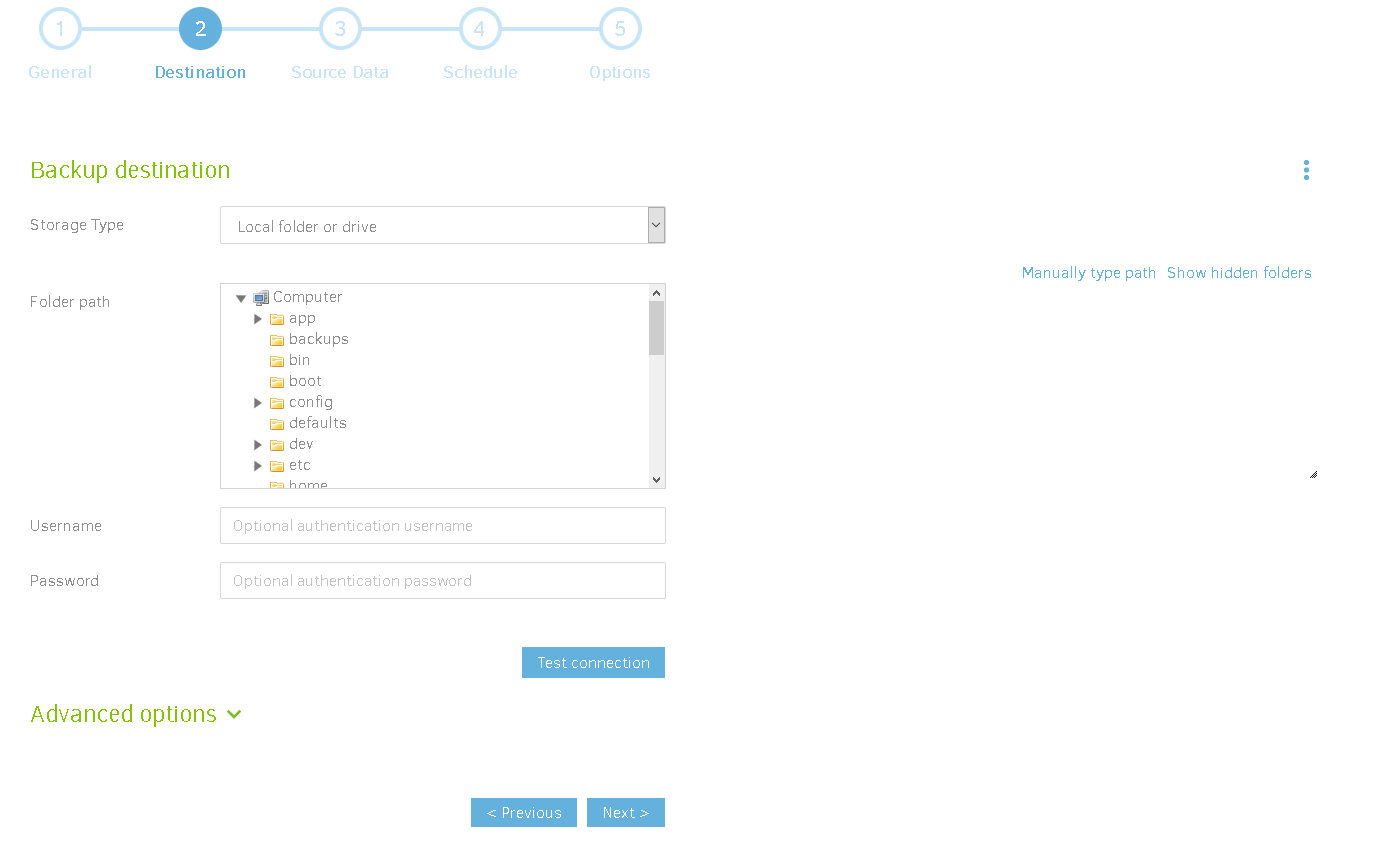
Next 보게 될 것입니다 select your back up destination 당신의 EVO server. The folder is your choice, so choose whatever folder is best for your situation.
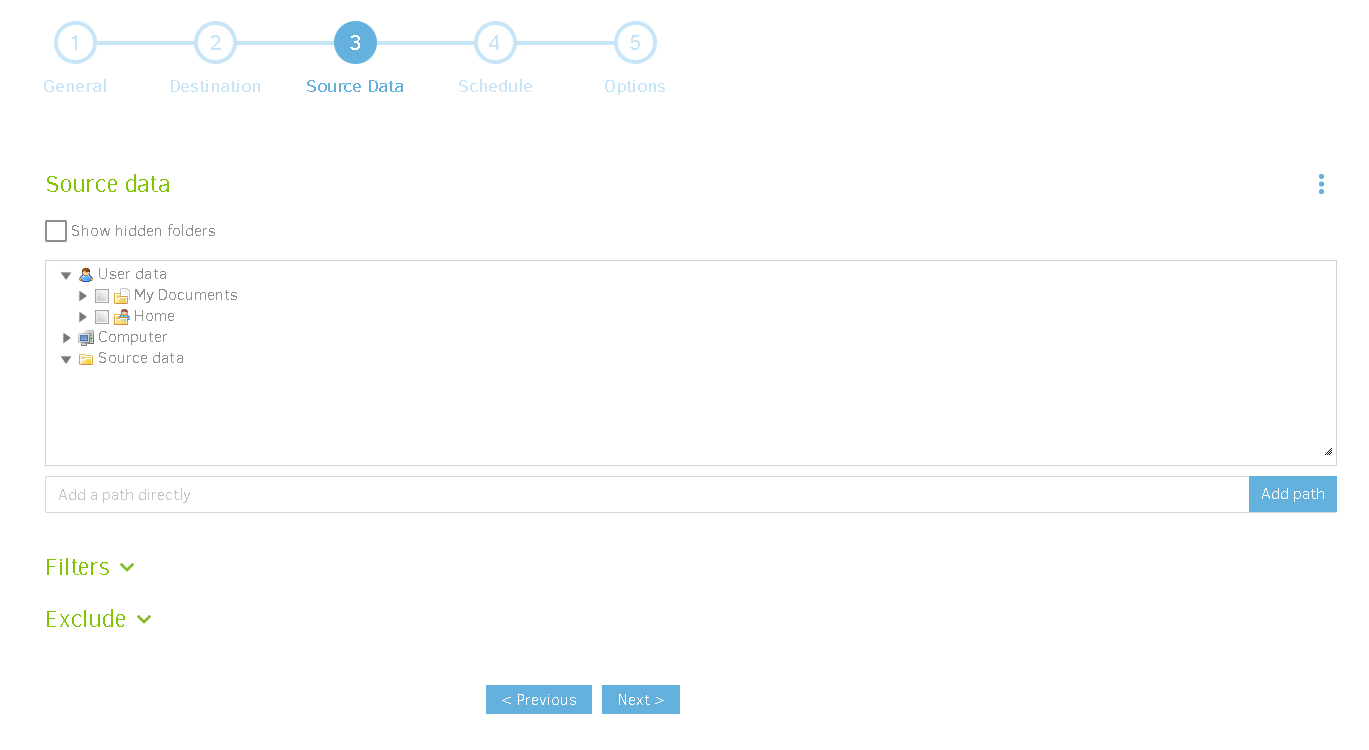
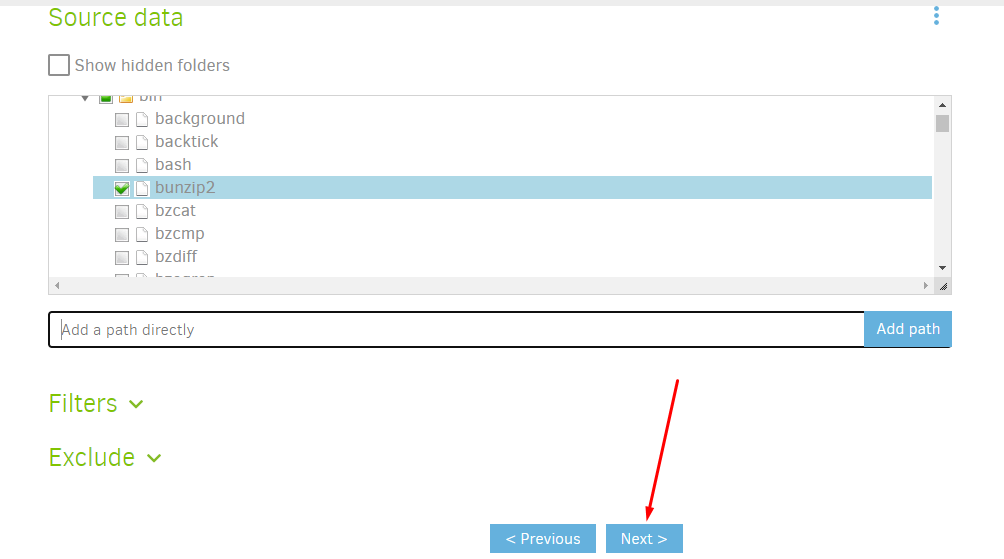
Next you 해야 합니다 select the source data you want to back up. It has to be on the EVO server.
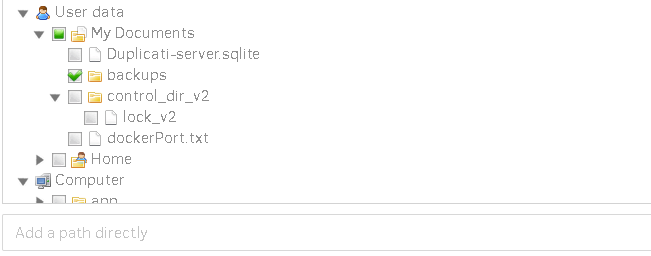
Ensure you tick the box next to the folder or file you want to back up. Clicking the file name will not prompt it to be selected, only highlighted.
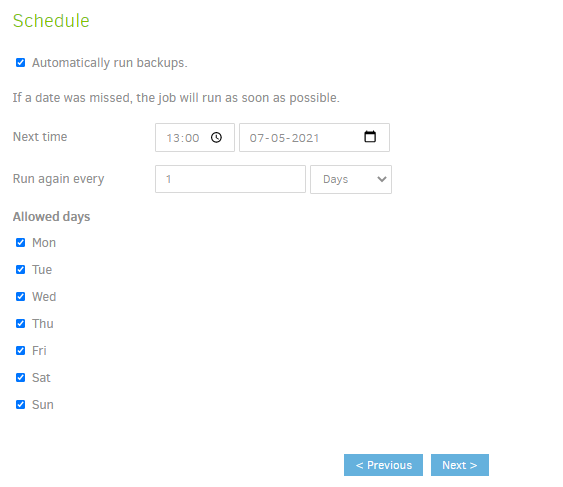
Adjust your schedule to what you think is best for your situation. I used the default settings.
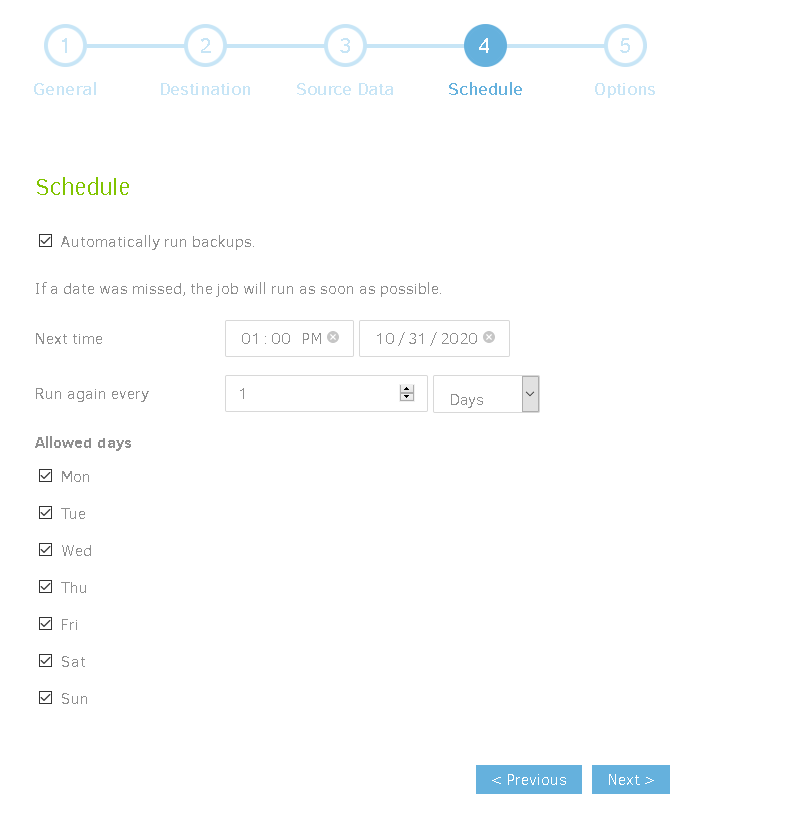
Finally 할 수 있습니다 adjust these options if you'd like. I used the default settings. You can explore the advanced options, but none of them were appropriate for what I wanted to back up. Click save and you are done!
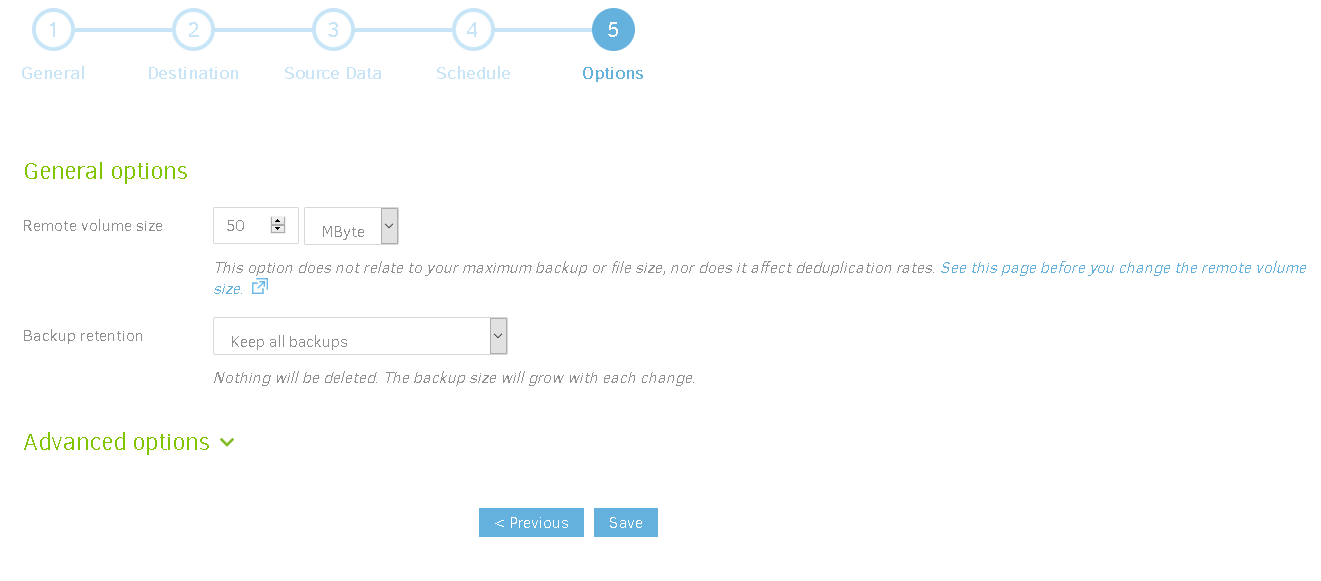
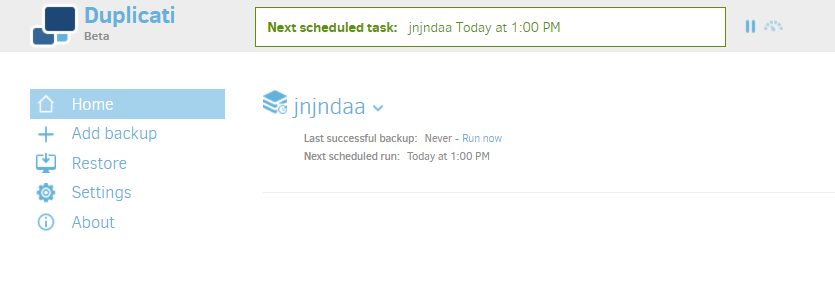
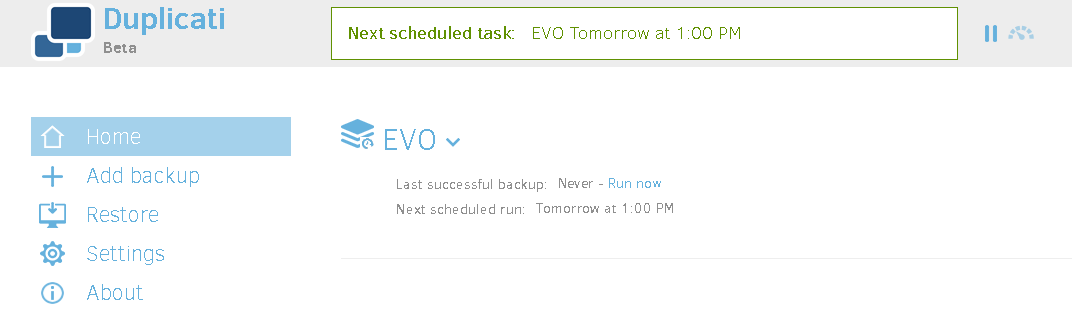
After you clicked save, 보게 될 것입니다 be taken back to the home screen and can make more back ups. You will 또한 see data about your current back up as 아래에 표시.
이 가이드에서는, 보게 될 것입니다 learn how to create encrypted backups using an app called Duplicati.
Before we start, make sure you have downloaded 앱 on 당신의 Seedbox.
Learn how to install apps from here
Now that Duplicati is successfully added to 당신의 Seedbox, it is time to create your first backup.
열기 the duplicati app from you evoseedbox dashboard
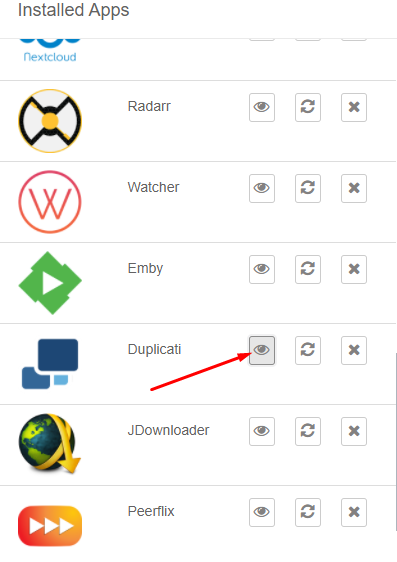
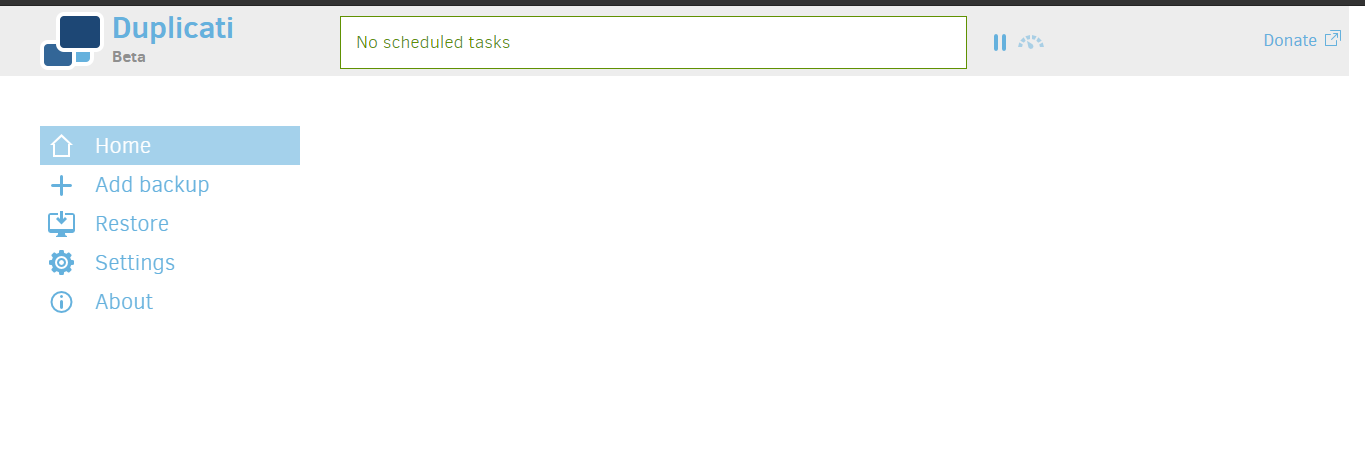
A Blank dashboard will appear like this:
Creating first backup using Duplicati
#
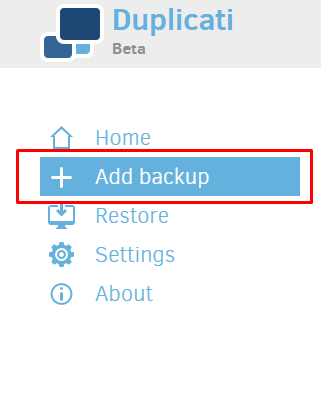
단계 1: 클릭하세요: the Add backup 버튼
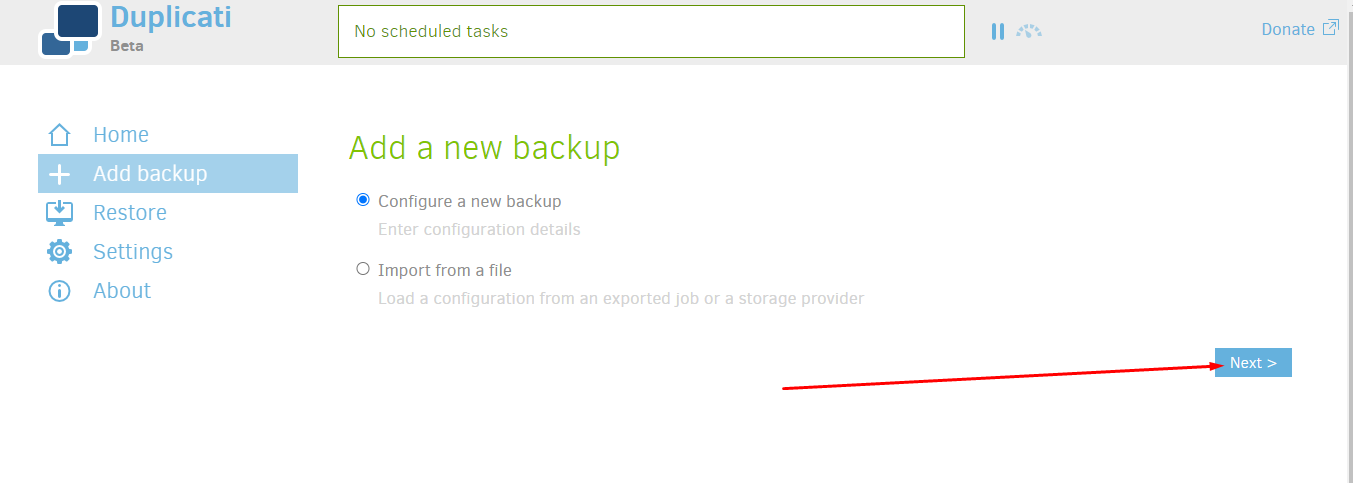
단계 2: 선택 구성 a new backup and click on the next 버튼
단계 3: Name you backup and generate your Passphase.
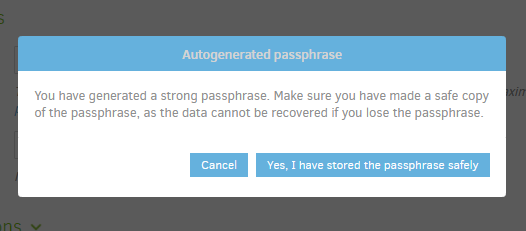
참고: keep you passphrase secure as it is the key to decrypt your backup.
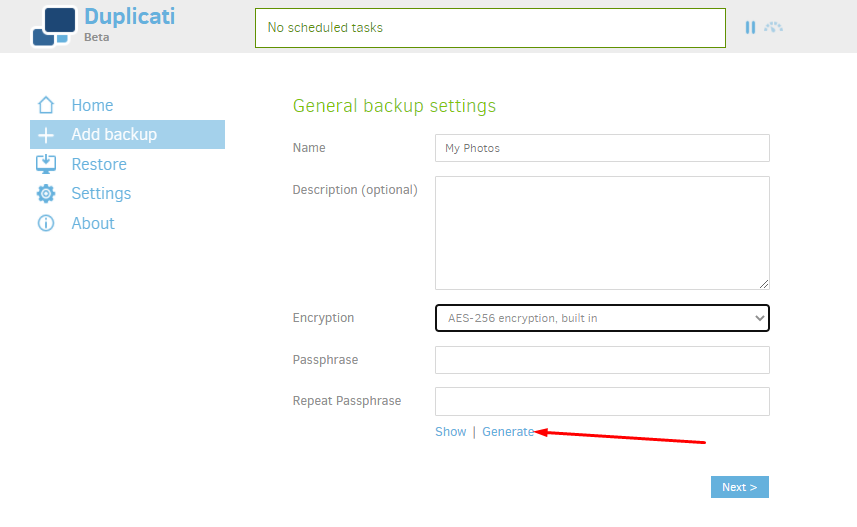
Once you click on generate, a passphrase will appear, note it down somewhere with you and click on the next 버튼.
Step 4: 선택 backup destination. By default it is 당신의 Seedbox but yu can find many options in the drop-down menu.
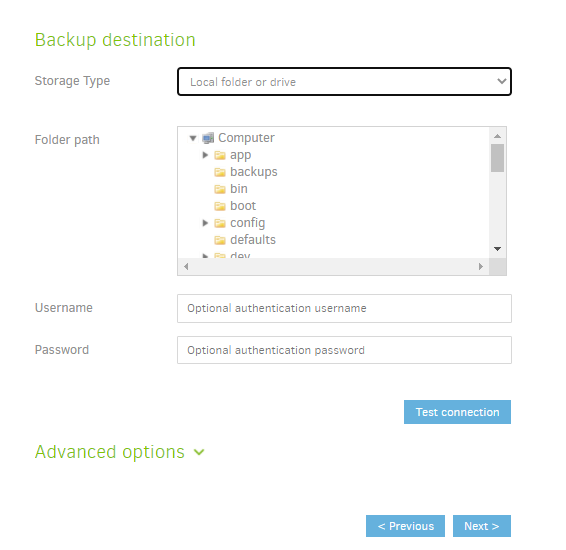
After filling in all the required details like path, 사용자 이름 and 비밀번호 (사용 가능 당신의 클라이언트 영역 dashboard) click on the test connection to check.
If successful, 보게 될 것입니다 see a pop-up like this:
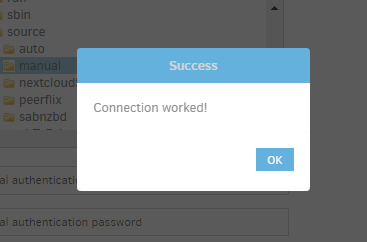
클릭하세요: the next 버튼.
Step 5: Add files to be backed up. These files are fetched from 당신의 Seedbox.
You can use the filter and exclude rule to set backups for particular files in a folder.
Once done, 할 수 있습니다 click on the next 버튼.
Step 6: Schedule your automated backups
Step 7: Add your preference in the general options and click on 저장.
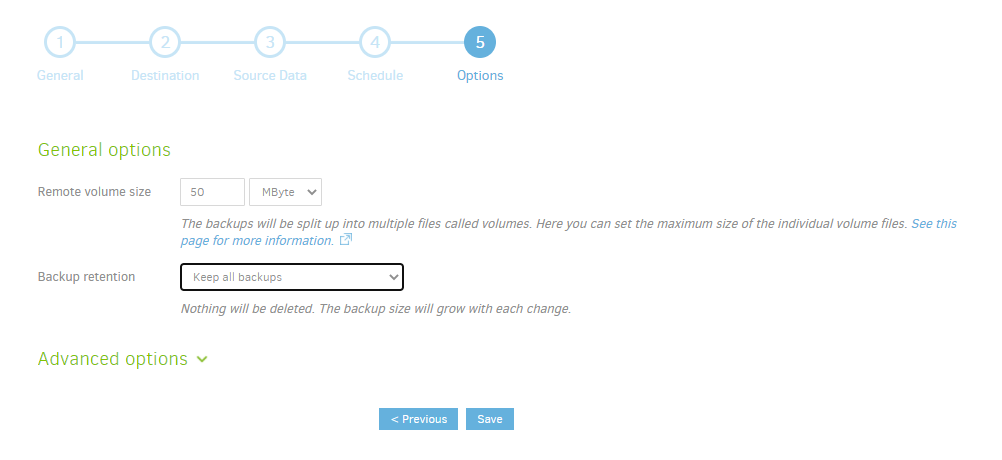
Make sure your passphase is 사용 가능 with you.
Now 할 수 있습니다 see that you backup has been create and visible on the home tab.