The seedbox control dashboard is the place from where 할 수 있습니다 access 당신의 Seedbox. You can add/ remove apps, use rutorrent , monitor 당신의 Seedbox.이 문서를 통해 we’ll guide you how to use seedbox dashboard.
- You can access your dashboard using the link and 비밀번호 provided in the Welcome to Evoseedbox email.
로그인 창은 아래에 표시됩니다:
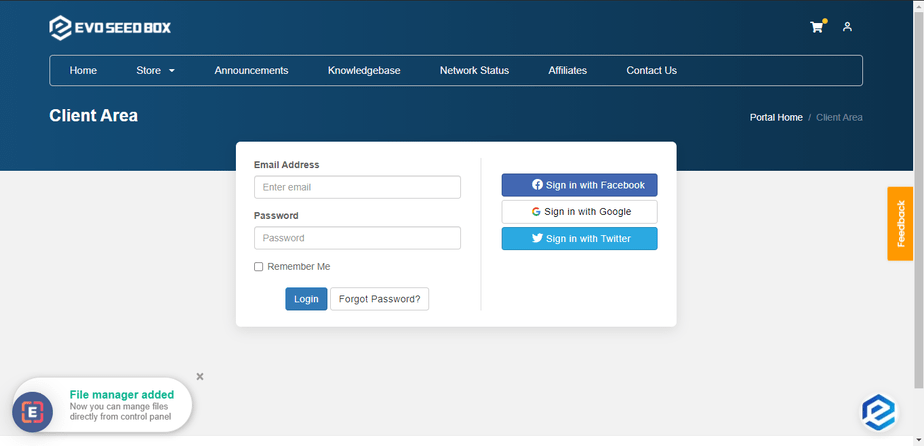
Enter your login 자격 증명 as provided in the email and press on log-in
성공적인 login, 보게 될 것입니다 see the 클라이언트 영역 where 할 수 있습니다 see the overview of your account. Details like a number of services, product quotes, support tickets opened, and invoices provided in the 클라이언트 영역.
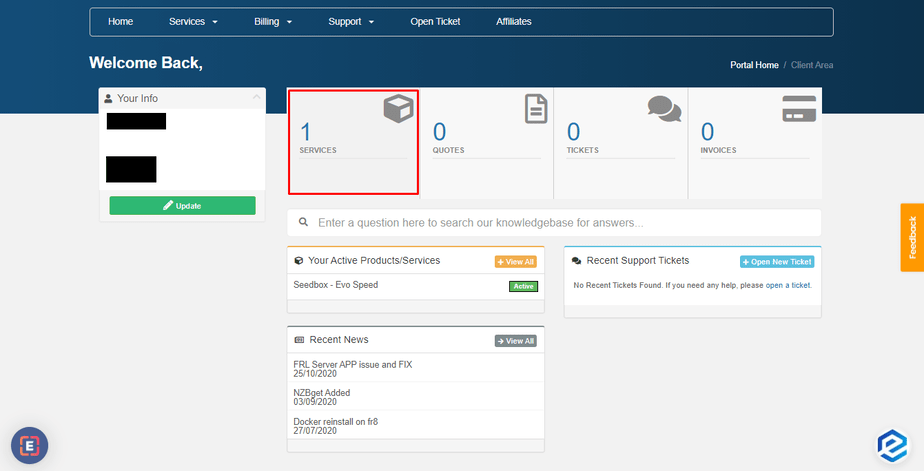
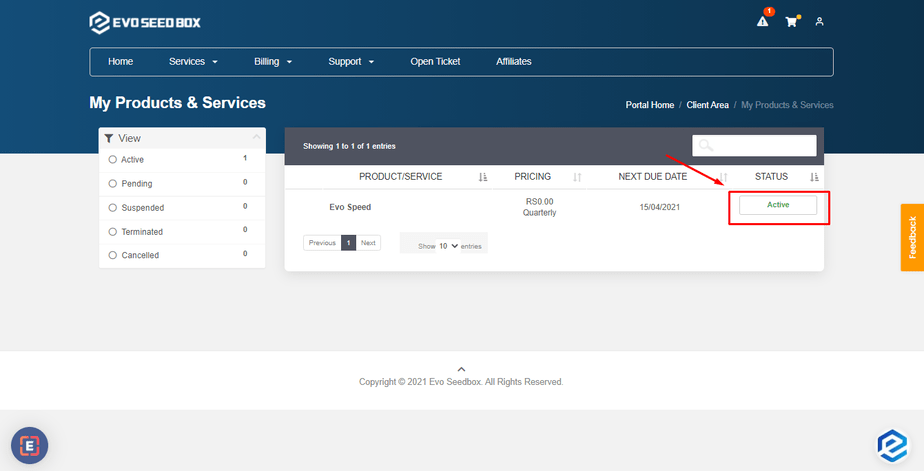
클릭하세요: the services tab to open the currently 사용 가능 services and click on the service status to open the desired service.
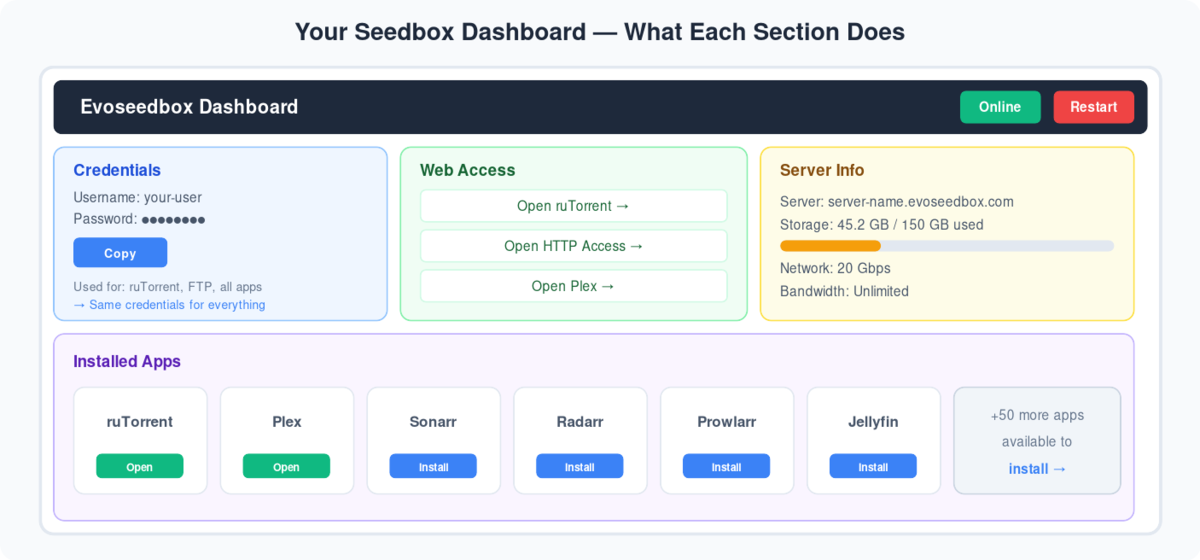
The next window that you see is the dashboard of 당신의 Seedbox where 할 수 있습니다 look and access various details 당신의 plan to the HDD quota and other useful information
- 업로드 data limit details.

- Setting up Electorrent – Guide to setup electorrent 당신의 PC connected to rutorrent on the seedbox so that 할 수 있습니다 manage your torrents without explicitly accessing rutorrent.

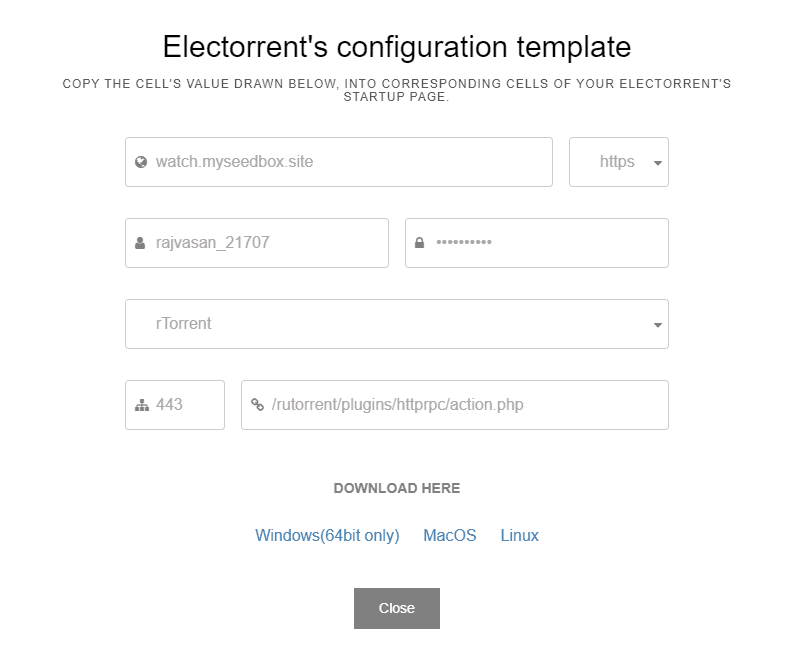
- Accessing your control panel.
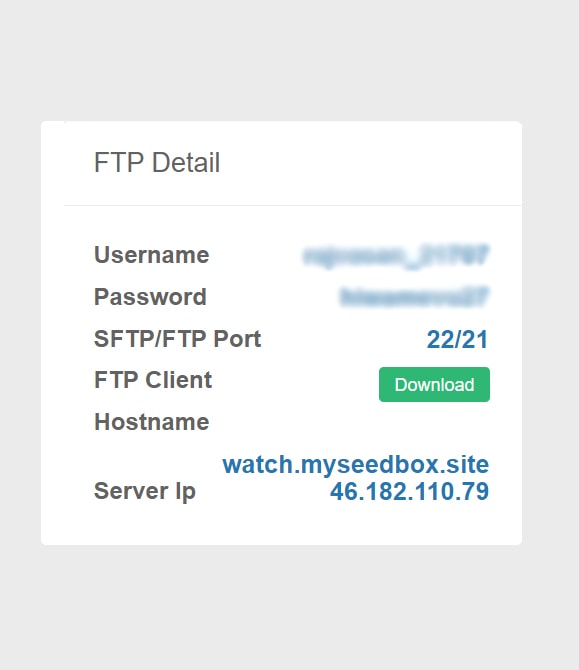
- FTP details
- Username
- Password
- SFTP/FTP port
- FTP client – You can download LFTP client for seedbox access by clicking on the download 버튼.
- Hostname
Ru-torrent
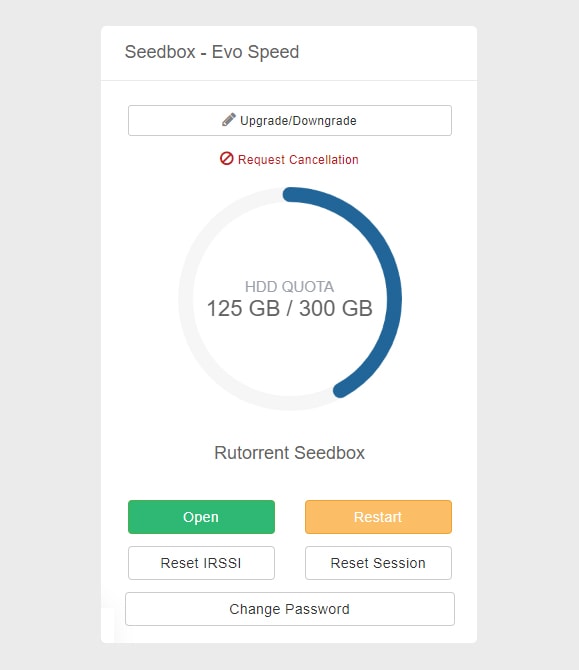
- Upgrade/Downgrade – Used for plan upgrade and downgrade.
- HDD Quota – Gives details about the current HDD usage.
- 열기/ 재시작 rutorrent
- 재설정 IRSSI – Used for any error pertaining to torrent download
- 재설정 Session – 재설정s rutorrent which clears currently added torrents
- Change Password – Used for resetting Rutorrent 비밀번호.
- Web Access:It 제공합니다 all the methods by which 할 수 있습니다 access the 파일 the seedbox 컴퓨터에서 직접.
- File Manager – 열기s file gator 파일 관리자
- Direct HTTP access – Provides direct browser-based HTTP access to 당신의 Seedbox.
- Direct FTP access – Provides FTP client-based access to 당신의 Seedbox. In our current plans, Filezilla and lftp(Winscp) are being offered.
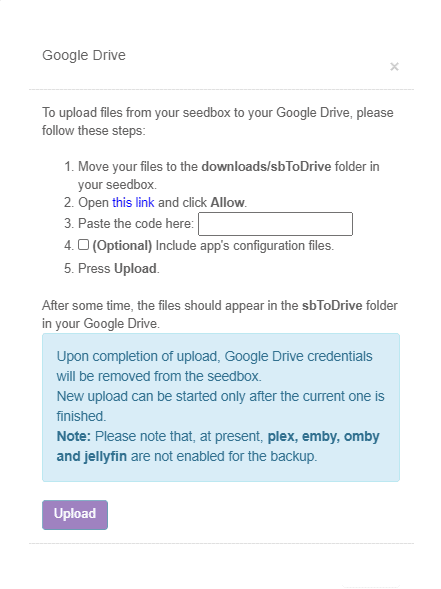
- Google Drive: This 버튼 is used o setup google drive for uploading files from seedbox 당신의 google drive.
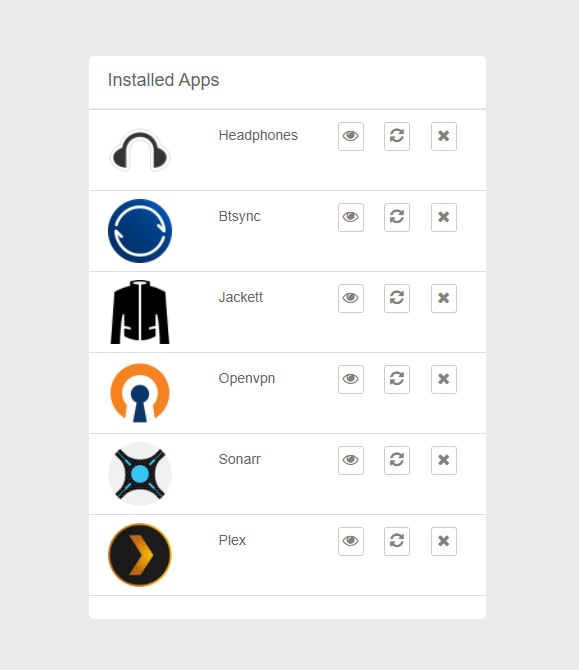
설치ed Apps: It lists and 제공합니다 access to the installed apps.You can 또한 restart and remove 앱s from this section itself.
Help/Knowledge Base: 열기s the starters guide to Evoseedbox. It gets you along with the basics of rutorrent , Apps Tutorials, and common error fixes.

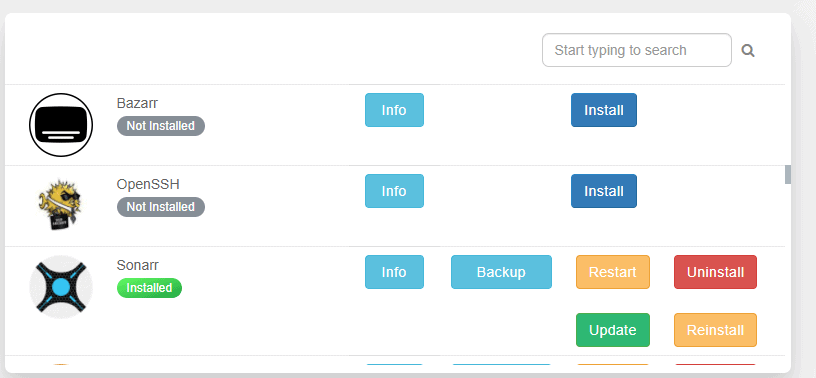
Apps Section: It 제공합니다 all 앱s 사용 가능 당신의 plan and 할 수 있습니다 install any app with one-click.You can 또한 search for an using the search section. It 또한 has options to install, reinstall, and uninstall 앱 while keeping the config and removing the existing config.
You can 또한 update 앱 from here just with one-click. 만약 want to back-up the existing config 할 수 있습니다 do so by clicking on the back-up option.
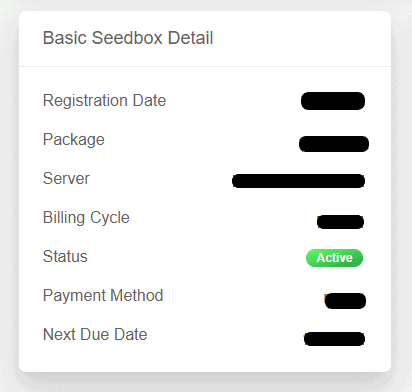
Basic Seedbox details:
- Registration Date
- Package
- Server
- Billing cycle
- Status
- Payment method
- Next due date
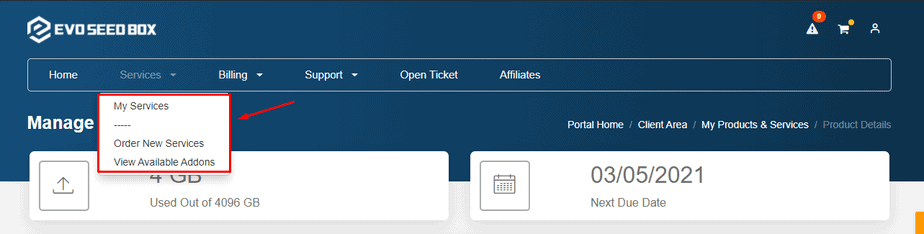
Services Tab: It lists all the services 사용 가능 and 할 수 있습니다 또한 order new services from here.
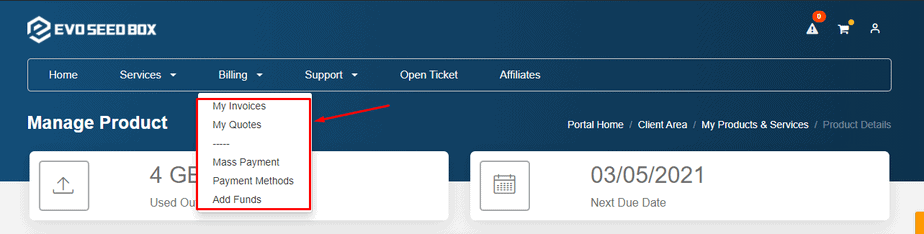
Billing Tab: It 제공합니다 details of all the invoices, your quotes, mass payment and payment methods. You can 또한 add funds from here.
Support Tab : From this tab 할 수 있습니다 see the status of all the tickets raised .See the latest announcements and refer to our knowledge base for guidance. You can 또한 see the network status and downloads.
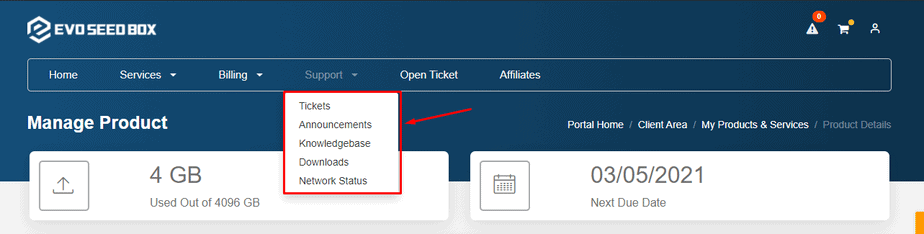
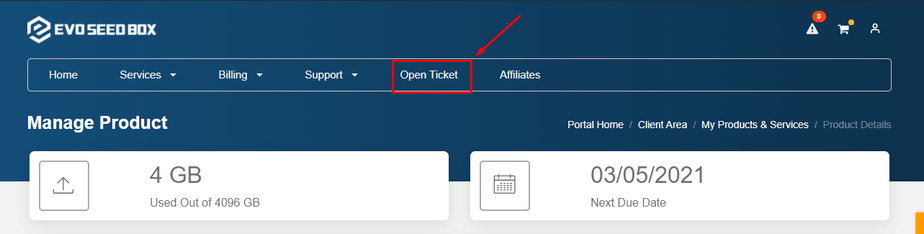
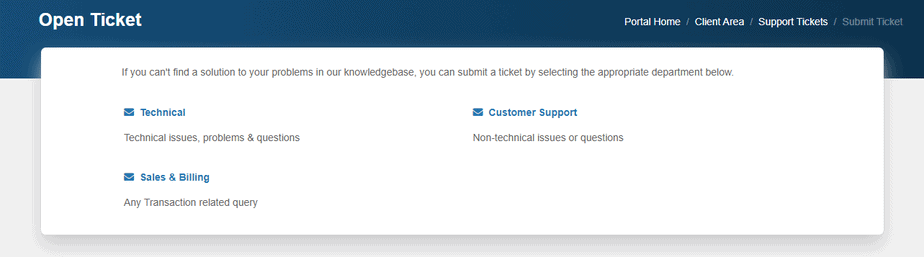
열기 Ticket: From here 할 수 있습니다 raise a ticket if you have any technical issue or a billing related query or a general customer support query.